Remove Sunglasses from Photo
Reveal the eyes hidden behind sunglasses with one text description.

Type 'remove the sunglasses and reveal natural eyes with realistic skin tone' and EditThisPic's AI reconstructs the hidden eye area in 25-45 seconds. No manual tracing or selection tools required. The AI generates realistic eyes, eyelids, and eyebrows where the dark lenses were, matching your face's natural features. Works on aviators, wayfarers, oversized frames, and sport sunglasses. Free to try, no account needed.
How it works
Upload your photo
Drop your image into EditThisPic. JPG, PNG, WebP up to 7MB. Front-facing photos with good lighting produce the most realistic eye reconstruction. The AI needs to see enough of the face to match skin tone and features.
Describe what you want
Type your instruction: 'remove the sunglasses and show natural eyes underneath' or 'take off the sunglasses and reveal realistic eyes matching my face.' Be specific about what you want to see. No marking needed - the AI automatically identifies sunglasses and understands they need to be replaced with eyes.
Copy one of these to get started:
remove the sunglasses and reveal natural-looking eyes with realistic skin tone where the frames were
remove the aviator sunglasses and show natural eyes, reconstruct the nose bridge area cleanly
remove the large sunglasses and generate realistic eyes and eyebrows underneath, match face proportions
remove sunglasses and reveal blue eyes with natural eyelids and eyebrows
4 more prompts
remove the mirrored sunglasses including reflections and show natural eyes looking at camera
remove the sport sunglasses and reveal natural eyes, clean up the wrap-around frame area on temples
remove the sunglasses and enhance the eyes visible through the lenses, show them naturally without obstruction
remove sunglasses and reveal warm, friendly eyes for a dating profile photo
Review the generated eyes
Examine the reconstructed eye area carefully. Check that eyes look natural and proportionate, eyelids have realistic shape, eyebrows are consistent with the rest of the face, and skin tone matches seamlessly. Look for any artifacts around the former frame edges or temple areas.
Refine specific areas if needed
If certain areas need improvement - perhaps the eyebrows don't quite match or there's a skin tone transition issue - tap markers on those specific spots and regenerate. You might also refine the nose bridge where frames left shadows.
Download your result
Once satisfied with the natural-looking eyes, download your edited photo. The result works for dating profiles, professional photos, passport applications, and any use where visible eyes matter.
"Had the perfect beach photo ruined by sunglasses. Removed them in one try and now you can actually see my face!" @sunny_tara_k
See it in action
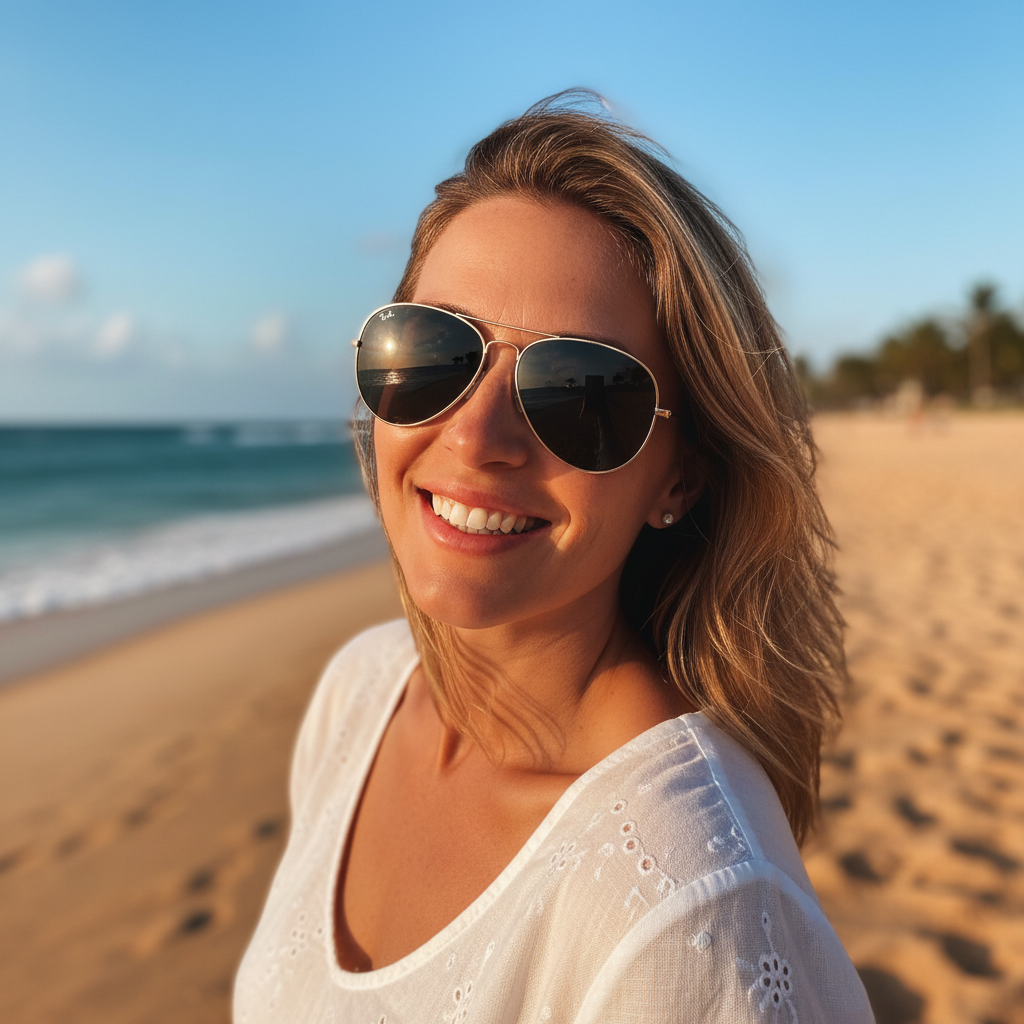
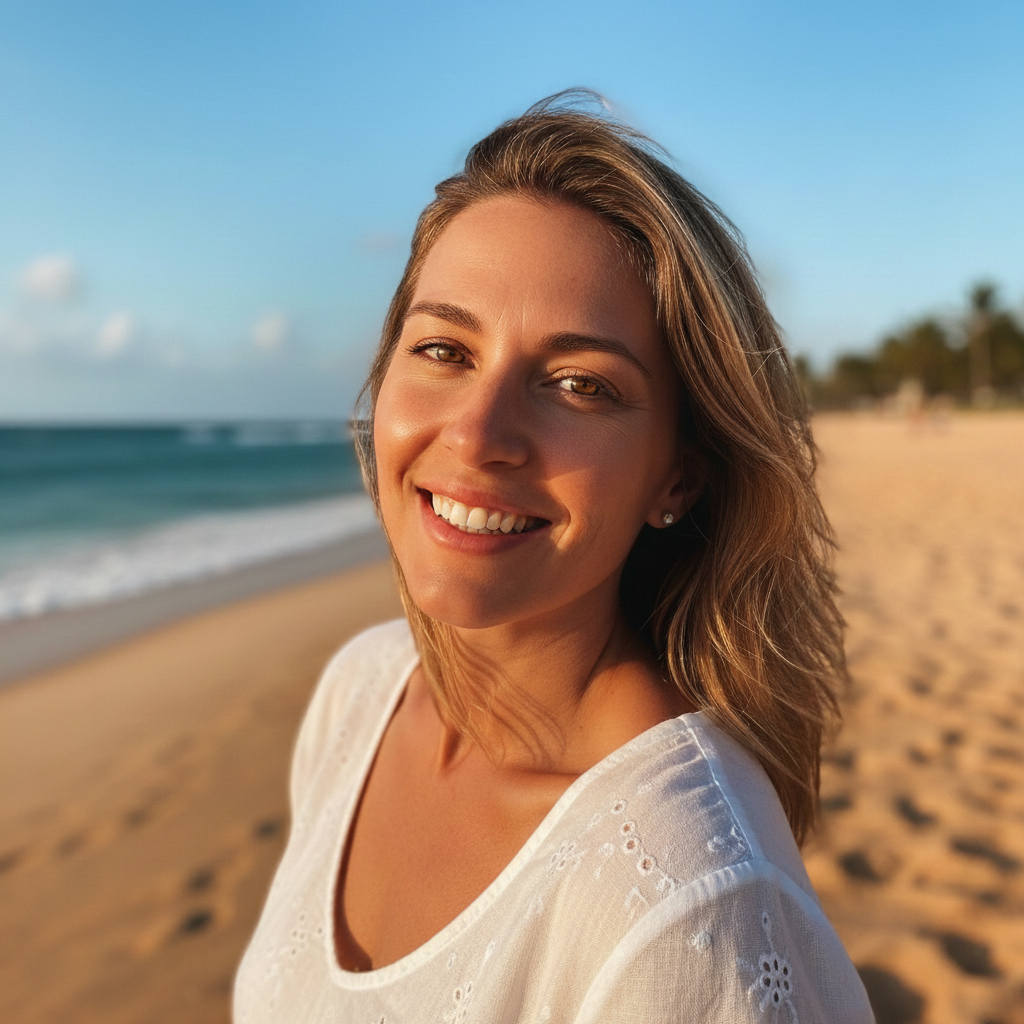
Beach vacation photo with aviators
Classic vacation photo ruined by sunglasses hiding the face. AI removed the aviators and generated natural-looking eyes that match the subject's features.
remove the sunglasses and reveal natural-looking eyes with realistic skin tone where the frames were
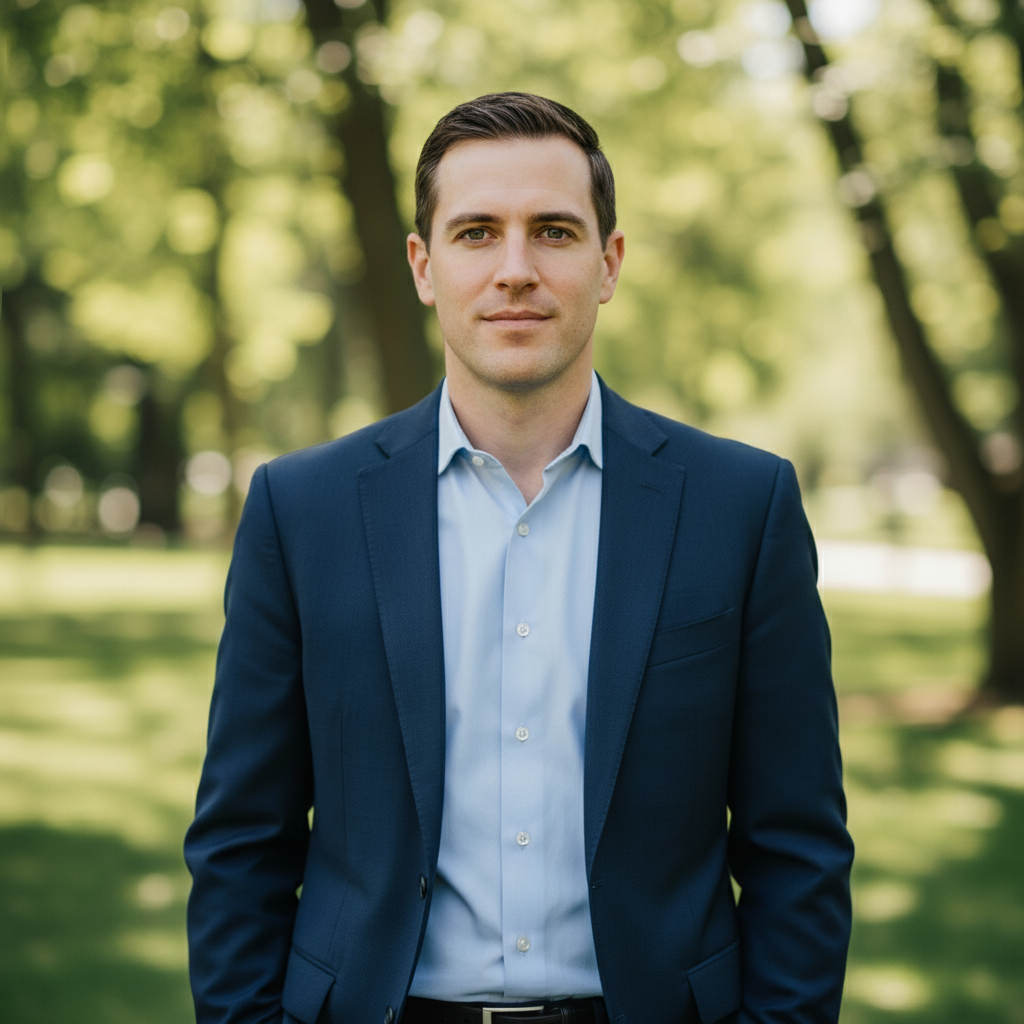
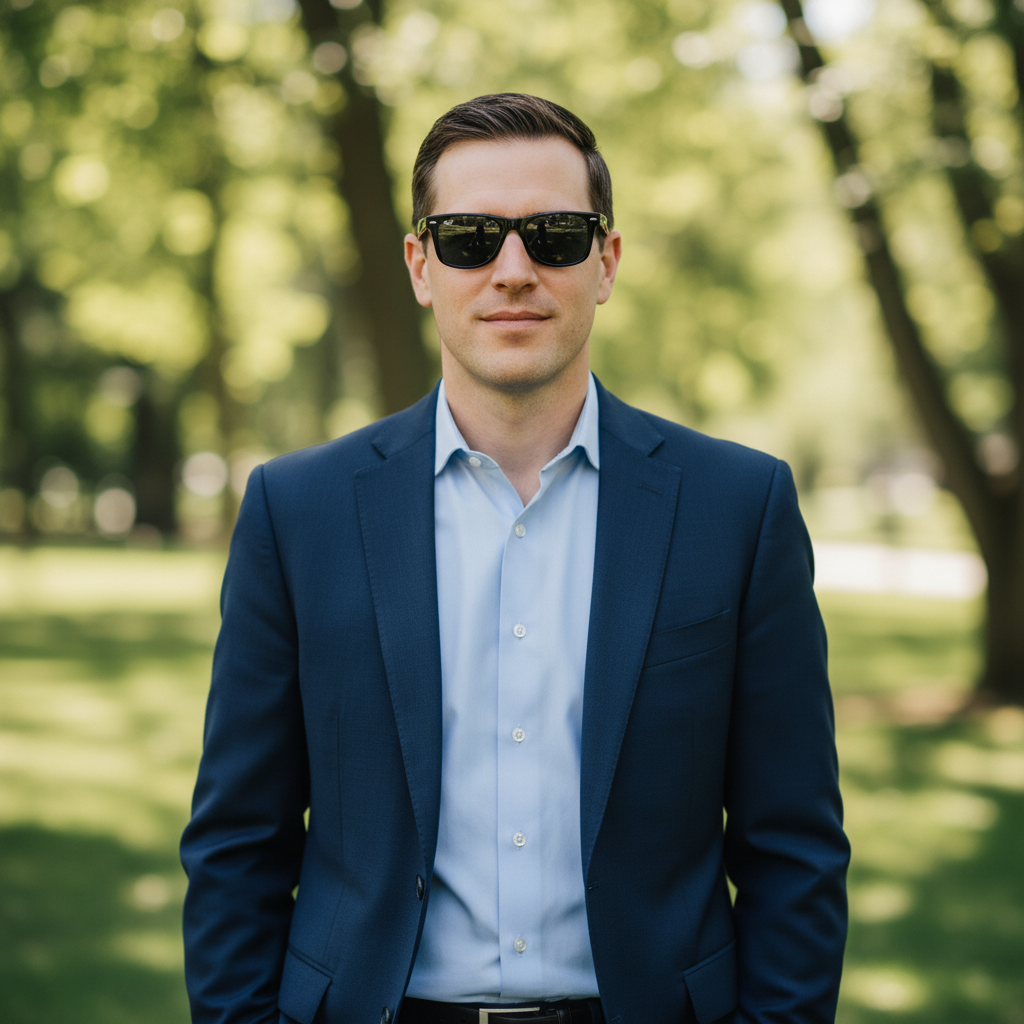
Professional outdoor headshot
Outdoor corporate headshot where sunglasses were worn due to bright conditions. AI revealed professional-looking eyes for LinkedIn.
remove the sunglasses and show natural eyes looking at camera, blend skin tone seamlessly
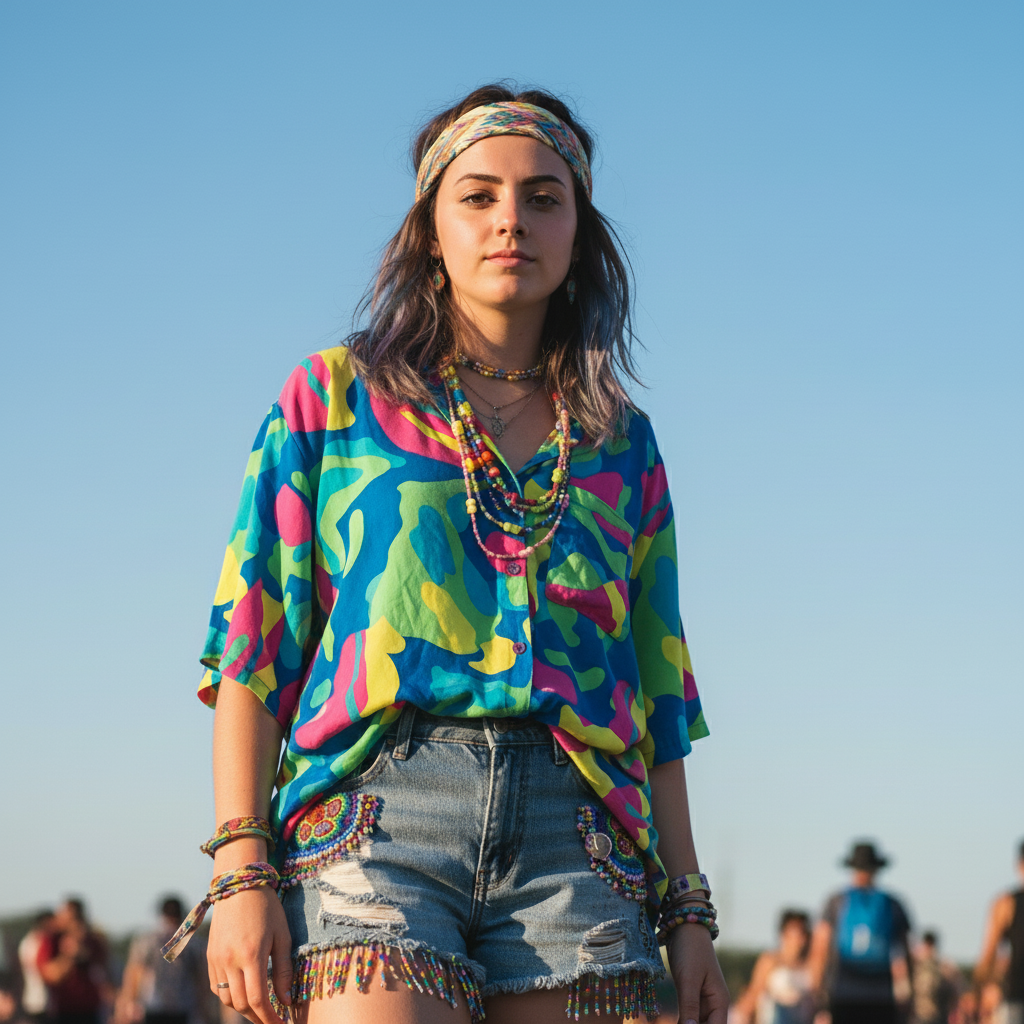
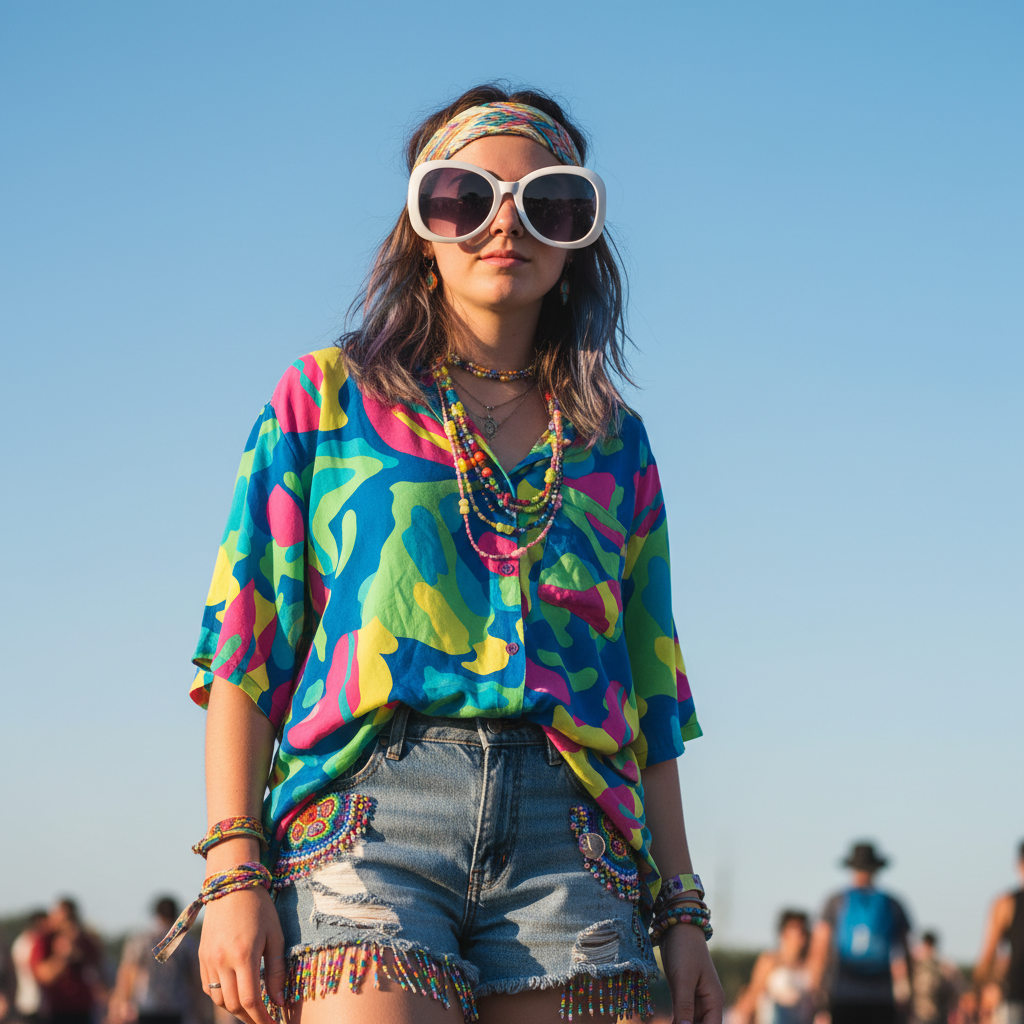
Festival photo with oversized frames
Fun festival photo but the oversized sunglasses hid too much face. AI reconstructed eyes and partial eyebrows hidden by the large frames.
remove the large sunglasses and generate realistic eyes and eyebrows underneath, match face proportions
If something looks off
Generated eyes look unrealistic or like a different person
Why: With dark lenses hiding the eyes completely, the AI had to generate eyes from scratch based on limited facial context. Results can vary.
remove sunglasses and generate natural eyes that match the face's ethnicity and features, use [specify eye color] eyes
💡 Specifying eye color, skin tone context, or ethnicity helps the AI generate more appropriate eyes.
Eye size or spacing looks wrong
Why: The AI estimated eye proportions based on face shape, but got the sizing or positioning slightly off.
remove sunglasses and show proportionally-sized eyes that fit the face naturally, centered properly
💡 Front-facing photos with symmetrical poses give the AI better proportional references.
Eyebrows missing or look strange
Why: Large sunglasses often cover part of the eyebrows, and the AI may not have reconstructed them fully.
remove sunglasses and show complete natural eyebrows along with the eyes
💡 Always mention eyebrows when removing oversized frames that cover them.
AI changed the wrong area or something I didn't want changed
Why: The AI couldn't determine exactly which area you meant from description alone. This happens with ambiguous requests.
Tap a marker on the specific area you want to change, then regenerate with the same prompt
💡 Markers tell the AI 'I mean THIS one specifically.' Use them when description alone is ambiguous.
Skin tone mismatch around eye area
Why: The skin behind sunglasses may have different coloring than sun-exposed areas, creating a tan line effect.
remove sunglasses and blend the eye area skin tone to match the rest of the face evenly
💡 Mention 'even skin tone' or 'seamless blending' to avoid the tan line effect.
Residual frame shadows on nose or temples
Why: Sunglasses cast shadows and leave marks that may persist after removal.
Tap markers on shadow areas: 'remove all traces of sunglasses including shadows on nose and temples'
💡 The nose bridge and temple areas where frames touched often need targeted cleanup.
Gaze direction or expression seems off
Why: The AI generated eyes looking in a slightly different direction than the original pose suggested.
remove sunglasses and show eyes looking directly at camera with natural relaxed expression
💡 Specify gaze direction if it matters - 'looking at camera' or 'looking slightly to the right.'
Quick answers
Do I need to mark the sunglasses before describing?
No! Just describe what you want: 'remove the sunglasses and reveal natural eyes.' The AI automatically recognizes sunglasses and understands they need to be replaced with eyes. Only use markers if specific areas like the nose bridge or temples need extra refinement after the first attempt.
Will the revealed eyes look like my actual eyes?
The AI generates realistic eyes based on your face's features, skin tone, and visible characteristics, but they won't be your exact eyes since those are completely hidden. The results look natural and consistent with your face. If you specify your eye color, the results will be more accurate.
Can this work for passport or ID photos?
Yes, this is a common use case. Many people only have photos with sunglasses but need visible eyes for official documents. Use a prompt like 'remove sunglasses and show clear, visible eyes for an official photo.' Verify the result meets your country's specific photo requirements.
What about mirrored or very dark lenses?
The AI handles all lens types equally well since it generates eyes rather than revealing hidden ones. Mirrored lenses with strong reflections work just as well as standard dark lenses. The AI ignores the reflection patterns and creates natural eyes.
Can I remove sunglasses from multiple people in one photo?
Yes, but for best results, process one person at a time. Say 'remove sunglasses from the person on the left' or tap a marker on a specific person. Each eye generation is complex, so individual attention produces better results.
Does this work on selfies and vacation photos?
Absolutely. Vacation photos and selfies are the most common use case. Beach photos, outdoor adventures, and sunny-day snapshots often feature sunglasses that hide faces. The AI reconstructs natural-looking eyes to make these photos more personal and shareable.
Ready to reveal those hidden eyes?
Free to try. No signup required.