Free • No signup Open Editor

Remove Hat from Photo

Reveal natural hair by removing hats and headwear with AI.

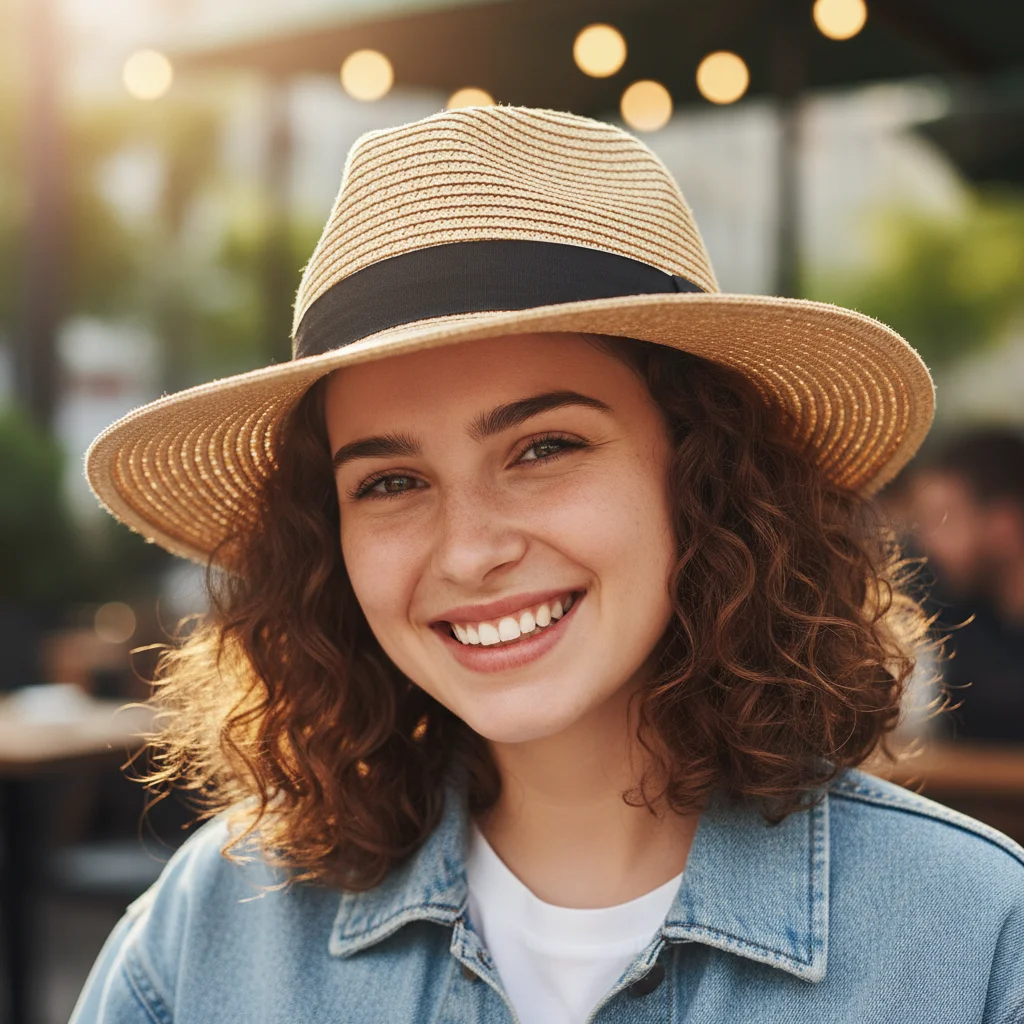
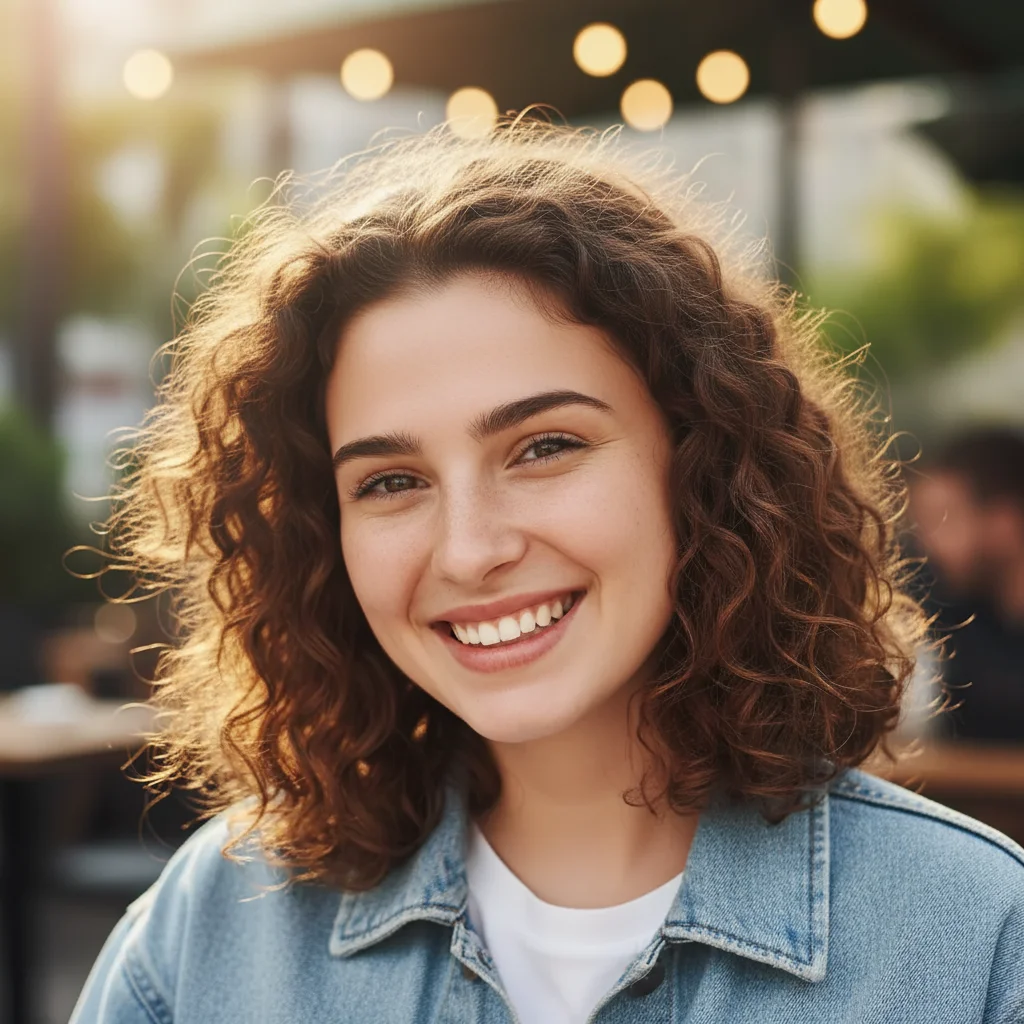
Type 'remove the hat and show natural hair underneath' and EditThisPic's AI handles it in 20-40 seconds. No manual selection needed. Just describe what you want. The AI reconstructs realistic hair where the hat was. Works on baseball caps, beanies, sun hats, and any headwear. Free to try, no account needed.

Man wearing blue baseball cap with brown hair visible at sides
Before
Same portrait with cap removed, full brown hair visible
After

How it works

1

Upload your photo

Drop your portrait into EditThisPic. JPG, PNG, WebP up to 7MB. Photos where some hair is visible around the hat edges give the AI better context for reconstruction.

⏱ Simple caps with visible hairline: 20-30 seconds. Full head coverage hats: may need 2-3 refinements for natural hair.
2

Describe what you want

Type your instruction: 'remove the hat and show natural hair underneath' or 'take off the baseball cap and reveal the hair.' Mention hair color or style if possible. No marking needed - the AI recognizes hats automatically.

💡 Describe the hair you want: 'show brown hair styled back' helps the AI generate more accurate results.

Copy one of these to get started:

Baseball cap or casual hat remove the baseball cap and show natural hair underneath, match the hair color visible around the ears
Beanie or knit cap remove the beanie and reveal natural hair, keep the forehead and hairline looking natural
Sun hat or wide-brimmed hat remove the sun hat and show the full head with natural hair, maintain the same lighting on the face
Professional headshot needed remove the hat for a professional headshot, show neat natural hair appropriate for business portrait
3 more prompts
Specific hair style remove the cap and show short brown hair in a casual style, natural hairline
Hat with visible logo remove the entire hat including the logo, show natural hair where the hat was
Partial hair visible remove the hat and extend the visible hair to cover the full head naturally
3

Review the result

Check the hair area carefully. Verify the hairline looks natural, hair color matches visible hair around the ears, and the forehead-to-hair transition is seamless. Look for any hat shadow remnants.

4

Refine with markers if needed

If the hairline looks unnatural or part of the hat remains visible, tap markers on those spots and regenerate. This is optional for most photos with visible hairlines.

💡 If hair color is wrong, specify the exact color in a follow-up prompt.
Try it free
"Needed a professional headshot but only had casual photos with my cap. Removed it and my hair looks completely natural!" @mike_jobseeker

See it in action

Man wearing blue baseball cap with brown hair visible at sides
Before
Same portrait with cap removed, full brown hair visible
After

Baseball cap removed for headshot

Casual photo needed for LinkedIn. AI removed the cap and generated professional-looking hair.

Prompt: remove the baseball cap and show natural hair underneath, match the hair color visible around the ears
Woman wearing red beanie with blonde hair at sides
Before
Same portrait with beanie removed, full blonde hair visible
After

Winter beanie removed

Needed a hatless photo from winter vacation. AI revealed natural hair under the beanie.

Prompt: remove the beanie and reveal natural hair, keep the forehead and hairline looking natural
Person wearing wide straw sun hat at beach
Before
Same portrait with sun hat removed, natural dark hair visible
After

Sun hat for formal photo

Beach photo converted for passport application. AI removed the hat and reconstructed the hair naturally.

Prompt: remove the sun hat and show the full head with natural hair, maintain the same lighting on the face

If something looks off

Hair looks artificial or wrong color

Why: The AI had limited visible hair to reference and guessed incorrectly about color or texture.

Try: remove the hat and show [specific color] hair in [specific style], natural-looking

💡 Be specific about hair color (dark brown, blonde, black) and style (short, wavy, straight).

Hairline looks unnatural or too low/high

Why: The AI had to generate a hairline without clear reference, making educated guesses about placement.

Try: remove hat and create natural hairline at appropriate height for this face shape

💡 If the hairline is wrong, try describing it: 'receding hairline' or 'full hairline'.

AI changed the wrong area or something I didn't want changed

Why: The AI couldn't determine exactly which area you meant from description alone. This happens with ambiguous requests.

Try: Tap a marker on the specific area you want to change, then regenerate with the same prompt

💡 Markers tell the AI 'I mean THIS one specifically.' Use them when description alone is ambiguous.

Part of the hat still visible after removal

Why: Hat edges against similar-colored backgrounds may not be fully detected.

Try: Tap markers on remaining hat edges and regenerate: 'remove all traces of the hat'

💡 Mark the specific remaining areas rather than trying to re-describe the whole edit.

Hat shadow on forehead still visible

Why: Shadows cast by hats are separate from the hat itself and may not be automatically removed.

Try: remove the hat and any shadow it cast on the forehead, even skin tone

💡 Mention 'remove shadow' specifically for hats with brims.

Quick answers

Do I need to mark the hat before describing?

No! Just describe what you want: 'remove the hat' or 'take off the cap.' The AI recognizes headwear automatically. Only use markers if edges remain after the first attempt or you need to refine the hairline.

Will the hair look natural after removal?

Results depend on how much hair is visible in the original photo. If some hair shows around the ears or at the back, the AI can match that color and texture well. For complete coverage hats, specify hair color and style for best results.

Can I specify what hairstyle to show?

Yes! Include details in your prompt: 'remove hat and show short brown hair' or 'reveal wavy blonde hair.' The more specific you are about color, length, and style, the better the AI can generate appropriate hair.

What about bald or very short hair?

You can request any result: 'remove hat and show bald head' or 'reveal very short buzzed hair.' Just be specific about what you want to see.

Can I remove hats from group photos?

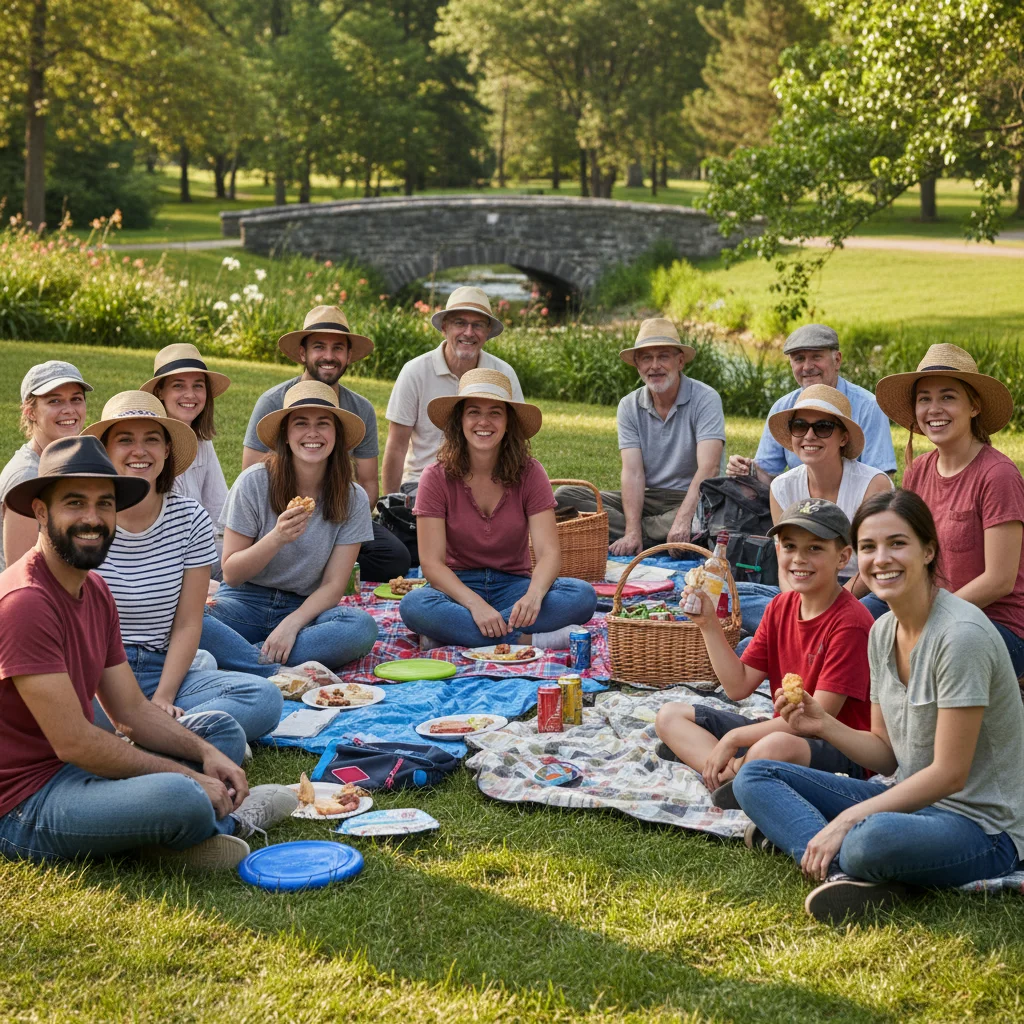
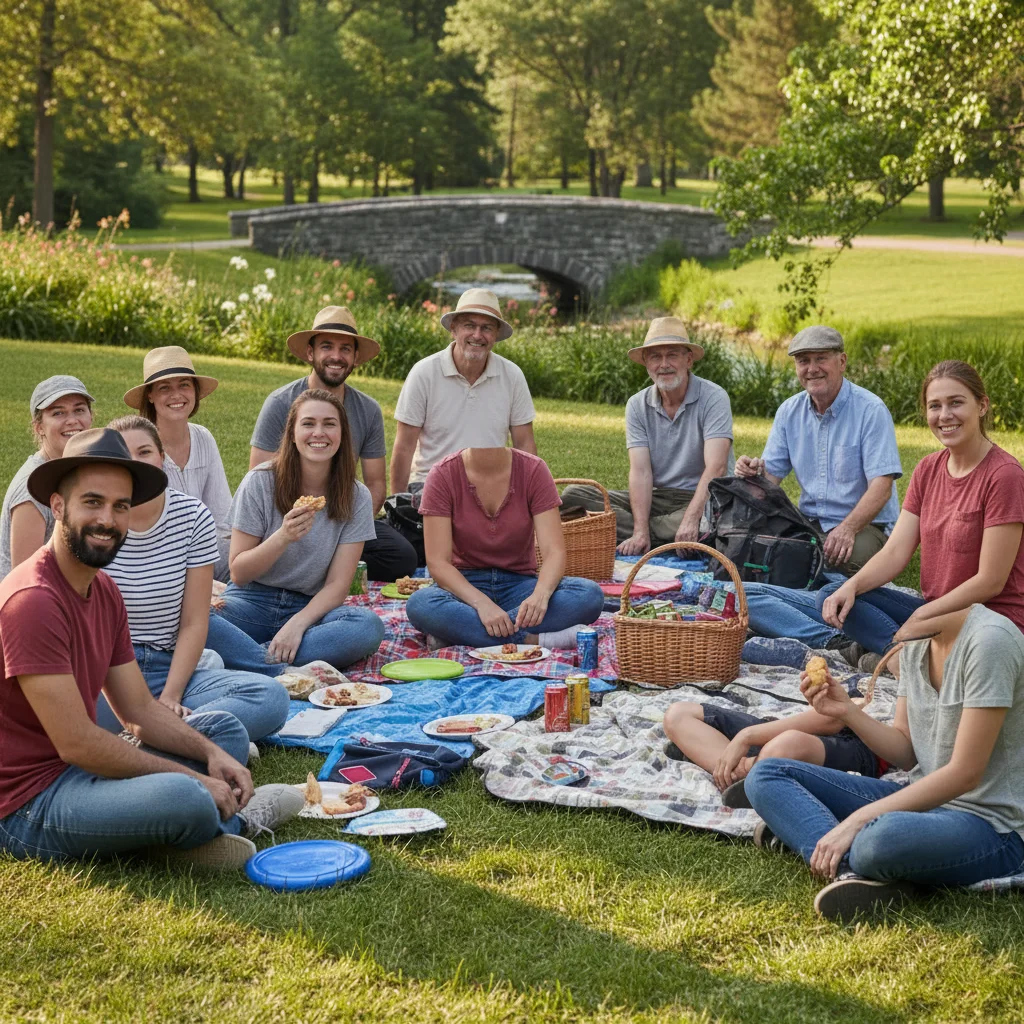
Yes, but specify which person: 'remove the hat from the person on the left' or tap a marker on that person's hat. For multiple hats, remove them one at a time for the best results.

Ready to remove that hat?

Free to try. No signup required.

Try it free