Free • No signup Open Editor

Remove Glasses from Photo

Reveal natural eyes by removing eyeglasses or sunglasses with AI.

Type 'remove the glasses and show natural eyes with realistic skin where the frames were' and EditThisPic's AI handles it in 20-40 seconds. No manual tracing or selection needed. Just describe what you want. The AI reconstructs the eye area and removes frame shadows naturally. Works on eyeglasses, sunglasses, and reading glasses. Free to try, no account needed.

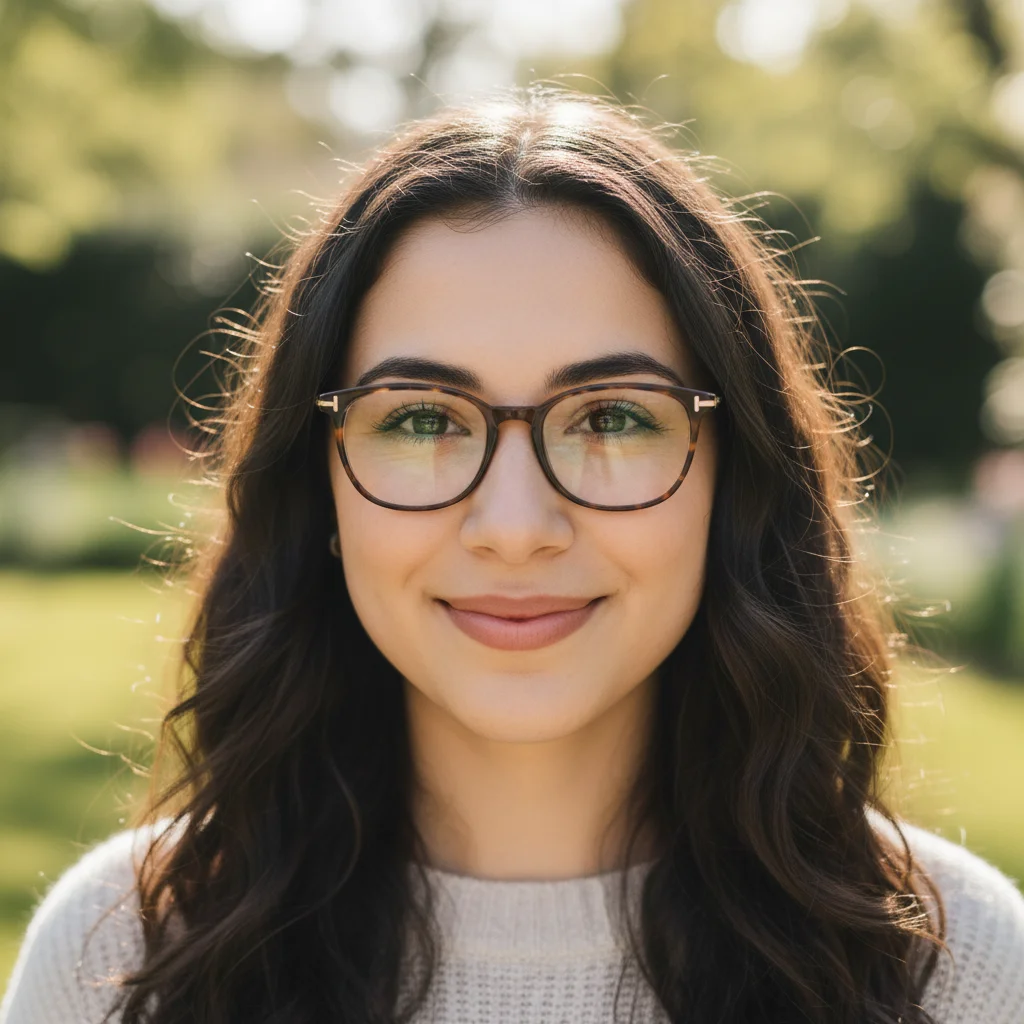
Professional headshot of woman wearing wire-framed glasses
Before
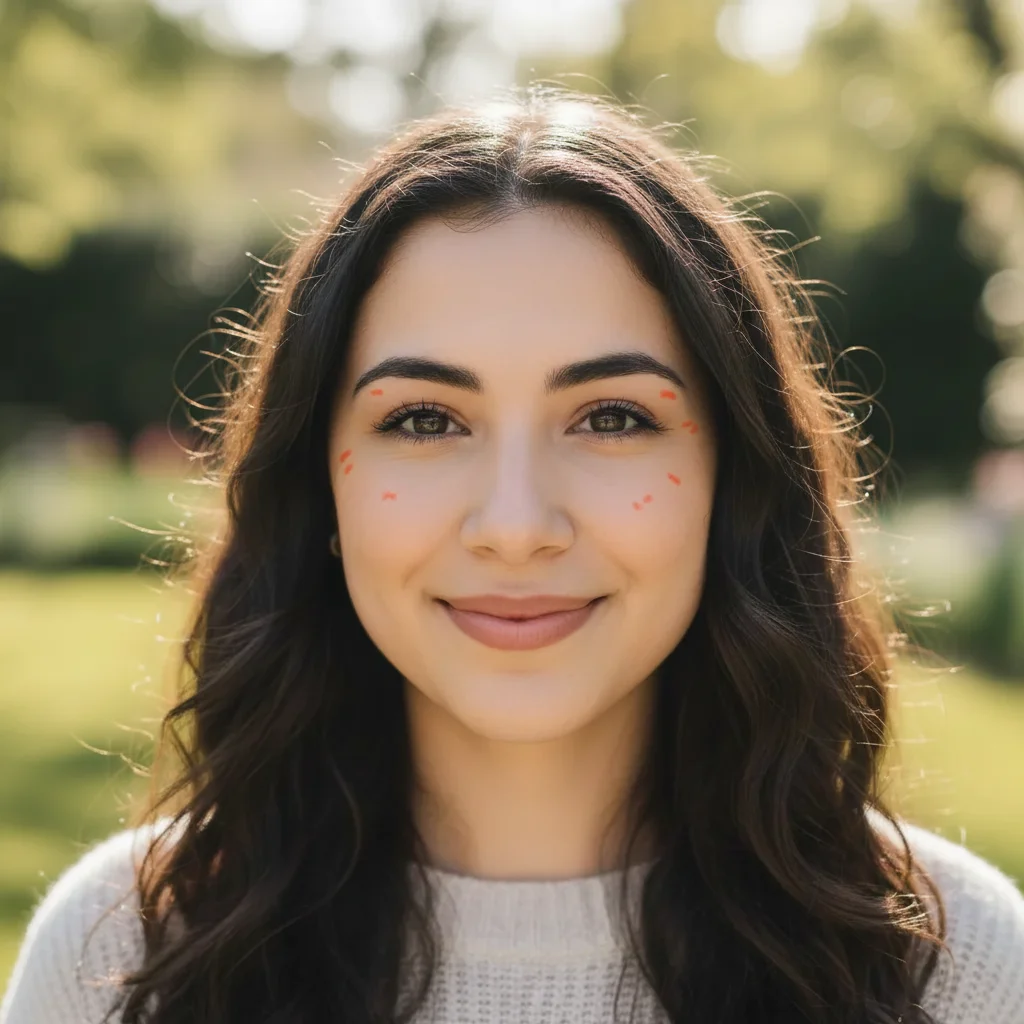
Same headshot with glasses removed, natural eyes visible
After

How it works

1

Upload your photo

Drop your portrait into EditThisPic. JPG, PNG, WebP up to 7MB. Front-facing portraits with clear lighting work best for glasses removal.

⏱ Simple thin-framed glasses: 20-30 seconds. Thick frames or sunglasses: may need 2-3 refinements for natural eyes.
2

Describe what you want

Type your instruction: 'remove the glasses and show natural eyes' or 'take off the sunglasses and reveal the eyes underneath.' Mention skin reconstruction for frame areas. No marking needed - the AI recognizes glasses automatically.

💡 Add 'match surrounding skin tone' to ensure seamless blending where frames touched the nose and temples.

Copy one of these to get started:

Standard eyeglasses removal remove the eyeglasses and show natural eyes with realistic skin where the frames were
Sunglasses removal remove the sunglasses and reveal natural-looking eyes underneath, match the surrounding skin tone
Passport or ID photo remove glasses for official photo, show clear natural eyes and clean face without frame shadows
Glasses with glare or reflection remove the glasses including the lens glare, show natural eyes with proper color and detail
3 more prompts
Thick-framed glasses remove the thick-framed glasses and reconstruct the hidden facial features naturally
Reading glasses at angle remove the reading glasses from the face, show natural eyes looking at the same angle
Keep some features remove only the glasses frames and lenses, keep the eyebrows and natural facial expression
3

Review the result

Check the eye area carefully. Verify natural-looking eyes, proper eyelid shape, and seamless skin where the frames were. Look for any remaining shadows or frame marks on the nose bridge and temples.

4

Refine with markers if needed

If frame shadows remain on the nose or the eyes need more refinement, tap markers on those spots and regenerate. This is optional for most portraits.

💡 Mark the nose bridge area specifically if there are lingering shadows or frame indentations.
Try it free
"Needed a passport photo without glasses. One prompt removed my frames and my eyes look completely natural!" @travel_jen_r

See it in action

Professional headshot of woman wearing wire-framed glasses
Before
Same headshot with glasses removed, natural eyes visible
After

Professional headshot glasses removal

Client wanted a glasses-free version of their LinkedIn photo. AI removed frames and reconstructed natural eyes.

Prompt: remove the eyeglasses and show natural eyes with realistic skin where the frames were
Man wearing dark aviator sunglasses against white wall
Before
Same portrait with sunglasses removed, natural eyes revealed
After

Sunglasses removal for ID photo

Needed a photo without sunglasses for documentation. AI revealed natural eyes underneath.

Prompt: remove the sunglasses and reveal natural-looking eyes underneath, match the surrounding skin tone
Passport photo with thick black-framed glasses
Before
Same photo with glasses removed, clean face for passport
After

Thick-framed glasses for passport photo

Bold frames needed removal for passport requirements. AI reconstructed the face naturally.

Prompt: remove glasses for official photo, show clear natural eyes and clean face without frame shadows

If something looks off

Eyes look artificial or oddly shaped after removal

Why: The AI struggled to reconstruct realistic eyes, especially when glasses had thick frames or dark lenses.

Try: remove glasses and generate natural-looking eyes with proper shape and realistic iris detail

💡 Front-facing photos with good lighting give the AI more context for realistic eye reconstruction.

Shadow or mark remains on nose bridge

Why: Frame indentations and shadows on the nose are common and may not be detected as part of the glasses.

Try: Tap markers on nose bridge shadows and regenerate: 'remove all traces of glasses including nose marks'

💡 The nose bridge often needs a specific mention or marker for complete cleanup.

AI changed the wrong area or something I didn't want changed

Why: The AI couldn't determine exactly which area you meant from description alone. This happens with ambiguous requests.

Try: Tap a marker on the specific area you want to change, then regenerate with the same prompt

💡 Markers tell the AI 'I mean THIS one specifically.' Use them when description alone is ambiguous.

Skin tone mismatch where frames were

Why: The skin under glasses may be lighter or have different texture than surrounding areas.

Try: remove glasses and blend skin tone to match the rest of the face seamlessly

💡 Mention 'match surrounding skin tone' for consistent color across the face.

Eye color or gaze direction looks wrong

Why: With dark lenses or heavy glare, the AI had to generate eyes without clear reference.

Try: remove glasses and show [specify eye color] eyes looking straight ahead naturally

💡 Specify eye color if you know it - this helps the AI generate accurate results.

Quick answers

Do I need to mark the glasses before describing?

No! Just describe what you want: 'remove the glasses' or 'take off the sunglasses.' The AI recognizes eyewear automatically. Only use markers if specific areas like the nose bridge need extra refinement after the first attempt.

Will the eyes look natural after removal?

In most cases, yes. For thin-framed glasses where eyes are visible, results are excellent. For sunglasses or thick frames that hide eyes completely, the AI generates realistic eyes - you may need to specify eye color for best results.

Can I remove glasses for passport or ID photos?

Yes, this is a common use case. Use a prompt like 'remove glasses for official photo, show clear natural eyes.' Make sure the result meets your country's photo requirements for eye visibility and natural appearance.

What about glasses with reflections or glare?

The AI handles lens reflections well. Include 'remove lens glare' in your prompt. The AI reconstructs the eye area based on visible portions and natural eye anatomy.

Can I remove glasses from a group photo?

Yes, but specify which person: 'remove glasses from the person on the left' or tap a marker on that person. For multiple people with glasses, remove them one at a time for best results.

Ready to remove those glasses?

Free to try. No signup required.

Try it free