Free • No signup Remove Sunglasses · Free

AI Sunglasses Remover

Just describe what you want - AI reveals the eyes underneath.

Business portrait with dark sunglasses covering eyes
Before
Professional headshot with sunglasses removed, natural eyes visible
After

Remove Sunglasses from Photo

Drop your photo here

or click to browse

Release to upload

Free • No signup

Advertisement
Popular use cases:
  • professional headshots
  • LinkedIn profile photos
  • dating profile pictures
  • ID photos
  • passport photos
  • resume headshots
  • social media profiles
  • business portraits
  • casual photos

Cost
Free No signup required
Time
Instant results in 15-30 seconds
Works on
Any device - browser, phone, tablet, desktop
Powered by
AI-powered photo editing
Scenario Prompt Time
Standard sunglasses remove the sunglasses and show natural open eyes with appropriate skin tone 25s
Aviators remove the aviator sunglasses and reveal clear eyes matching the person's features 25s
Oversized fashion remove the large sunglasses and show proportional eyes fitting the face shape 30s
Reflective mirrored remove the reflective sunglasses and show natural eyes without glare or reflection 30s

How it works

  1. Upload your photo

    Drop your portrait or selfie into EditThisPic. Works best with front-facing photos where sunglasses are clearly visible. JPG, PNG, WebP up to 7MB.

    Expect: Standard sunglasses removal: 20-30 seconds. Complex reflective or oversized sunglasses: may need 2-3 refinements to perfect eye appearance.
  2. Describe what you want

    Type your instruction: 'remove the sunglasses and show the eyes' or 'eliminate the shades and reveal natural eyes.' No marking needed—the AI understands 'sunglasses' and automatically reveals the eyes underneath while matching skin tone and facial structure.

    Tip: For best results, specify 'natural eyes' or 'open eyes' to guide the AI toward realistic eye reconstruction.

    Copy one of these to get started:

    Basic sunglasses removal remove the sunglasses and show natural open eyes with appropriate skin tone
    Aviator sunglasses remove the aviator sunglasses and reveal clear eyes matching the person's features
    Large oversized sunglasses remove the large sunglasses and show proportional eyes fitting the face shape
    Reflective mirrored sunglasses remove the reflective sunglasses and show natural eyes without glare or reflection
    3 more prompts
    Dark tinted sunglasses remove the dark sunglasses and reveal eyes with natural color and detail
    Sporty wraparound sunglasses remove the sport sunglasses and show natural eyes aligned with the face structure
    Gradient tinted sunglasses remove the gradient sunglasses and reveal eyes with natural lighting and shadows
  3. Generate and review

    Click Generate and watch the AI remove sunglasses while reconstructing natural-looking eyes. Zoom to full resolution to check that eye color, shape, and alignment look natural. The AI infers eye appearance from facial features and skin tone.

  4. Refine with markers if needed

    If the eye shape or position needs adjustment, tap markers on the specific areas and regenerate with a refined prompt like 'adjust eye shape to be rounder' or 'make eyes more open.' This is optional—most removals work on first try.

    Tip: Markers help fine-tune eye appearance, not required. Try your description first before adding markers.
Try it free

Remove Sunglasses from Photo

Drop your photo here

or click to browse

Release to upload

Free • No signup

"Needed a professional headshot but only had photos with sunglasses. This tool revealed my eyes perfectly and looked completely natural." @career_pro

See it in action

Business portrait with dark sunglasses covering eyes
Before
->
Professional headshot with sunglasses removed, natural eyes visible
After

Professional Headshot from Casual Photo

Outdoor photo with dark sunglasses covering eyes. Removed sunglasses to create a professional headshot with natural-looking eyes.

Prompt: remove the sunglasses and show natural open eyes with appropriate skin tone
Beach selfie with reflective aviator sunglasses
Before
->
Beach photo with sunglasses removed, eyes clearly visible
After

Beach Photo Eyes Revealed

Beach selfie with reflective aviators. Removed sunglasses to show eyes while preserving the candid outdoor vibe.

Prompt: remove the aviator sunglasses and reveal clear eyes matching the person's features
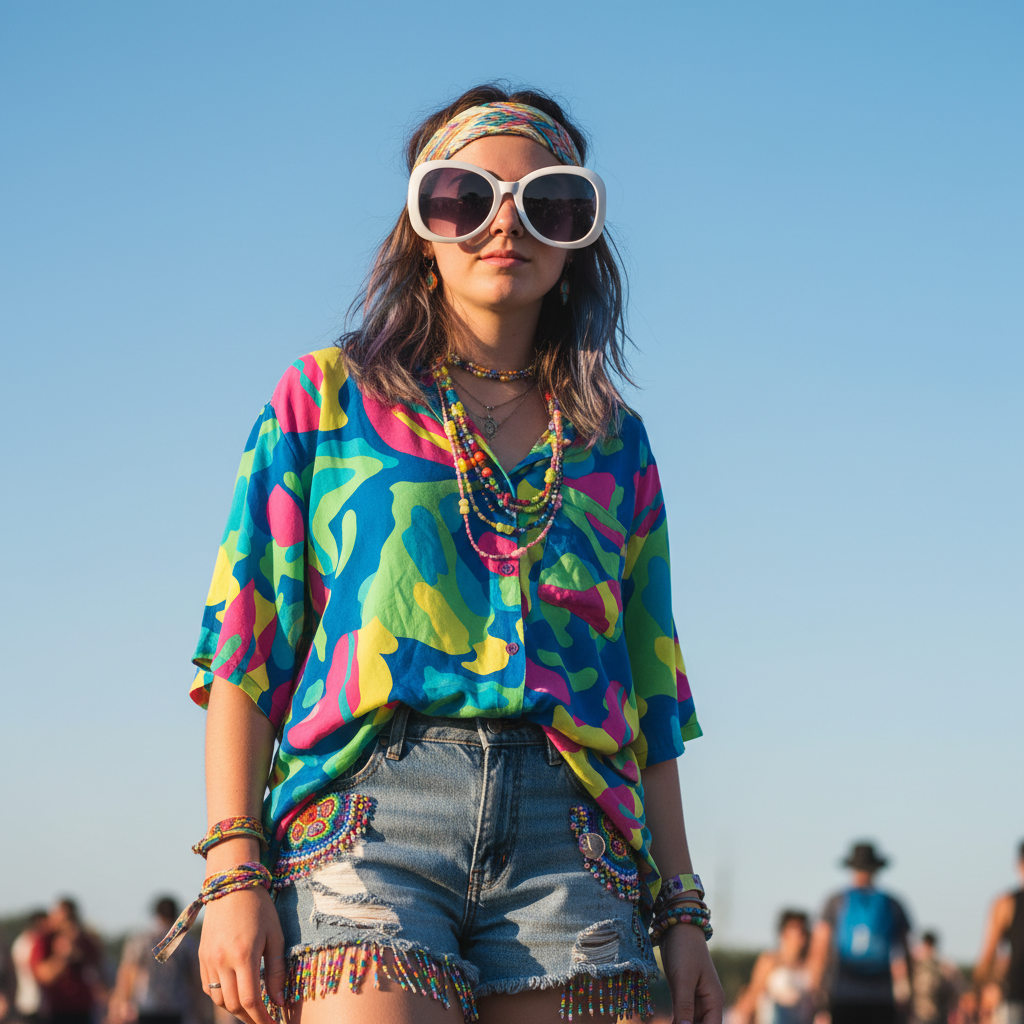
Fashion portrait with oversized sunglasses covering much of face
Before
->
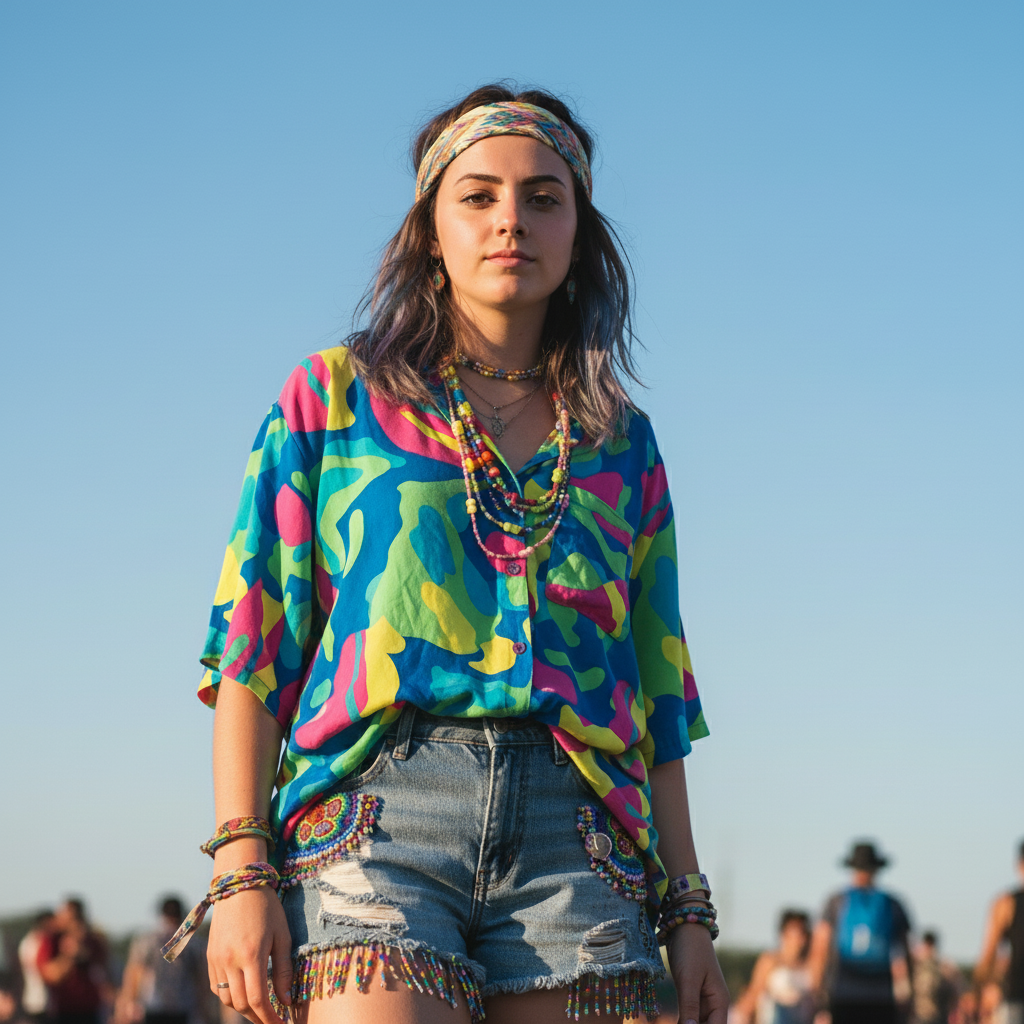
Stylish portrait with sunglasses removed, eyes proportional to face
After

Oversized Fashion Sunglasses Removed

Fashion portrait with oversized designer sunglasses. Removed to reveal eyes while maintaining the stylish aesthetic.

Prompt: remove the large sunglasses and show proportional eyes fitting the face shape
Advertisement

If something looks off

AI changed the wrong area or removed glasses frames instead of just lenses

Why: The AI may interpret 'remove sunglasses' as removing the entire glasses including frames. Or if the person wears prescription glasses underneath, it may confuse the two.

Try: Tap markers on the lens areas specifically, then try: 'replace the dark lenses with clear eyes, keep the frame if needed'

Tip: Be explicit if you want frames gone: 'remove sunglasses completely' versus 'reveal eyes behind sunglasses.'

Revealed eyes look unnatural or mismatched

Why: The AI has to infer eye appearance from limited context. Eye color, shape, or expression may not perfectly match the person's actual eyes.

Try: Specify eye characteristics: 'show brown eyes, almond shape, looking directly at camera' for more control

Tip: If you have another photo of the person without sunglasses, use it as a reference image to guide eye appearance.

Eye position or alignment looks off

Why: The AI may position eyes slightly too high, too low, or not aligned with the nose bridge, especially with oversized or tilted sunglasses.

Try: adjust eye position to align with nose bridge and be centered in the sockets

Tip: Check alignment by looking at the nose bridge - eyes should align naturally with it. Use markers to indicate correct position.

Skin tone around eyes doesn't match the rest of face

Why: Sunglasses create a tan line in real life, but in photos the AI may not perfectly match the concealed skin tone to visible areas.

Try: blend the skin tone around the eyes to match the surrounding face, no tan lines

Tip: Specify 'even skin tone' or 'no tan lines' to ensure consistent coloring across the face.

Eyes look too open, too closed, or wrong expression

Why: The AI inferred eye openness from the face, but may not match the smile intensity or head angle perfectly.

Try: adjust the eyes to show natural expression matching the smile, slightly narrowed for genuine smile

Tip: Real smiles narrow the eyes slightly. If the smile is wide, specify 'eyes slightly squinted from smiling.'

Reflective sunglasses removed but eyes still have glare or odd reflections

Why: The AI saw the mirror lenses and may have incorporated the reflections into the revealed eyes incorrectly.

Try: remove all glare and reflections from the eyes, show natural eyes with no mirror effects

Tip: For very reflective sunglasses, emphasize 'no reflections' or 'clear eyes' in your prompt.

Quick answers

Do I need to mark the sunglasses before describing?

No! Just describe what you want: 'remove the sunglasses and show the eyes.' The AI understands where sunglasses are on faces and removes them automatically. Only use markers if you need to refine eye position or shape after the initial removal.

How do I remove sunglasses from a photo for free?

Upload your photo to EditThisPic, type 'remove the sunglasses and show natural eyes.' The AI processes the edit in 20-30 seconds, revealing eyes that match your facial features and skin tone. No account required, completely free to try, and your result has no watermark.

Is there a free sunglasses remover that doesn't need an account?

Yes. EditThisPic removes sunglasses from photos without requiring signup or login. Just upload, describe what you want, and download your result with revealed eyes. No watermark, no trial limits on the free tier.

What's the best AI tool for removing sunglasses from photos?

EditThisPic specializes in sunglasses removal using AI that reconstructs natural-looking eyes. Unlike simple blur or clone tools, the AI understands facial structure and creates eyes that match your skin tone, face shape, and expression. Works on aviators, wayfarers, oversized, and reflective sunglasses.

Will the revealed eyes look realistic or obviously edited?

The AI infers eye appearance from your facial features, skin tone, and expression. In most cases, the revealed eyes look natural and believable. For best results, use front-facing photos with good lighting. If the first attempt isn't perfect, you can refine eye shape, color, or position with a follow-up prompt.

Ready to remove sunglasses from your photos?

Free to try. No signup required.

Try it free