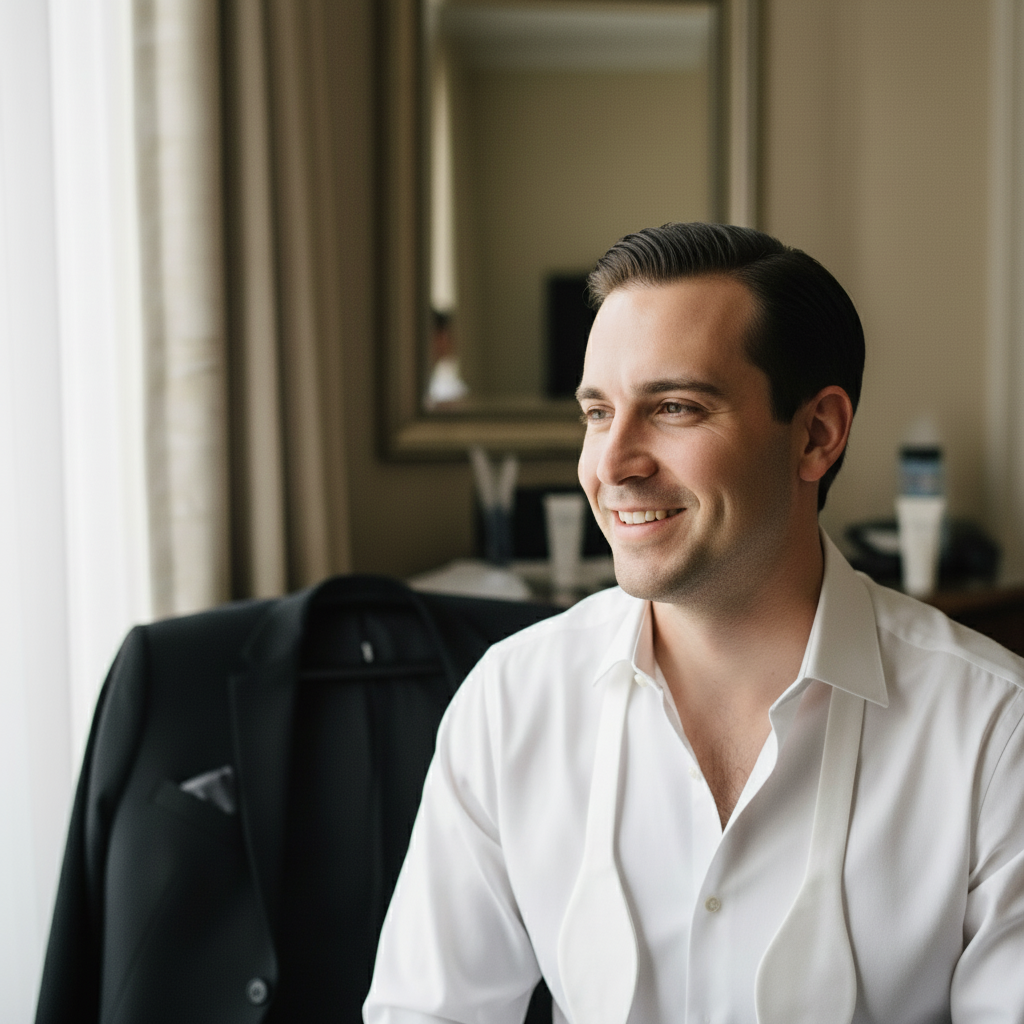
Remove Mustache from Photo
See what you look like clean-shaven without picking up a razor.
Type 'remove the mustache and show clean smooth skin' or 'replace the mustache with natural bare upper lip' and EditThisPic's AI transforms the face in 15-30 seconds. Perfect for previewing a new look or updating photos for professional use. Works on thick, thin, and styled mustaches. Free to try, no account needed.
How it works
Upload your photo
Drop your image into EditThisPic. JPG, PNG, WebP up to 7MB. Front-facing photos with clear visibility of the mustache work best. Good lighting ensures the AI can accurately blend skin tones.
Describe the change you want
Type your instruction: 'remove the mustache and show clean smooth skin' or 'replace the mustache with a natural bare upper lip.' Be specific about the skin texture you want. No marking needed for most mustache removal.
Copy one of these to get started:
remove the mustache and show clean smooth skin, natural appearance
remove the thick mustache completely and replace with clean-shaven upper lip, matching skin tone
remove the thin mustache and show bare upper lip with natural skin texture
show what I would look like without the mustache, clean-shaven natural look
3 more prompts
remove only the mustache but keep the beard intact, smooth upper lip
remove the gray mustache and show natural bare skin matching face tone
remove the mustache stubble and show completely smooth upper lip area
Review the result
Check that the upper lip area looks natural. Verify the skin tone matches surrounding areas and there are no odd shadows or texture differences. Zoom in to check the lip line and philtrum area.
Refine with markers if needed
If some stubble remains visible or skin tone doesn't match perfectly, tap markers on those specific spots and regenerate. A second pass usually perfects any inconsistencies around the edges.
"Wanted to see if I should shave for my interview. This tool showed me exactly what I'd look like. Made my decision so much easier!" @job_hunt_mike
See it in action
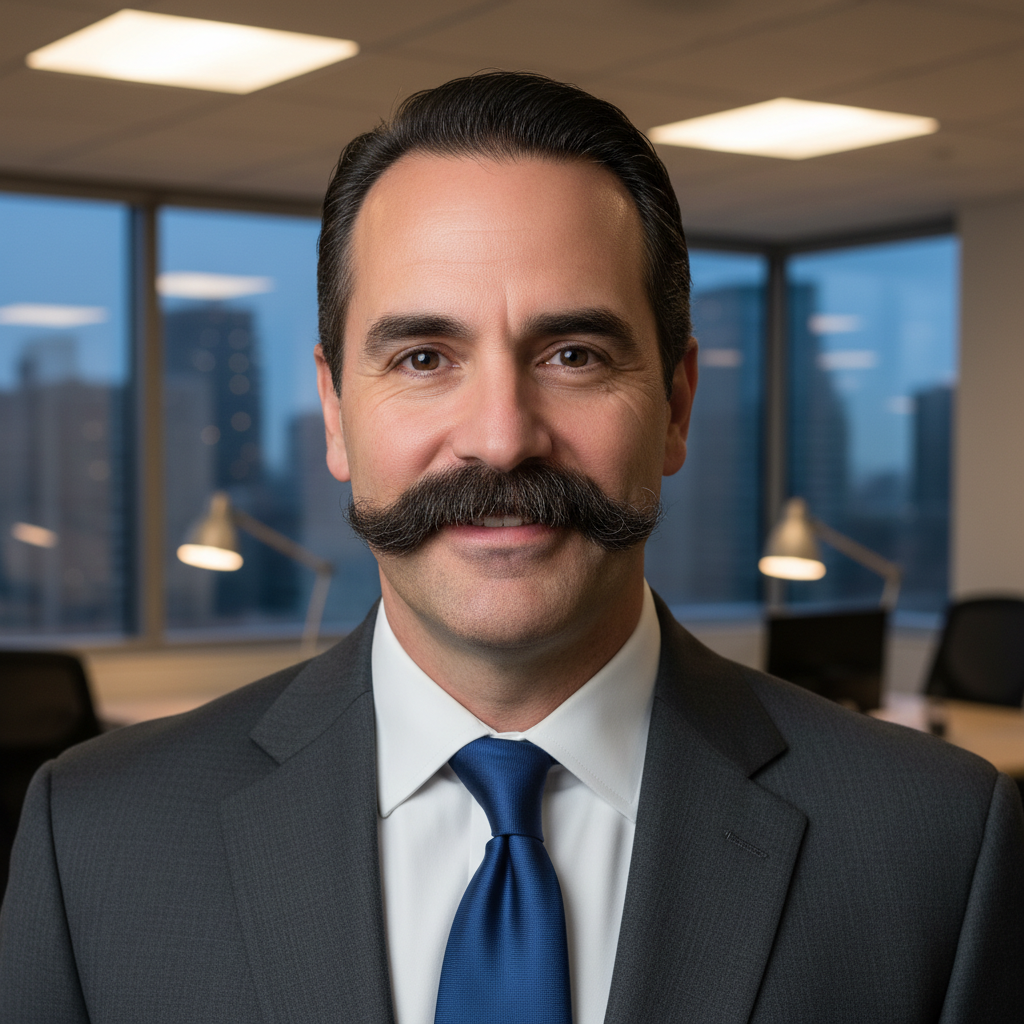
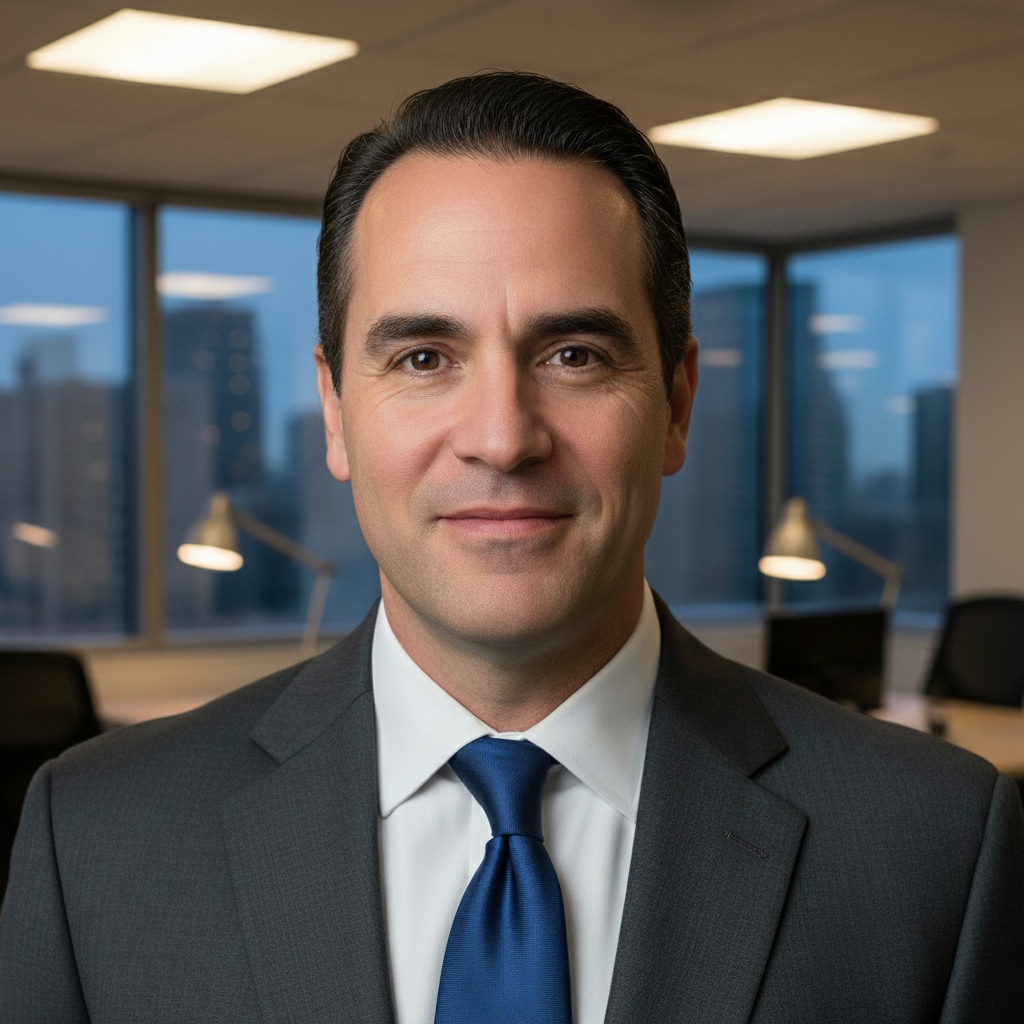
Professional headshot updated
Removed a thick dark mustache for an updated LinkedIn profile photo. Clean-shaven result looked natural and professional.
remove the mustache and show clean smooth skin, natural appearance
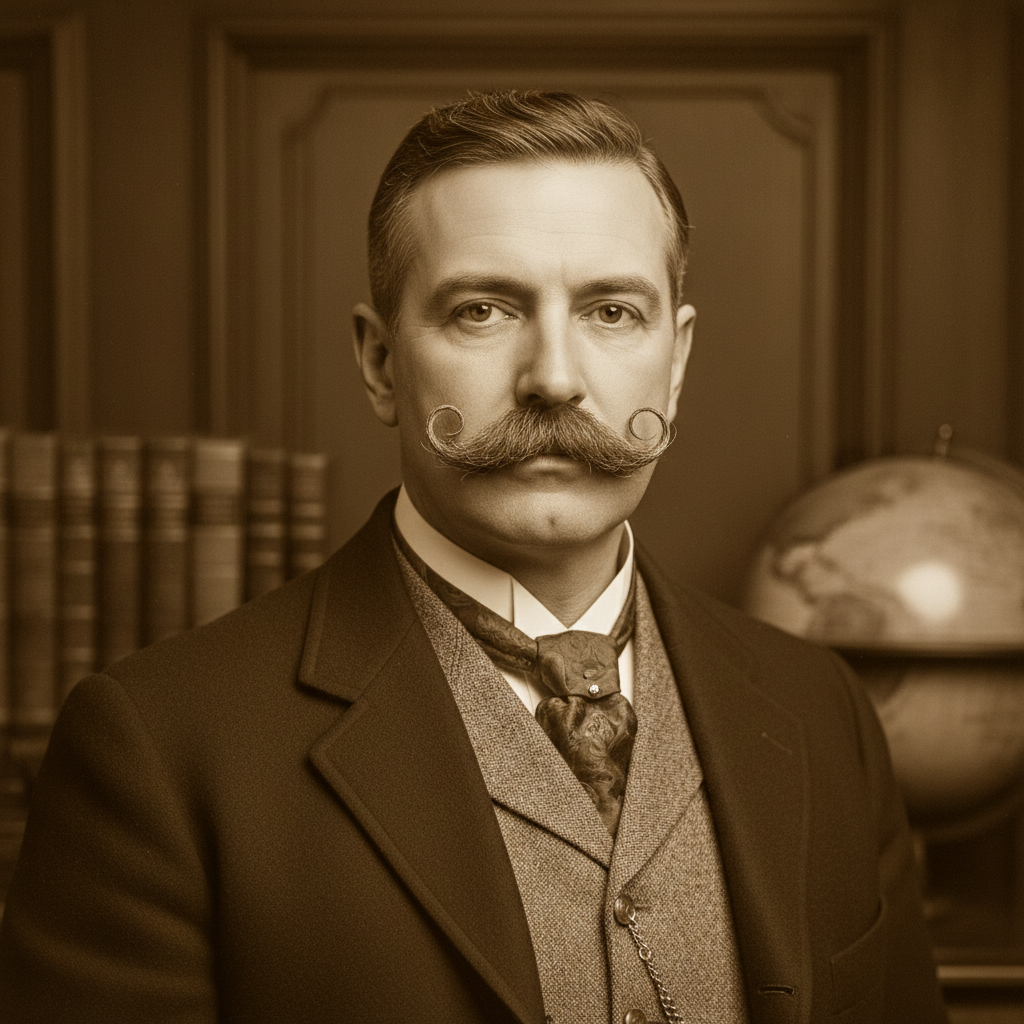
Vintage photo modernized
Updated an old family photo where the subject had a dated handlebar mustache style. Created a timeless look.
remove the thick mustache completely and replace with clean-shaven upper lip, matching skin tone
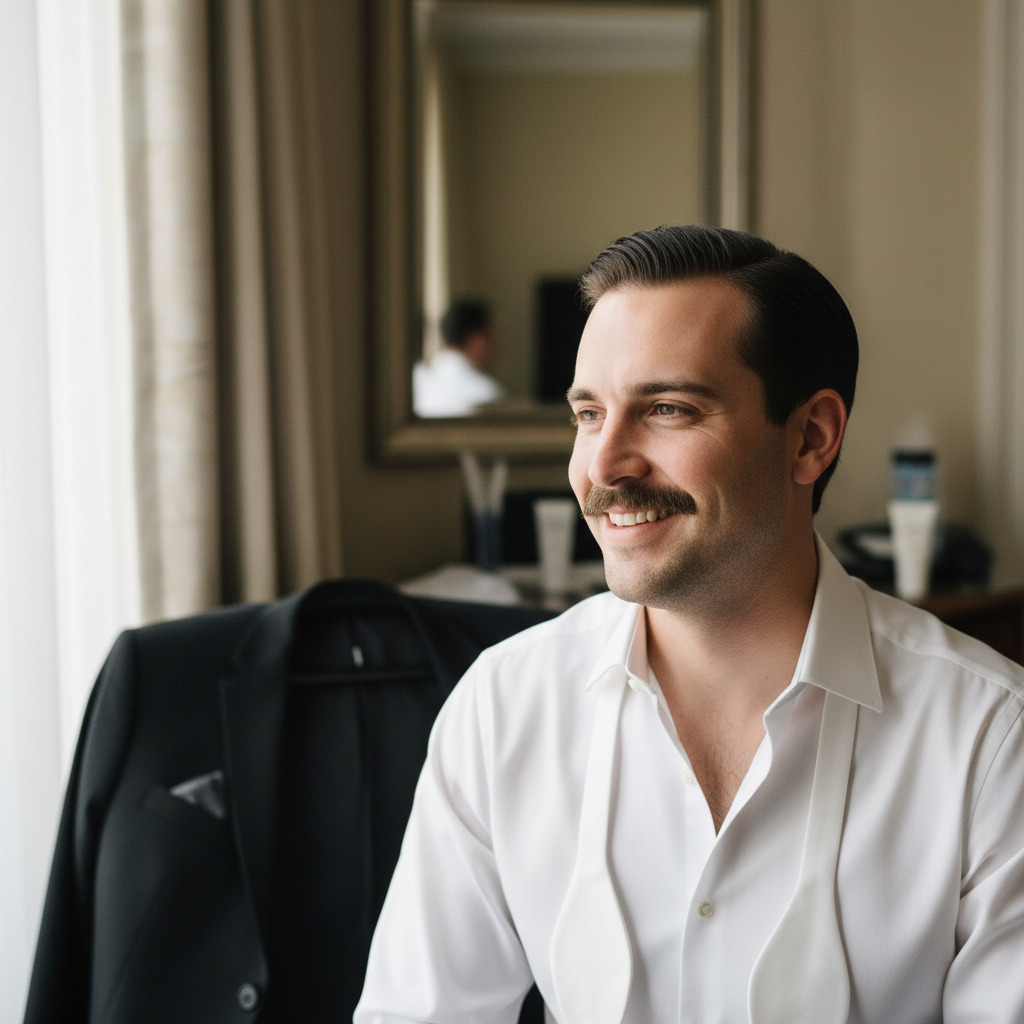
Wedding photo preview
Groom wanted to see if he should shave his mustache for the wedding. AI preview helped him make the decision.
show what I would look like without the mustache, clean-shaven natural look
If something looks off
Skin tone doesn't match the rest of the face
Why: The area under a mustache often has different coloring due to less sun exposure, and the AI may not account for this.
redo with skin tone that perfectly matches the surrounding face, seamless blend
💡 Adding 'seamless blend' or 'matching complexion' helps the AI match skin tones accurately.
Shadow or stubble still visible
Why: The AI may leave a hint of shadow where thick hair was, especially with dark mustaches.
Tap markers on remaining shadow area and remove all stubble and shadow completely
💡 Use markers to target specific spots where stubble or shadow persists.
Upper lip shape looks unnatural
Why: Removing the mustache can sometimes distort the lip line if the AI doesn't reconstruct it properly.
fix the upper lip to look natural with normal lip shape and definition
💡 A second pass focused on the lip line usually restores natural appearance.
AI removed the beard along with mustache
Why: The AI interpreted 'remove facial hair' too broadly and removed more than intended.
remove only the mustache, keep the beard and all other facial hair intact
💡 Be explicit about what to keep: 'keep beard' or 'only remove mustache' prevents over-editing.
AI changed wrong area of the photo
Why: The AI couldn't determine exactly which area you meant from description alone.
Tap markers specifically on the mustache area, then regenerate with the same prompt
💡 Markers tell the AI 'I mean THIS area specifically.' Use them when description alone is ambiguous.
Philtrum area looks flat or missing detail
Why: The groove between nose and lip can lose definition when mustache is removed.
restore natural philtrum detail and upper lip contour
💡 Mention 'philtrum' specifically if that area needs more natural definition.
Quick answers
Do I need to mark the mustache before describing?
No! Just describe what you want: 'remove the mustache and show clean skin.' The AI understands where mustaches are located on faces. Only use markers if some stubble remains after the first try, or if you want to target a specific area like the corners of the mouth.
Will the result look natural?
Yes, especially when you include 'natural' or 'smooth skin' in your prompt. The AI reconstructs the upper lip area with matching skin tone and texture. For best results, use well-lit photos where facial features are clearly visible.
Can I keep my beard but remove just the mustache?
Absolutely! Specify 'remove only the mustache, keep the beard intact' in your prompt. The AI can selectively remove facial hair when you're explicit about what should stay.
Does it work on thick or styled mustaches?
Yes! Thick handlebar mustaches, bushy mustaches, and styled mustaches all work. Thicker mustaches may need a second refinement pass to perfect the skin texture underneath, but the AI handles them well.
Can I use this to preview shaving before actually doing it?
This is one of the most popular uses! Upload a current photo with your mustache, and see exactly what you'd look like clean-shaven. Great for deciding before job interviews, weddings, or any big event.
Ready to see your clean-shaven look?
Free to try. No signup required.