Free β€’ No signup Remove Stray hairs Β· Free

AI Hair Remover

Describe the stray hairs to remove and AI cleans them up instantly. No marking needed.

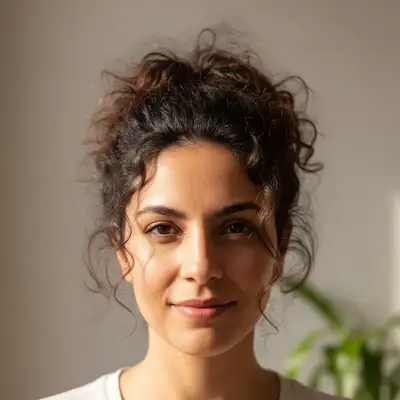
Woman with extremely messy wind-blown flyaway hair
Before
β†’
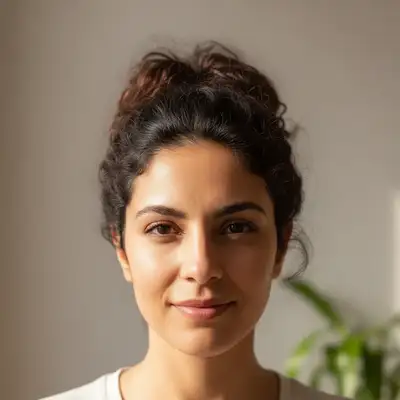
Same portrait with smooth, polished hair
After

AI Hair Remover

Upload photo to remove hair

Smooth removal β€’ Natural skin texture

Release to upload

FreeNo signupNo watermark
Popular use cases:
  • headshot retouching
  • portrait cleanup
  • flyaway hair removal
  • professional photo editing
  • wedding photo retouching
  • corporate headshot
  • model photo cleanup
  • hair edge refinement

Cost
Free No signup required
Time
Instant results in 15-30 seconds
Works on
Any device - browser, phone, tablet, desktop
Powered by
AI-powered photo editing
Scenario Prompt Time
Light flyaway cleanup remove flyaway hairs for a polished look 20s
Wind-blown hair fix remove wind-blown hairs across the face 30s
Full hair edge smoothing smooth frizzy edges and remove wispy strands 35s

How it works

  1. Upload your photo

    Drop your portrait or headshot into EditThisPic. Good lighting helps the AI distinguish stray hairs from your main hairstyle. JPG, PNG, WebP up to 7MB.

    Expect: Light flyaway cleanup: 20-30 seconds. Heavy frizz across the frame: 30-45 seconds and may need refinements.
  2. Describe what to remove

    Type what you want: 'remove the flyaway hairs' or 'clean up stray hairs around the head and shoulders.' No marking needed β€” the AI identifies and removes wispy strands while preserving the main hairstyle.

    Tip: Be specific about location: 'remove flyaway hairs above the head' or 'clean up wisps around the face' for targeted cleanup.

    Copy one of these to get started:

    General flyaway cleanup remove all flyaway and stray hairs, keep the main hairstyle looking clean and polished
    Headshot hair cleanup clean up the stray hairs around the head and face for a polished professional headshot look
    Wind-blown hair fix remove the wind-blown stray hairs flying across the face and background
    Frizzy edges smooth the frizzy hair edges and remove the wispy strands around the hair outline
    3 more prompts
    Baby hairs on forehead clean up the baby hairs and wispy strands along the forehead hairline
    Hairs on clothing remove the stray hairs that fell on the shoulders and clothing
    Selective cleanup remove only the stray hairs above the head silhouette, keep all other hair as is
  3. Review the cleanup

    Check that stray hairs are gone and the main hairstyle still looks natural. Zoom in on the hair outline and edges where flyaways were most visible. Verify the background behind removed hairs looks seamless.

  4. Refine with markers if needed

    If specific stray hairs remain or the AI removed hairs you wanted to keep, tap markers on those exact spots and regenerate. Most flyaway removal works perfectly on the first try.

    Tip: Markers are for precision refinement only. Try without them first β€” you usually won't need them.
Try it free ↓

AI Hair Remover

Upload photo to remove hair

Smooth removal β€’ Natural skin texture

Release to upload

Free β€’ No signup

See it in action

Woman with extremely messy wind-blown flyaway hair
Before
->
Same portrait with smooth, polished hair
After

Messy hair on windy day

Extreme wind blew hair everywhere. One prompt tamed the chaos into a polished look.

Prompt: remove all flyaway and stray hairs, keep the main hairstyle looking clean and polished
Headshot with obvious frizz halo ruining professional look
Before
->
Polished headshot with smooth hair edges
After

Frizzy hair ruining headshot

Humidity created a frizz halo around her head. AI smoothed it for a professional look.

Prompt: clean up the stray hairs around the head and face for a polished professional headshot look

Detailed Guides by Scenario

πŸ“·

Professional Headshots & Portraits

Clean up flyaway hairs from professional headshots, LinkedIn photos, and portrait sessions for a polished, camera-ready look.

Common Scenarios

  • Cleaning up stray hairs from a corporate headshot before uploading to the company website
  • Polishing a LinkedIn profile photo by removing distracting flyaways
  • Retouching client portrait deliverables to remove wind-blown strays from outdoor shoots

Best Practices

  • Start with the simplest prompt first β€” 'remove flyaway hairs' works for most headshots
  • For corporate headshots, add 'professional polished look' to match the expected quality level
  • Run a second pass with markers only if specific hairs remain after the first attempt
πŸ“·

Wedding & Event Photos

Fix wind-blown and frizzy hairs in outdoor wedding photos, event portraits, and celebration pictures.

Common Scenarios

  • Cleaning up bridal hair that got messy from wind during outdoor ceremony photos
  • Polishing bridesmaid portraits where flyaways caught the backlight
  • Retouching event photos where humidity caused frizz halos

Best Practices

  • Specify 'keep the bridal hairstyle intact' to prevent the AI from altering styled updos or curls
  • For backlit photos where flyaways glow, mention 'remove the glowing stray hairs' for better detection
  • Process key wedding photos first, then batch the rest with the same prompt
πŸ“·

Social Media & Dating Profiles

Polish selfies and profile photos by removing distracting stray hairs before sharing online.

Common Scenarios

  • Cleaning up a great selfie that has a few annoying flyaways
  • Polishing a dating app profile photo to look put-together
  • Fixing hair from an outdoor photo before posting on Instagram

Best Practices

  • Keep the cleanup subtle β€” aim for 'tidy' not 'airbrushed' for authentic-looking results
  • For selfies, focus on hairs around the face and forehead where they're most noticeable
  • Save the original first so you can always go back

If something looks off

AI changed the wrong area or something I didn't want changed

Why: The AI couldn't determine exactly which hairs you meant from description alone. This happens when some flyaways are intentional styling.

Try: Tap a marker on the specific stray hairs you want removed, then regenerate with the same prompt

Tip: Markers tell the AI 'I mean THESE hairs specifically.' Use them when you want selective removal.

AI removed too much hair and made it look thin

Why: The AI interpreted some thinner sections of your actual hairstyle as stray hairs and removed them along with the flyaways.

Try: remove only the flyaway hairs that are clearly separated from the main hair mass, keep all hair volume intact

Tip: 'Clearly separated from the main hair mass' tells the AI to only target obvious strays, not thin sections.

Some stray hairs remain after cleanup

Why: Very fine or transparent hairs can be difficult for the AI to detect in a single pass, especially against complex backgrounds.

Try: Tap markers on the remaining stray hairs and regenerate: remove these specific remaining flyaway strands

Tip: A second pass with markers on the remaining strays usually catches everything the first pass missed.

Background behind removed hairs looks smudged

Why: The AI had to reconstruct the background where hairs were removed. Complex or detailed backgrounds are harder to fill seamlessly.

Try: remove the flyaway hairs and reconstruct the background cleanly behind them, matching the surrounding area

Tip: Adding 'reconstruct the background cleanly' explicitly tells the AI to pay attention to background quality.

Hair outline looks unnaturally smooth after cleanup

Why: The AI over-smoothed the hair edges, removing natural texture along with the flyaways.

Try: remove only obvious stray hairs, keep the natural hair edge texture and softness

Tip: 'Natural hair edge texture' tells the AI that some softness at the hair boundary is expected and should be preserved.

Quick answers

Do I need to mark each stray hair before describing what to remove?

No. Just type 'remove flyaway hairs' and the AI identifies and removes them automatically. The AI understands what 'stray hairs' and 'flyaways' mean. Only use markers if specific hairs remain after the first attempt or if you want to remove only certain strays.

How do I remove flyaway hairs from a photo for free?

Upload your photo to EditThisPic and type 'remove flyaway hairs.' The AI cleans up stray strands in 20-30 seconds while keeping the main hairstyle intact. Free to use, no account required, no watermarks on the result.

Is there a free stray hair removal tool that doesn't require signup?

Yes. EditThisPic removes stray and flyaway hairs with no account needed. Upload your photo, describe what to clean up, and download the result. No watermarks, no login walls. Works on portraits, headshots, and any photo with visible flyaways.

What is the best AI tool for removing stray hairs from photos?

EditThisPic lets you describe exactly what to clean up β€” 'remove flyaway hairs,' 'smooth frizzy edges,' 'clean up baby hairs on forehead.' Unlike clone-stamp tools, the AI removes all strays at once while preserving your hairstyle. Free, no login, results in 20-30 seconds.

Will AI hair removal affect my actual hairstyle?

No. The AI targets only the stray, flyaway, and wispy hairs that are clearly separated from your main hairstyle. Your volume, texture, and style remain unchanged. If it removes too much, specify 'remove only obvious flyaways, keep hair volume intact.'

Can I remove stray hairs on my phone?

Yes. EditThisPic works in any mobile browser β€” iPhone, Android, tablet. No app download needed.

Is EditThisPic's AI hair remover really free?

Yes β€” you get 1 free edit per week, no account needed. For unlimited edits, plans start at $4.99/month.

Can I also change my hair color or style in the same edit?

Yes. You can combine multiple edits in one prompt β€” for example, 'remove flyaway hairs and change hair color to honey blonde.' For major style changes, separate prompts give better control over each edit.

Is it safe to upload my photos for hair cleanup?

Yes. EditThisPic processes your photo in real time and does not store images on any server after editing. No account is required, and photos are not used for training or shared with third parties.

Ready to clean up stray hairs in your photos?

Free to try. No signup required.