Free • No signup Remove Hair · Free

Remove Hair from Photo

← Browse all body & person tools

Last updated

Type 'remove the stray hair across the face' — the AI erases it and restores natural skin or fabric underneath.
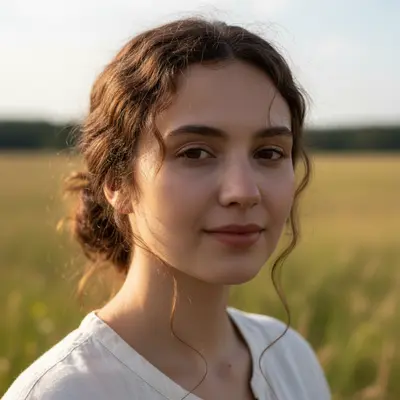
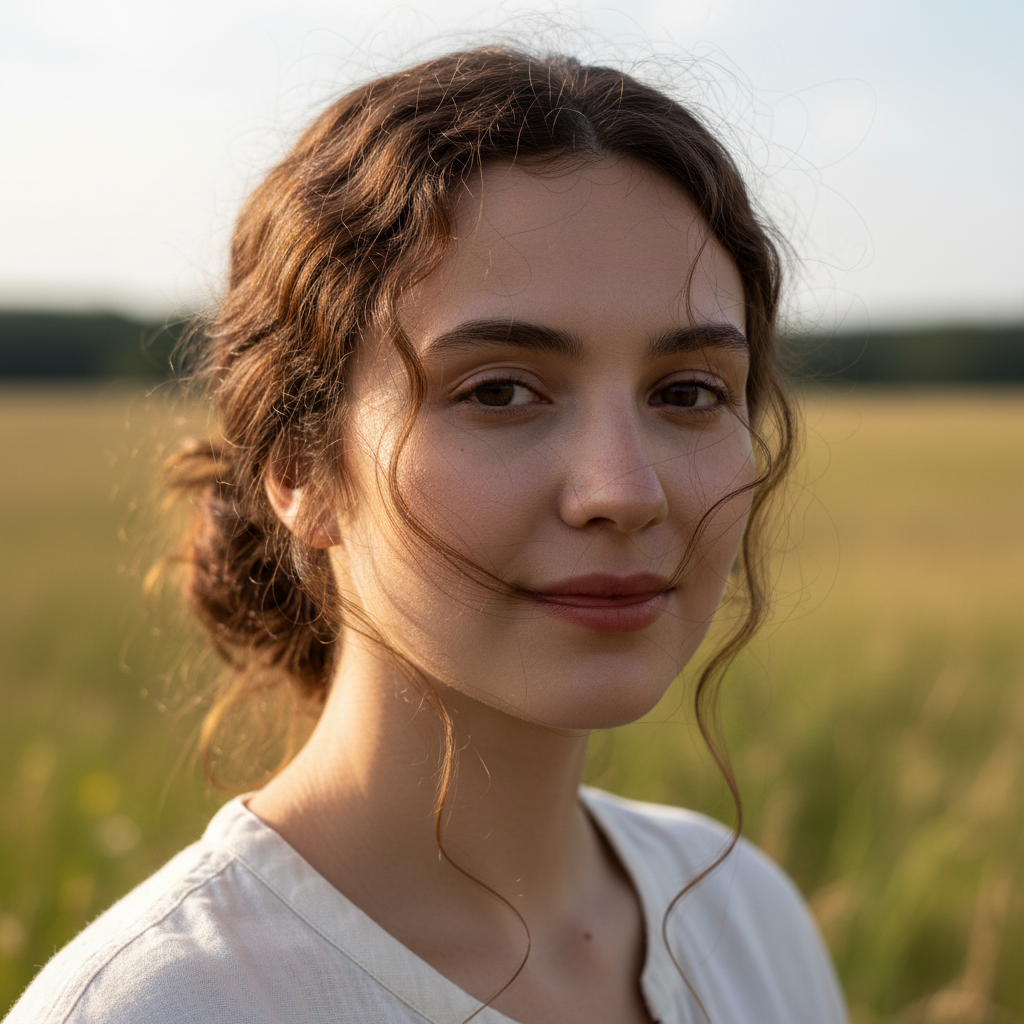
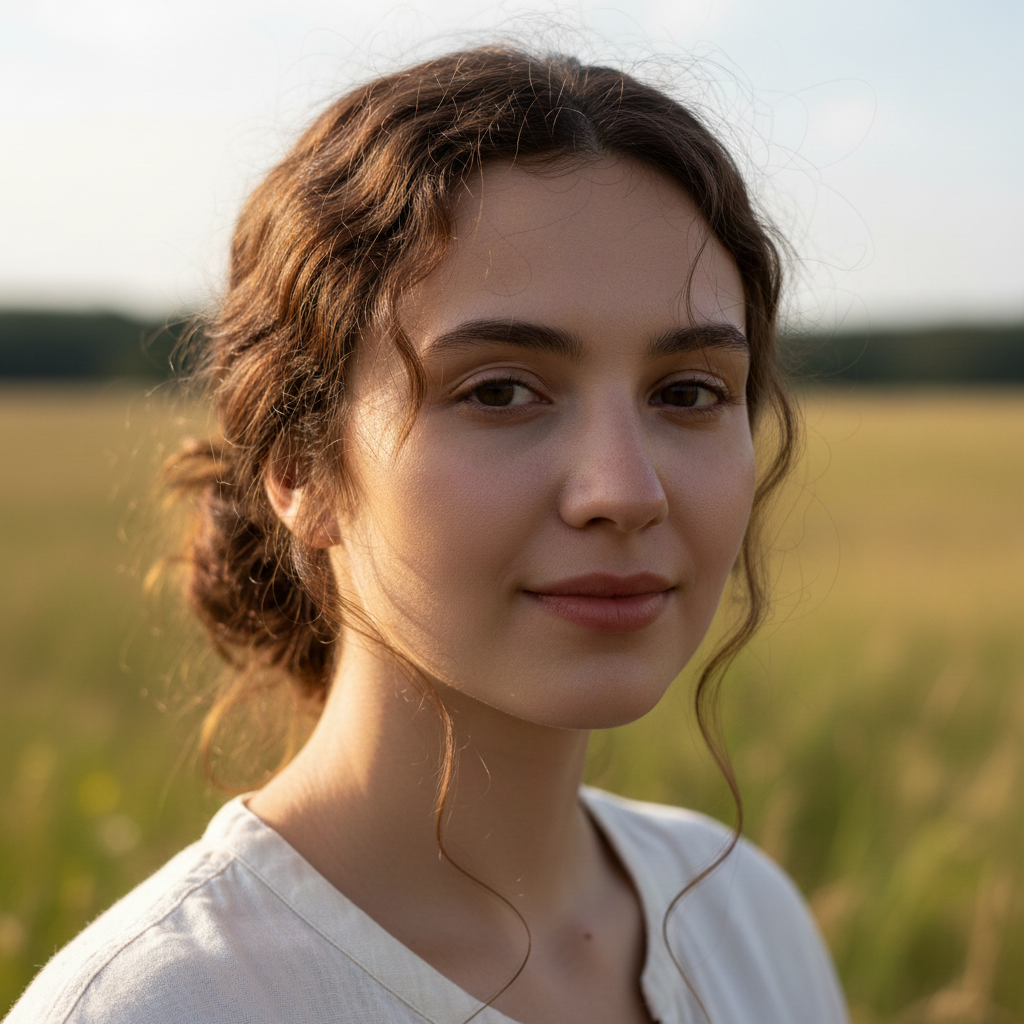
Outdoor portrait with multiple flyaway strands crossing the face Same portrait with all flyaways removed and skin looking natural

Upload photo to remove hair

"remove all visible hair and any dust or lint on the white background and restore a clean seamless white surface"

Release to upload

1 free edit·then from $4.99

Popular use cases:
  • flyaway hair portrait cleanup
  • stray hair on clothing removal
  • hair on white product background
  • lint roller alternative for photos
  • single strand hair retouching
  • selfie hair cleanup

Cost
Free No signup required
Time
Instant results in 15-30 seconds
Works on
Any device - browser, phone, tablet, desktop
Powered by
AI-powered photo editing
Scenario Prompt Time
Flyaway across face remove the stray hair crossing the cheek and restore natural skin tone 20s
Hair on clothing remove the hairs on the shirt and fill with the smooth fabric underneath 20s
Product background cleanup remove all hair from the white background and restore clean white 15s

How it works

  1. Upload the photo with stray or unwanted hair

    Drop your image into EditThisPic — JPG, PNG, or WebP up to 7MB. Works for flyaways across a face, single strands on a white-background product photo, or hair on clothing. High-contrast hair against simple skin or fabric backgrounds gives the AI the clearest target.

    Expect: Single strand on plain skin or fabric: 15–20 seconds.
  2. Describe the hair location and what to restore underneath

    Type a clear instruction: 'remove the stray hair crossing the cheek and restore the natural skin tone underneath' or 'remove all the loose hairs on the white shirt and fill with clean white fabric.' Describing what surface lies beneath the hair — skin, clothing, background — helps the AI reconstruct it accurately rather than guessing.

    Tip: For hair crossing the face, specify the direction or location: 'the diagonal strand crossing the left cheek' or 'the flyaway hairs across the forehead.' Naming the background surface ('skin,' 'white background,' 'black fabric') gives the AI the fill reference it needs.

    Copy one of these to get started:

    Flyaway hair across the face remove the stray flyaway hair crossing the cheek and forehead and restore the natural skin tone and texture underneath so it looks untouched
    Hair on white product photo background remove all visible hair and any dust or lint on the white background and restore a clean seamless white surface
    Hair on dark clothing remove the light-colored stray hairs visible on the dark shirt and fill with the smooth dark fabric underneath — match the color and weave
    Single hair strand crossing lips or eyes remove the single dark hair crossing over the lips and restore the natural skin and lip color underneath, do not alter anything else
    3 more prompts
    Multiple loose hairs in selfie remove all the loose flyaway hairs around the head that are sticking out against the background, leave the main hair intact
    Hair on lens or photo surface (scanning artifact) remove the curved hair artifact in the upper left corner of the photo and fill with the plain background visible around it
    Hair strand obscuring eyes in portrait remove the hair strand falling across the right eye and reconstruct the eye and surrounding skin naturally — preserve the natural eye shape
  3. Check that the fill matches the surrounding texture

    Zoom to 100% where the hair was. Check that the skin or fabric fill looks continuous — no flat color patches, no visible seams. Hair on plain white product backgrounds usually fills seamlessly in one pass. Hair crossing portrait skin may show a slight texture difference that a second prompt can refine.

See it in action

Outdoor portrait with multiple flyaway strands crossing the face
Before
->
Same portrait with all flyaways removed and skin looking natural
After

Flyaway hair removed from outdoor portrait

A summer portrait had several flyaway strands blowing across the subject's face. One prompt removed them all and restored the skin naturally.

Prompt: remove the stray flyaway hair crossing the cheek and forehead and restore the natural skin tone and texture underneath so it looks untouched
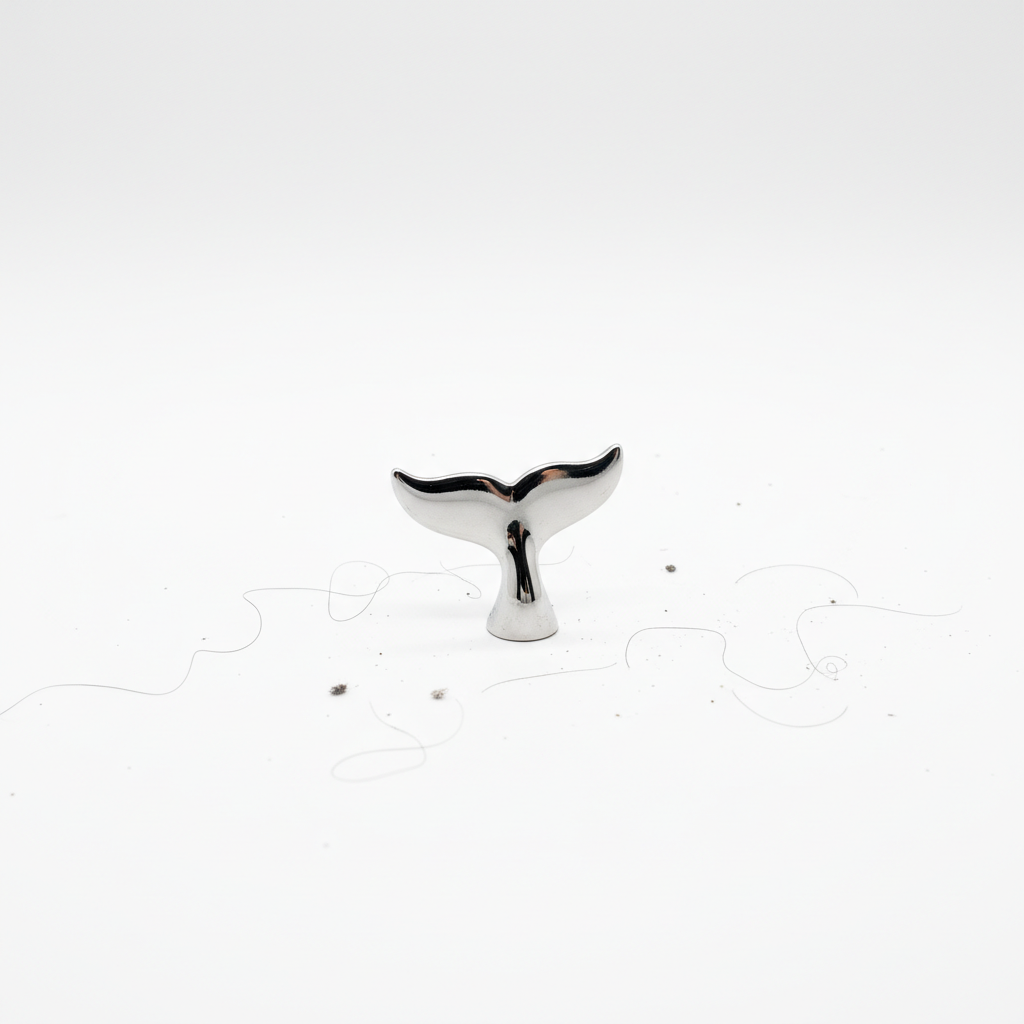
Product photo with pet hairs and dust on the white background
Before
->
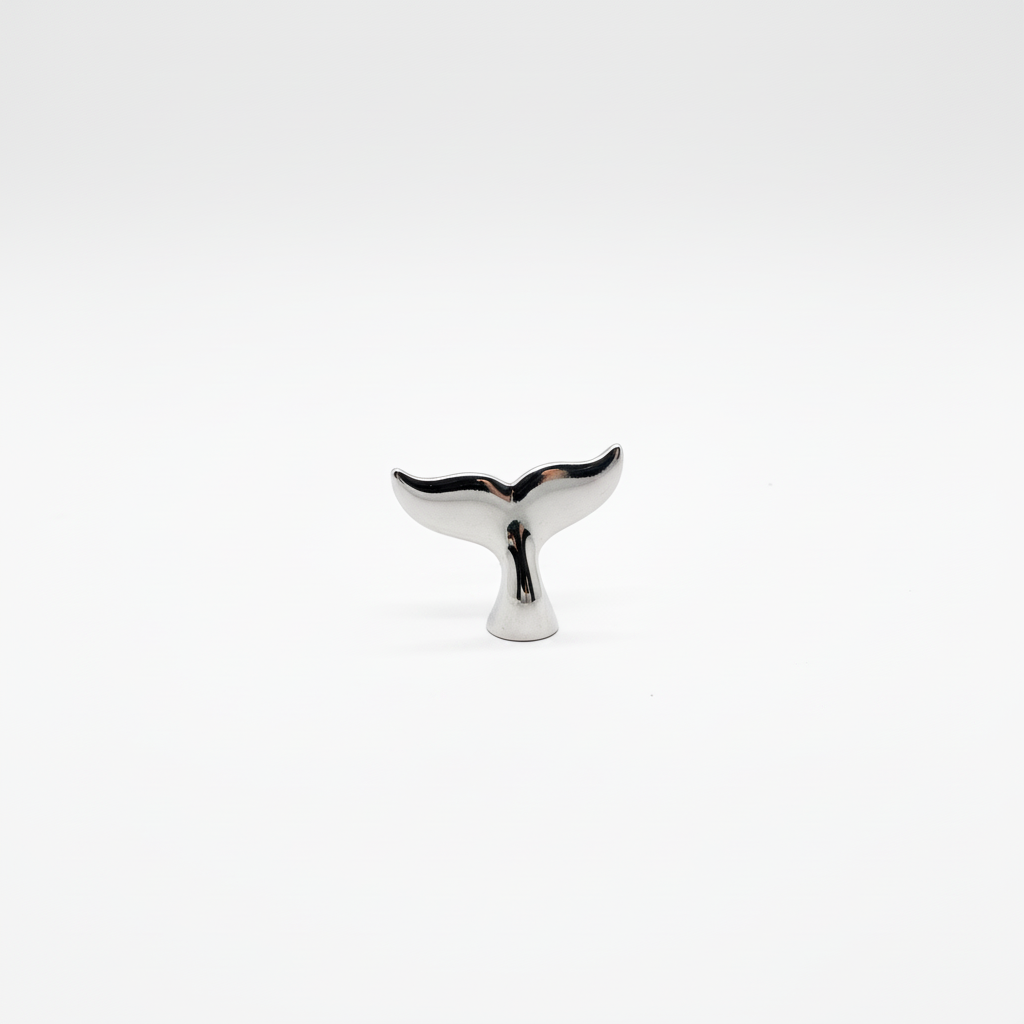
Same product photo with a clean seamless white background
After

Hair on white product background cleaned

A product photo on a white seamless background had several pet hairs and dust particles. The AI removed all of them and restored a clean white surface.

Prompt: remove all visible hair and any dust or lint on the white background and restore a clean seamless white surface
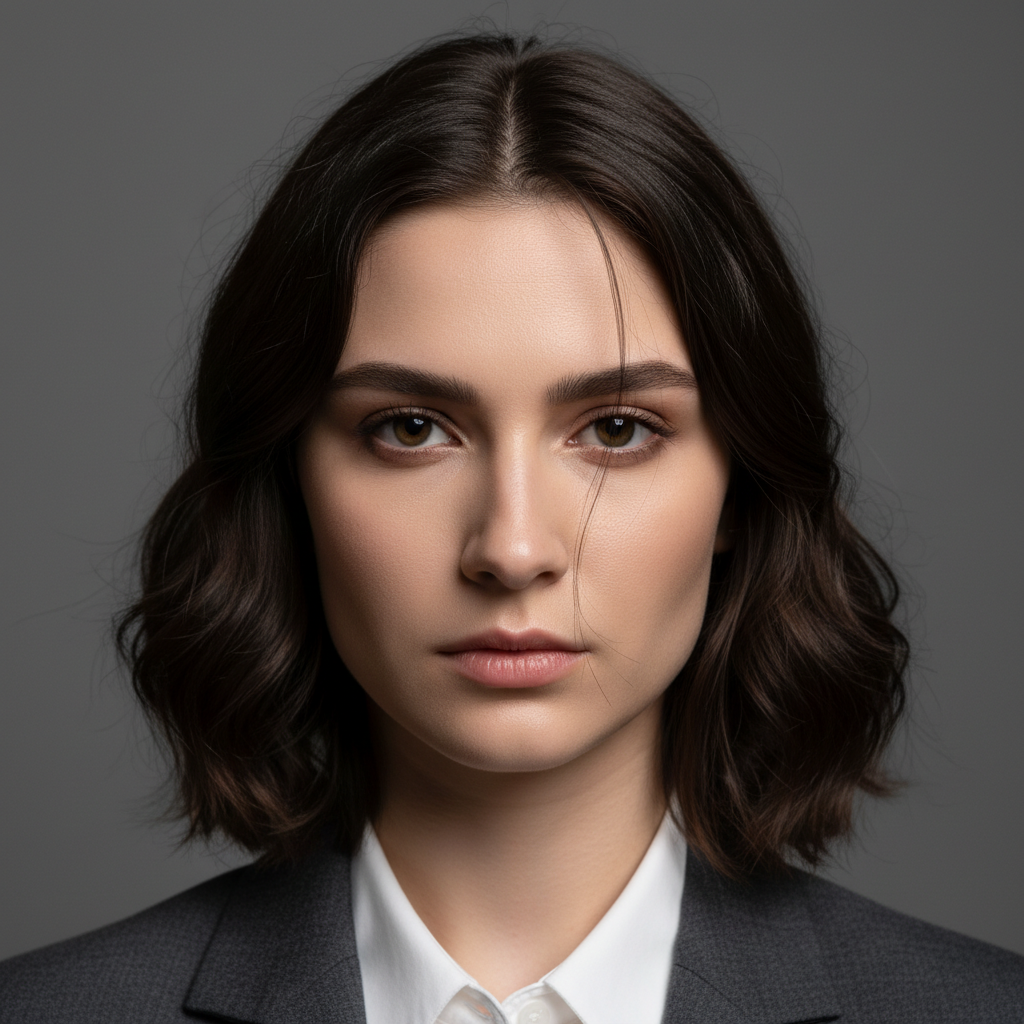
Professional headshot with a hair strand crossing over the right eye
Before
->
Same headshot with hair strand removed and eye fully visible
After

Hair strand over eye removed in headshot

A professional headshot had a single strand falling across one eye. The AI removed it and reconstructed the eye and surrounding skin.

Prompt: remove the hair strand falling across the right eye and reconstruct the eye and surrounding skin naturally — preserve the natural eye shape

If something looks off

Skin fill looks patchy or a different tone than the surrounding area

Why: The AI filled the strand path with an averaged skin tone rather than blending into the gradient of natural skin across the face.

Try: remove the hair strand and blend the fill seamlessly with the surrounding skin — match the shading and undertone of the adjacent area

Tip: 'Match the shading and undertone of the adjacent area' signals the AI to sample color from both sides of the strand path for a natural blend.

Hair on clothing left a slight seam or discoloration on the fabric

Why: Fabric has directional texture (weave, grain) that the AI has to reconstruct. A short second prompt refining the fill usually resolves this.

Try: fill the area where the hair was with smooth fabric matching the color, weave direction, and sheen of the surrounding cloth

Tip: Describing weave direction ('horizontal weave,' 'vertical ribbing') helps the AI reconstruct fabric texture correctly after hair removal.

AI removed too many hairs — altered the hairstyle

Why: A broad instruction like 'remove hair' can cause the AI to interpret flyaways as part of the hairstyle to be thinned.

Try: remove only the loose flyaway strands sticking out against the background sky — leave all hair attached to the head completely unchanged

Tip: Narrow the target by contrast: 'sticking out against the background' is more precise than 'flyaway hairs' when the hairstyle is complex.

Product background fill has slight gradient or color variation instead of clean white

Why: The AI may preserve subtle lighting gradients that exist in the original background when it reconstructs the area.

Try: fill the areas where the hairs were with pure bright white matching the brightest part of the existing background — no gradient

Tip: 'Matching the brightest part' tells the AI to target the highlight value of the background rather than averaging it.

Quick answers

Do I need to mark the area first to remove stray hair?

No. For clearly visible strands — 'the flyaway crossing the left cheek' or 'hairs on the white background' — just describe them and the AI targets them.

Is there a free tool to remove hair from photos with no login?

Yes. EditThisPic removes stray hair, flyaways, and hair on clothing from photos for free with no account and no watermark. Upload your photo, describe the hair and where it is, and download the clean result in 15–30 seconds.

Can AI remove hair from clothing or fabric backgrounds?

Yes. Type: 'remove the hair on the black shirt and restore the smooth fabric underneath.' Describing the fabric color and texture gives the AI the fill reference it needs. Works on both light and dark fabrics.

Can it remove hair without affecting the rest of the portrait?

Yes. Be specific about what to preserve: 'remove only the single strand crossing the cheek — do not touch the main hair or the eyebrows.' The more clearly you define the target and what to leave intact, the more precise the result.

How do I remove all the flyaways from around a hairstyle?

Type: 'remove all the loose flyaway hairs sticking out against the background, leave the main hairstyle completely unchanged.' Works well when the flyaways are silhouetted against a contrasting background like sky or a plain studio backdrop.

Can it remove hair from a scanned old photo?

Yes. Physical hairs that landed on the scanner glass appear as curved line artifacts. Type: 'remove the curved hair artifact in the upper area of the photo and fill with the background texture visible around it.' Describe its position for the best result.

What's the difference between this and an AI hair remover?

An AI hair remover tool is optimized specifically for removing body hair from skin. This tool removes any stray hair — including flyaways on portraits, hair on clothing, and hairs on product photo backgrounds — by describing what you want removed and what surface to restore.

How much does EditThisPic cost?

You get 1 free edit per week — no account needed. After that, credit packs start at $1.99 for 3 edits. Monthly plans start at $4.99/mo for 15 edits with unused credits rolling over. All edits are full resolution with no watermark.

Ready to clean up those stray hairs?

Free to try. No signup required.

1 free edit included·Credit packs from $4.99