Free β€’ No signup Remove Beard Β· Free

AI Beard Remover

Just describe what you want and AI handles the beard editing.
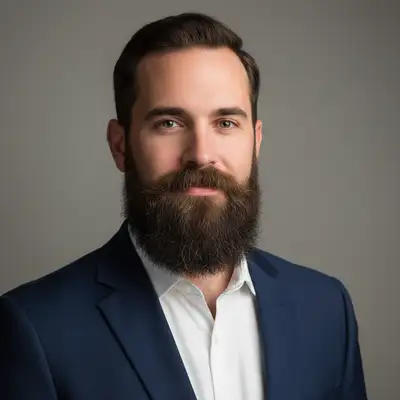
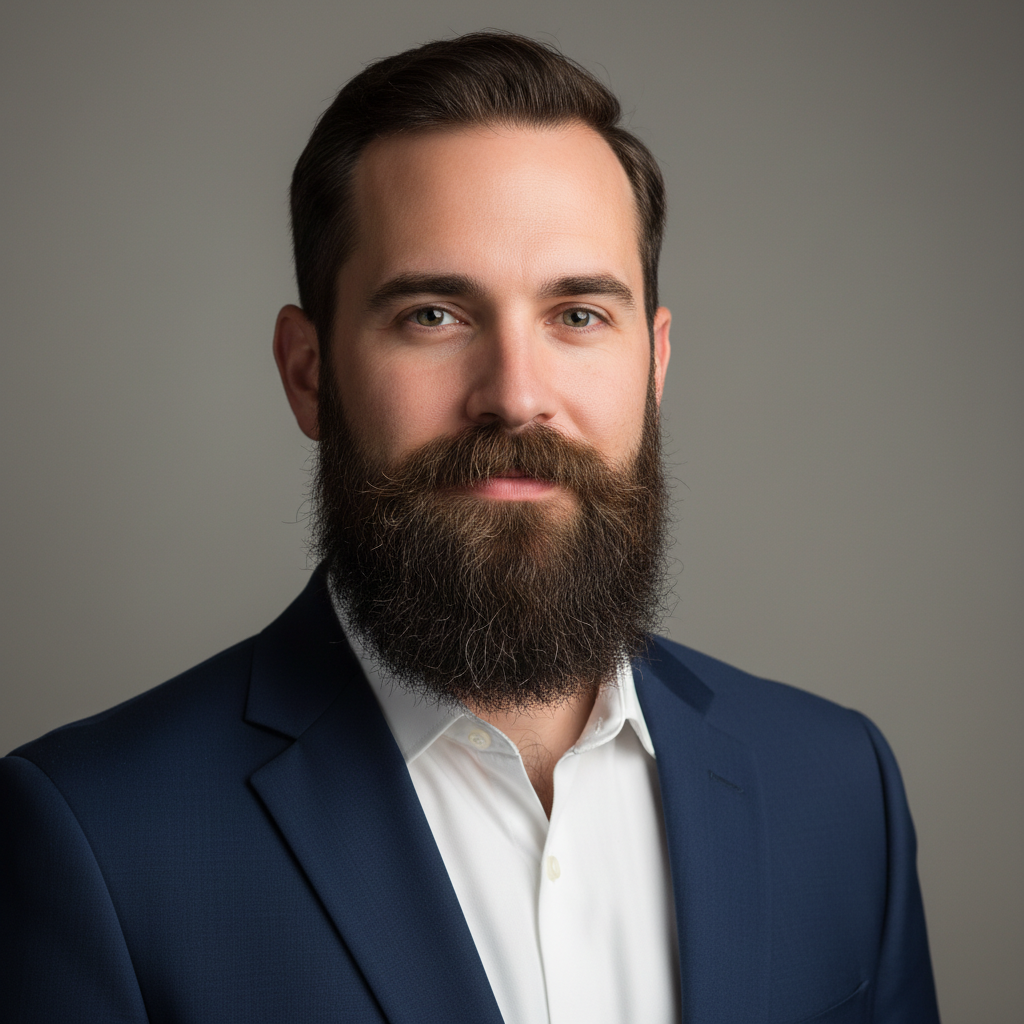
Before ai-beard-remover edit
Before
β†’
After ai-beard-remover edit
After

AI Beard Remover

Upload photo to remove beard

Free β€’ Results in 30 seconds β€’ No signup

Release to upload

FreeNo signupNo watermark
Popular use cases:
  • professional headshots
  • dating profile photos
  • passport and ID photos
  • corporate team photos
  • social media profile pics
  • before and after comparisons
  • grooming preview
  • clean-shaven visualization

Cost
Free No signup required
Time
Instant results in 15-30 seconds
Works on
Any device - browser, phone, tablet, desktop
Powered by
AI-powered photo editing
Scenario Prompt Time
Remove full beard Remove the entire beard to reveal smooth clean-shaven skin with natural facial structure 15s
Remove short stubble beard Remove all stubble to create a completely smooth clean-shaven appearance 15s
Remove long beard Remove the long beard entirely to reveal the clean-shaven face and jawline beneath 20s
Remove patchy beard Remove all facial hair including patchy areas to show smooth clean-shaven skin 20s

How it works

  1. Upload your photo

    Upload a clear, front-facing portrait. Good lighting on the face and visible facial features give the AI the best foundation for beard editing. JPG, PNG, WebP up to 7MB.

    Expect: Simple stubble removal: 15-20 seconds. Full thick beards: 25-35 seconds and may need one refinement.
  2. Describe what you want

    Type your instruction: 'remove the beard and show smooth clean-shaven skin' or 'remove the goatee and reveal the chin underneath.' Be specific about what facial hair to remove. No marking neededβ€”the AI understands 'beard', 'mustache', 'goatee', and 'stubble' as facial hair regions.

    Tip: Mention the desired result: 'show smooth skin with matching tone' helps the AI reconstruct realistic texture under the beard.

    Copy one of these to get started:

    Remove full beard for clean-shaven look remove the beard completely and show smooth clean-shaven skin matching the natural face tone
    Remove five o'clock shadow or stubble remove all stubble and five o'clock shadow to show completely smooth skin
    Remove long beard and reveal jawline remove the long beard entirely and reveal the jawline and chin structure beneath with natural skin
    Remove only the mustache, keep the beard remove only the mustache and show smooth upper lip, keep the rest of the beard untouched
    6 more prompts
    Remove goatee but keep sideburns remove the goatee and chin beard, leave the sideburns and jawline hair intact
    Remove patchy or uneven facial hair remove all patchy facial hair to show completely smooth even skin across the face
    Preview clean-shaven look for professional headshot remove the beard for a clean professional headshot look, smooth skin with natural texture
    Remove gray or white beard remove the gray beard and reconstruct smooth skin matching the person's natural skin tone
    Trim beard to neat stubble instead of fully removing trim the long beard down to short neat stubble, keep it looking groomed and even
    Remove neckbeard but keep chin and face hair remove the beard hair on the neck below the jawline, keep the chin and face beard intact
  3. Review the clean-shaven result

    Check that the reconstructed skin matches surrounding areas in tone and texture. Zoom in on the jawline, chin, and upper lip to verify natural appearance. Eye and nose area should remain untouched.

  4. Refine with markers if needed

    If stubble shadow remains or a small patch was missed, tap markers on those spots and regenerate. Most beard removals work perfectly on the first try without markers.

    Tip: Markers are for precision refinement, not a required step. Try without them first.
Try it free ↓

AI Beard Remover

Upload photo to remove beard

Free β€’ Results in 30 seconds β€’ No signup

Release to upload

Free β€’ No signup

See it in action

Before ai-beard-remover edit
Before
->
After ai-beard-remover edit
After

Full Beard to Clean-Shaven

Removed a thick full beard to reveal natural clean-shaven facial structure with realistic skin texture.
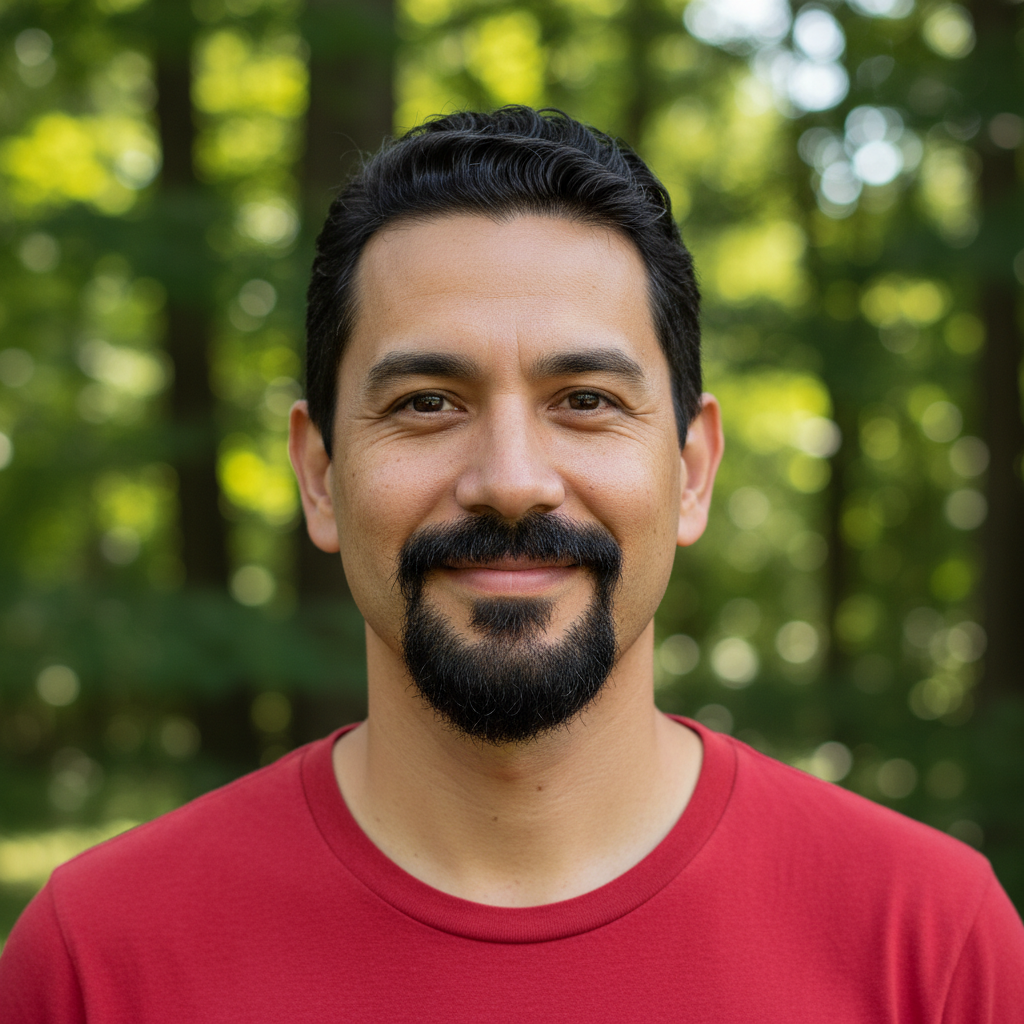
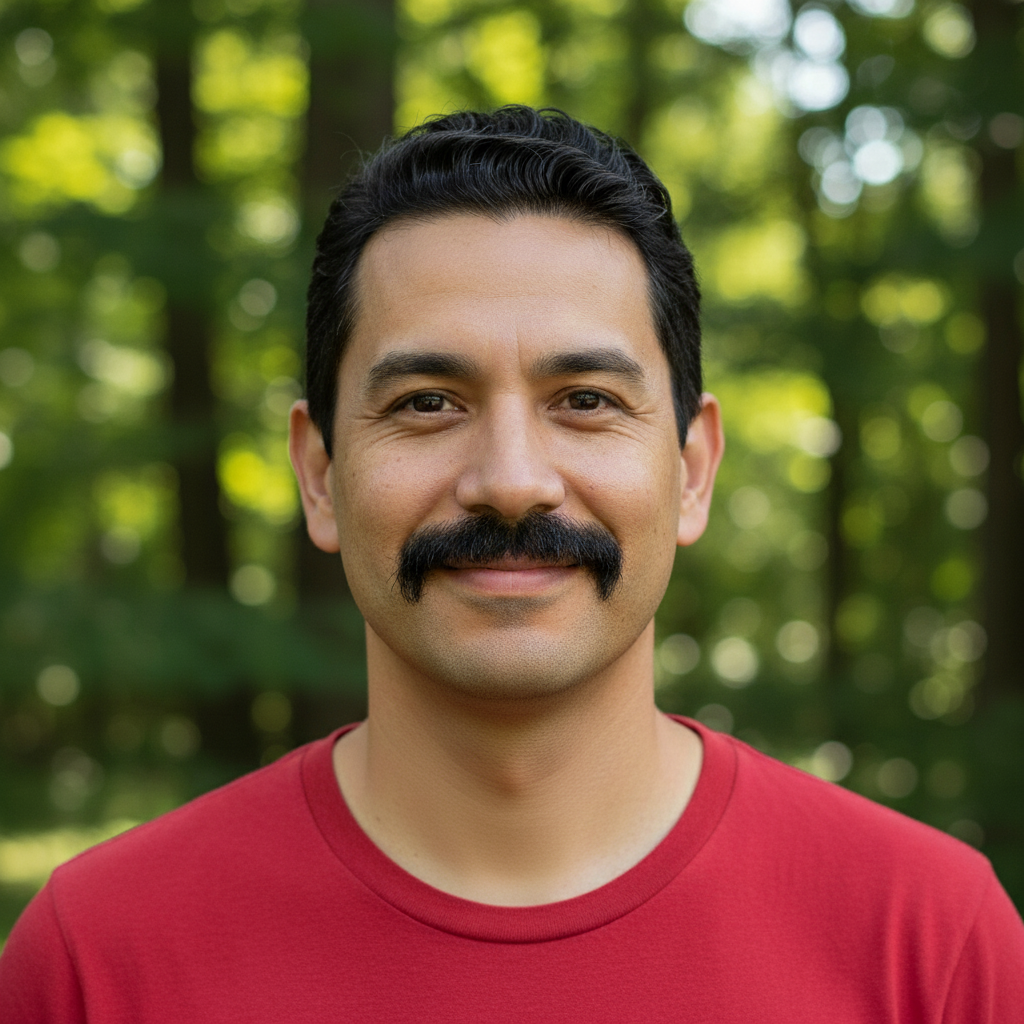
Prompt: Removed a thick full beard to reveal natural clean-shaven facial structure with realistic skin texture.
Before ai-beard-remover edit
Before
->
After ai-beard-remover edit
After

Professional Look Transformation

Eliminated a long beard for a corporate headshot, creating a clean professional appearance.

Prompt: Eliminated a long beard for a corporate headshot, creating a clean professional appearance.
Before ai-beard-remover edit
Before
->
After ai-beard-remover edit
After

Stubble Removal for Smooth Skin

Removed 5-day stubble to show completely smooth clean-shaven look for dating profile.

Prompt: Removed 5-day stubble to show completely smooth clean-shaven look for dating profile.

Detailed Guides by Scenario

πŸ“·

Grooming Preview

See what you look like clean-shaven before picking up the razor β€” preview beard removal, trim styles, or full shave results.

Common Scenarios

  • Deciding whether to shave a long-standing beard before a big event
  • Previewing different facial hair styles by removing specific areas
  • Showing a partner or friend what you'd look like without a beard

Best Practices

  • Use a well-lit front-facing selfie for the most realistic clean-shaven preview
  • Try removing just the mustache or goatee separately to compare partial styles
  • Mention 'natural skin tone matching' for the most convincing result
πŸ“·

Professional Headshots

Create clean-shaven versions of portrait photos for corporate profiles, LinkedIn, and ID submissions.

Common Scenarios

  • Generating a clean-shaven headshot for a corporate website or team page
  • Preparing a passport or visa photo that requires a clean-shaven appearance
  • Creating before-and-after grooming content for a barber or salon portfolio

Best Practices

  • Start with a high-quality portrait photo for the most professional result
  • Add 'professional headshot quality' to your prompt for polished output
  • For ID photos, ensure the lighting and angle meet official requirements before editing
πŸ“·

Dating Profiles

Show a clean-shaven option for dating app profiles or compare bearded vs. clean-shaven looks to see which gets more matches.

Common Scenarios

  • Creating a clean-shaven version of a dating profile photo to A/B test
  • Removing stubble or five o'clock shadow for a fresh-faced dating photo
  • Generating before-and-after images to ask friends which look is better

Best Practices

  • Use your best-lit photo β€” natural daylight gives the most realistic skin reconstruction
  • For stubble removal, specify 'completely smooth skin' to avoid shadow remnants
  • Keep the background and outfit the same so the comparison is purely about facial hair

If something looks off

AI changed the wrong area or removed something I didn't want changed

Why: The AI couldn't determine exactly which facial hair you meant from description alone. This happens when you want to remove only part of the facial hair.

Try: Tap a marker on the specific facial hair area you want removed, then regenerate with the same prompt

Tip: Markers tell the AI 'I mean THIS hair specifically.' Use them when you want partial removal like 'only the mustache.'

Reconstructed skin tone doesn't match the rest of the face

Why: Uneven lighting in the original photo caused the AI to sample mismatched skin tones for reconstruction.

Try: remove the beard and match the reconstructed skin tone to the forehead and cheek areas

Tip: Reference a visible skin area in your prompt so the AI knows exactly what tone to match.

Jawline or chin structure looks unnatural

Why: Long or thick beards hide the actual jawline shape, making it harder for the AI to infer correct bone structure.

Try: remove the beard and reconstruct a natural jawline shape that matches the facial proportions

Tip: Include 'keep natural texture and detail' in your prompt to avoid over-processing.

Stubble shadow or dark patches remain

Why: Dark, dense stubble creates a shadow effect that the AI treated as skin pigmentation rather than facial hair.

Try: remove all stubble shadow and dark patches to show completely smooth even skin

Tip: Mention shadow direction explicitly, like 'shadow falling to the right,' for realistic results.

Result looks too smooth or plastic

Why: The AI over-smoothed the skin during reconstruction, losing natural pore and texture detail.

Try: remove the beard and preserve natural skin texture and pores, avoid over-smoothing

Tip: Include 'keep natural texture and detail' in your prompt to avoid over-processing.

Quick answers

Do I need to mark the beard before describing what I want?

No! Just describe what you want: 'remove the beard and show clean-shaven skin.' The AI understands 'beard', 'mustache', 'goatee', and 'stubble' as facial hair regions. Only use markers if you want to target a very specific patch, or if the AI missed a small area after the first attempt.

How do I remove a beard from a photo for free?

Upload your photo to EditThisPic and type 'remove the beard and show smooth skin underneath.' The AI reconstructs natural-looking skin in 20-30 seconds. Free to use, no account required, no watermarks. Works on full beards, stubble, goatees, and mustaches.

Is there a free AI beard remover that doesn't require signup?

Yes. EditThisPic removes beards for free with no account needed. Upload your photo, type your instruction, and download the clean-shaven result. No watermarks, no login, works directly in your browser.

What is the best AI tool for removing beards from photos?

EditThisPic's AI Beard Remover handles all beard types and reconstructs realistic skin texture underneath. Unlike basic clone tools that smear pixels, the AI understands facial structure and rebuilds natural-looking skin tone, jawline, and chin details. Free to try, no signup.

Can I see what I look like without a beard?

Yes. Upload a photo of yourself with a beard, type 'remove the beard completely and show my clean-shaven face,' and the AI generates a realistic preview. Great for deciding whether to shave before committing.

Can I remove just a mustache or goatee and keep the rest?

Yes. Be specific in your prompt: 'remove only the mustache, keep the beard' or 'remove the goatee but leave the sideburns.' The AI targets exactly the facial hair you describe.

Does it work on all beard types and colors?

Yes. The AI handles full beards, stubble, goatees, patchy beards, and all hair colors including black, brown, red, blonde, gray, and white. Thicker beards may need one refinement pass for the most realistic skin reconstruction.

Will it look realistic or obviously edited?

The AI analyzes surrounding skin tone, facial structure, and lighting to reconstruct natural-looking clean-shaven skin. Photos with good lighting and clear facial features produce the most convincing results. For the most realism, use a well-lit front-facing photo.

Ready to edit your photos?

Free to try. No signup required.