Free โ€ข No signup Remove Gray hair ยท Free

Remove Gray Hair from Photo with AI

Turn gray hair back to your natural color - just describe what color you want
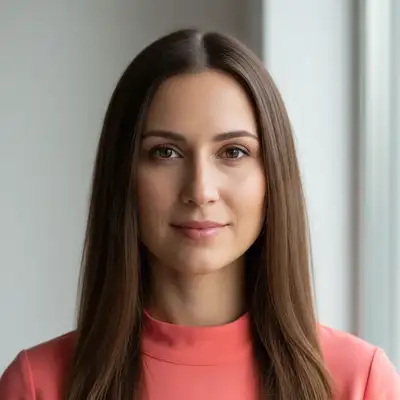
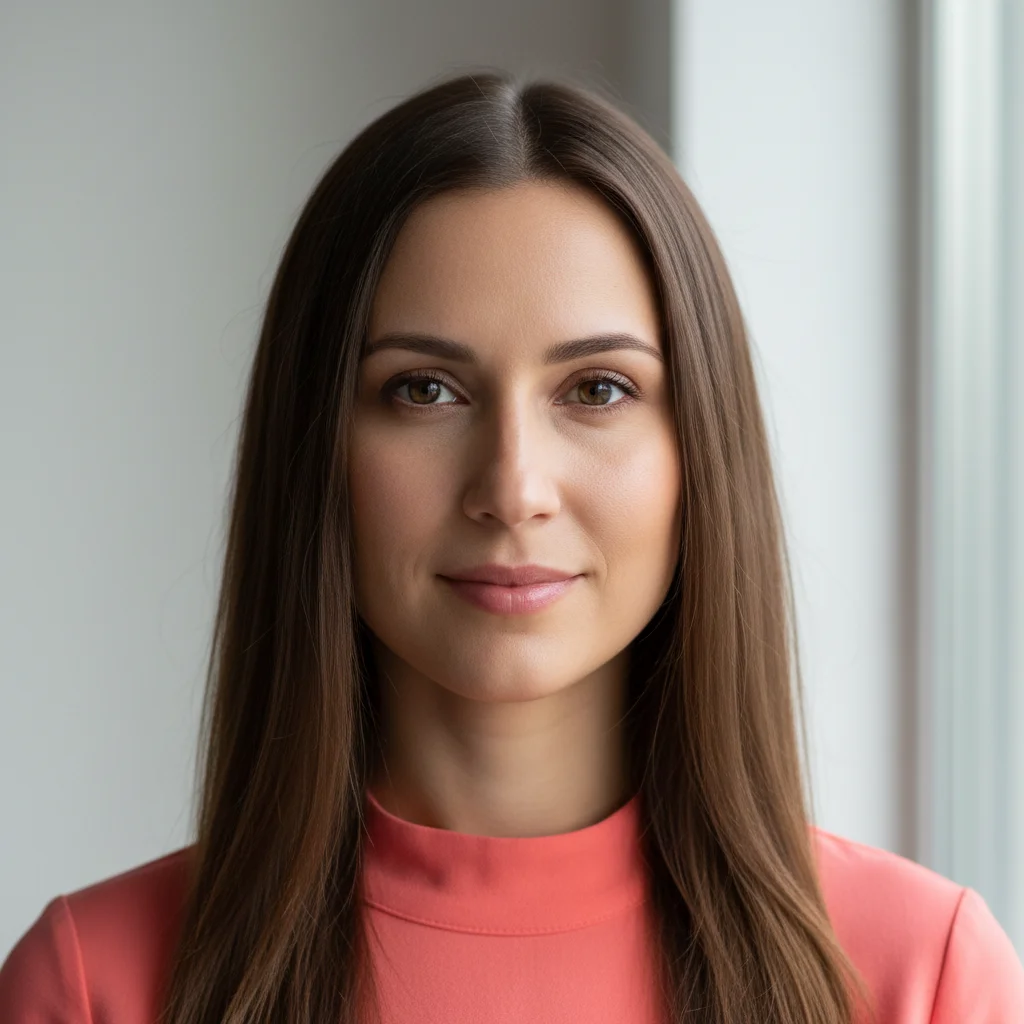
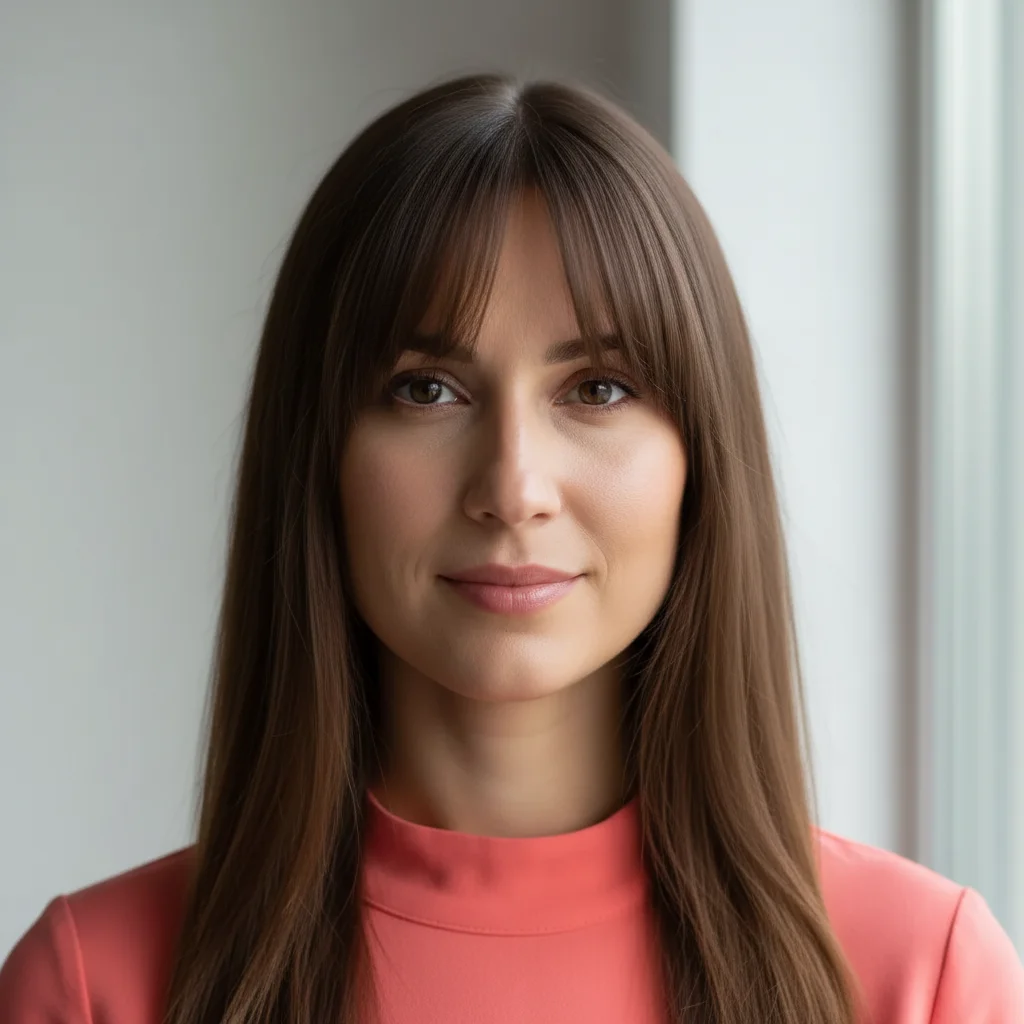
Woman with fully gray shoulder-length hair
Before
โ†’
Same woman with gray removed, natural dark brown hair
After

Remove Gray Hair from Photo

Drop your photo here

or click to browse

Release to upload

Free โ€ข No signup

Advertisement
Popular use cases:
  • remove gray hair in photos
  • cover gray roots
  • salt and pepper hair fix
  • restore natural hair color
  • gray hair color removal
  • hide gray hair
  • age-reverse hair color

Cost
Free No signup required
Time
Instant results in 15-30 seconds
Works on
Any device - browser, phone, tablet, desktop
Powered by
AI-powered photo editing
Scenario Prompt Time
General Gray Removal Remove the gray hair and restore natural color 10s
Gray to Specific Color Change the gray hair to dark brown throughout 12s
Gray Roots Only Remove the gray roots, matching the rest of the hair color 8s
Salt-and-Pepper Fix Remove all gray from the salt-and-pepper hair, leaving only the dark color 15s
Facial Hair Grays Remove gray from the beard and mustache, restoring dark color 12s

How it works

  1. Upload your photo

    Choose a photo where the gray hair is visible. Works on full gray coverage, salt-and-pepper patterns, gray roots, or scattered gray strands. The AI needs to see both the gray areas and any remaining natural color to match properly.

    Expect: Simple removal (scattered grays): 8-12 seconds. Complex removal (full gray coverage or gray roots): 15-20 seconds.
  2. Describe what you want

    Type what you want changed. Simple phrases work: "remove the gray hair", "change gray hair to dark brown", "restore natural color to gray areas", or "turn gray hair back to black". The AI identifies gray hair automatically - no need to mark each gray strand first. Just describe the color result you want.

    Tip: If you have some natural color left, "remove gray" works and matches your existing color. If you're fully gray, specify the target color: "change gray to dark brown" or "restore to natural auburn color".

    Copy one of these to get started:

    Simple gray removal (most common) Remove the gray hair and restore natural color
    Gray to specific color Change the gray hair to dark brown throughout
    Gray roots only Remove the gray roots, matching the rest of the hair color
    Salt and pepper to solid Remove all gray from the salt-and-pepper hair, leaving only the dark color
    3 more prompts
    Partial gray removal (temples only) Remove the gray from the temples while keeping the rest unchanged
    Gray highlights to natural Turn the gray highlights back to natural hair color
    Facial hair gray removal Remove gray from the beard and mustache, restoring dark color
  3. Review the result

    Check that the color looks natural and matches your desired shade. Gray should be gone from all areas (roots, temples, scattered strands). The new color should look like naturally growing hair, not dyed-looking.

  4. Refine with markers if needed

    If the AI missed some gray areas or changed the wrong section, tap a marker on the specific gray spots that need fixing, then regenerate. This is optional - most gray removal works with description alone.

    Tip: Markers help with partial gray removal - like keeping gray temples but removing crown grays, or vice versa. They let you control exactly which gray areas get changed.
Try it free โ†“

Remove Gray Hair from Photo

Drop your photo here

or click to browse

Release to upload

Free โ€ข No signup

"Perfect for updating my LinkedIn photo without scheduling a hair appointment. Gray roots gone in seconds - looks like I just left the salon." @JessicaQuickFix

See it in action

Woman with fully gray shoulder-length hair
Before
->
Same woman with gray removed, natural dark brown hair
After

Full Gray Hair Color Restoration

Completely gray hair restored to dark brown. Perfect for seeing how you'd look without gray before committing to coloring.

Prompt: Change the gray hair to dark brown throughout
Woman with visible gray roots and blonde hair
Before
->
Same woman with roots matching blonde hair, no gray visible
After

Gray Root Touch-Up

Gray roots from grown-out color covered. Matches the existing dyed color perfectly - looks like a fresh dye job.

Prompt: Remove the gray roots, matching the rest of the hair color
Man with salt-and-pepper hair and beard
Before
->
Same man with all gray removed, solid dark hair and beard
After

Salt-and-Pepper to Solid Dark

Mixed gray and dark hair (salt-and-pepper) turned completely dark. Removes just the gray strands while keeping natural texture.

Prompt: Remove all gray from the salt-and-pepper hair, leaving only the dark color
Advertisement

If something looks off

AI changed the wrong area or something I didn't want changed

Why: The AI couldn't determine exactly which area you meant from description alone.

Try: Tap a marker on the specific area you want to change, then regenerate with the same prompt

Tip: Markers tell the AI 'I mean THIS one specifically.' Use them when description alone is ambiguous.

The new color doesn't look natural or is too uniform

Why: Natural hair has subtle color variation, highlights, and dimension. Pure single-color hair can look artificial.

Try: Add 'natural-looking with subtle variation' to your prompt: 'Remove gray and restore natural dark brown with subtle variation'

Tip: Words like 'natural-looking', 'with dimension', or 'subtle highlights' help create more realistic color depth.

Some gray areas were missed

Why: Very fine gray hairs or grays in shadowed areas can be harder for the AI to detect and change.

Try: Add 'completely' or 'all gray': 'Remove all gray hair completely throughout' to ensure comprehensive coverage

Tip: If grays are still missed, use markers to specifically target the remaining gray patches.

The color is too dark or too light

Why: The AI's interpretation of color terms like 'brown' can vary, or it used the wrong reference color.

Try: Be more specific: 'medium brown' vs 'dark brown' vs 'light brown', or 'match the darkest natural areas'

Tip: Hair color terms: black, dark brown, medium brown, light brown, auburn, chestnut help specify exact shades.

The hairline or roots look unnatural after color change

Why: Transitioning from gray at the scalp to colored hair can create hard lines if not blended properly.

Try: Request blending: 'Remove gray with natural gradual transition at the roots' or 'Blend the new color naturally at the hairline'

Tip: Natural roots have subtle gradation. Asking for 'gradual' or 'blended' transitions helps avoid harsh lines.

Highlights or blonde sections turned dark too

Why: The AI might have interpreted light sections as gray, especially if they're similar in lightness level.

Try: Clarify: 'Remove gray hair only, keep the blonde highlights' or 'Change only the silvery gray, not the golden blonde'

Tip: Distinguish between gray (silvery/colorless) and blonde (golden/warm) in your prompt to prevent wrong areas being changed.

Quick answers

Do I need to mark the gray hair before describing what I want?

No! Just describe what you want ("remove gray hair" or "change gray to brown") and the AI detects and changes gray areas automatically. Only use markers if the AI missed some gray sections or changed the wrong areas - for example, if it changed blonde highlights thinking they were gray.

How do I remove gray hair from photos for free?

Upload your photo to EditThisPic, type what you want ("remove gray hair", "change gray to dark brown", "cover gray roots"), and the AI removes grays instantly. Free to use with no signup required and no watermark on your downloads.

What color will my hair be after removing gray?

If you still have some natural color visible, the AI uses that as reference. If you're fully gray, specify the color you want: "change gray to dark brown" or "restore to black". You control the result by describing the color in your prompt.

Can I remove gray from just my roots or temples?

Yes! Be specific in your description ("remove gray from roots only" or "remove gray from temples") or use markers to target specific areas. This lets you keep some gray if you want a distinguished look while removing it from other areas.

Will this work on gray beards and mustaches too?

Yes, the AI works on facial hair. Just specify in your prompt: "remove gray from the beard" or "change gray mustache to dark brown". The AI treats facial hair the same way as head hair.

Ready to remove gray hair from your photos?

Free to try. No signup required.

Try it free โ†’