Free • No signup Remove Gray hair · Free

Remove Gray Hair from Photo

Describe the hair change you want. AI handles it naturally.
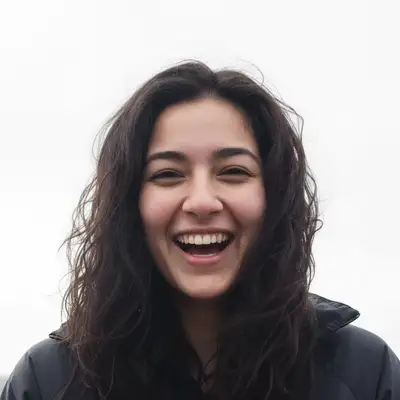
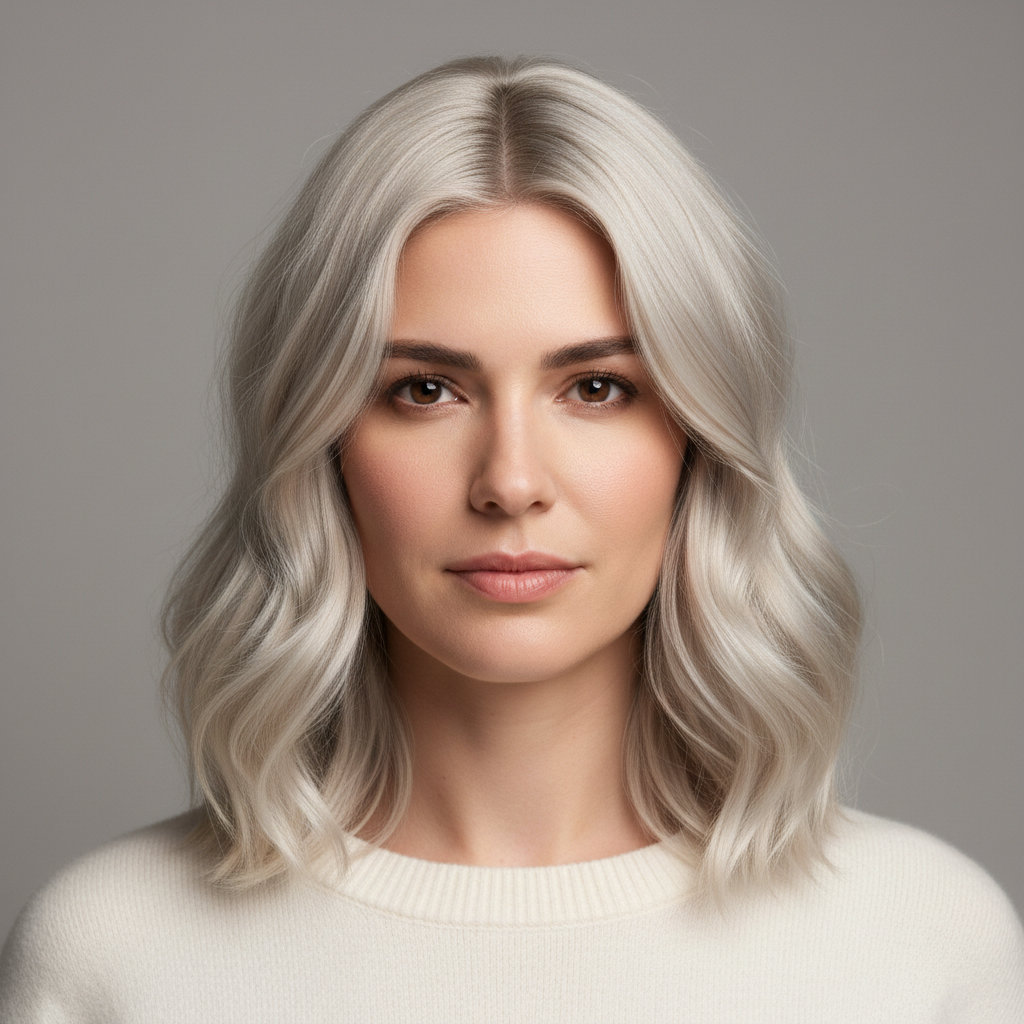
Portrait with gray hair
Before
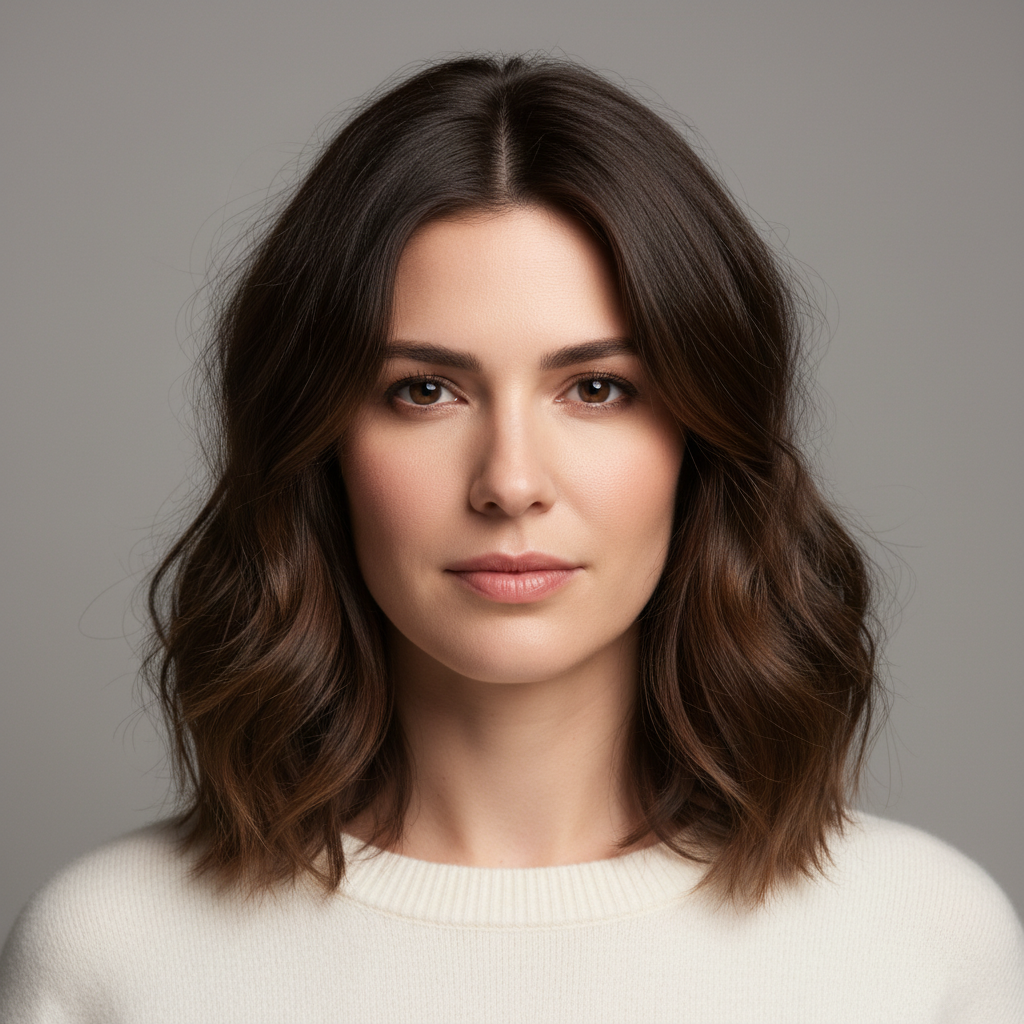
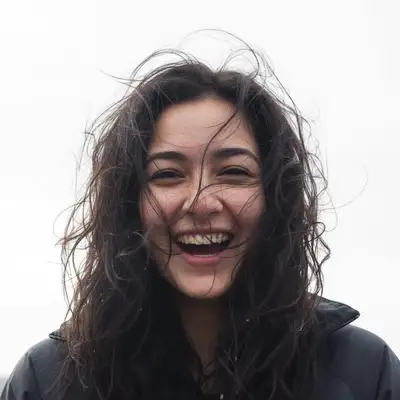
Portrait with dark brown hair
After

Remove Gray Hair from Photo Online

Drop your photo here

or click to browse

Release to upload

Free • No signup

Popular use cases:
  • remove gray hair
  • AI gray hair editor
  • photo gray hair tool
  • free gray hair editing

Cost
Free No signup required
Time
Instant results in 15-30 seconds
Works on
Any device - browser, phone, tablet, desktop
Powered by
AI-powered photo editing

How it works

  1. Upload your photo

    Upload a clear, front-facing portrait. Good lighting on the face and visible facial features give the AI the best foundation for gray hair editing. JPG, PNG, WebP up to 7MB.

    Expect: Most edits complete in 20-45 seconds. Complex changes may need 1-2 refinements.
  2. Describe your edit

    Type what you want: 'Remove the gray hairs and restore the natural darker hair color.' Be specific about details for best results. The AI understands natural language — no technical skills needed.

    Tip: Mention the specific hair texture you want: 'smooth', 'textured', or 'glossy'.

    Copy one of these to get started:

    Full Gray Removal Remove all gray hairs and restore a natural dark brown hair color
    Selective Gray Remove gray hairs at the temples while keeping the rest of the hair natural
    Salt and Pepper Reduce the gray in salt-and-pepper hair by about half for a younger look
    Beard Gray Remove gray from the beard and restore the original darker color
    4 more prompts
    Natural Look Subtly reduce graying to look like my hair 5 years ago while keeping it natural
    Clean removal with smooth fill remove gray hair completely and fill the area with a clean, smooth background that matches surroundings
    Preserve surrounding detail remove gray hair while preserving all surrounding details and textures exactly as they are
    Multiple instances at once remove all visible gray hair from the entire photo, clean and seamless result
  3. Review the result

    Zoom in on facial details — check that skin tones look natural, edges blend seamlessly, and no artifacts appear around the hairline, jawline, or eyes. Use the before/after slider to compare.

  4. Refine if needed

    If specific facial features need adjustment — asymmetric eyes, unnatural skin smoothing, or hairline artifacts — tap markers on those spots and describe the fix. Fine-tune until the result looks like a natural photo.

    Tip: Markers are optional. Try without them first — the AI usually gets it right.
Try it free

Remove Gray Hair from Photo Online

Drop your photo here

or click to browse

Release to upload

Free • No signup

"Removed the gray from my headshot and it took 10 years off. Using this for all my profile photos!" @YouthfulAgain

See it in action

Portrait with gray hair
Before
->
Portrait with dark brown hair
After

Gray to Natural Color

Gray hair restored to natural dark brown.

Prompt: Remove all gray hairs and restore natural dark brown
Salt and pepper hair
Before
->
Hair with reduced gray
After

Salt and Pepper Reduction

Salt-and-pepper hair reduced to a more youthful amount of gray.

Prompt: Reduce gray in salt-and-pepper hair by about half

Detailed Guides by Scenario

📷

Professional Photography

Remove unwanted gray hair from professional photo shoots, client deliverables, and stock photography to achieve clean, polished results.

Common Scenarios

  • Client portrait sessions where the gray hair appeared unexpectedly in frame
  • Stock photography that needs the gray hair removed for broader commercial appeal
  • Product photography with distracting gray hair in the background

Best Practices

  • Zoom in and place a marker directly on the gray hair for the most accurate removal
  • Run a second pass if any faint outlines or shadows remain after the first edit
  • Describe the desired background fill — e.g., 'replace the gray hair with clean wall' for predictable results
📷

Real Estate & Property Listings

Clean up property photos by removing gray hair that distract buyers and lower perceived home value.

Common Scenarios

  • Listing photos where the gray hair clutters the frame and makes rooms look smaller
  • Exterior shots with gray hair that hurt curb appeal
  • Open house photos that need the gray hair removed before uploading to MLS

Best Practices

  • Shoot the space first, then edit — AI removal works better than awkward staging workarounds
  • After removing the gray hair, check that floor lines and wall edges still look straight
  • Process all listing photos in one session so lighting and style stay consistent
📷

Personal & Social Media

Fix personal photos by removing gray hair before sharing on social media, printing, or gifting.

Common Scenarios

  • Vacation photos where the gray hair appeared in an otherwise perfect shot
  • Family photos with gray hair that distract from the people in the frame
  • Profile pictures and dating app photos that need the gray hair cleaned out

Best Practices

  • Save the original photo first — edit a copy so you can always go back
  • For group photos, mark the gray hair carefully to avoid affecting nearby people
  • If the first result isn't perfect, try rewording your prompt with more detail about the background

If something looks off

AI changed the wrong area

Why: The AI couldn't determine exactly which area you meant from the description alone.

Try: Tap a marker on the specific area you want to edit, then regenerate with the same prompt

Tip: Markers tell the AI exactly where to focus. Use them when description alone is ambiguous.

Result looks unnatural or blurry

Why: The AI may need more specific guidance about the look you want.

Try: Remove the gray hairs and restore the natural darker hair color, ensure natural lighting and sharp details that match the rest of the photo

Tip: Adding 'natural' and 'realistic' to your prompt helps the AI prioritize believability.

Hair edges look jagged or cut out

Why: Individual hair strands weren't properly rendered, creating a hard, unnatural boundary.

Try: Regenerate with 'smooth, natural hair edges with realistic flyaway strands'

Tip: Mention the specific hair texture you want: 'smooth', 'textured', or 'glossy' for best results.

New hair color looks painted on

Why: The color was applied uniformly without the natural variation of real hair.

Try: Add 'natural hair color with subtle highlights, lowlights, and variation throughout'

Tip: Specify 'with natural highlights and depth' so the color doesn't look like a flat overlay.

Hairline transition looks unnatural

Why: The boundary between the new hairstyle and the forehead/face looks abrupt or fake.

Try: Regenerate with 'natural hairline transition with baby hairs and soft edges'

Tip: Baby hairs and a soft hairline make the difference between 'edited' and 'natural' looking hair.

Quick answers

Will it look natural?

Yes. The AI blends the color correction naturally, matching your original hair color and texture.

Is it free?

Yes. Free gray hair removal with no signup.

Can I keep some gray?

Yes. Ask for partial reduction instead of complete removal for a more natural, distinguished look.

Can it fix gray in a beard?

Yes. Works on head hair, beards, mustaches, and eyebrows.

What color will it use?

The AI detects your remaining natural color and matches it. You can also specify a target color.

Will it affect the rest of my photo?

No. Only the gray hair changes. Skin, background, and everything else stays the same.

Can I remove gray hair on my phone?

Yes. EditThisPic works in any mobile browser -- iPhone, Android, tablet. No app download needed.

What photo formats does the remove gray hair from photo tool support?

JPG, PNG, WebP, and HEIC. Upload any common photo format and EditThisPic handles the rest.

Ready to change your hair?

Free to try. No signup required.

Try it free