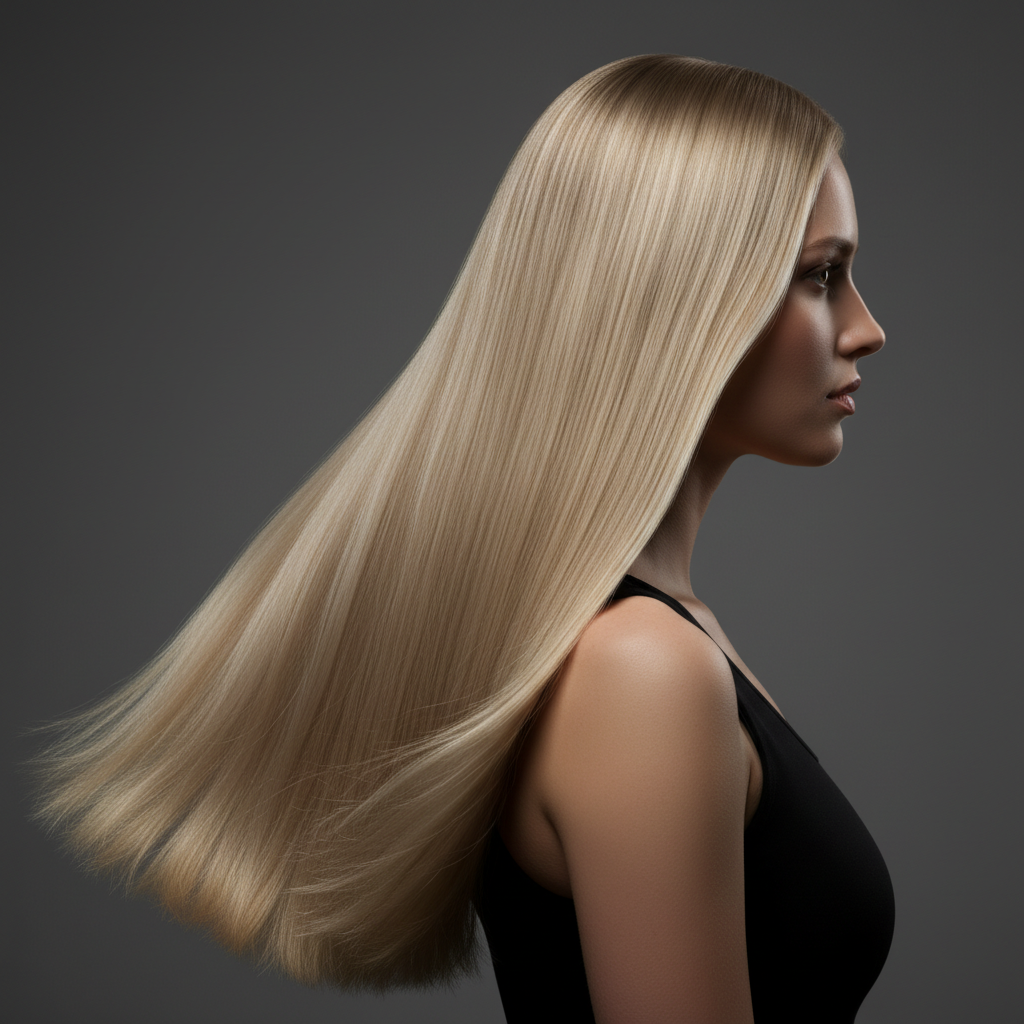
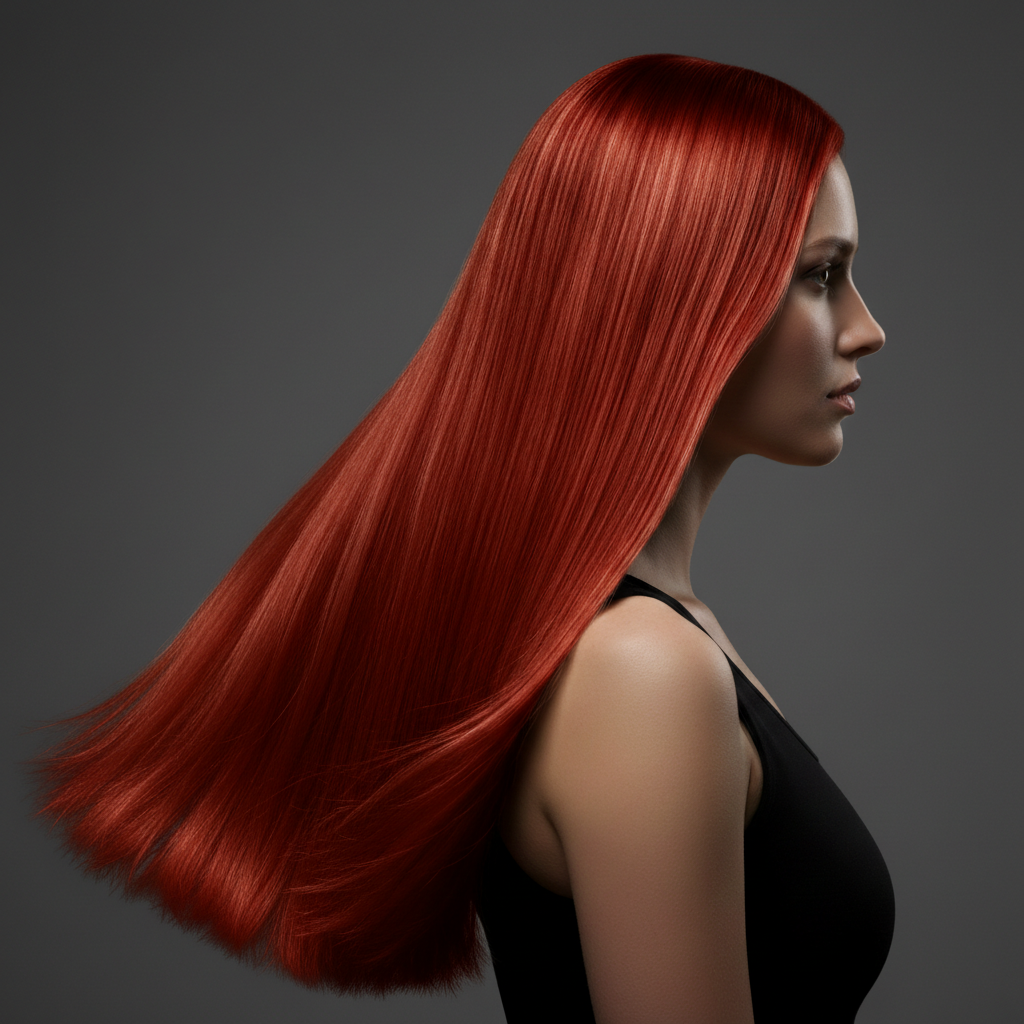
Free β€’ No signup Change Hair color Β· Free

AI Hair Color Changer

Preview any hair color before your salon visit - just describe the shade you want. Free, instant, no account needed.

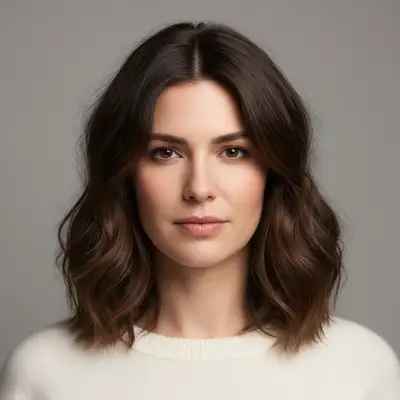
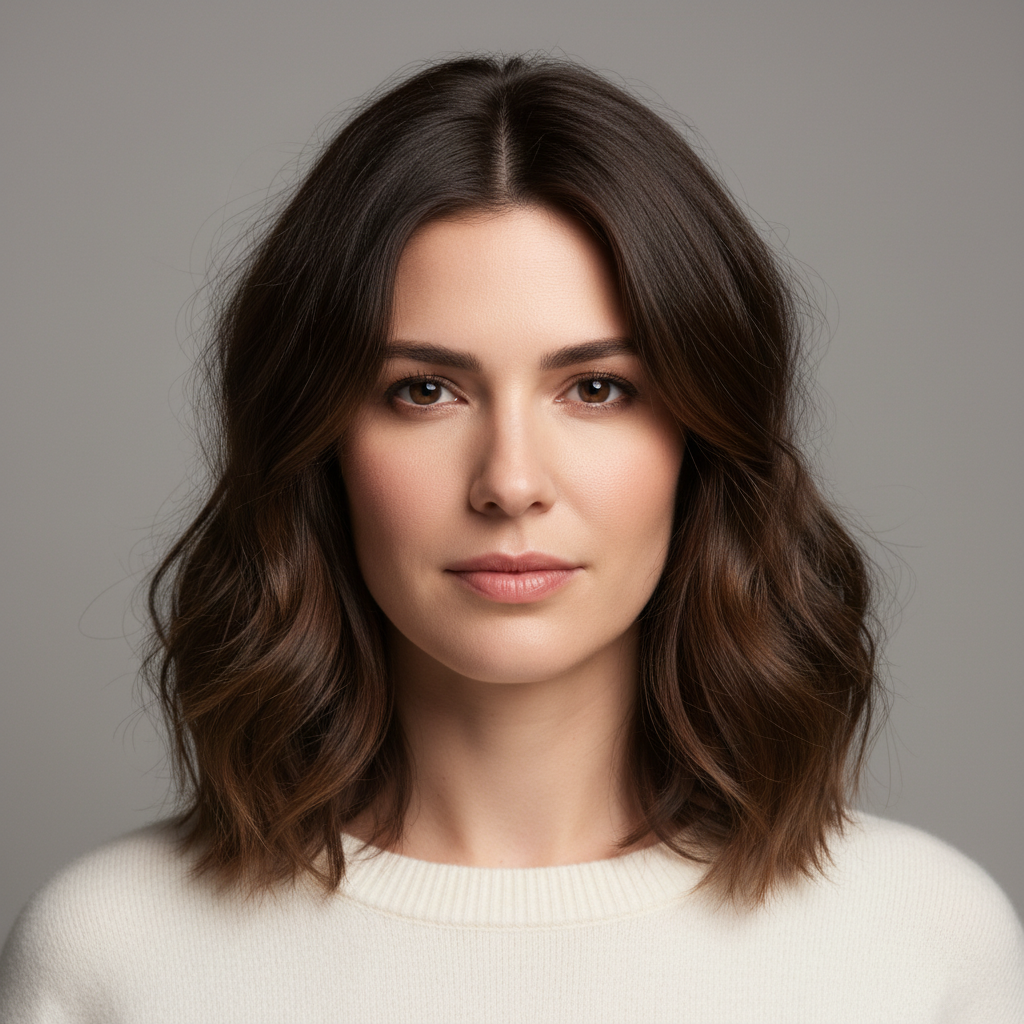
Woman with dark brown shoulder-length hair
Before
β†’
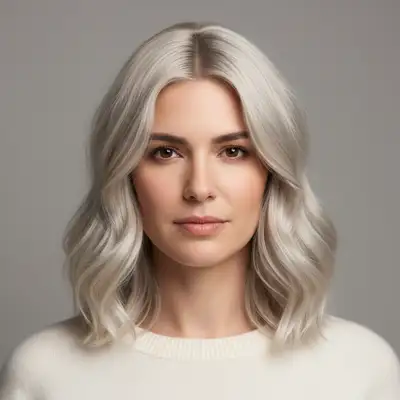
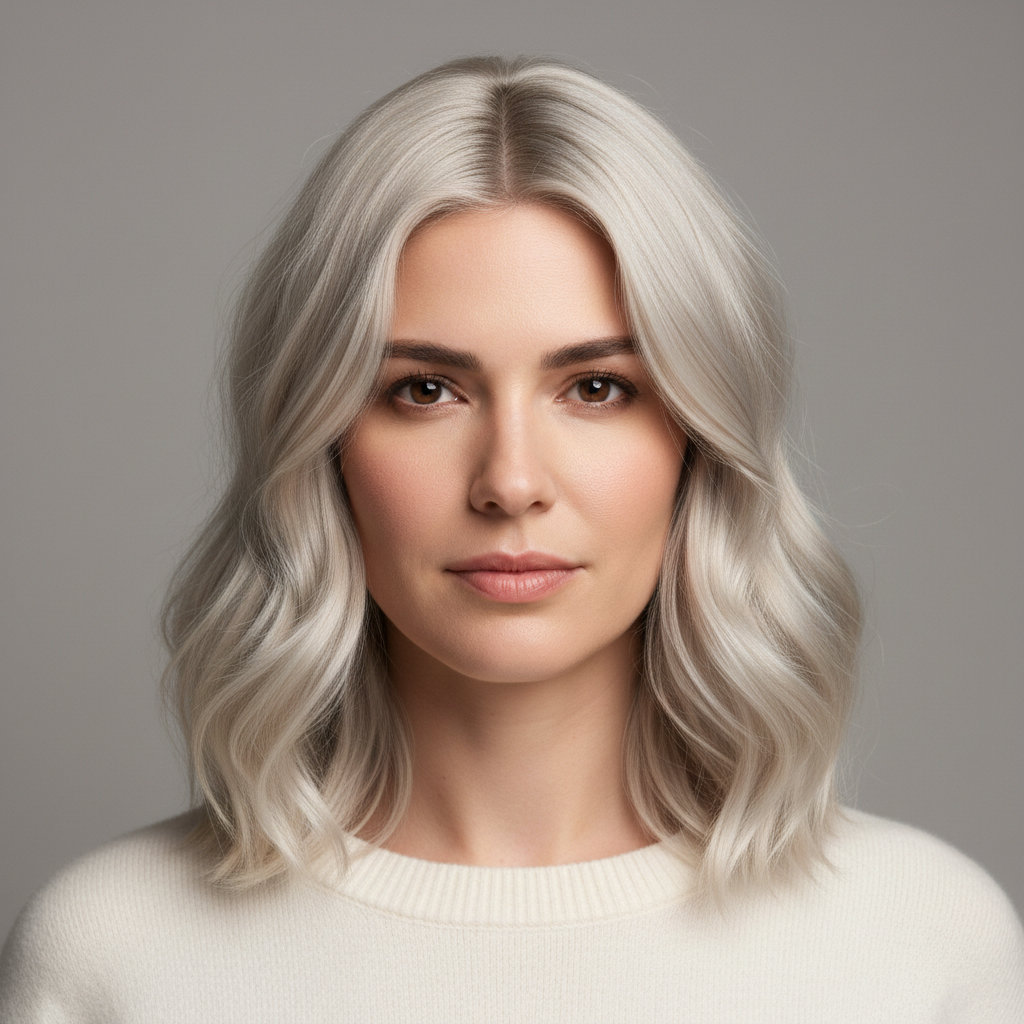
Same woman with warm platinum blonde hair and highlights
After

Change Hair Color in Photo Free

Upload photo to try new hair color

Try before you dye β€’ Instant preview

Release to upload

FreeNo signupNo watermark
Popular use cases:
  • salon preview
  • hair dye simulation
  • virtual hair coloring
  • try before you dye
  • hair color visualization
  • cosplay hair color
  • social media content
  • fashion photography

Cost
Free No signup required
Time
Instant results in 15-30 seconds
Works on
Any device - browser, phone, tablet, desktop
Powered by
AI-powered photo editing
Scenario Prompt Time
Natural color change change hair color to warm honey blonde 30s
Bold color change change hair to vibrant copper red 35s
Fantasy color make the hair pastel pink from roots to tips 45s

How it works

  1. Upload your photo

    Upload a clear, front-facing portrait. Good lighting on the face and visible facial features give the AI the best foundation for hair color editing. JPG, PNG, WebP up to 7MB.

    Expect: Simple color changes: 30-40 seconds. Fantasy or multi-tone colors: 45-60 seconds and may need refinements.
  2. Describe the new hair color

    Type what you want: 'change hair color to platinum blonde' or 'make the hair a warm copper red.' Be specific about the shade and tone. No marking neededβ€”the AI knows what 'hair' means and targets it automatically.

    Tip: Use specific shade names like 'ash blonde', 'warm chestnut', or 'icy silver' instead of just 'blonde' or 'brown' for more accurate results.

    Copy one of these to get started:

    Go blonde change hair color to warm platinum blonde with natural-looking highlights
    Rich brunette make the hair a deep chocolate brown with subtle caramel highlights
    Vibrant red change hair to a vibrant copper red with warm undertones throughout
    Silver or grey look change the hair to icy silver grey, sleek and metallic-looking
    6 more prompts
    Fantasy pastel pink make the hair pastel pink, soft and even color from roots to tips
    Ombre gradient add an ombre effect to the hair, dark brown roots fading to honey blonde at the tips
    Jet black change hair color to jet black with a glossy shine, uniform from root to tip
    Balayage highlights add balayage highlights to the hair, transitioning from dark roots to warm caramel blonde at the mid-lengths and ends
    Electric blue fantasy change the hair to electric blue with a slight purple tint, vibrant and saturated from roots to tips
    Natural auburn red change hair to a natural auburn red with warm golden highlights, as if colored at a salon
  3. Review the color change

    Check that the new color looks natural on strands and roots. Look for consistent color through highlights and shadows. Zoom in on hairline edges and part lines to verify smooth transitions.

  4. Refine with markers if needed

    If specific areas like roots, tips, or hairline edges need adjustment, tap markers on those spots and regenerate. Most color changes work perfectly on the first try.

    Tip: Markers are for precision refinement only. Try without them firstβ€”you usually won't need them.
Try it free ↓

Change Hair Color in Photo Free

Upload photo to try new hair color

Try before you dye β€’ Instant preview

Release to upload

Free β€’ No signup

See it in action

Woman with dark brown shoulder-length hair
Before
->
Same woman with warm platinum blonde hair and highlights
After

Brunette to platinum blonde transformation

Dark brown hair transformed to a bright platinum blonde to preview a dramatic salon change.

Prompt: change hair color to warm platinum blonde with natural-looking highlights
Woman with light blonde wavy hair
Before
->
Same woman with vibrant copper red hair
After

Blonde to vibrant copper red

Light blonde hair changed to a rich copper red to test a bold new color before committing.

Prompt: change hair to a vibrant copper red with warm undertones throughout

Detailed Guides by Scenario

πŸ“·

Interior Design & Renovation

Visualize hair color changes before painting, reupholstering, or purchasing β€” saving time and money on design decisions.

Common Scenarios

  • Testing how a hair looks in navy, sage, or terracotta before committing
  • Showing clients multiple hair color options using the same room photo
  • Matching hair color to existing decor in a renovation plan

Best Practices

  • Upload a photo with even lighting so the AI can accurately map the color boundary
  • Tap directly on the hair to mark it, then specify the exact color you want
  • Try describing the finish too β€” 'matte charcoal' vs. 'glossy charcoal' gives different results
πŸ“·

Fashion & Style Preview

Try different hair colors digitally before purchasing or coordinating an outfit.

Common Scenarios

  • Previewing a hair in multiple colors before buying online
  • Coordinating hair color with the rest of an outfit for an event
  • Creating mood boards that show hair color variations for a stylist or client

Best Practices

  • Mark the hair precisely β€” if nearby items share a similar color, the AI may change them too
  • Specify the fabric look: 'change to burgundy silk' captures both color and material
  • Process the same photo with 3-4 colors to build a comparison grid
πŸ“·

Product & Marketing Visuals

Generate hair color variants from a single product photo β€” perfect for catalogs, ads, and e-commerce listings.

Common Scenarios

  • Creating all color variants of a hair from one studio shot
  • Matching hair to brand colors for marketing campaigns
  • Showing seasonal hair color options without reshooting

Best Practices

  • Start with a neutral, well-lit product photo on a plain background for cleanest results
  • Use exact color names or hex codes when precision matters β€” 'Pantone Classic Blue' or '#0F4C81'
  • After changing hair color, verify shadows and highlights still look natural

If something looks off

AI changed the wrong area or something I didn't want changed

Why: The AI couldn't determine exactly which area you meant from description alone. This can happen when eyebrows or clothing are similar in color to hair.

Try: Tap a marker on the hair specifically, then regenerate with the same prompt

Tip: Markers tell the AI 'I mean THIS area specifically.' Use them when description alone is ambiguous.

New color looks flat or unnatural

Why: The AI applied a single uniform tone without the natural variation that real hair has in highlights and shadows.

Try: change hair color to [shade] with natural variation in highlights and lowlights, maintaining realistic texture

Tip: Adding 'natural variation' or 'multi-dimensional' helps the AI mimic how real dyed hair looks.

Roots or hairline edges still show original color

Why: Fine hairs at the hairline and root area are harder for the AI to recolor because they blend with skin tones.

Try: Tap markers on the roots and hairline, then regenerate: ensure hair color reaches the roots and hairline edges

Tip: Roots and flyaway hairs near the face are the trickiestβ€”markers on those areas fix it quickly.

Color is too intense or oversaturated

Why: Without specifying tone intensity, the AI may go bolder than you intended, especially with reds and fantasy colors.

Try: change hair to a soft, muted [shade] with natural saturation levels

Tip: Words like 'soft', 'muted', and 'natural' dial back intensity. 'Vivid' and 'bold' push it up.

Hair texture or volume changed along with color

Why: The AI sometimes reinterprets hair structure when changing color, especially for dramatic shifts like dark to light.

Try: change only the hair color to [shade], keep the exact same hair texture, volume, and style

Tip: Explicitly saying 'keep the same texture and style' prevents the AI from altering anything beyond color.

Quick answers

Do I need to mark my hair before describing the color I want?

No. Just describe the color change: 'change hair color to blonde' or 'make the hair red.' EditThisPic's AI understands what 'hair' means and targets it automatically. Only use markers if you want to color specific sections, like just the tips or roots, and the AI isn't getting it right from description alone.

How do I change my hair color in a photo for free?

Upload your photo to EditThisPic and type the color you want: 'change hair to platinum blonde' or 'make the hair dark cherry red.' The AI recolors hair in about 30 seconds while preserving natural texture. Free to use, no account or signup required, no watermarks on the result.

Is there a free AI hair color changer that doesn't require signup?

Yes. EditThisPic changes hair color for free with no account needed. Upload your photo, describe the color you want, and download the result. No watermarks, no app download. Works for natural shades, fashion colors, and fantasy tones like pastel pink, electric blue, or silver.

What is the best free AI tool to change hair color in a photo?

EditThisPic is one of the best free AI hair color changers available. Upload a photo, type the color you want, and the AI delivers realistic results in 30 seconds. No account, no watermark, and it handles natural shades and fantasy colors equally well. Works in any browser, no download needed.

Can AI change hair color to unnatural or fantasy colors?

Yes. The AI handles fantasy colors like pastel pink, electric blue, emerald green, and icy silver. Just describe what you want: 'change hair to pastel lavender' or 'make it neon blue.' Fantasy colors may need one refinement for even coverage, but they work well on most photos.

How do I change hair color in a photo without Photoshop?

Upload your photo to EditThisPic and type a prompt like 'change hair to auburn red.' The AI automatically detects the hair and recolors it in seconds. No manual selection tools, layers, or masks needed β€” just a text description of the color you want. Free, no login required.

Can I change just the roots or tips to a different color?

Yes. Use a prompt like 'change only the roots to dark brown' or 'color just the tips pastel purple.' If the AI affects more than you intended, tap markers on the specific area and regenerate. Ombre and balayage effects work especially well.

Does the AI preserve my natural hair texture when changing color?

Yes. The AI changes the color while keeping your original hair texture, volume, and style intact. For best results, include 'keep the same texture and style' in your prompt if you notice any unwanted changes to curl pattern or volume.

Can I see how different hair colors look before dyeing?

Yes. EditThisPic is perfect for previewing hair colors before committing to a salon visit. Try multiple colors on the same photo β€” blonde, brunette, red, silver β€” each takes about 30 seconds. Upload once, change the color description, and compare results side by side.

Does the hair color changer work on my phone?

Yes. EditThisPic works in any mobile browser on iPhone or Android with no app download needed. Upload your selfie, type the color you want, and download the result. The full experience works on mobile.

Can I preview multiple hair colors on the same photo to compare?

Yes. Upload your photo once, then change the color description each time: try 'platinum blonde,' then 'copper red,' then 'icy silver.' Each edit takes about 30 seconds. Download each result and compare them side by side before booking your salon appointment. Free on EditThisPic.

Does the AI hair color changer work on curly or textured hair?

Yes. The AI preserves your natural hair texture - curly, wavy, coily, straight, or braided. It changes only the color while keeping volume, curl pattern, and style intact. Add 'keep the same texture and curl pattern' to your prompt for extra precision.

Ready to change your hair color?

Free to try. No signup required.