AI Photo Editor for Family Photos
Preserve and perfect your precious family memories in seconds.
"Restored my grandmother's only wedding photo from 1952. The scratches are gone, colors are back, and my mom cried when she saw it. Took me 2 minutes." @FamilyKeeper_Jane
Built for Families
Family photos capture irreplaceable moments. Whether it's removing that random tourist from your Disney picture, restoring grandma's only wedding photo, or fixing a group shot where someone blinked, you need quick fixes without learning complex software. EditThisPic lets you describe what you need in plain English and get frame-worthy results in seconds.
Tools Families Use Most
Remove Person
Remove strangers, photobombers, or ex-partners from family photos
Restore Old Photos
Fix scratches, fading, and damage on vintage family prints
Remove Photobomber
Clear unwanted people from vacation and event photos
Enhance Photo
Brighten dark photos and improve colors on old snapshots
Step-by-Step Guide
Upload your family photo
Drop your image into EditThisPic. JPG, PNG, WebP up to 7MB. Works with phone photos, scanned prints, and digital images. Whether it's a faded 1960s print or yesterday's birthday party shot.
Describe what you want in plain English
Type your instruction: 'remove the stranger on the right' or 'restore this old photo and fix the scratches' or 'replace the messy kitchen background with a clean backdrop.' Be specific about what needs fixing. The AI understands family photo terminology.
Review your edited photo
Check faces first - they matter most in family photos. Look at edges where people or objects were removed. Verify the edit looks natural and preserves the memory correctly.
Refine specific areas if needed
If something isn't quite right, tap markers on that specific spot and regenerate. Most family photos work on the first try, but complex restorations may need refinement around damaged areas.
Copy-Paste Prompts for Family Photos
remove the person in the background on the right and fill naturally with the scenery behind them
Specifying position ('on the right') helps the AI identify exactly who to remove while protecting your family
fully restore this old photo, fix all scratches and fading, bring back natural colors and clear faces
'Clear faces' ensures the AI prioritizes the most important part of heritage photos
remove the person on the far left and fill with the background naturally, preserve everyone else exactly
Being specific about position and what to preserve prevents accidental changes to people you want to keep
replace the cluttered kitchen background with a soft blurred colorful backdrop, keep the birthday girl and cake sharp
A soft blurred backdrop looks professional while keeping attention on your family
Show 4 more prompts
brighten this photo naturally, enhance lighting on faces while keeping the cozy holiday atmosphere
'Naturally' prevents over-brightening that looks fake; 'cozy atmosphere' preserves the holiday warmth
colorize this black and white photo with natural realistic colors, restore any damage while adding color
The AI can restore and colorize in a single pass for vintage photos
remove the trash can visible on the left and fill with clean grass matching the rest of the yard
Describing what should replace the object ('clean grass') gives more natural results
fix the closed eyes on the person in the blue shirt, make them look natural and alert
For eye fixes, identifying the person by clothing color helps the AI find the right face
| Edit Type | Prompt | Time |
|---|---|---|
| Remove photobomber | remove the person on the right, fill with background |
25s |
| Restore old photo | restore this old photo, fix scratches and fading |
35s |
| Fix background | replace messy background with soft blurred backdrop |
25s |
| Brighten dark photo | brighten this photo, enhance lighting on faces |
20s |
Real Family Photo Transformations
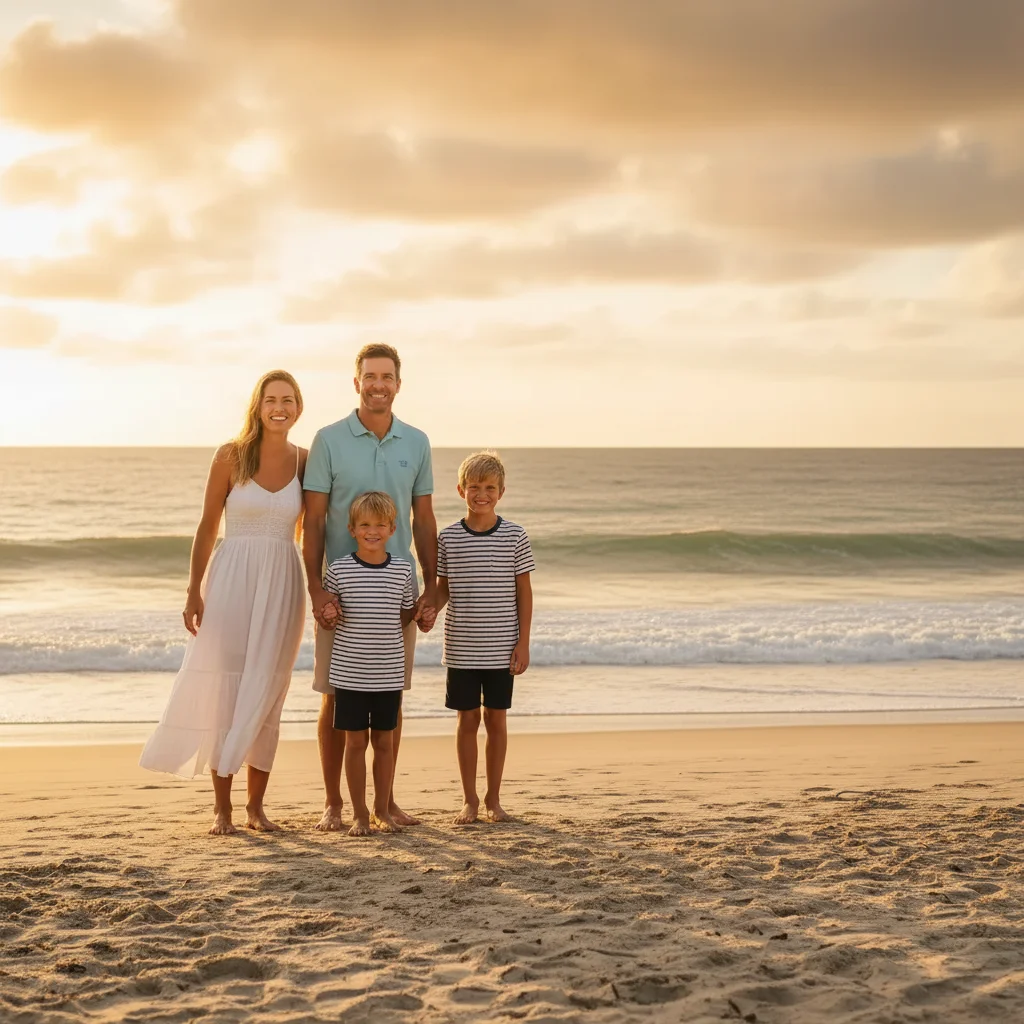
Photobomber removed from beach vacation
A stranger walked into the perfect family beach shot. One prompt removed them and restored the natural ocean background.
remove the person in the bright blue shirt on the right edge and fill with the ocean and sand
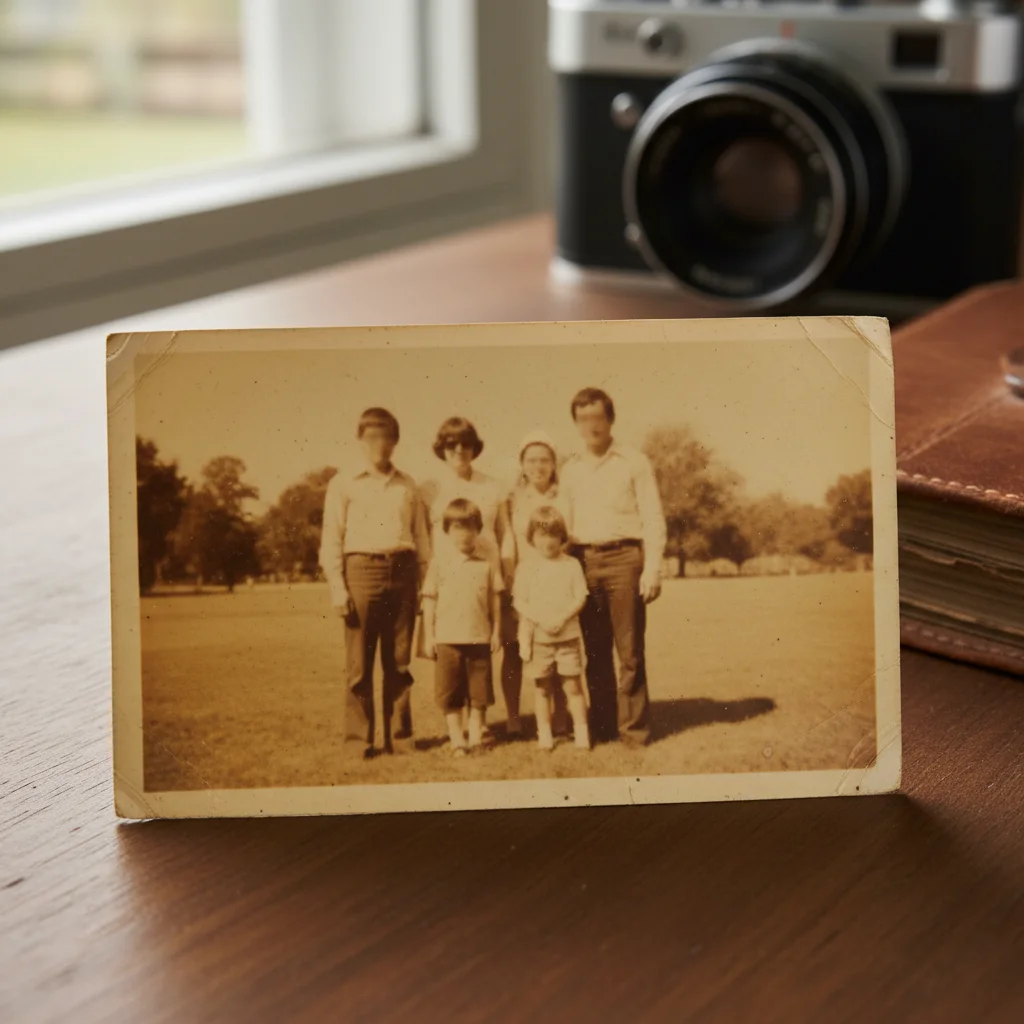
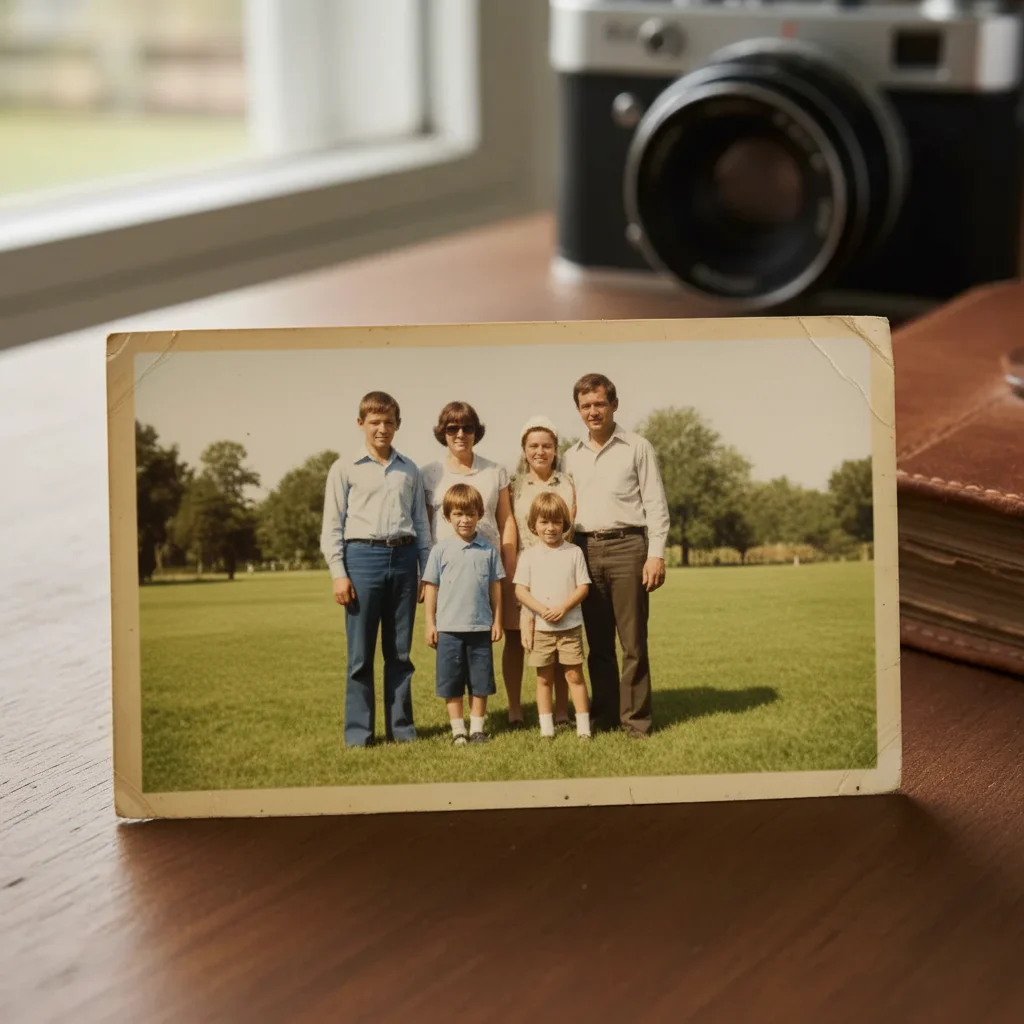
1970s family portrait restored
A treasured color photo from the 70s had severe fading and yellow color cast. AI restoration brought back the original vibrant colors.
fully restore this old photo, fix the yellowing and fading, bring back natural colors and clear faces
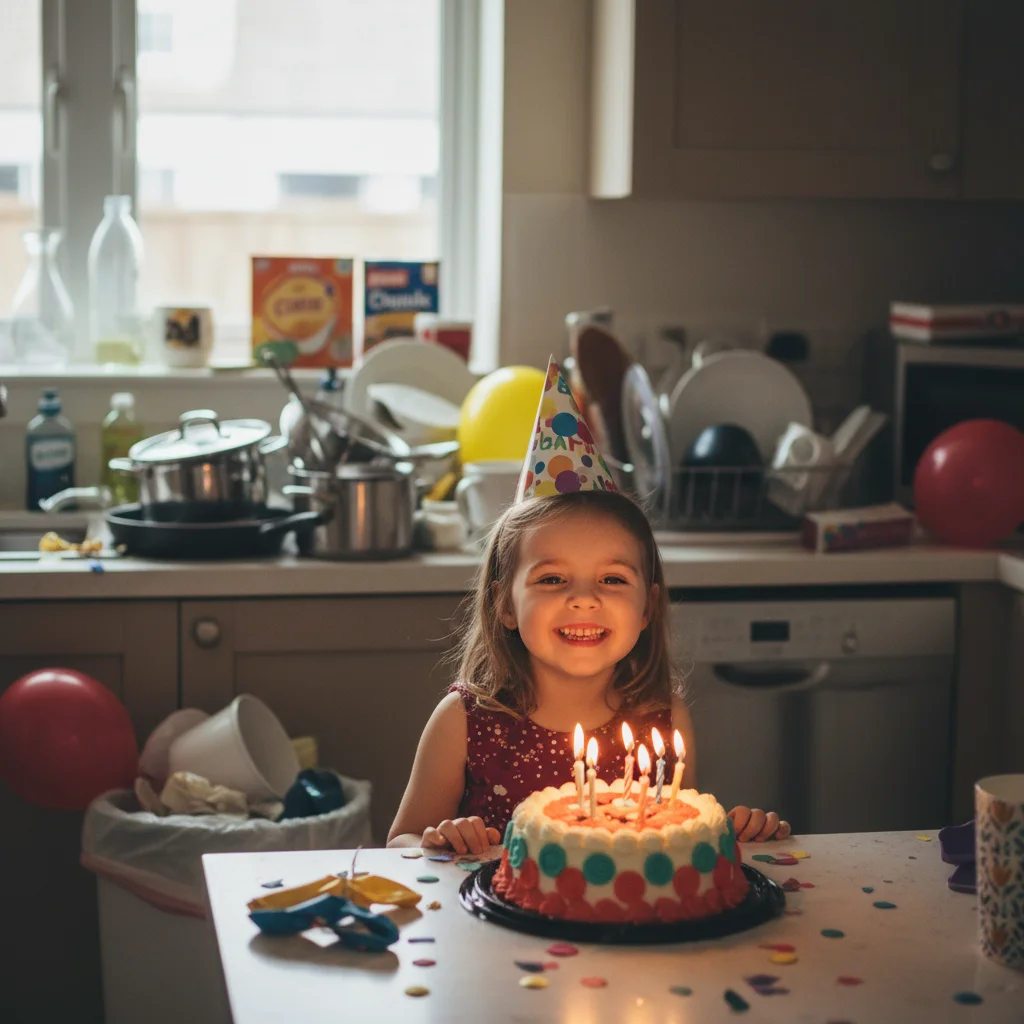
Birthday party background cleaned up
The birthday moment was perfect but the cluttered kitchen was distracting. A simple prompt created a professional look.
replace the messy kitchen background with a soft blurred colorful backdrop, keep the birthday girl and cake sharp
When Things Go Wrong
Wrong person was removed from the photo
Why: When multiple people are present, the AI may not identify which specific person you meant from description alone.
Tap a marker directly on the person you want removed, then use the same prompt
Use specific identifiers: 'the person in the red dress on the left' works better than just 'the person on the left'
Faces look unnatural after restoration
Why: Heavily damaged old photos require the AI to guess missing facial details. When original information is too degraded, results may not be perfect.
gently restore faces while preserving the original likeness, use subtle enhancement only
For precious photos, try gentle restoration first. You can always do more, but over-restoration is harder to fix.
Background replacement looks fake
Why: Lighting mismatch between the original subjects and new background makes edits look artificial.
replace background with a backdrop that has similar soft lighting from the same direction, match the warmth
Mention the lighting direction and warmth when replacing backgrounds for more natural results.
Removed person left visible traces or artifacts
Why: Complex backgrounds or people overlapping others are harder to fill naturally.
Tap markers on the remaining artifacts and use: clean up this area and blend naturally with surroundings
People at edges with simple backgrounds behind them remove most cleanly.
Frequently Asked Questions
Do I need to mark areas before describing what I want?
No! For most family photo edits, just describe what you want: 'remove the stranger on the right' or 'restore this old photo.' The AI understands common requests. Only use markers when you need precision - like specifying which of several similar people to remove.
Can I restore really old or damaged family photos?
Yes! The AI handles scratches, fading, yellowing, stains, and general aging remarkably well. For best results with physical prints, scan at 300-600 DPI. Very severe damage may require multiple passes.
Is removing someone from a photo ethical?
Context matters. Removing strangers who photobombed your vacation? Completely fine. Removing an ex-partner from memories you want to keep? Your choice. Altering photos for legal documents or to deceive? Not appropriate. Use good judgment.
Will removing someone look obvious?
In most cases, no. The AI fills in removed areas with appropriate background content. Results are best when the person is at the edge of the photo with simple background behind them. People in the middle of groups are more challenging.
Can I edit photos from my phone?
Absolutely. EditThisPic works on any device with a web browser - phones, tablets, and computers. Upload directly from your camera roll or photo library.
How do I get the best results with scanned old photos?
Scan at 300-600 DPI for optimal detail. Use even lighting without glare. The more detail you capture, the better the AI can distinguish damage from original content.
Ready to perfect your family photos?
Free to try. No signup required. No watermarks.
Upload Your First Photo