Free • No signup Enhance Event photo · Free

AI Event Photo Editor

← Browse all creative effects

Last updated

Fix the lighting, remove the photobomber, clean up the background — describe the fix and our AI handles it. Free, no account needed.
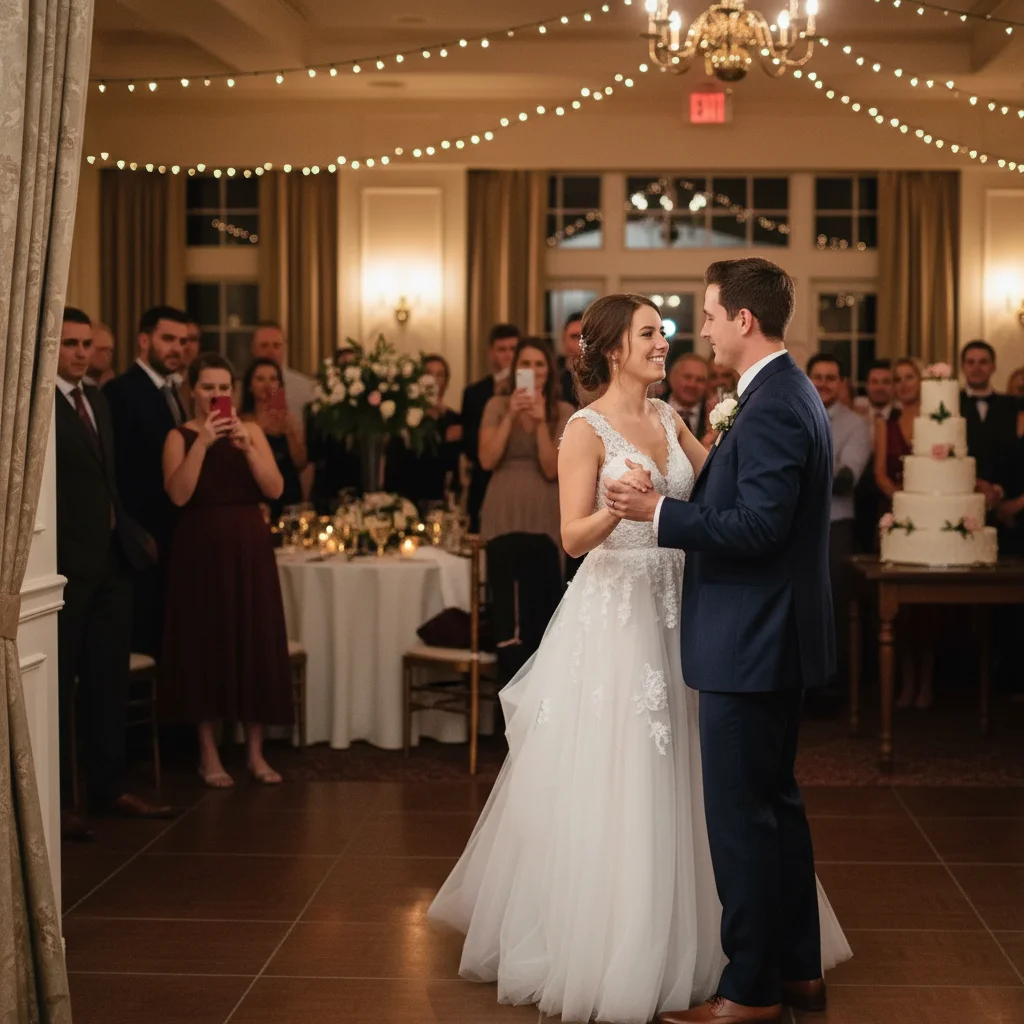
Wedding couple at table with harsh direct flash and cold flat lighting
Before
Same couple with warm golden ambient lighting and natural face shadows
After

Upload photo to enhance event photo

"remove the person visible in the background behind the couple on the right side, fill with the venue background matching the surrounding wall and decor"

Release to upload

FreeNo signupNo watermark

1 free edit·then from $1.99

Popular use cases:
  • event photo editing
  • wedding photo fix
  • remove photobomber
  • fix flash photography
  • corporate event photos

Cost
Free No signup required
Time
Instant results in 15-30 seconds
Works on
Any device - browser, phone, tablet, desktop
Powered by
AI-powered photo editing
Scenario Prompt Time
Fix flash lighting warm the lighting, reduce harsh flash shadows on faces, romantic ambient quality 25s
Remove photobomber remove the person in the background on the right, fill with matching venue background 30s
Fix red-eye fix red-eye on all people in the photo, restore natural eye color 20s

How it works

  1. Upload your event photo

    Use your highest-resolution photo. JPG, PNG, or WebP up to 7MB. Wedding portraits, group shots, candid moments, and venue detail photos all work well. Photos with at least moderate lighting give the best enhancement results.

    Expect: Well-lit photos with visible faces and room detail allow the AI to enhance accurately. Extremely dark or motion-blurred photos may need two passes.
  2. Describe what to fix or enhance

    This is the key step. Type a direct instruction — 'warm up the lighting, remove the person on the far right, and fix the red-eye on the people in the center.' Compound instructions work well for event photos. No marking needed for most standard fixes.

    Tip: Event photos often have multiple issues — lighting, background people, and color balance. A compound prompt handles all three in one pass instead of needing three separate edits.

    Copy one of these to get started:

    Warm up wedding reception lighting warm up the room lighting to feel romantic and golden, reduce the harsh flash shadows on faces, make the venue feel warmly lit without losing the ambient mood
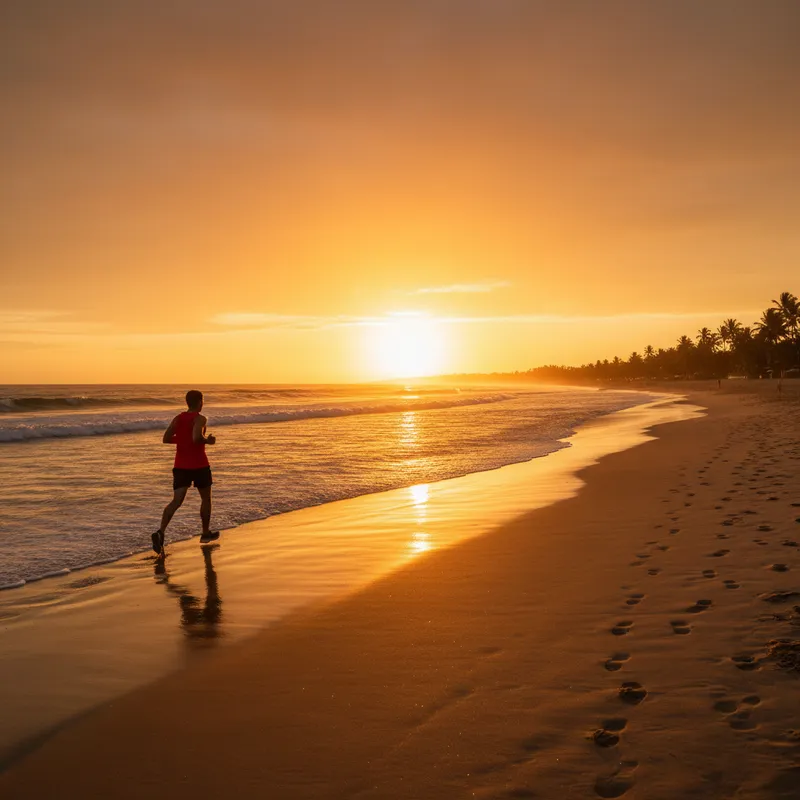
    Remove a photobomber from the background remove the person visible in the background behind the couple on the right side, fill with the venue background matching the surrounding wall and decor
    Fix red-eye in group photos fix the red-eye on all people in the photo, restore natural eye color to each person, keep all other facial features unchanged
    Outdoor event — harsh sunlight fix soften the harsh direct sunlight shadows on the faces, balance exposure so both faces and background sky are properly exposed, keep the natural outdoor setting unchanged
    4 more prompts
    Birthday party photo — brighter and more festive brighten the party photo, make the decorations and balloons more vivid and colorful, warm the overall lighting to feel festive and celebratory
    Wedding portrait — enhance and clean enhance the wedding portrait — warm romantic lighting, smooth any skin inconsistencies naturally, make the flowers and fabric details crisp, clean natural background
    Corporate event — clean and professional clean up the corporate event photo — even the lighting across all faces, remove the distracting items on the table, brighten the overall scene to a professional tone
    Night event with mixed artificial light balance the mixed warm and cool artificial lighting in this night event photo, reduce the yellow cast from tungsten lights, even out the exposure across the faces while preserving the venue atmosphere
  3. Review the result carefully

    Check that key people in the photo look natural — faces, skin tones, and expressions should be unchanged. Verify that the background fix doesn't leave visible artifacts. For group photos, check that no face was accidentally altered.

  4. Use a marker for specific people or objects

    For removing a specific photobomber or adjusting one person's lighting separately, tap a marker directly on them. Markers are especially useful in crowded event photos where description alone might not isolate the right person.

    Tip: In dense crowd shots, use a marker plus 'remove the person I've marked and fill with natural background.' Markers make the AI unambiguous about which person you mean.
Try it free

Upload photo to enhance event photo

"fix the red-eye on all people in the photo, restore natural eye color to each person, keep all other facial features unchanged"

Release to upload

Free • No signup

See it in action

Wedding couple at table with harsh direct flash and cold flat lighting
Before
->
Same couple with warm golden ambient lighting and natural face shadows
After

Wedding reception photo — flash shadows softened

A couple at a round dinner table, flash photography from the photographer — harsh shadows on faces, flat white-flash look. After: warm ambient-quality light, natural face shadows, romantic venue feel.

Prompt: warm up the room lighting to feel romantic and golden, reduce the harsh flash shadows on faces, make the venue feel warmly lit without losing the ambient mood
Family group photo with stranger in red visible in right background
Before
->
Same family group with background cleaned up and balloons intact
After

Group photo — background stranger removed

A family group photo at a birthday party — a stranger photobombed by walking into the background at the right edge. The AI removed the person and filled with the party venue wall and decorations.

Prompt: remove the person visible in the background on the right side, fill with the venue background matching the surrounding wall and party decorations
Man in business suit in direct midday sunlight with harsh face shadows
Before
->
Same man with softened shadows, balanced sky exposure, and natural outdoor look
After

Outdoor event portrait — sunlight balanced

A speaker portrait at an outdoor corporate event, taken in direct midday sun — strong raccoon-eye shadows and blown-out sky. After: balanced exposure, shadows softened, natural outdoor setting preserved.

Prompt: soften the harsh direct sunlight shadows on the face, balance exposure between the face and background sky, keep the natural outdoor setting unchanged

If something looks off

AI changed the wrong area or something I didn't want changed

Why: The AI applied the enhancement broadly — for example, brightening a face you wanted unchanged along with a face you wanted brightened.

Try: Tap a marker on the specific person or area you want changed, then regenerate with the same prompt

Tip: In group photos, markers are the most reliable way to target one specific person without affecting the others.

Removed person left a smear or patch in the background

Why: The AI filled the area where the person was but the fill didn't perfectly match the venue background (patterned wallpaper, complex decor).

Try: smooth the area where the person was removed and match the background pattern exactly — replicate the wall color, texture, and any visible decor

Tip: Describe the background material: 'match the white painted wall texture' or 'match the patterned wallpaper.' Specific material descriptions improve the fill quality.

Skin tones look orange or over-warmed after lighting fix

Why: The warm lighting instruction shifted skin tones toward orange without a qualifier to preserve natural skin color.

Try: warm the ambient room lighting only — do not shift skin tones, keep all faces accurate to their natural color

Tip: 'Warm the ambient light only' separates the lighting warmth from skin tone. This is the standard fix for over-orange skin after warmth edits.

Face looks smoothed or retouched when I didn't ask for that

Why: Lighting enhancement prompts sometimes trigger subtle skin smoothing as a side effect.

Try: adjust the lighting only — do not smooth or retouch any faces, preserve all natural skin texture and facial details

Tip: 'Do not smooth or retouch faces' explicitly prevents the AI from applying any skin processing during a lighting edit.

Group photo has someone blurred or distorted after edit

Why: The AI may have treated a face near the edge as a background element when the composition was ambiguous.

Try: restore the person at the right edge of the group — they should be as sharp and well-lit as the other people in the photo, do not treat them as background

Tip: For edge-of-frame group members, add 'include all people in the frame as foreground subjects' to prevent edge faces from being treated as background.

Quick answers

Do I need to mark the person or area before describing what to fix?

No. Just describe the fix — 'remove the stranger in the background' or 'fix the red-eye.' The AI applies the change from your description. Use markers when you're in a dense crowd photo where description alone might target the wrong person.

How do I edit event and wedding photos for free?

Upload your photo to EditThisPic and describe the fix — warm the lighting, remove a background person, fix red-eye, balance exposure. The AI edits it in about 30 seconds. Free, no signup, no watermark.

Can I remove a photobomber from a wedding photo?

Yes. Describe the position — 'remove the person in the background on the right side.' The AI removes them and fills the area with matching background. Use a marker directly on the person in dense crowd shots for precision.

Can I fix red-eye in group photos?

Yes. Type 'fix the red-eye on all people in the photo, restore natural eye color.' The AI scans the full image and corrects red-eye across all faces. Works on 2-person portraits and larger groups.

Is there a free tool to fix harsh flash in event photos?

Yes. EditThisPic can soften harsh flash lighting and convert it to a natural ambient quality. Describe: 'soften the harsh flash, warm the lighting, reduce the flash shadows on faces.' Free, no account needed.

Does this work for wedding photos specifically?

Yes. The tool works well on the specific challenges in wedding photography: mixed indoor lighting, flash shadows, background crowd cleanup, red-eye in group shots, and outdoor harsh sunlight during ceremony photos.

How much does EditThisPic cost?

You get 1 free edit per week — no account needed. After that, credit packs start at $1.99 for 3 edits. Monthly plans start at $4.99/mo for 15 edits with unused credits rolling over. All edits are full resolution with no watermark.

Ready to fix your event photos?

Free to try. No signup required.

1 free edit included·Credit packs from $1.99