Free • No signup Remove Sunburn · Free

Remove Sunburn from Photo

Fix sunburn redness and tan lines naturally. Keep realistic skin tones.
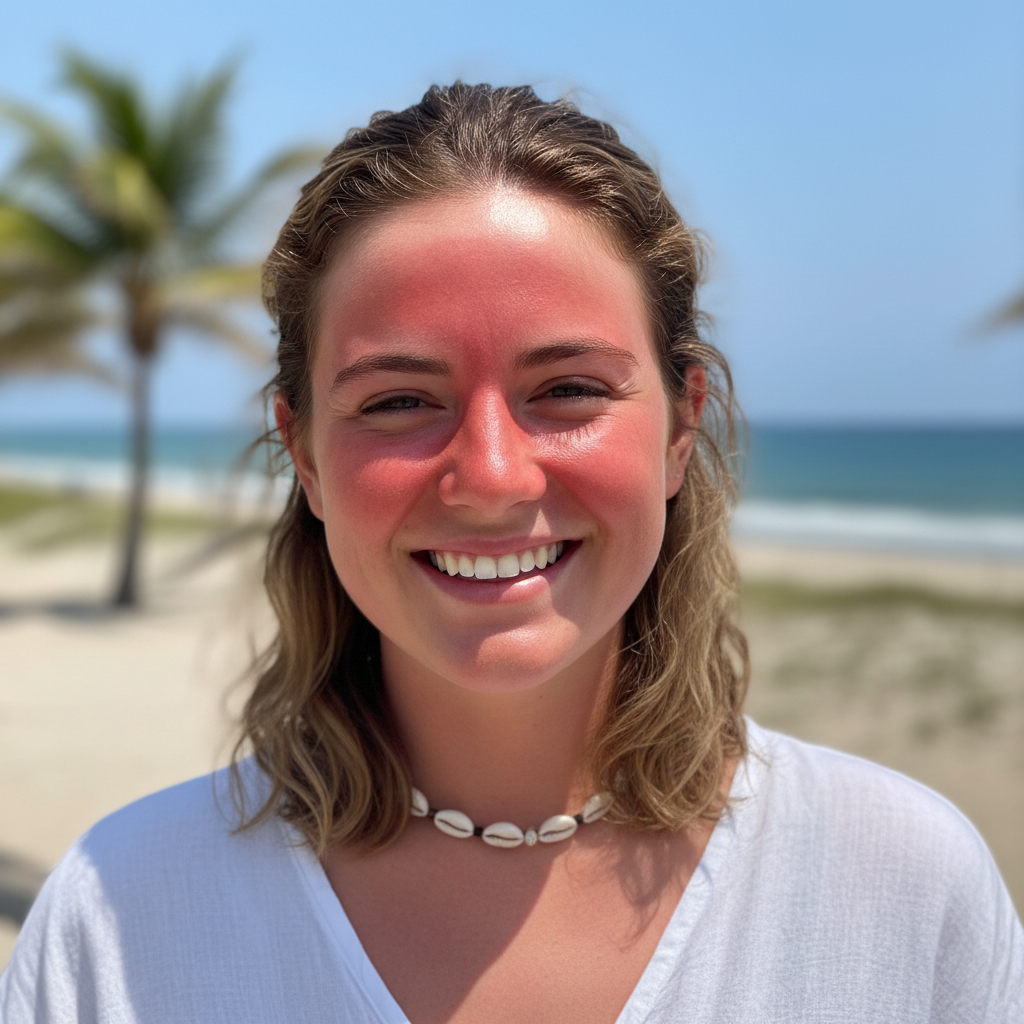
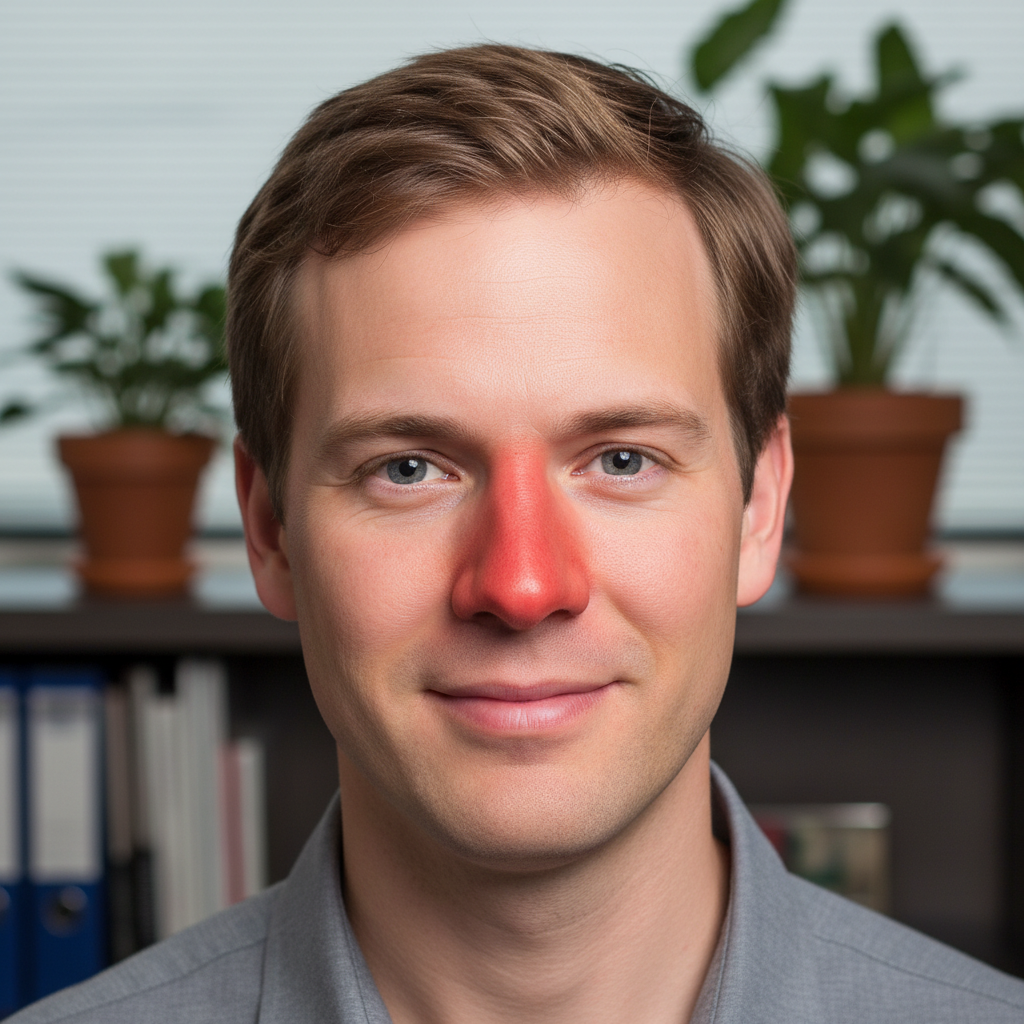
Portrait with sunburnt face
Before
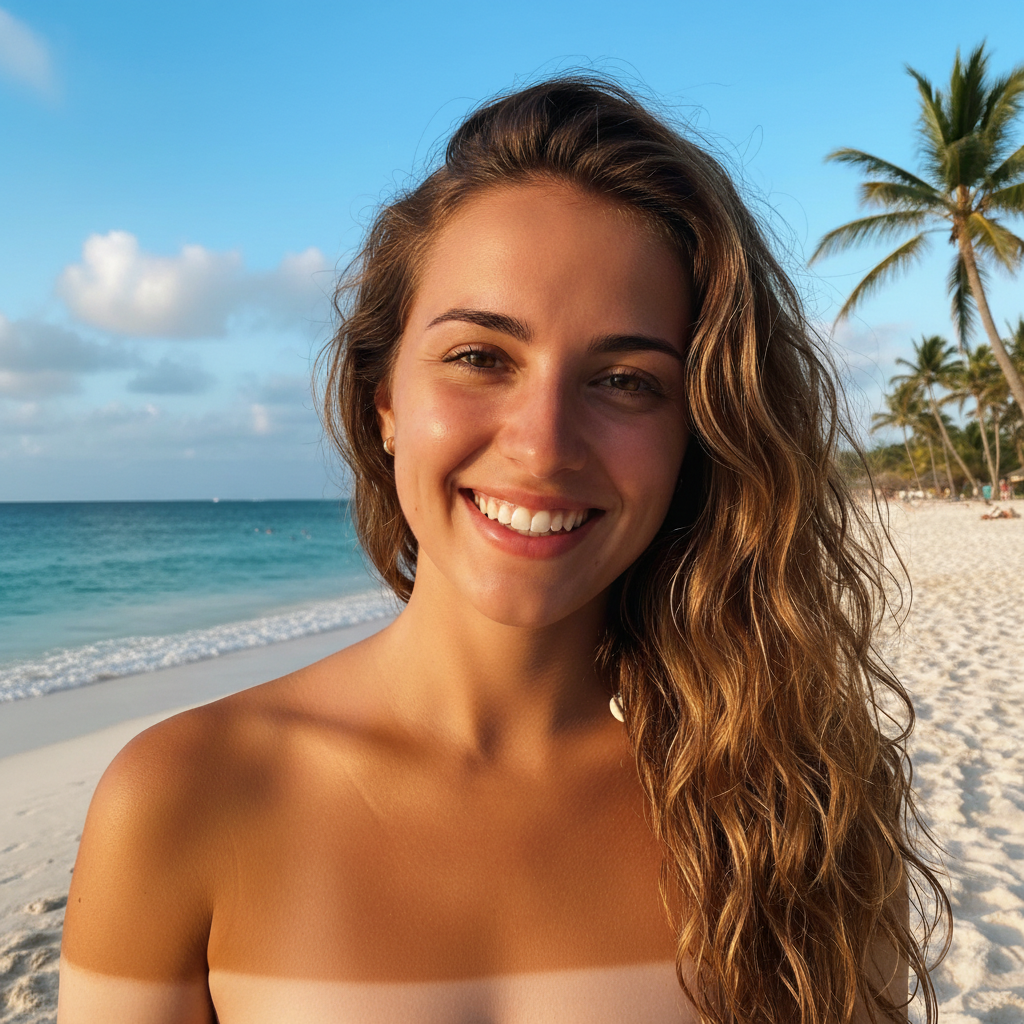
Portrait with natural skin tone
After

Remove Sunburn from Photo

Drop your photo here

or click to browse

Release to upload

Free • No signup

Advertisement

Cost
Free No signup required
Time
Instant results in 15-30 seconds
Works on
Any device - browser, phone, tablet, desktop
Powered by
AI-powered photo editing

How it works

  1. Upload your photo

    Drop your sunburnt image into EditThisPic. JPG, PNG, WebP up to 7MB. Portraits, selfies, and vacation photos work best.

    Expect: Simple sunburn removal: 15-30 seconds. Complex tan line corrections: may need 2-3 refinements.
  2. Describe what to fix

    Type 'remove the sunburn from my face' or 'correct the red skin tone to natural.' For specific areas like nose or shoulders, mention them. For tan lines, describe: 'blend the tan line on my shoulder to match my natural skin tone.'

    Tip: Specify the exact area (face, nose, shoulders) and desired result (natural skin tone, blend tan line) for best results.

    Copy one of these to get started:

    General sunburn removal remove the sunburn and restore natural skin tone
    Face sunburn remove the red sunburn from my face and keep natural skin texture
    Nose and cheeks correct the sunburn redness on my nose and cheeks to match my natural skin
    Tan lines blend the tan line on my shoulder to match my natural skin tone
    2 more prompts
    Strap tan lines remove the tank top tan lines and even out my shoulder skin tone
    Full body sunburn reduce the sunburn redness on my arms and shoulders to natural skin color
  3. Review the result

    Check that redness is gone but skin still looks natural, not overly pale or fake. Zoom in on transition areas to ensure smooth blending.

  4. Refine with markers if needed

    If some red areas remain or tan lines are still visible, tap markers on those specific spots and regenerate. This is optional—most sunburn corrections work without markers.

    Tip: Markers help with stubborn tan lines at shirt or strap edges. Try without first.
Try it free

Remove Sunburn from Photo

Drop your photo here

or click to browse

Release to upload

Free • No signup

"Fixed my lobster-red beach photo for my dating profile. Looks completely natural now!" @beachgoer

See it in action

Portrait with sunburnt face
Before
->
Portrait with natural skin tone
After

Face sunburn corrected

Sunburnt nose and cheeks from beach day. Restored to natural skin tone.
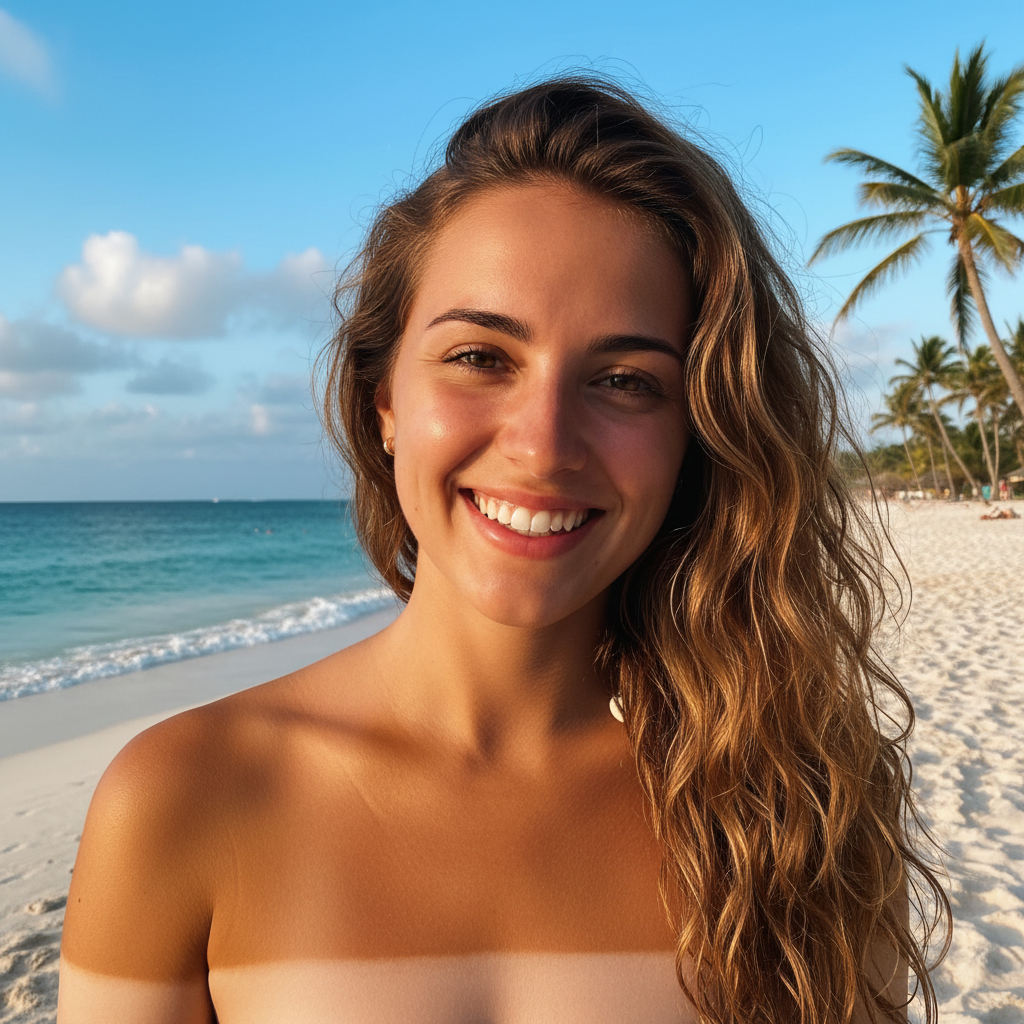
Prompt: remove the sunburn from my face and restore natural skin tone
Shoulder with visible tan line
Before
->
Shoulder with even skin tone
After

Shoulder tan line removed

Tank top tan line on shoulder. Blended to even skin tone.
Prompt: blend the tan line on my shoulder to match my natural skin tone
Portrait with sunburnt nose
Before
->
Portrait with even skin tone
After

Sunburnt nose fixed

Bright red nose from skiing. Natural correction for profile photo.

Prompt: correct the sunburn redness on my nose to natural skin color
Advertisement

If something looks off

Skin looks too pale or washed out

Why: AI overcorrected and removed too much color.

Try: restore natural skin tone, not pale white

Tip: Use 'natural skin tone' or 'healthy skin color' in your prompt to guide the AI.

Orange or fake tan appearance

Why: AI interpreted 'remove redness' as adding orange tones.

Try: correct to realistic natural skin color without orange tones

Tip: Specify 'realistic' and 'no orange' to avoid fake spray tan look.

Tan line still visible

Why: The contrast between tanned and untanned areas is too strong.

Try: Tap markers on the tan line edge and blend the transition smoothly

Tip: Tan lines often need markers for precise edge control.

Uneven skin tone patches

Why: Correction created inconsistent color across the face.

Try: even out the skin tone across my entire face

Tip: A second pass usually smooths out any patches.

Lost natural skin texture

Why: AI over-smoothed while removing redness.

Try: redo with natural skin texture and pores preserved

Tip: Add 'keep skin texture' to maintain realism.

Quick answers

Do I need to mark the sunburnt area before describing?

No! Just describe what you want: 'remove the sunburn from my face' or 'blend the tan line.' The AI understands these concepts. Only use markers when you need precision—like specifying exactly which tan line to blend if you have multiple.

Will it look natural or fake?

The AI preserves natural skin texture and matches surrounding skin tone. Add 'natural skin tone' to your prompt for best results. No fake orange tan or overly pale look.

Can it fix severe sunburn or peeling skin?

It works best on redness and color differences. Peeling texture is harder to correct. For best results, use on red sunburn before peeling starts.

What about goggle or hat tan lines?

Yes! Describe the pattern: 'remove the ski goggle tan line' or 'blend the hat line on my forehead.' The AI understands these common patterns.

Does it work on full body photos?

Yes, but you may need to be more specific: 'remove sunburn from my arms and shoulders' works better than just 'remove sunburn.'

Ready to fix your sunburn photos?

Free to try. No signup required.

Try it free