Free โ€ข No signup Fix Uneven skin tone ยท Free

Fix Uneven Skin Tone in Photo

Balance blotchy, patchy skin without losing your natural texture.
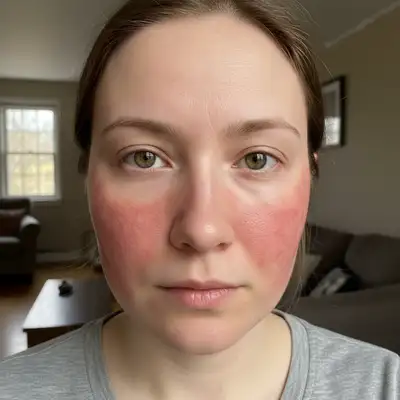
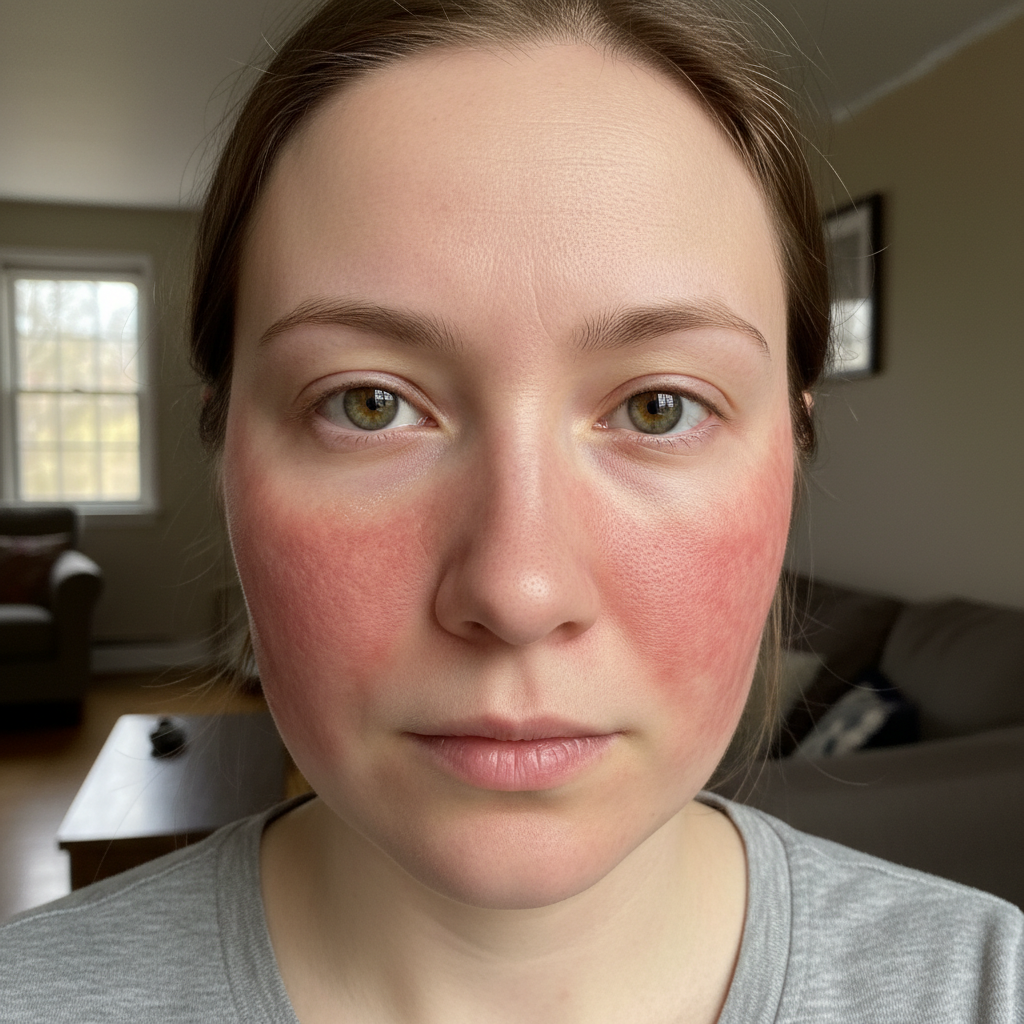
Portrait with red blotchy cheeks
Before
โ†’
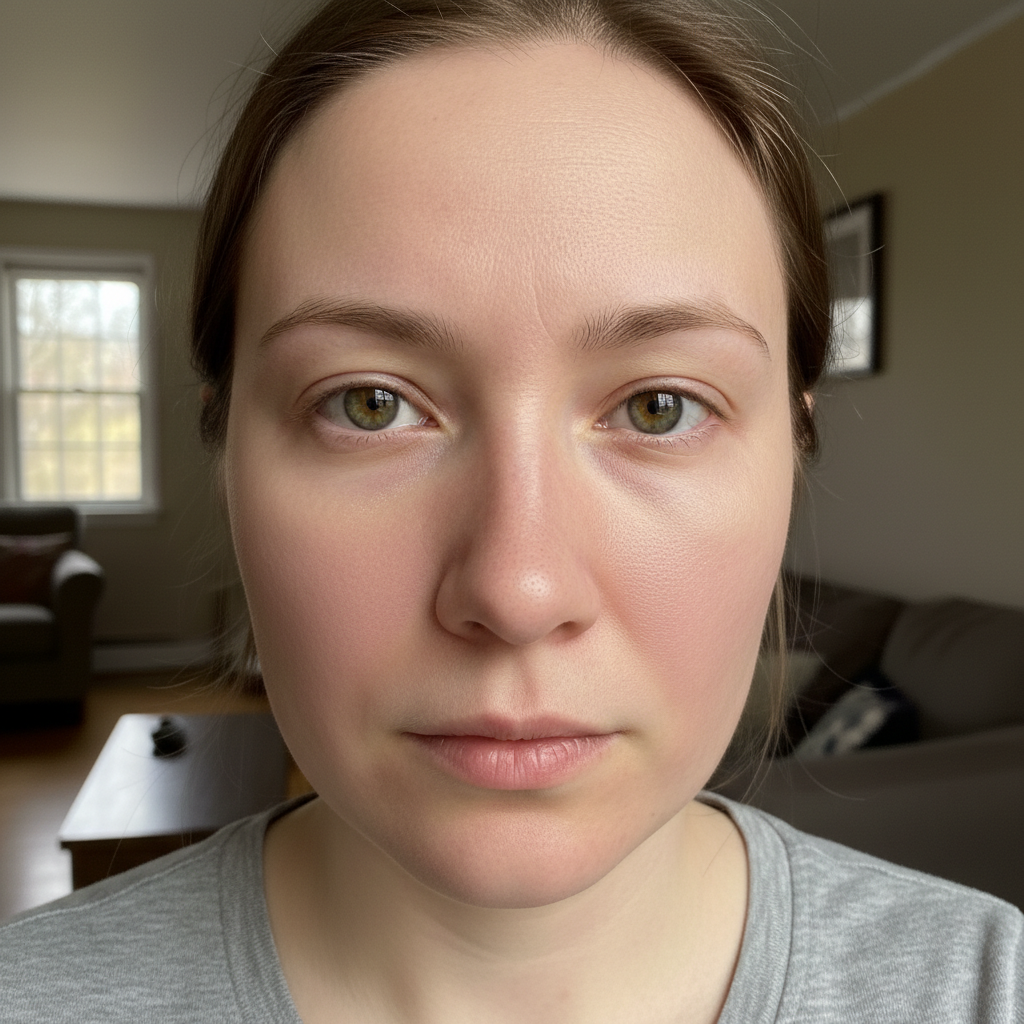
Portrait with balanced natural skin tone
After

Fix Uneven Skin Tone in Photo Free (2026)

Drop your photo here

or click to browse

Release to upload

Free โ€ข No signup

Advertisement
Popular use cases:
  • portrait retouching
  • selfie improvement
  • professional headshots
  • wedding photos
  • dating profile photos
  • rosacea photos
  • skin discoloration

Cost
Free No signup required
Time
Instant results in 15-30 seconds
Works on
Any device - browser, phone, tablet, desktop
Powered by
AI-powered photo editing
Scenario Prompt Time
General evening even out skin tone, keep texture 25s
Redness reduction reduce cheek redness naturally 25s
Face-neck match blend face and neck tones 30s
Preserve freckles even tone but keep freckles 30s

How it works

  1. Upload your photo

    Drop your image into EditThisPic. JPG, PNG, WebP up to 7MB. Good lighting helps the AI see the full range of skin tones to balance.

    Expect: Mild discoloration: 20-30 seconds. Significant blotchiness: may need 2-3 refinements for perfect results.
  2. Describe what you want

    Type your instruction: 'even out the skin tone on my face' or 'balance the blotchy areas on my cheeks and forehead.' Specify that you want natural texture preserved to avoid the plastic look.

    Tip: Include 'keep natural texture' or 'preserve pores' to prevent over-smoothing

    Copy one of these to get started:

    General skin evening even out the skin tone on my face, keep natural skin texture and pores visible
    Redness reduction reduce the redness on my cheeks and nose while keeping the rest of my skin tone natural
    Face and neck matching match the skin tone between my face and neck, blend naturally at the jawline
    Blotchy patches balance the blotchy patches on my forehead and chin, maintain realistic skin appearance
    3 more prompts
    Sun damage evening even out the sun spots and discoloration, keep freckles I want to preserve
    Professional headshot balance skin tone for professional headshot, subtle and polished but still natural
    Harsh lighting fix fix the uneven skin tone caused by mixed lighting, create consistent warm complexion
  3. Review the result

    Check that skin tone is balanced but still looks real. Zoom in to verify texture is preserved - you should still see natural skin detail, not a blurred mannequin look.

  4. Refine with markers if needed

    If specific patches need more work or the AI over-corrected some areas, tap markers on those spots and refine with a targeted prompt.

    Tip: For stubborn red patches, mark them specifically and say 'reduce redness in this area only.'
Try it free โ†“

Fix Uneven Skin Tone in Photo Free (2026)

Drop your photo here

or click to browse

Release to upload

Free โ€ข No signup

"My rosacea always made photos embarrassing. This evened everything out but I still look like myself - not airbrushed into oblivion." @real_skin_real_me

See it in action

Portrait with red blotchy cheeks
Before
->
Portrait with balanced natural skin tone
After

Cheek redness balanced for dating profile

Persistent redness on cheeks made every photo look flushed. AI evened it out while keeping the natural glow.
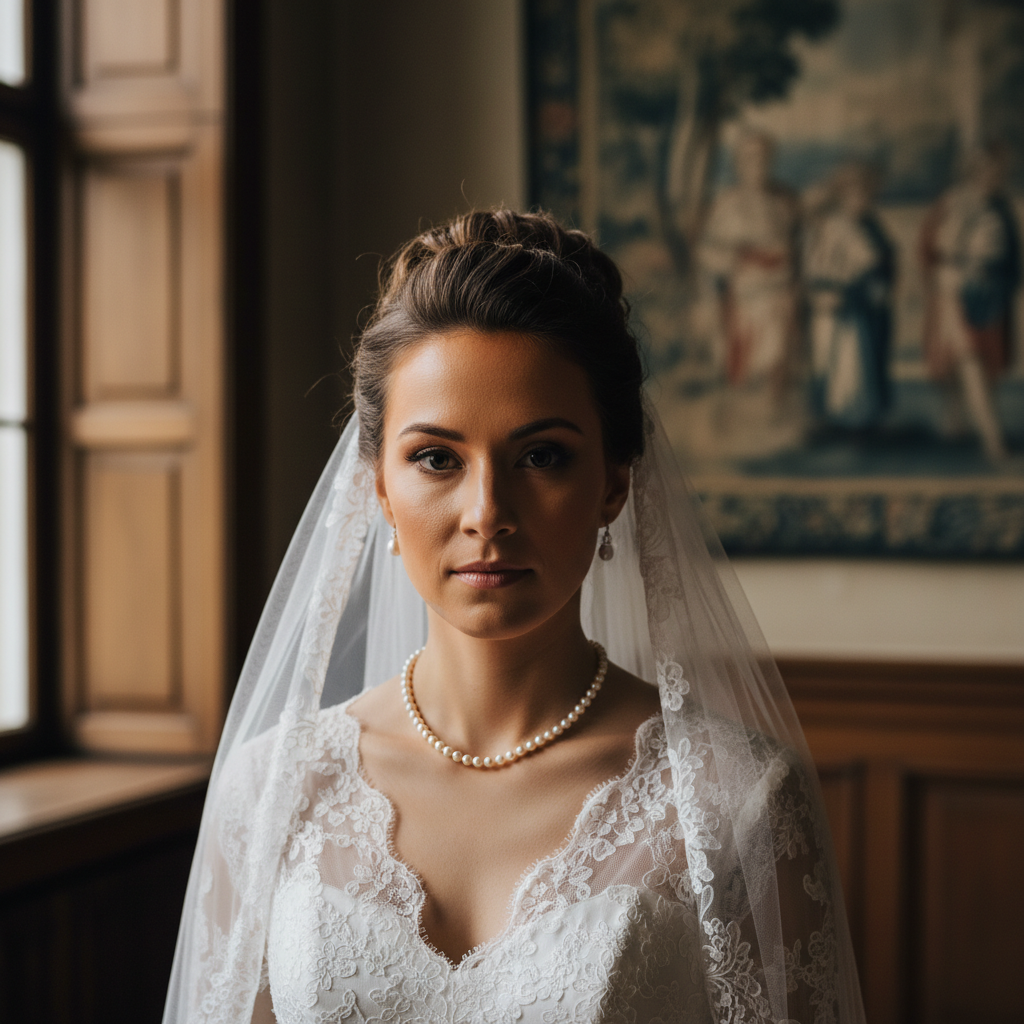
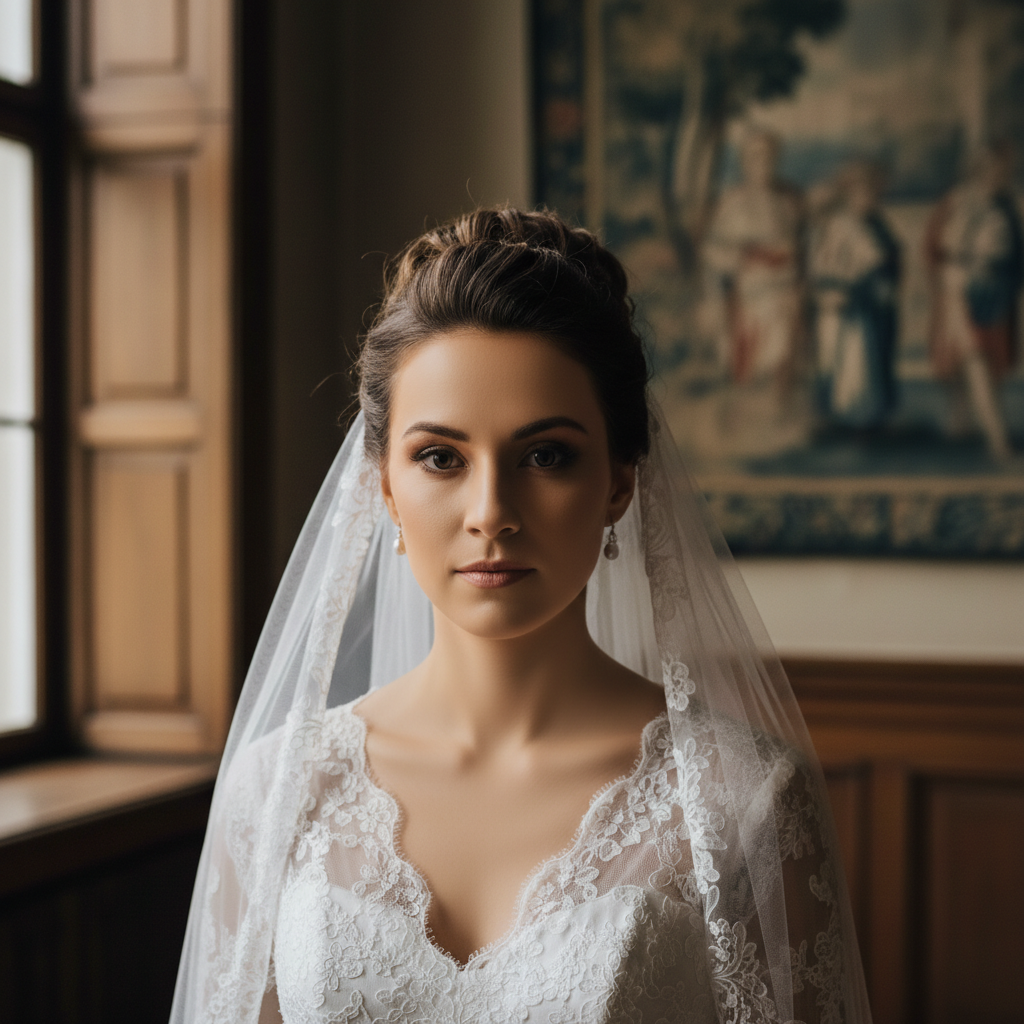
Prompt: even out the redness on my cheeks, keep natural skin texture
Portrait with mismatched face and neck skin tone
Before
->
Portrait with seamlessly blended skin tone
After

Face-neck mismatch fixed for wedding

Foundation stopped at the jawline creating an obvious mismatch. AI blended it seamlessly.
Prompt: match the skin tone between my face and neck, natural seamless blend
Professional headshot with blotchy forehead
Before
->
Professional headshot with even skin tone
After

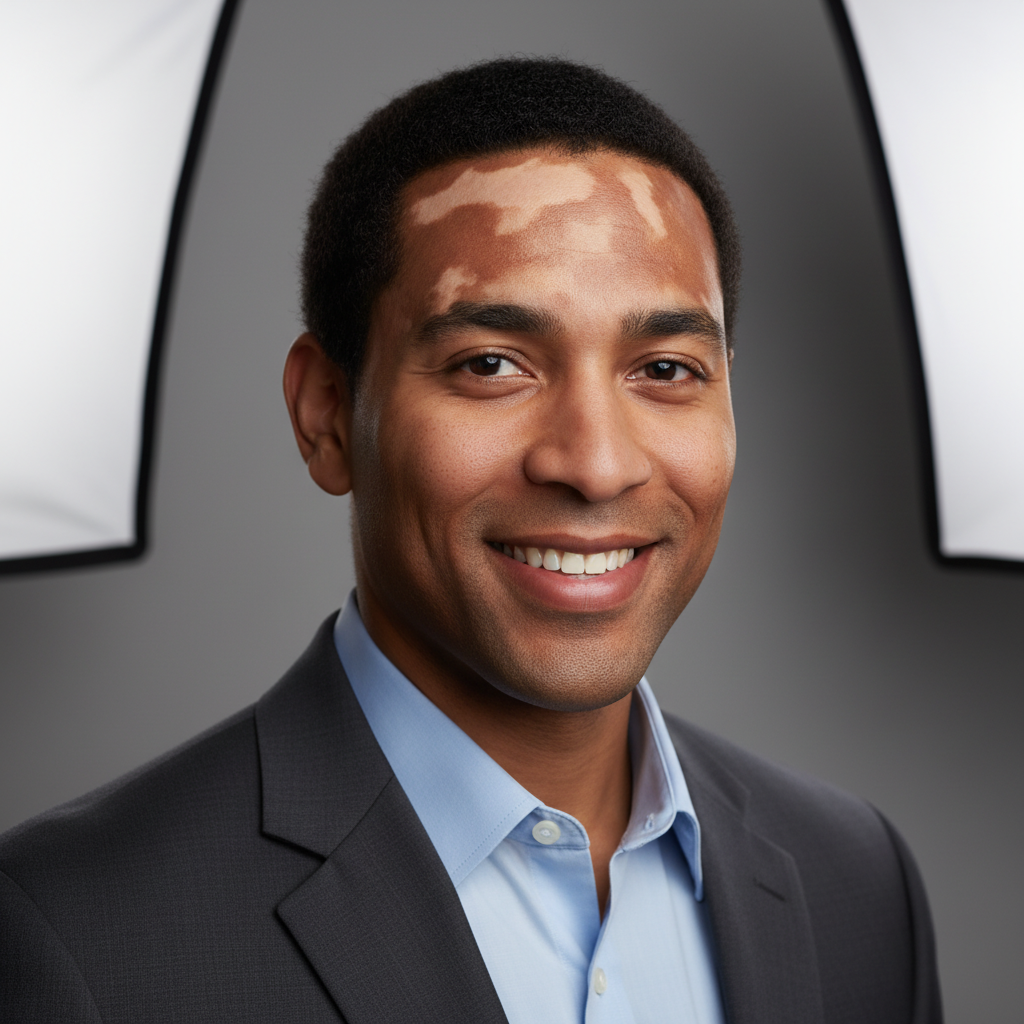
Forehead blotchiness evened for LinkedIn

Stress-induced blotchy patches on forehead showing in professional photo. AI balanced without over-smoothing.

Prompt: balance the blotchy patches on my forehead, maintain professional natural appearance
Advertisement

If something looks off

Skin looks too smooth or plastic after correction

Why: The AI smoothed texture along with evening color, removing natural skin detail.

Try: redo but preserve natural skin texture, keep pores and fine details visible

Tip: Always include texture preservation in your initial prompt to avoid this.

Skin tone became unnaturally uniform

Why: Real skin has subtle variations. Making everything exactly the same color looks artificial.

Try: even out only the obvious blotchy areas, keep subtle natural skin variation

Tip: 'Obvious blotchy areas' tells the AI to fix problems while leaving natural variation.

Corrected area has different undertone than surroundings

Why: The AI changed the color but didn't match the warm/cool undertone of your skin.

Try: match the corrected areas to my natural [warm/cool] undertone

Tip: If you know your undertone (warm, cool, neutral), specify it.

AI changed wrong area or corrected too much

Why: The AI couldn't determine exactly which areas you meant from description alone.

Try: Tap markers on the specific blotchy areas you want fixed, then regenerate

Tip: Markers are perfect for targeting specific patches while leaving the rest untouched.

Freckles or beauty marks were removed

Why: The AI interpreted these as discoloration to fix rather than features to keep.

Try: even skin tone but preserve all freckles and beauty marks

Tip: Be explicit about what you want to keep, not just what you want to fix.

Quick answers

Do I need to mark the uneven areas before describing?

No! Just describe what you want: 'even out my skin tone' or 'reduce the redness on my cheeks.' The AI detects discoloration automatically. Only use markers when you want to target very specific patches while leaving similar-colored areas alone.

Will it make my skin look fake or over-edited?

Not if you include 'keep natural texture' in your prompt. The AI preserves pores, fine lines, and natural skin detail while just balancing color. The goal is even tone, not smoothed-out plastic skin.

Is there a free skin tone correction tool without signup?

Yes, EditThisPic fixes uneven skin tone for free with no account required. Upload, describe the fix, download. No watermarks on your edited photo.

Can I keep my freckles while evening out blotchiness?

Absolutely. Add 'preserve my freckles' to your prompt and the AI will even out blotchy patches while leaving freckles intact. You can also use markers to target only the problem areas.

How do I fix skin tone without losing facial definition?

Include 'maintain natural highlights and shadows' in your prompt. The AI will balance color while preserving the light and shadow that give your face dimension. Avoid words like 'smooth' or 'flawless' which can flatten features.

Ready to balance your skin tone?

Free to try. No signup required.

Try it free โ†’