Free β€’ No signup Remove Messy room Β· Free

AI Messy Room From Selfie Remover

Transform embarrassing room clutter into a clean backdrop instantly.
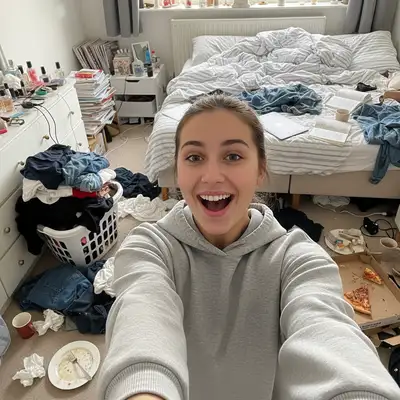
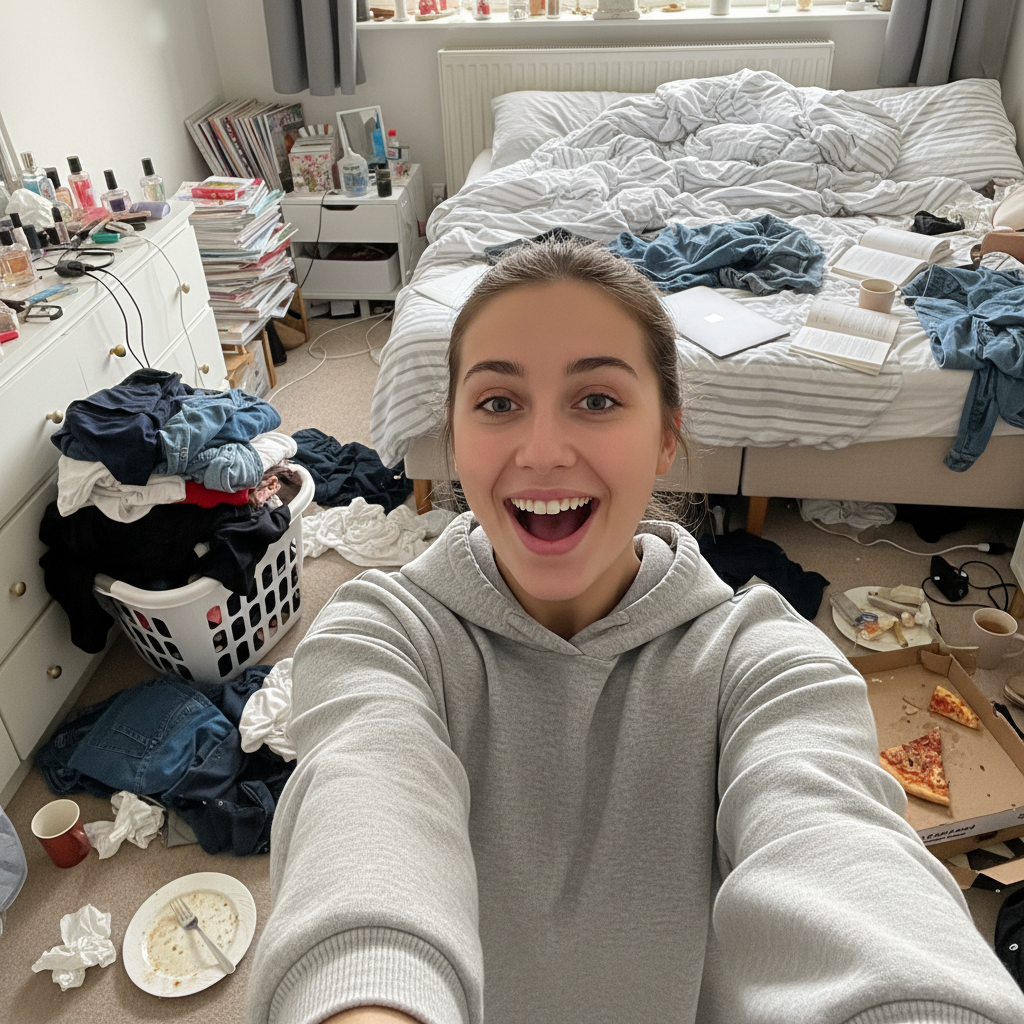
Selfie with extremely messy bedroom background
Before
β†’
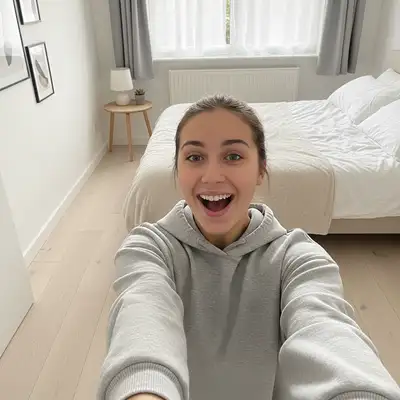
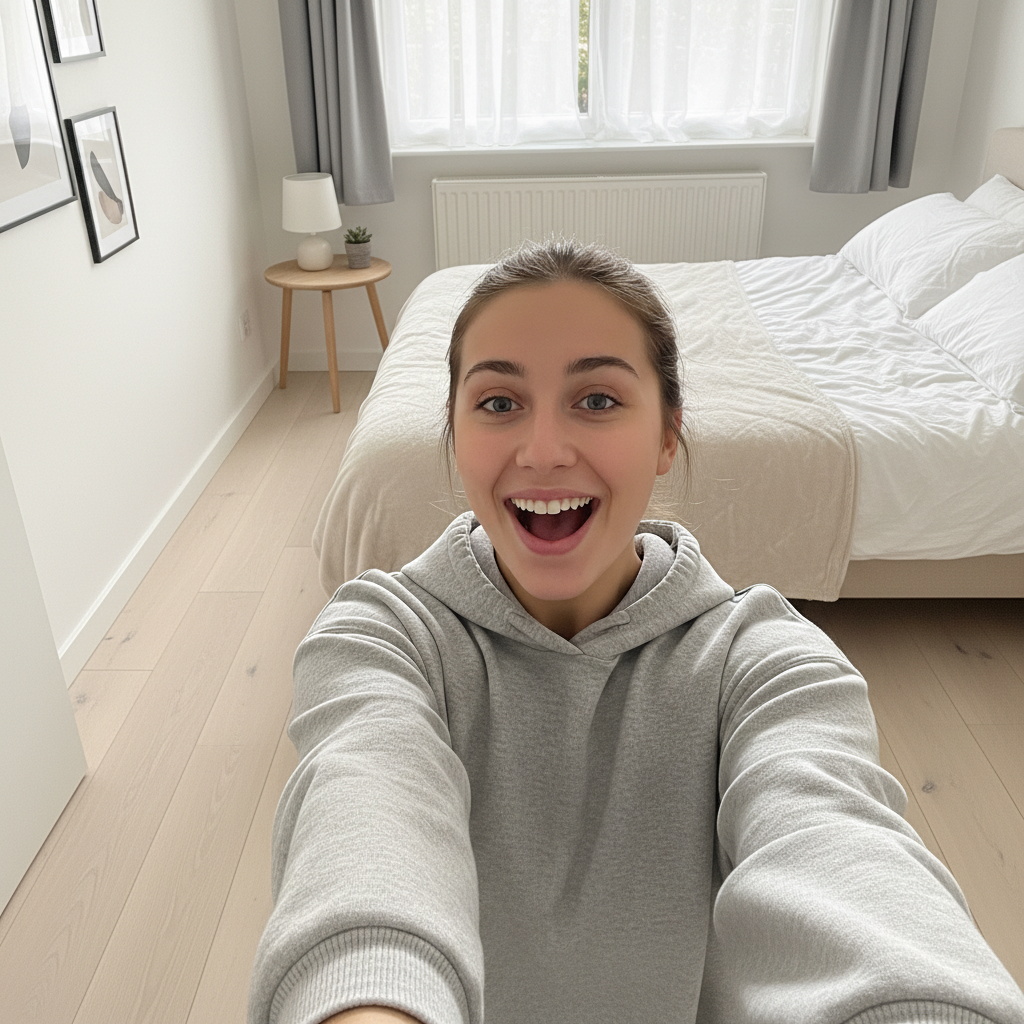
Selfie with clean minimalist room background
After

AI Messy Room From Selfie Remover

Upload photo to remove messy room

Free β€’ Results in 30 seconds β€’ No signup

Release to upload

FreeNo signupNo watermark
Popular use cases:
  • bedroom selfies
  • home office photos
  • dating profile photos
  • Instagram posts
  • social media photos
  • video call backgrounds
  • quick photo fix

Cost
Free No signup required
Time
Instant results in 15-30 seconds
Works on
Any device - browser, phone, tablet, desktop
Powered by
AI-powered photo editing
Scenario Prompt Time
Clean room replace with clean modern room 25s
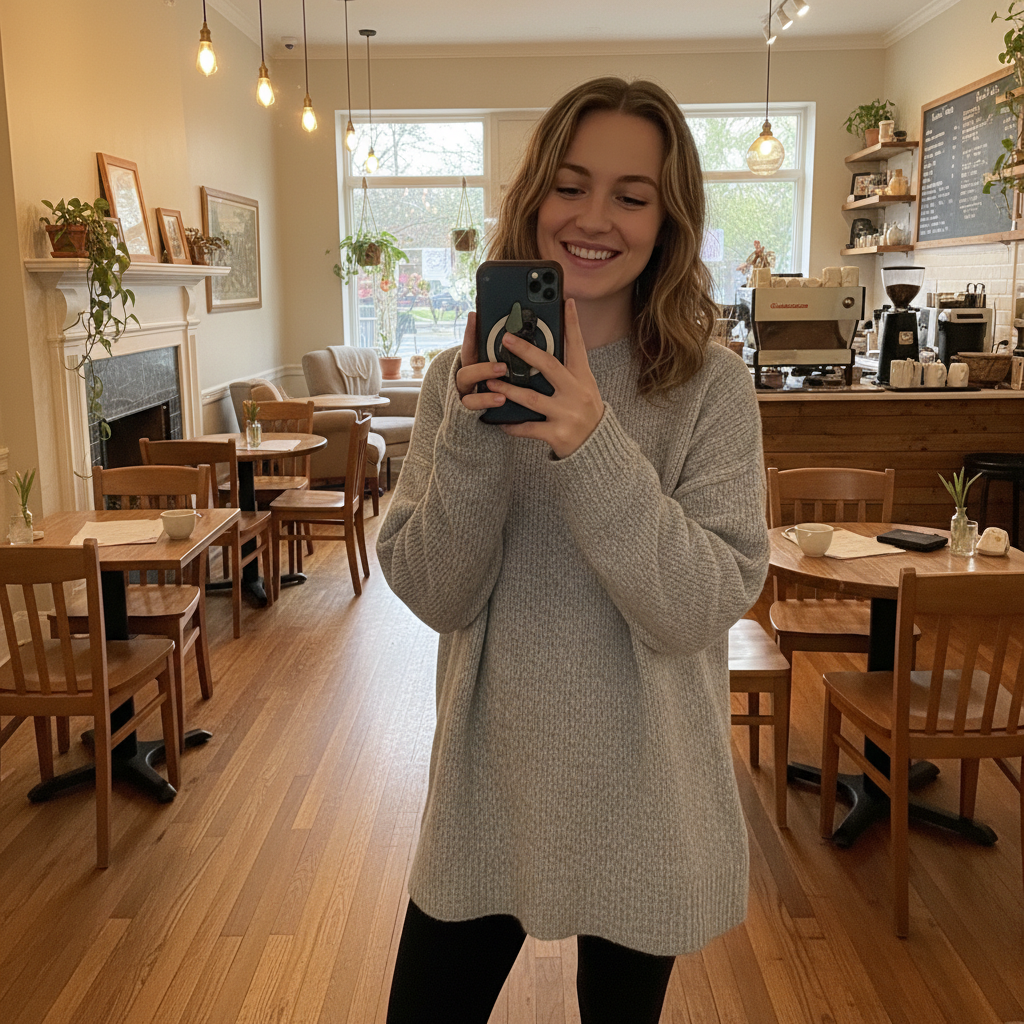
Coffee shop change to trendy cafe background 30s
Plain wall swap for simple gray wall 20s
Just blur heavily blur the messy background 20s

How it works

  1. Upload your selfie

    Upload a clear, front-facing portrait. Good lighting on the face and visible facial features give the AI the best foundation for messy room editing. JPG, PNG, WebP up to 7MB.

    Expect: Clean background replacement: 20-30 seconds. Complex hair or intricate edges: may need 2-3 refinements.
  2. Describe the new background

    Type your instruction: 'replace the background with a clean modern living room' or 'change the messy room to a coffee shop interior.' Be specific about what you want - the AI handles separating you from the background automatically.

    Tip: Include lighting style: 'bright and airy living room' or 'cozy cafe with warm lighting' for better matches

    Copy one of these to get started:

    Clean modern room replace the messy background with a clean modern living room, bright natural lighting
    Cozy aesthetic change the cluttered background to a cozy minimalist bedroom with neutral tones
    Cafe vibes replace background with a trendy coffee shop interior, soft blurred background
    Home office swap the messy room for a tidy professional home office background
    4 more prompts
    Plain wall replace background with a simple light gray wall, clean and distraction-free
    Outdoor swap change the indoor mess to an outdoor park setting, natural daylight
    Bookshelf backdrop replace background with stylish bookshelf wall, intellectual aesthetic
    Blur the mess heavily blur the background so the mess becomes an abstract color wash
  3. Review the result

    Check that you're cleanly separated from the new background. Look at hair edges, clothing boundaries, and any accessories. Verify the lighting on you matches the new background.

  4. Refine edges if needed

    If some clutter is still visible or edges look rough, tap markers on those specific areas and regenerate. The AI will focus on fixing just those spots.

    Tip: Hair edges are the trickiest. If strands look cut off, mark around your hair and say 'refine hair edges naturally.'
Try it free ↓

AI Messy Room From Selfie Remover

Upload photo to remove messy room

Free β€’ Results in 30 seconds β€’ No signup

Release to upload

Free β€’ No signup

"My room was a disaster but I had the perfect hair day. Replaced the laundry pile background with a cute coffee shop in seconds." @messy_room_no_more

See it in action

Selfie with extremely messy bedroom background
Before
->
Selfie with clean minimalist room background
After

Bedroom disaster to clean minimal

Clothes everywhere, unmade bed visible. AI replaced it all with a fresh modern room.

Prompt: replace the messy bedroom background with a clean minimalist room, bright and airy

Selfie with messy home office background
Before
->
Selfie with professional tidy office background
After

Home office chaos to professional

Desk covered in papers and junk visible behind. Swapped for a polished office look.

Prompt: swap the cluttered desk background for a tidy professional home office
Selfie with cluttered living room behind
Before
->
Selfie with cozy coffee shop background
After

Living room mess to cafe vibes

Kid's toys and clutter scattered behind. Transformed to a cozy coffee shop setting.

Prompt: change the messy living room to a cozy coffee shop interior with warm lighting

Detailed Guides by Scenario

πŸ“·

Professional Photography

Remove unwanted messy room from professional photo shoots, client deliverables, and stock photography to achieve clean, polished results.

Common Scenarios

  • Client portrait sessions where the messy room appeared unexpectedly in frame
  • Stock photography that needs the messy room removed for broader commercial appeal
  • Product photography with distracting messy room in the background

Best Practices

  • Zoom in and place a marker directly on the messy room for the most accurate removal
  • Run a second pass if any faint outlines or shadows remain after the first edit
  • Describe the desired background fill β€” e.g., 'replace the messy room with clean wall' for predictable results
πŸ“·

Real Estate & Property Listings

Clean up property photos by removing messy room that distract buyers and lower perceived home value.

Common Scenarios

  • Listing photos where the messy room clutters the frame and makes rooms look smaller
  • Exterior shots with messy room that hurt curb appeal
  • Open house photos that need the messy room removed before uploading to MLS

Best Practices

  • Shoot the space first, then edit β€” AI removal works better than awkward staging workarounds
  • After removing the messy room, check that floor lines and wall edges still look straight
  • Process all listing photos in one session so lighting and style stay consistent
πŸ“·

Personal & Social Media

Fix personal photos by removing messy room before sharing on social media, printing, or gifting.

Common Scenarios

  • Vacation photos where the messy room appeared in an otherwise perfect shot
  • Family photos with messy room that distract from the people in the frame
  • Profile pictures and dating app photos that need the messy room cleaned out

Best Practices

  • Save the original photo first β€” edit a copy so you can always go back
  • For group photos, mark the messy room carefully to avoid affecting nearby people
  • If the first result isn't perfect, try rewording your prompt with more detail about the background

If something looks off

Messy items still visible at the edges

Why: Some clutter near your body wasn't identified as background to replace.

Try: Tap markers on the remaining clutter and say 'replace this with the new background too'

Tip: Markers are the fastest way to target specific remaining mess spots.

Hair edges look cut off or unnatural

Why: Fine hair strands are hard to separate from busy backgrounds.

Try: refine the hair edges to blend naturally with the background

Tip: A second pass focusing on hair usually fixes edge issues.

New background lighting doesn't match me

Why: The AI chose a background with different lighting direction or color temperature.

Try: adjust the background lighting to match the light on my face

Tip: Specify 'soft natural lighting' if your face has soft shadows.

AI changed wrong area or affected my face/body

Why: The AI couldn't determine exactly what was background vs. what was you.

Try: Tap markers only on the background areas, then regenerate

Tip: Markers tell the AI exactly what to replace, protecting you.

Background looks obviously fake or pasted

Why: The perspective or scale doesn't match, making it look like a cutout.

Try: make the background perspective and depth more natural, better integration

Tip: Adding 'slight blur on background' can hide integration issues.

Quick answers

Do I need to mark myself before replacing the background?

No! Just describe what you want the new background to be. The AI automatically figures out where you end and the background begins. Only use markers if specific areas need refinement after the first result.

What kind of backgrounds can I replace the mess with?

Anything you can describe - modern rooms, coffee shops, outdoor scenes, plain walls, offices, you name it. Be specific about style and lighting. The more detail you give, the better the match will be.

Is there a free background replacement tool without signup?

Yes, EditThisPic replaces backgrounds for free with no account needed. Upload your selfie, describe the new background, download. No watermarks on the result.

Will the edit look natural or obviously fake?

Results look natural when you match the lighting description to how you're actually lit in the photo. If you have soft indoor lighting, don't choose a harsh outdoor sunny background. Matching lighting is key.

Can I just blur the messy background instead of replacing it?

Absolutely! Use a prompt like 'heavily blur the background into an abstract soft wash.' This hides the mess without creating a whole new scene, and often looks more natural than a full replacement.

Is EditThisPic's AI messy room remover really free?

Yes β€” you get 1 free edit per week, no account needed. For unlimited edits, plans start at $3.99/month.

Can I remove messy room on my phone?

Yes. EditThisPic works in any mobile browser β€” iPhone, Android, tablet. No app download needed.

What photo formats does the AI messy room remover support?

JPG, PNG, WebP, and HEIC. Upload any common photo format and EditThisPic handles the rest.

Ready to remove your photos?

Free to try. No signup required.