Free โ€ข No signup Add Bokeh blur ยท Free

Add Bokeh Blur to Portrait

Get that professional DSLR background blur on any portrait.

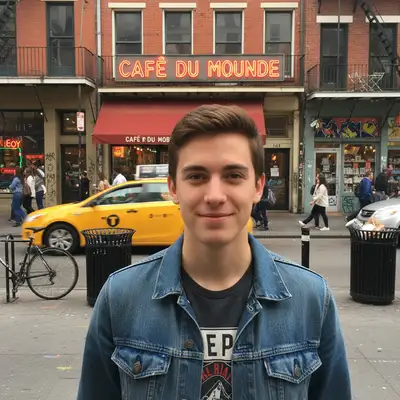
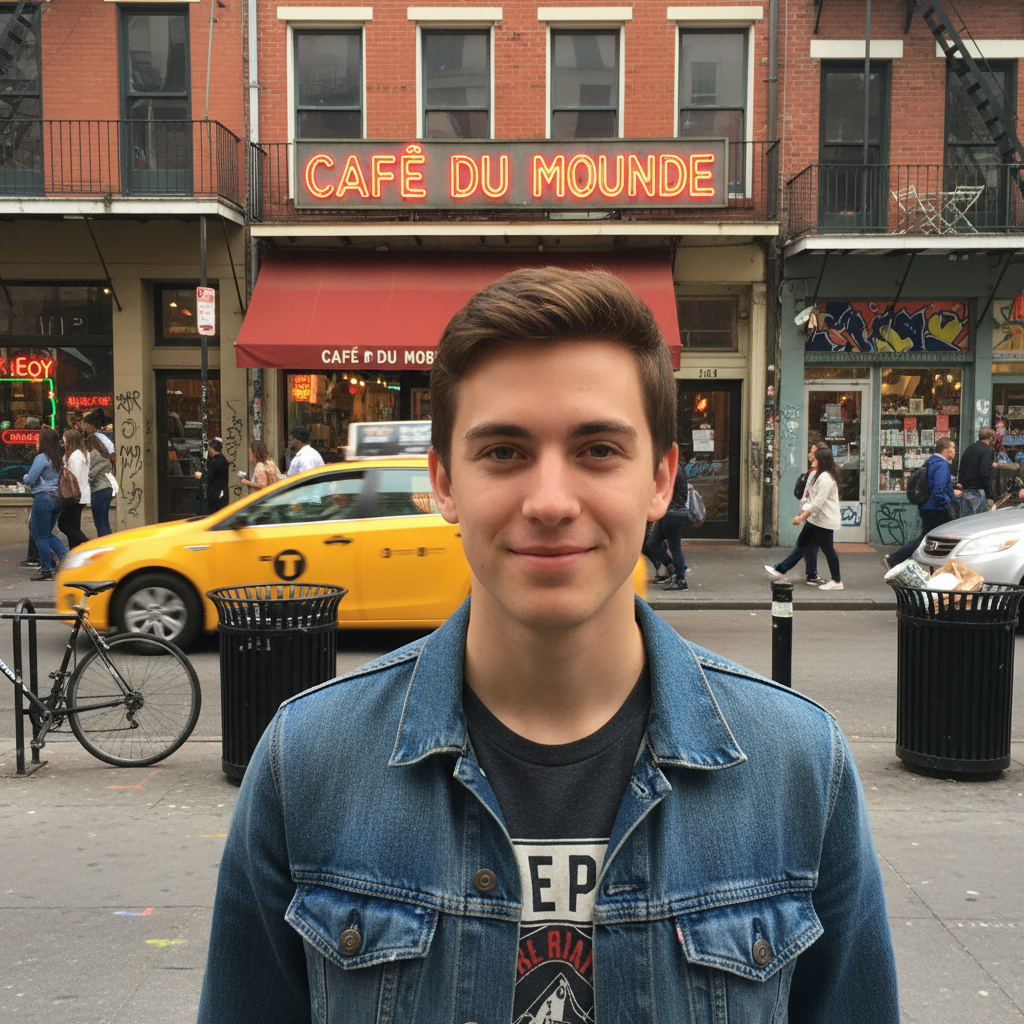
Phone portrait with busy street background
Before
โ†’
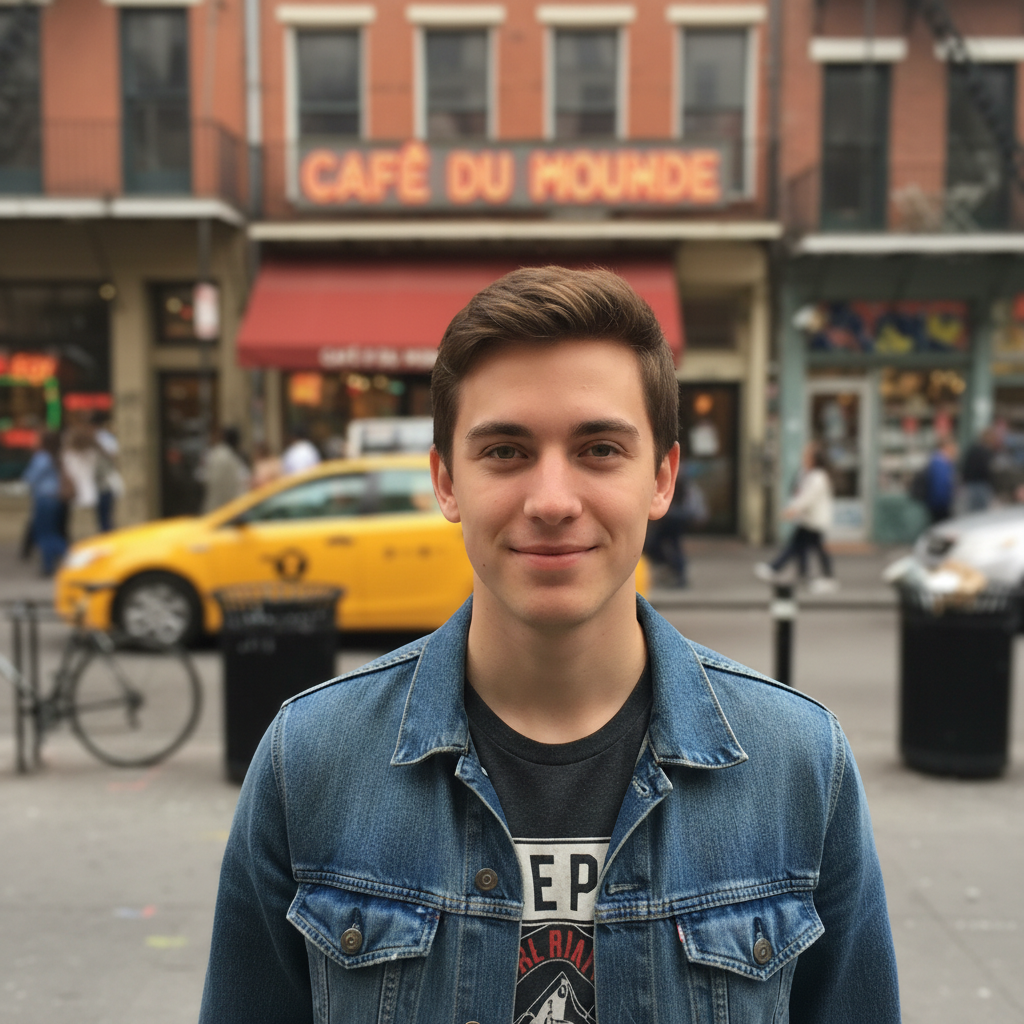
Professional portrait with beautiful bokeh blur
After

Add Bokeh Blur to Portrait Free (2026)

Drop your photo here

or click to browse

Release to upload

Free โ€ข No signup

Advertisement
Popular use cases:
  • portrait photography
  • professional headshots
  • phone selfie upgrade
  • LinkedIn photos
  • dating profile photos
  • Instagram portraits
  • product photos

Cost
Free No signup required
Time
Instant results in 15-30 seconds
Works on
Any device - browser, phone, tablet, desktop
Powered by
AI-powered photo editing
Scenario Prompt Time
Professional portrait add professional bokeh blur 25s
Soft romantic add soft creamy bokeh 25s
Night lights add bokeh with circular light orbs 30s
Subtle blur slightly blur background naturally 20s

How it works

  1. Upload your portrait

    Drop your image into EditThisPic. JPG, PNG, WebP up to 7MB. Works on any portrait - phone selfies, professional headshots, or group photos where you want to highlight certain people.

    Expect: Standard portrait bokeh: 20-30 seconds. Complex scenes with multiple subjects: may need 2-3 refinements.
  2. Describe the blur effect

    Type your instruction: 'add professional bokeh blur to the background, keep the subject sharp' or 'blur the background with a soft creamy bokeh effect.' Specify the blur intensity if you want subtle or dramatic results.

    Tip: Use 'creamy bokeh' for smooth blur, 'circular bokeh' for visible light orbs, or 'gentle blur' for subtle effect

    Copy one of these to get started:

    Professional portrait look add professional bokeh blur to the background, keep the subject perfectly sharp
    Soft romantic blur add soft creamy bokeh with gentle blur falloff, dreamy portrait effect
    Subtle background softening slightly blur the background while keeping me sharp, natural depth of field
    Night/light bokeh add bokeh blur with visible circular light orbs in the background
    4 more prompts
    Group photo focus blur the background behind the group, keep all people sharp
    Product in hand add bokeh blur but keep both me and the product I'm holding sharp
    Heavy blur add strong heavy bokeh blur to completely defocus the background
    Environmental portrait add subtle background blur while keeping some context visible, natural look
  3. Review the result

    Check that the subject is perfectly sharp while the background has smooth blur. Look at edges - hair strands, clothing boundaries, and accessories should remain crisp. Verify the blur falloff looks natural.

  4. Refine with markers if needed

    If some areas should be sharp but got blurred (like an object you're holding) or vice versa, tap markers on those areas and regenerate with specific instructions.

    Tip: Markers help when you want to include or exclude specific objects from the blur zone.
Try it free โ†“

Add Bokeh Blur to Portrait Free (2026)

Drop your photo here

or click to browse

Release to upload

Free โ€ข No signup

"My iPhone photo looked like it was taken with a professional camera after adding bokeh. People asked what lens I used." @phone_photographer

See it in action

Phone portrait with busy street background
Before
->
Professional portrait with beautiful bokeh blur
After

Phone selfie to professional headshot

Basic phone selfie with busy street background. Bokeh transformed it into a professional-quality portrait.

Prompt: add professional bokeh blur to the background, keep me perfectly sharp
Office headshot with cluttered background
Before
->
Executive portrait with smooth bokeh
After

Office headshot elevated

Corporate headshot with distracting office clutter. Bokeh created executive-level presentation.

Prompt: add soft professional bokeh blur, executive portrait quality
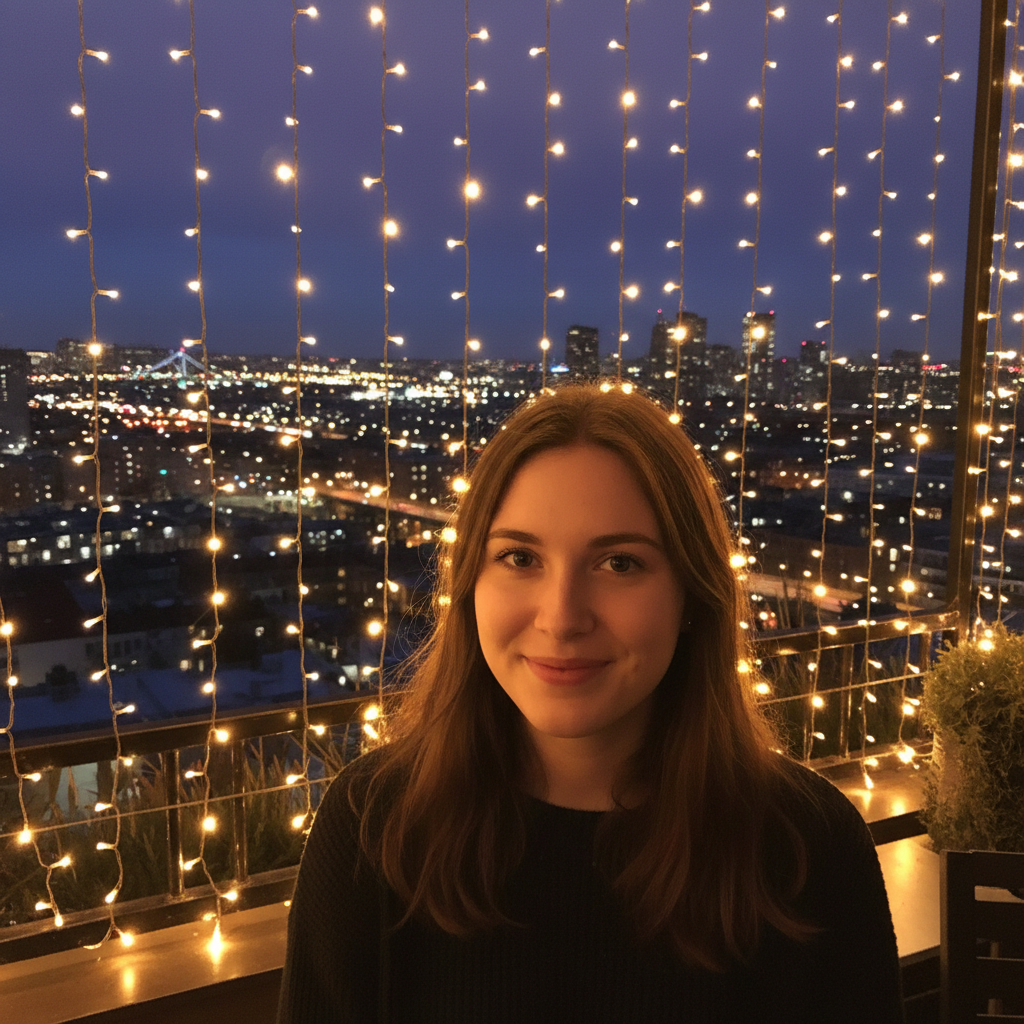
Night portrait with sharp background lights
Before
->
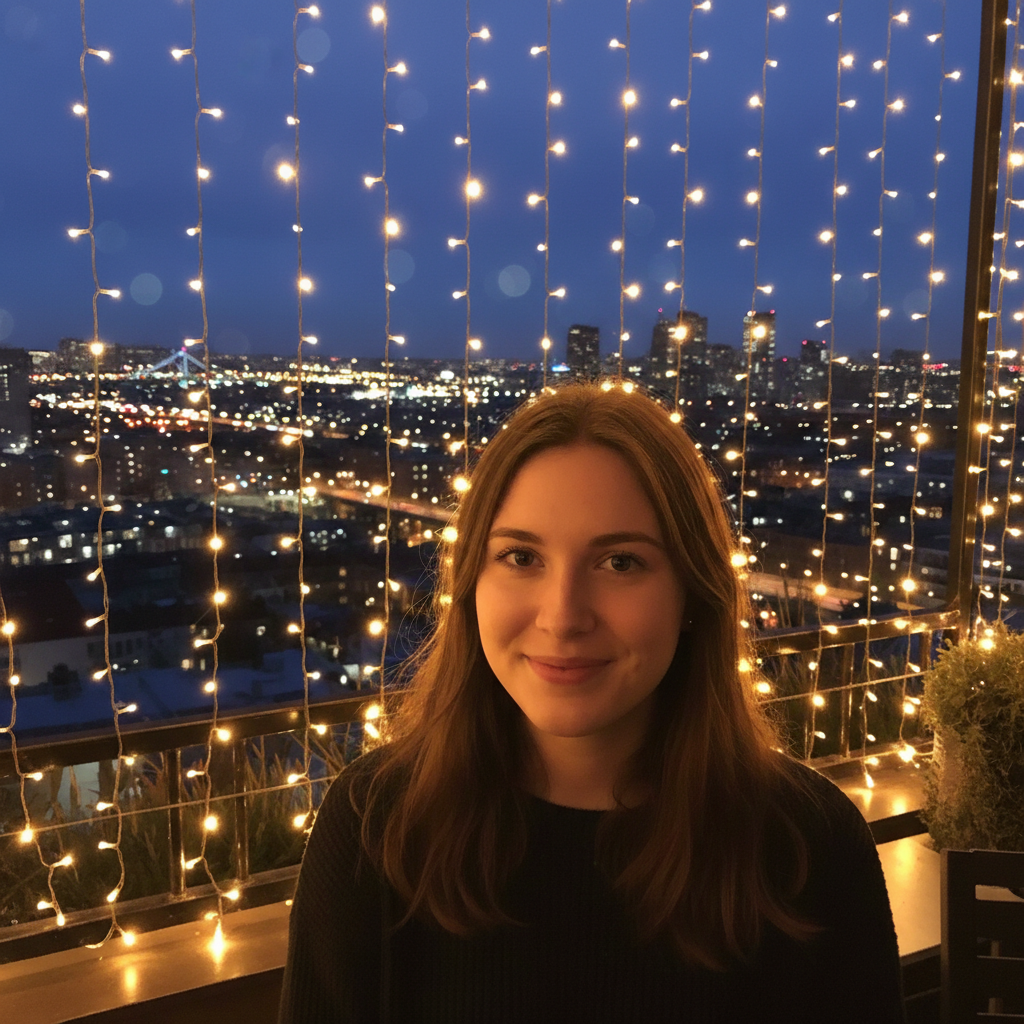
Night portrait with dreamy bokeh light orbs
After

Evening photo with light bokeh

Night photo with visible lights in background. Bokeh enhanced the lights into beautiful circular orbs.

Prompt: add bokeh blur with circular light orbs visible, keep subject sharp
Advertisement

If something looks off

Hair edges look blurry or halo-like

Why: Fine hair strands are difficult to separate from the background, causing blur to bleed into hair.

Try: refine the hair edges to be sharp while keeping background blurred

Tip: A second pass focusing on hair edges usually fixes this common issue.

Blur looks artificial or over-processed

Why: Too much blur or unnatural blur patterns can look fake.

Try: reduce the blur intensity to look more natural, subtle depth of field

Tip: Use 'natural' or 'subtle' for more realistic results.

Something I'm holding got blurred

Why: The AI treated held objects as background rather than subject.

Try: Tap a marker on the object and say 'keep this object sharp, blur only the background'

Tip: Markers help include specific objects in the sharp zone.

AI blurred wrong area or affected my face

Why: The AI couldn't determine exactly what was foreground vs. background.

Try: Tap markers on yourself and any objects that should be sharp, then regenerate

Tip: Markers tell the AI exactly what to keep in focus.

Blur falloff doesn't look natural

Why: Real depth of field has gradual falloff, not a sharp line between focus and blur.

Try: add natural depth of field with gradual blur falloff from subject to background

Tip: 'Gradual falloff' creates more realistic depth-of-field.

Background has harsh edges instead of smooth bokeh

Why: The blur pattern is wrong for the scene or too low in intensity.

Try: add smooth creamy bokeh blur with soft edges, high-quality lens look

Tip: 'Creamy' and 'soft edges' give you that expensive lens aesthetic.

Quick answers

Do I need to mark myself before adding bokeh?

No! Just describe 'add bokeh blur to the background' and the AI automatically detects you as the subject. The AI understands what 'background' means in portraits. Only use markers if specific objects need to be included or excluded from the blur.

What's the difference between bokeh and regular blur?

Bokeh is a specific type of background blur that mimics expensive camera lenses. It has smooth, creamy quality and often shows lights as beautiful circular orbs. Regular blur is just out-of-focus, while bokeh has an aesthetic quality photographers prize.

Is there a free bokeh blur tool without signup?

Yes, EditThisPic adds professional bokeh blur for free with no account needed. Upload your portrait, describe the blur you want, download. No watermarks on your result.

Will bokeh work on group photos?

Yes! Specify 'keep all people sharp' in your prompt and the AI will blur only the background behind the group. For best results, make sure people aren't too far apart, as extreme depth differences between subjects can look unnatural.

How do I get those circular light bokeh orbs?

Your original photo needs lights in the background - street lights, string lights, city lights. Then prompt 'add bokeh blur with visible circular light orbs.' The AI transforms existing lights into those dreamy bokeh circles.

Ready to add that professional blur?

Free to try. No signup required.

Try it free โ†’