Enhance Colors from Photo
Just describe what you want—'make colors more vibrant' works perfectly.
Type 'enhance the colors and make them more vibrant' and EditThisPic's AI boosts saturation, contrast, and tonal richness in 15-20 seconds. No sliders, no marking required. Works on dull vacation photos, overcast day shots, and faded images. Just describe what you want. Free to try, no account needed.
How it works
Upload your photo
Drop your image into EditThisPic. JPG, PNG, and WebP up to 7MB work best. Photos with flat or muted colors benefit most from enhancement.
Describe the enhancement you want
Type exactly what you need: 'enhance the colors and make them more vibrant' or 'boost the color saturation and richness.' That's it. No marking, no adjusting sliders. The AI understands color enhancement concepts and applies them naturally.
Copy one of these to get started:
enhance the colors and make them more vibrant while keeping the image looking natural
boost the color vibrancy and add warmth to make this overcast photo look sunnier
increase color saturation and contrast to bring back the vivid colors that were lost
enhance the colors to make the food look more appetizing with rich, warm tones
2 more prompts
make the greens more lush and vibrant while keeping the sky blue and natural
subtly enhance the colors while preserving natural skin tones and adding slight warmth
Generate and review
Tap generate and examine the result. Check that skin tones remain natural, highlights aren't blown out, and shadows retain detail. Color enhancement should look natural, not oversaturated.
"My overcast beach photos looked so flat. Typed 'make the colors pop' and now they look like golden hour shots." @TravelWithMike
See it in action
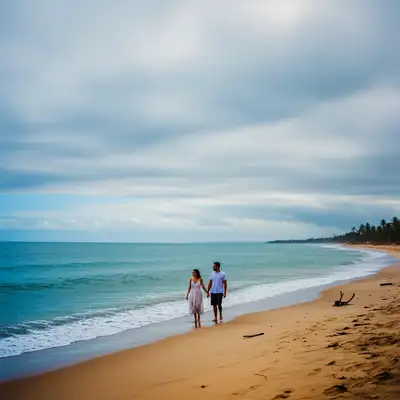
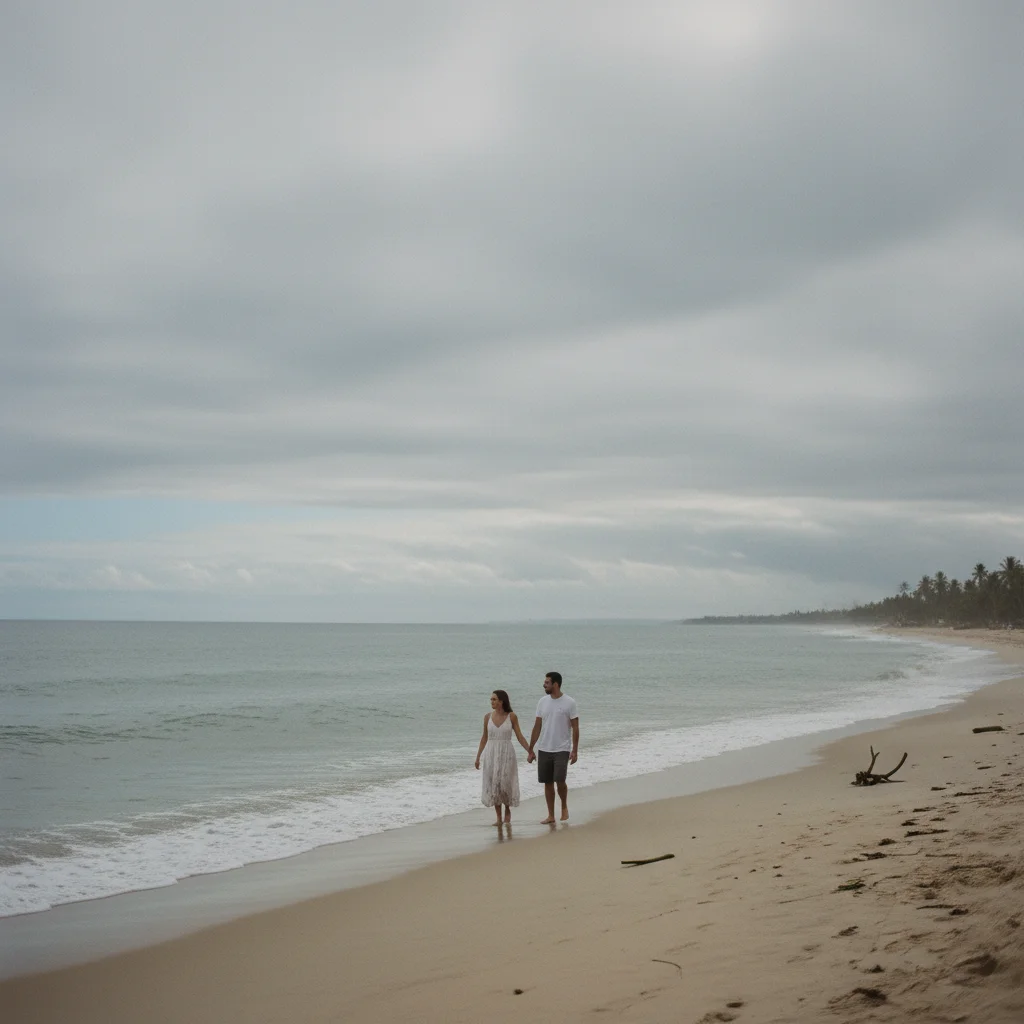
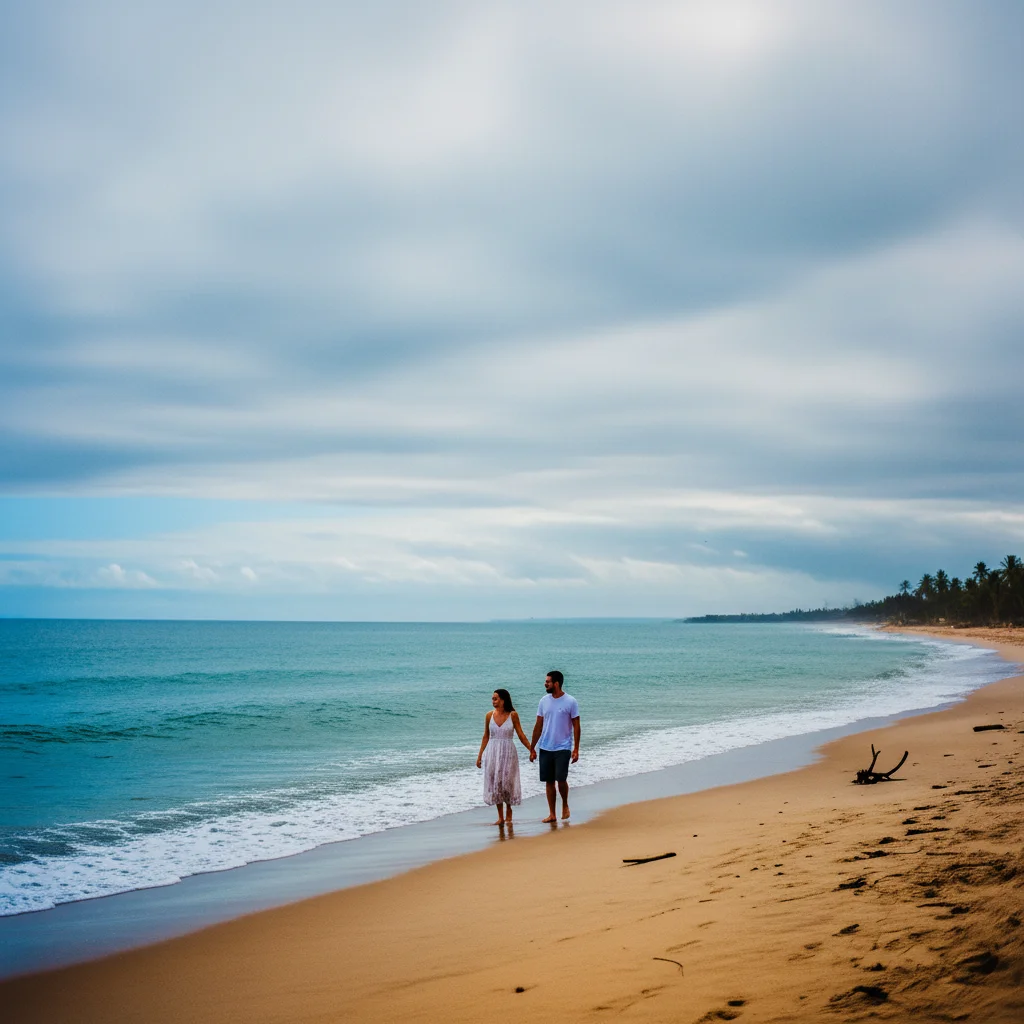
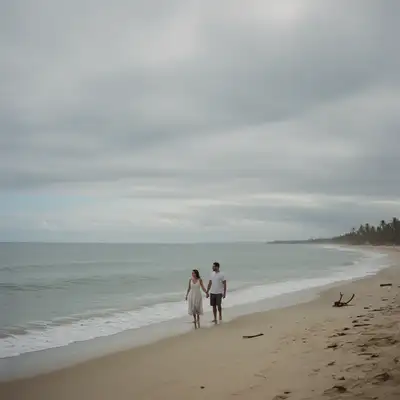
Overcast beach photo revival
Vacation photo taken on a cloudy day with flat, gray tones. One prompt brought back the vibrant blues and warm sand colors.
enhance the colors and make them more vibrant, boost the blue of the ocean and warm up the sand tones
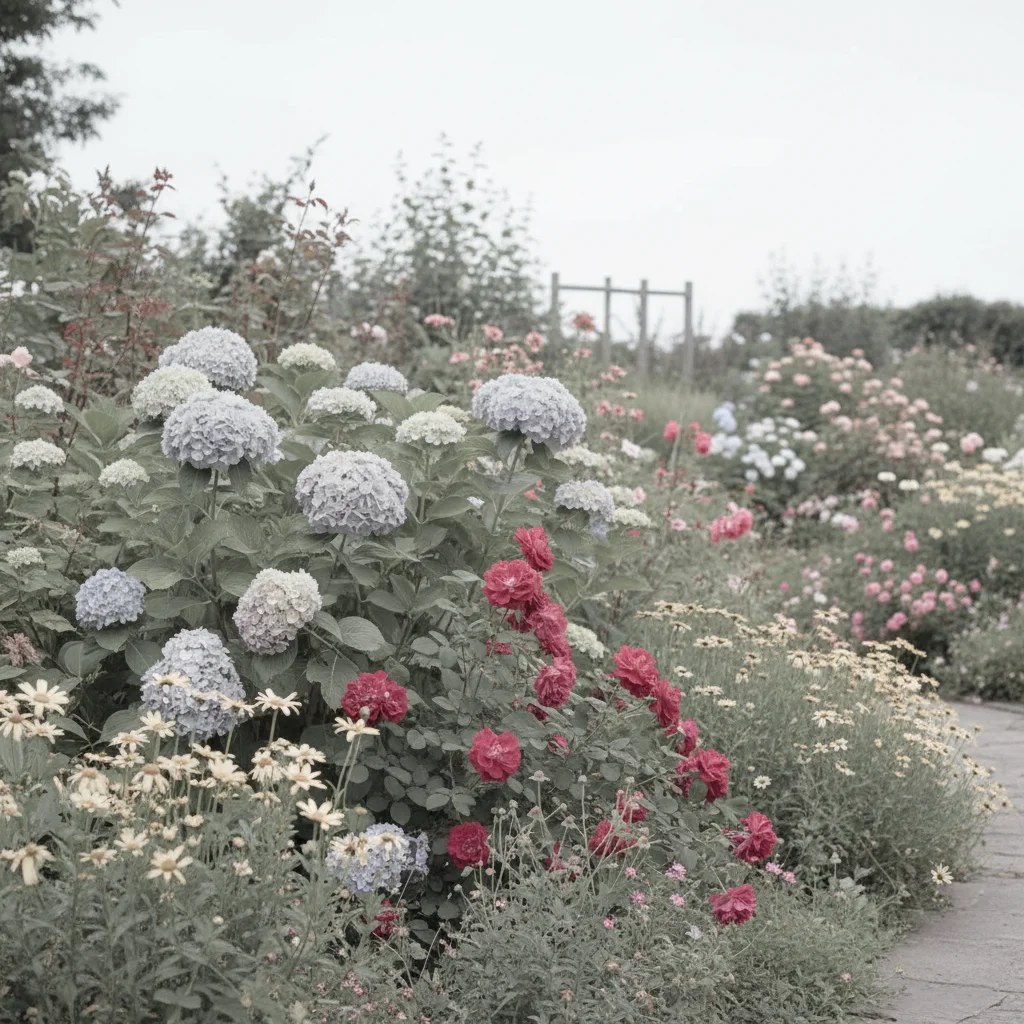
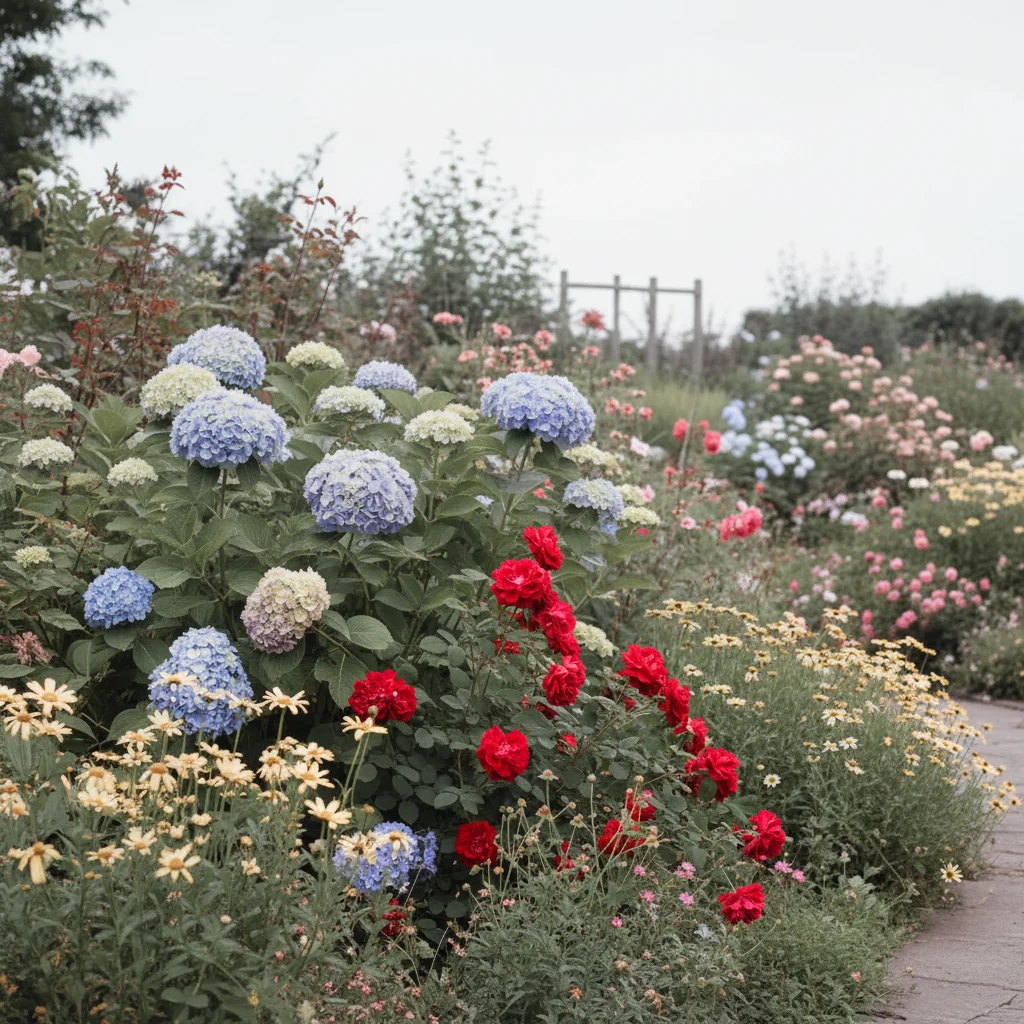
Faded garden photo restoration
Flower garden photo that looked washed out and lifeless. Enhanced to show the rich, vibrant colors of the blooms.
boost the color saturation to make the flowers look vibrant and alive with rich natural colors
If something looks off
AI changed the wrong area or something I didn't want changed
Why: The AI applied color enhancement globally when you wanted selective enhancement. This happens when certain areas should remain unchanged.
Tap a marker on the specific area you want enhanced, then regenerate with the same prompt
💡 Markers tell the AI 'I mean THIS area specifically.' Use them when you want selective color changes.
Colors look oversaturated or neon
Why: The AI interpreted your request as wanting maximum vibrancy. Strong enhancement on already-colorful areas creates artificial-looking results.
subtly enhance the colors while keeping the image looking natural and realistic
💡 Words like 'subtly' and 'naturally' rein in the AI's enthusiasm for color boosting.
Skin tones turned orange or unnatural
Why: Global color enhancement affected skin along with everything else. Skin is particularly sensitive to saturation and warmth changes.
enhance the colors while preserving natural skin tones, keep faces looking realistic
💡 Always mention skin tone preservation when enhancing photos with people.
Highlights are blown out or shadows are too dark
Why: Color enhancement increased contrast along with saturation, pushing extremes beyond recoverable range.
enhance the colors and vibrancy while maintaining detail in highlights and shadows
💡 Mentioning 'maintain detail' tells the AI to balance enhancement with exposure preservation.
Quick answers
Do I need to mark specific areas before enhancing colors?
No! Just describe what you want: 'enhance the colors and make them more vibrant' works for the whole image. The AI understands color enhancement concepts. Only use markers if you want to enhance specific areas while leaving others unchanged—like boosting sky blue without affecting skin tones.
Will color enhancement make my photos look fake?
Not if you phrase it right. Include words like 'natural' or 'realistic' in your prompt: 'enhance colors while keeping the image looking natural.' The AI will boost vibrancy without pushing into oversaturated territory. If results look too intense, try 'subtly enhance' instead.
Can I enhance colors in just part of the photo?
Yes. Either mention the specific area in your prompt ('enhance the blue of the sky') or tap a marker on that area before describing the enhancement. This is useful when you want vibrant landscapes but natural skin tones in the same photo.
What's the difference between enhancing colors and adding a filter?
Filters apply predetermined color shifts that change the overall mood. Color enhancement intelligently boosts what's already there—making blues more blue, greens more green—without shifting the photo's fundamental color palette. The result looks like better lighting rather than an Instagram filter.
Ready to enhance your colors?
Free to try. No signup required.