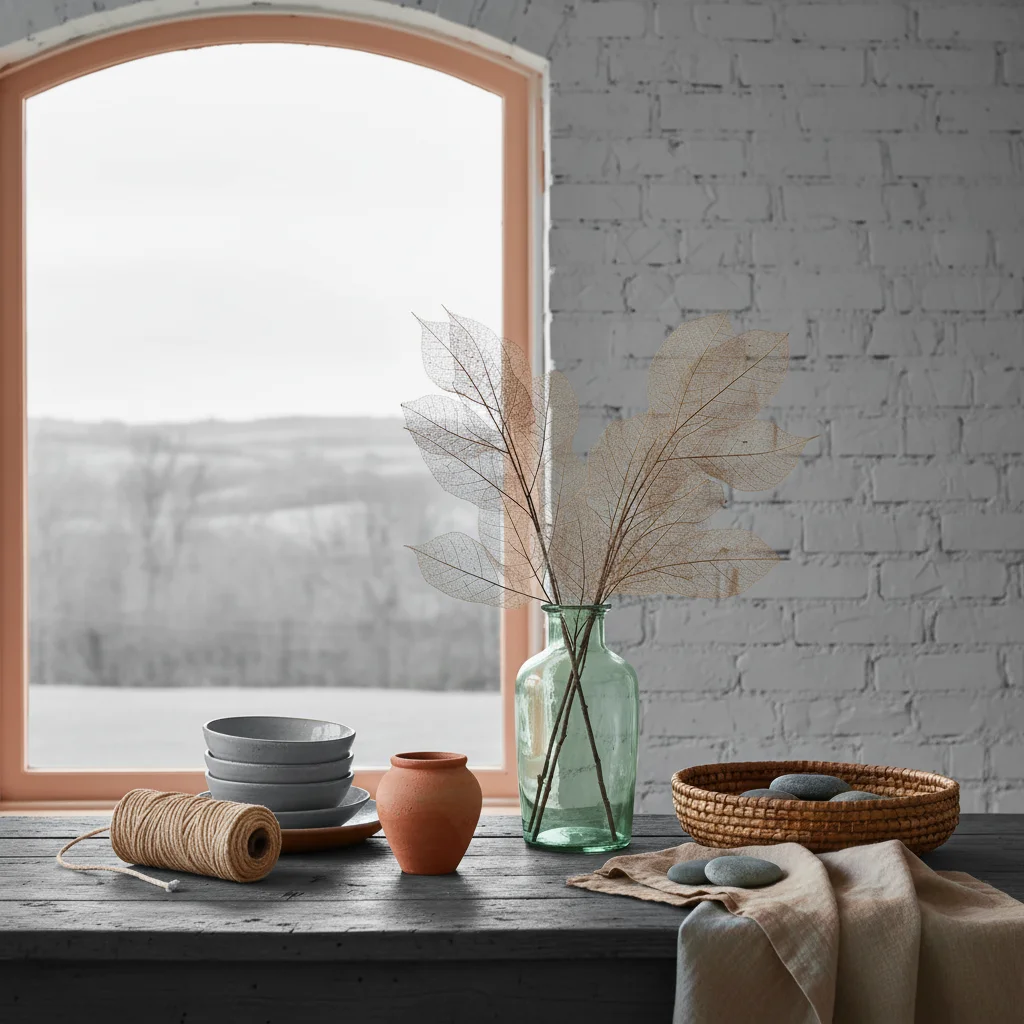
Add Color to Photo
Bring black-and-white memories to life with AI-powered colorization in seconds.
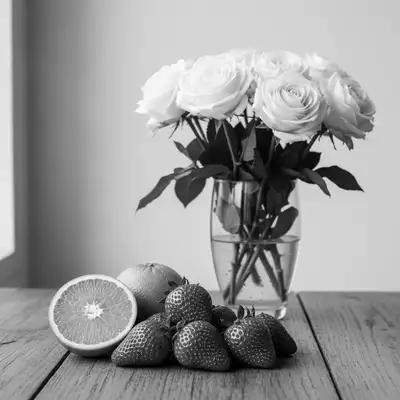
Type 'colorize this photo with natural realistic colors' and EditThisPic's AI adds lifelike color to black-and-white or faded photos in 15-30 seconds. Works on vintage family photos, historical images, and desaturated pictures. The AI intelligently detects skin tones, clothing, foliage, and skies. No selection required. Free to try, no account needed.
How it works
Upload your photo
Drop your black-and-white, sepia, or faded color photo into EditThisPic. The AI works with scanned prints, digital archives, and photos of old photographs. JPG, PNG, WebP up to 7MB.
Describe the colorization you want
Type your instruction: 'colorize this photo with natural realistic colors' or 'add warm vintage colors to this black and white image.' For specific elements, mention them: 'colorize with blue sky and green grass.' The AI understands context and applies appropriate colors automatically.
Copy one of these to get started:
colorize this black and white photo with natural realistic colors, accurate skin tones, and period-appropriate clothing
add warm lifelike colors to this vintage family photo with natural skin tones and subtle clothing colors from the 1950s era
restore and enhance the faded colors in this photo, bringing back vibrant natural tones while preserving the original color scheme
colorize this landscape photo with natural blue sky, green foliage, and realistic earth tones
3 more prompts
colorize this World War II era photo with accurate military uniform colors and period-correct equipment tones
colorize this vintage wedding photo with a white bridal dress, natural skin tones, and soft romantic colors for the setting
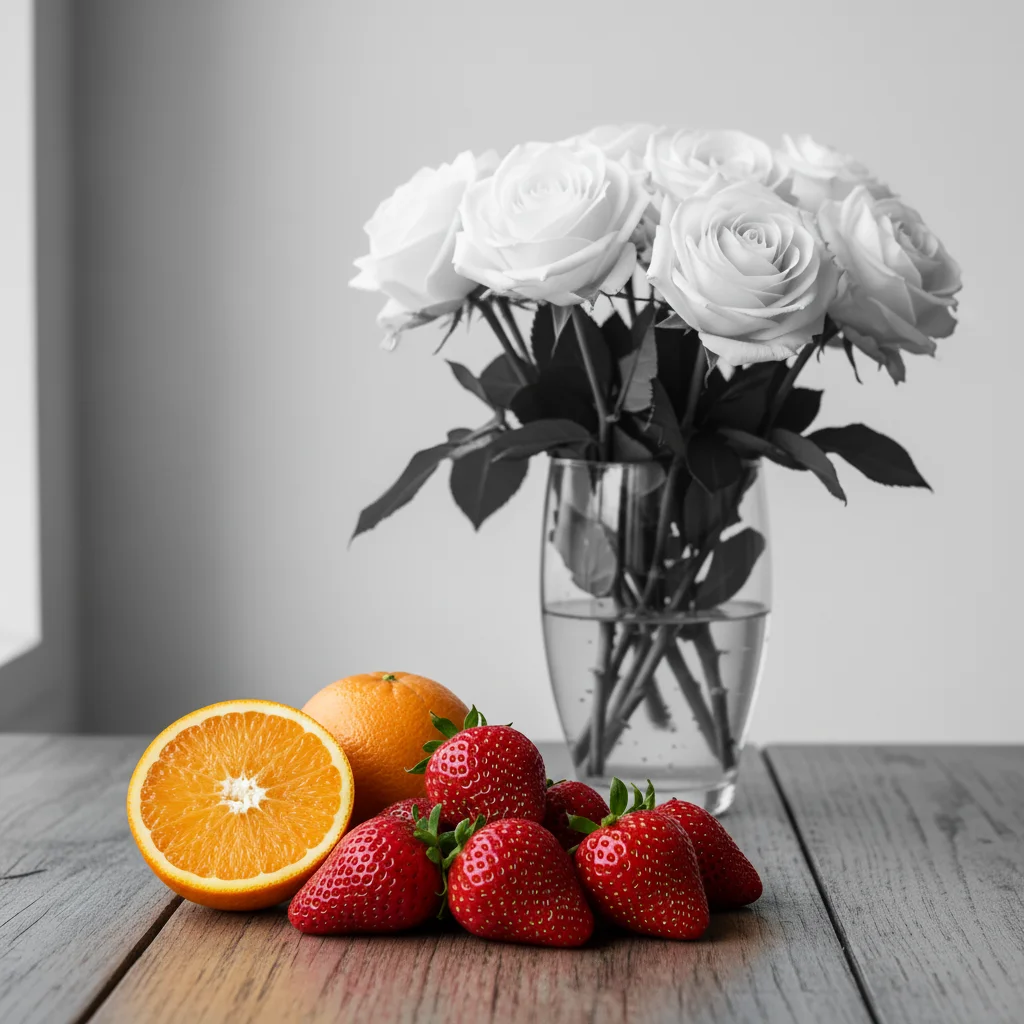
colorize only the person in this photo while keeping the background in black and white for artistic effect
Generate and review
Check that skin tones look natural and colors match the era. Look for consistency across the image - hair, clothing, and background should all have believable colors. Verify no color bleeding between elements.
Refine with markers if needed
If the AI chose the wrong color for an element (like a dress or car), tap a marker on that specific item and describe the correction: 'make this a red dress instead of blue.' This is optional for most colorizations.
"My grandmother's wedding photo from 1952 came alive. The AI got her dress color right and made her eyes sparkle. I cried." @JenniferRestores
See it in action
1940s family portrait colorized
A classic black-and-white family photo transformed with natural skin tones and period-accurate clothing colors.
colorize this 1940s family photo with natural realistic colors, warm skin tones, and period-appropriate clothing colors
Faded vacation photo restored
A sun-damaged photo from the 1980s with washed-out colors brought back to vibrant life.
restore the faded colors in this beach vacation photo, bringing back vibrant blue sky, natural skin tones, and colorful swimwear
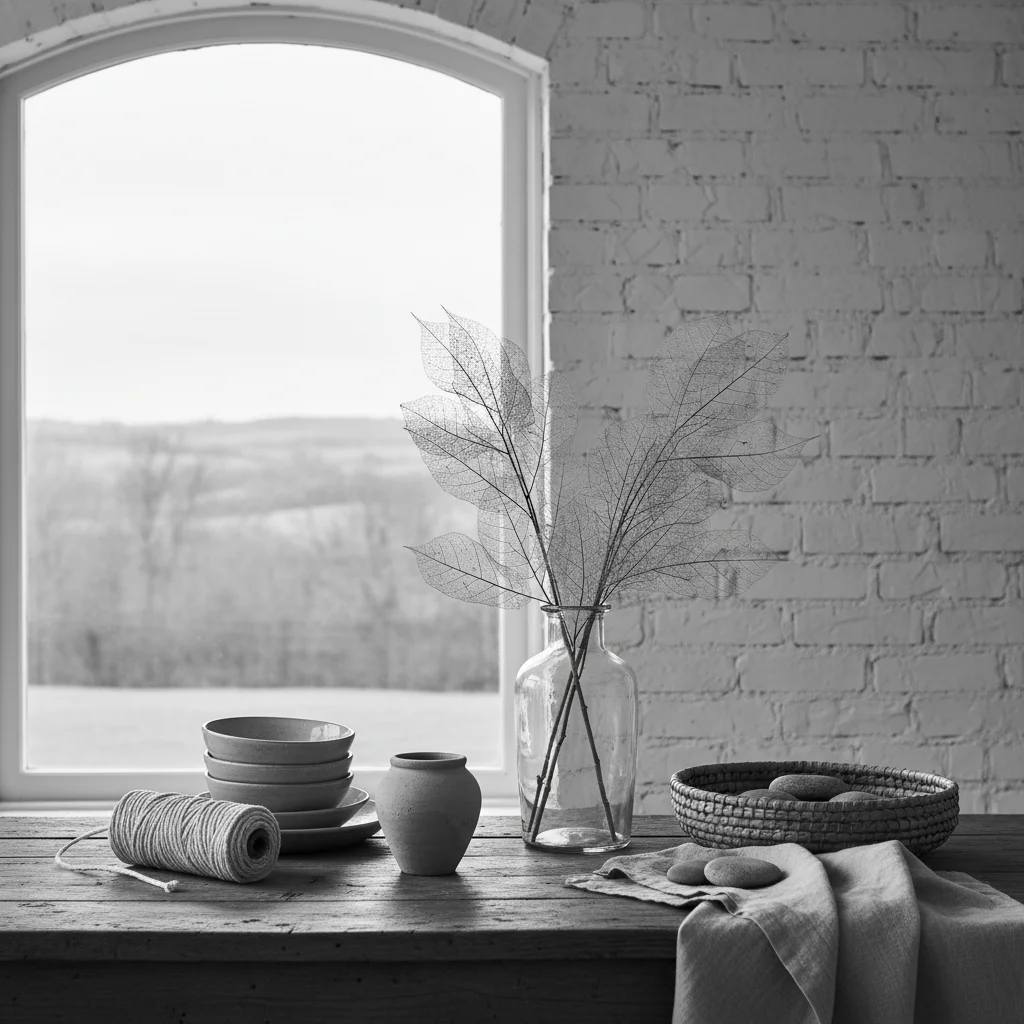
Historical street scene colorized
A vintage city photograph transformed to show the vibrant colors of the past.
colorize this 1920s street scene with realistic colors for the buildings, vintage cars, and pedestrian clothing of the era
If something looks off
Colors look oversaturated or cartoonish
Why: The AI applied too much color intensity, making the result look artificial rather than like a naturally colored photo.
colorize with subtle muted natural colors, avoid oversaturation
💡 Add 'realistic' and 'natural' to your prompt to get believable results
Skin tones look unnatural or have wrong undertones
Why: The AI couldn't accurately determine skin type from the grayscale values, resulting in incorrect undertones.
correct the skin tones to be natural warm/cool undertones with realistic flesh colors
💡 If you know the person's ethnicity, mention it for more accurate skin tone rendering
Wrong color applied to clothing or objects
Why: Without color reference, the AI guessed the color based on brightness values and context.
Tap a marker on the item and specify: 'change this to [correct color]'
💡 If you have reference photos or know the actual color, mention it specifically
AI changed the wrong area or something I didn't want changed
Why: The AI couldn't determine exactly which area you meant from description alone. This happens with ambiguous requests.
Tap a marker on the specific area you want to change, then regenerate with the same prompt
💡 Markers tell the AI 'I mean THIS one specifically.' Use them when description alone is ambiguous.
Color bleeding between adjacent elements
Why: Edges between elements in the original grayscale image aren't perfectly defined, causing color to spill over.
Tap markers on the bleeding edges and regenerate with 'clean up color edges'
💡 Higher resolution source images have better edge definition and less bleeding
Quick answers
Do I need to mark areas before colorizing?
No! Just describe what you want: 'colorize this photo with natural colors' or 'add realistic colors to this black and white image.' The AI automatically detects faces, clothing, sky, foliage, and other elements. Only use markers when correcting a specific color after the first result.
How accurate are the colors compared to the original?
The AI makes intelligent guesses based on context, era, and common color associations. Skin tones, sky, and foliage are usually very accurate. Specific items like clothing colors are educated guesses unless you specify. If you know actual colors, mention them in your prompt for accuracy.
Can I colorize very old or damaged photos?
Yes, but results improve with image quality. For heavily damaged photos, consider using our restore tool first to fix scratches and tears, then colorize the restored version. The AI handles grain and minor damage well.
Will colorization affect image resolution?
No. EditThisPic preserves your original resolution while adding color. For best results, use the highest quality scan of your original photo available.
Can I specify exact colors for elements?
Yes! Include specific colors in your prompt: 'colorize with a red dress and blue car.' For elements you're unsure about, let the AI choose naturally and correct afterward if needed.
Ready to bring your memories to life?
Free to try. No signup required.