Free • No signup Open Editor

Fix Scratched Photo

Remove scratch marks and surface damage from old prints in seconds.
Type 'remove the scratches and repair this photo' and EditThisPic's AI fills in the damaged areas in 15-30 seconds. Works on fine hairline scratches, deep gouges, and accumulated surface wear. The AI reconstructs what was underneath based on surrounding content. No selection needed for overall scratch repair. Free to try, no account needed.

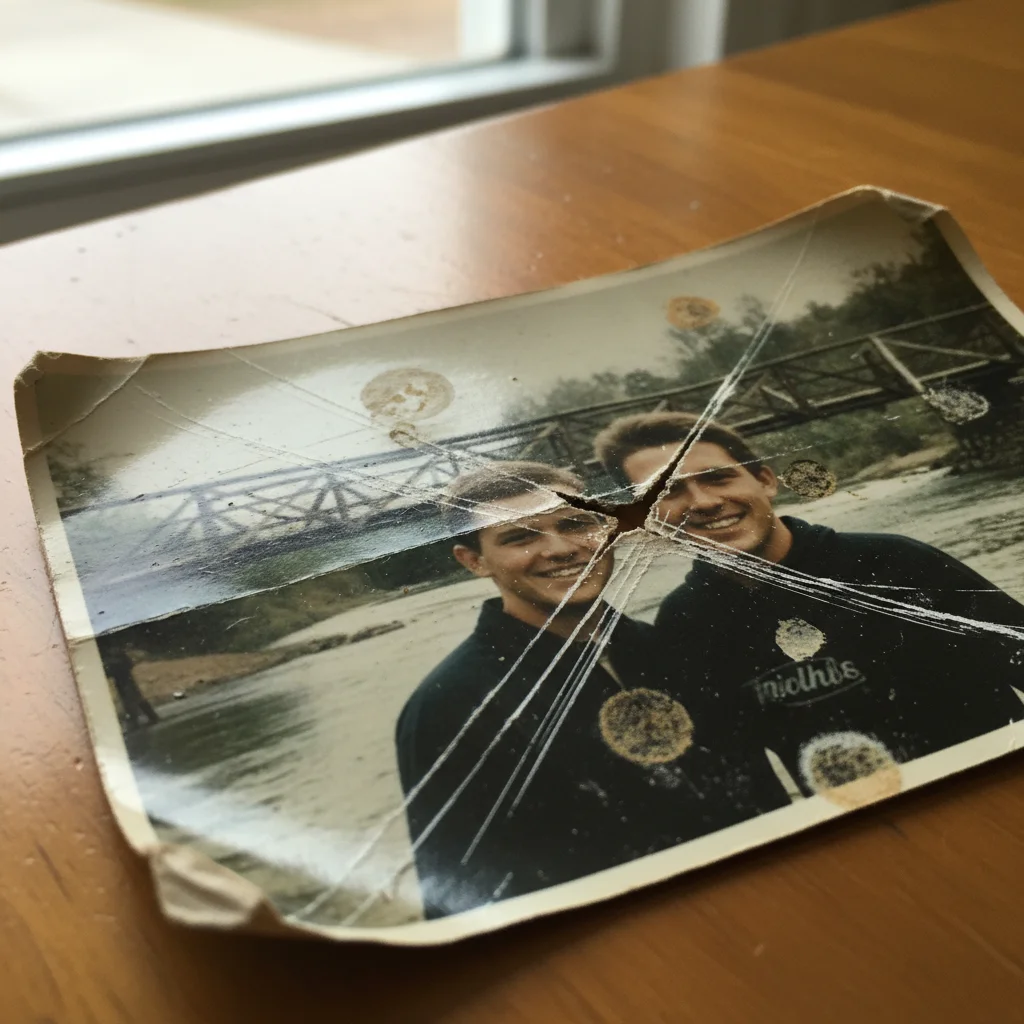
Family portrait with visible diagonal scratches crossing faces
Before
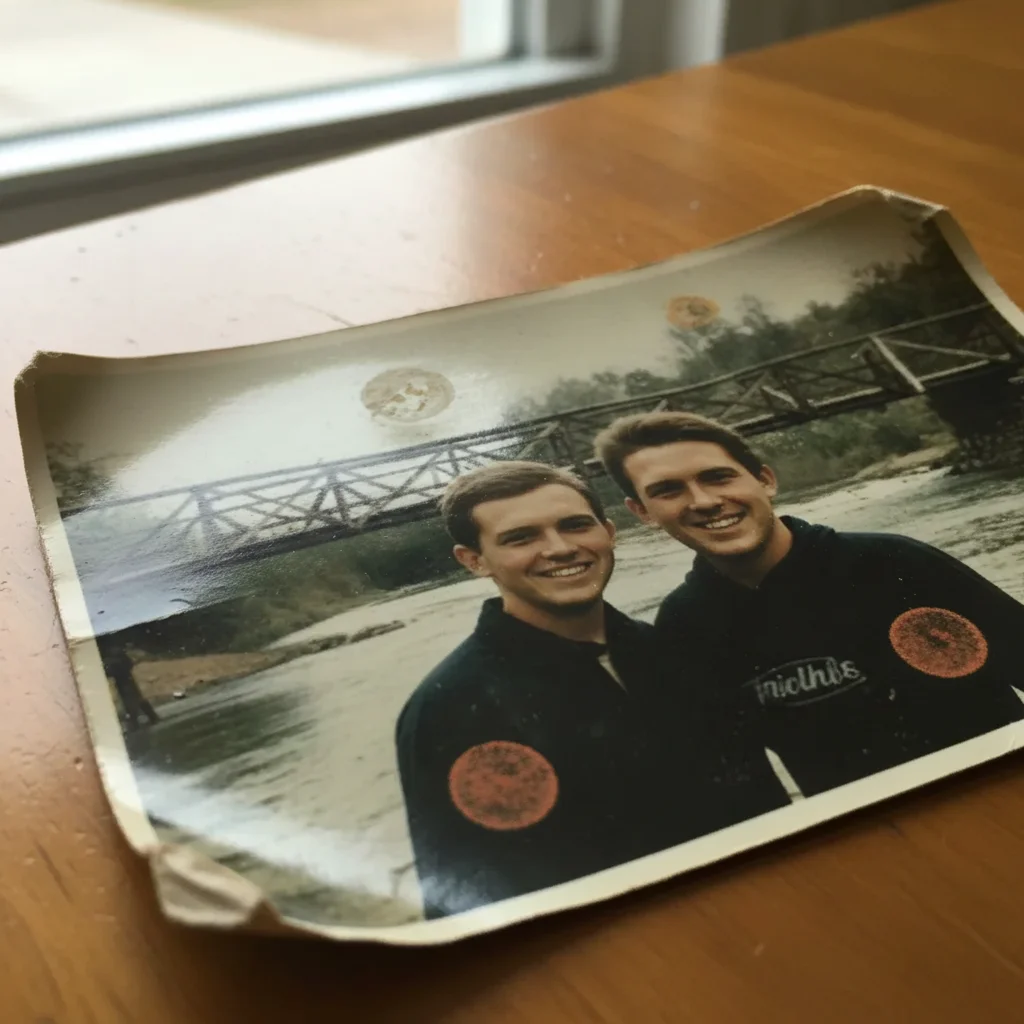
Same portrait with scratches removed and faces restored cleanly
After

How it works

1

Upload your scratched photo

Drop your image into EditThisPic. JPG, PNG, WebP up to 7MB. Scan old prints at 300-600 DPI for best results. The AI works best when it can see clear edges between scratches and the underlying image.

⏱ Light scratches: 15-20 seconds. Heavy surface damage with many scratches: may need 2-3 refinements.
2

Describe the repair you need

Type your instruction: 'remove all the scratches and restore the photo' or 'repair the scratch marks across the face.' Be specific if scratches are in critical areas like faces. No marking needed for general scratch removal across the entire image.

💡 Mention scratch severity: 'remove the deep scratches' vs 'fix the fine surface scratches' helps the AI calibrate its repair approach.

Copy one of these to get started:

General scratch removal across entire photo remove all the scratches and surface damage, restore the photo to clean condition
Scratches across faces remove the scratches crossing the face, carefully reconstruct the facial features underneath
Deep gouges in photo surface repair the deep scratches and gouges, fill in the missing areas to match the surrounding image
Fine hairline scratches from handling remove the fine scratches and surface wear, clean up the photo while preserving all original detail
3 more prompts
Scratches on patterned background repair the scratches and reconstruct the pattern underneath to match the rest of the background
Cat or pet scratches on print remove the claw marks and scratches, restore the torn areas to match the original photo
Scratched negative or slide scan remove the scratches from this scanned negative, clean up dust marks and surface damage
3

Review the repair

Check areas where scratches crossed important details like faces, text, or fine patterns. Look for smooth blending where scratches were removed. Verify no new artifacts appeared in previously undamaged areas.

4

Target remaining scratches if needed

If some scratches remain or the AI reconstructed details incorrectly, tap markers on those specific spots and regenerate. This focuses the AI's attention on stubborn areas. Most photos repair well on the first try.

💡 For deep scratches crossing faces, do overall repair first, then use markers to refine facial reconstruction specifically.
Try it free
"My grandfather's military photo had deep scratches across his face from storage. The AI filled them in perfectly and you can't tell they were ever there." @ArchiveRestorer_Beth

See it in action

Family portrait with visible diagonal scratches crossing faces
Before
Same portrait with scratches removed and faces restored cleanly
After

Family portrait with diagonal scratches repaired

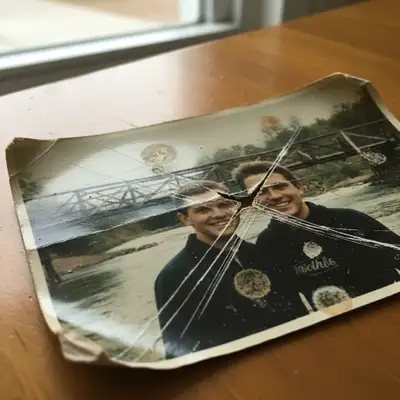
Deep scratches from storage had damaged this 1980s family portrait. The AI removed all scratches while preserving facial details.

Prompt: remove all the scratches and surface damage, restore the photo to clean condition
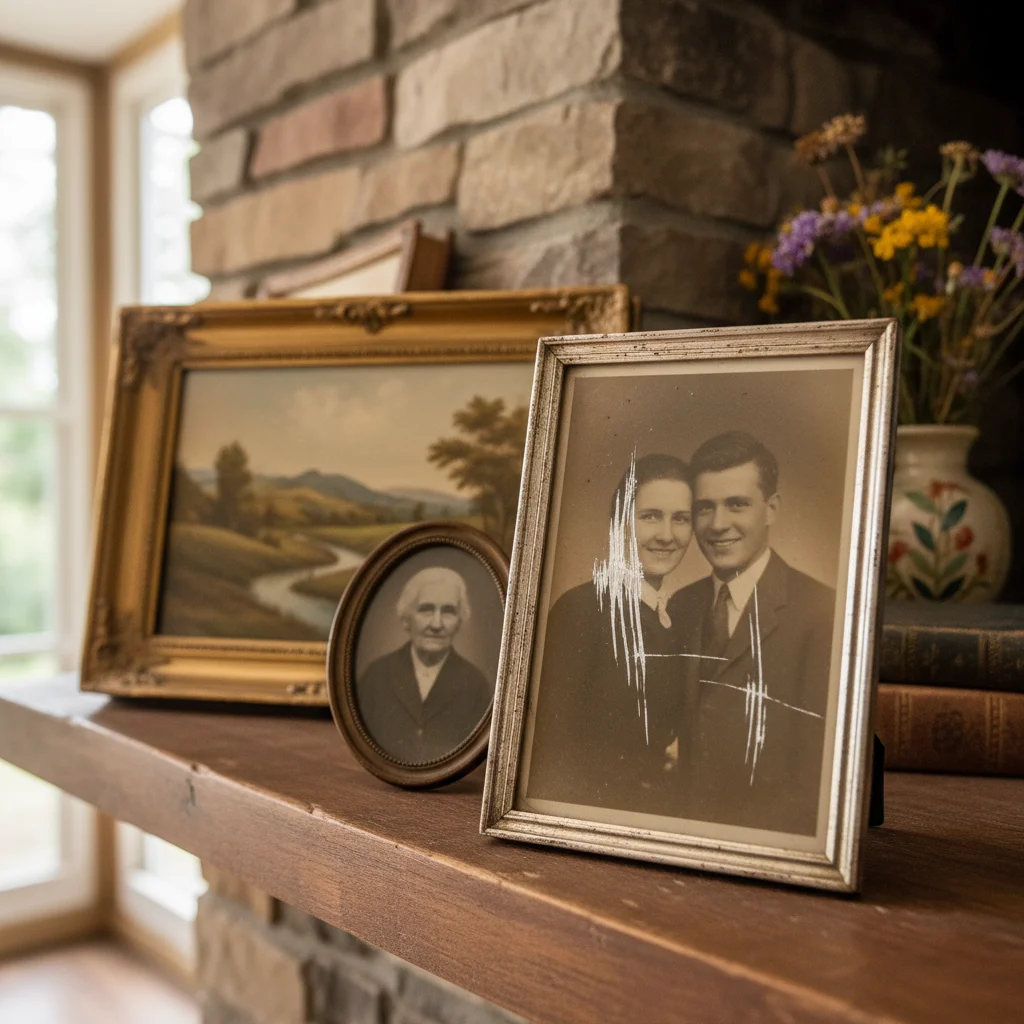
Wedding photo with deep scratch gouge across bride's dress
Before
Wedding photo with dress fabric reconstructed and scratch removed
After

Wedding photo with deep gouge fixed

A deep scratch had gouged across the bride's dress. The AI reconstructed the dress fabric seamlessly.

Prompt: repair the deep scratches and gouges, fill in the missing areas to match the surrounding image
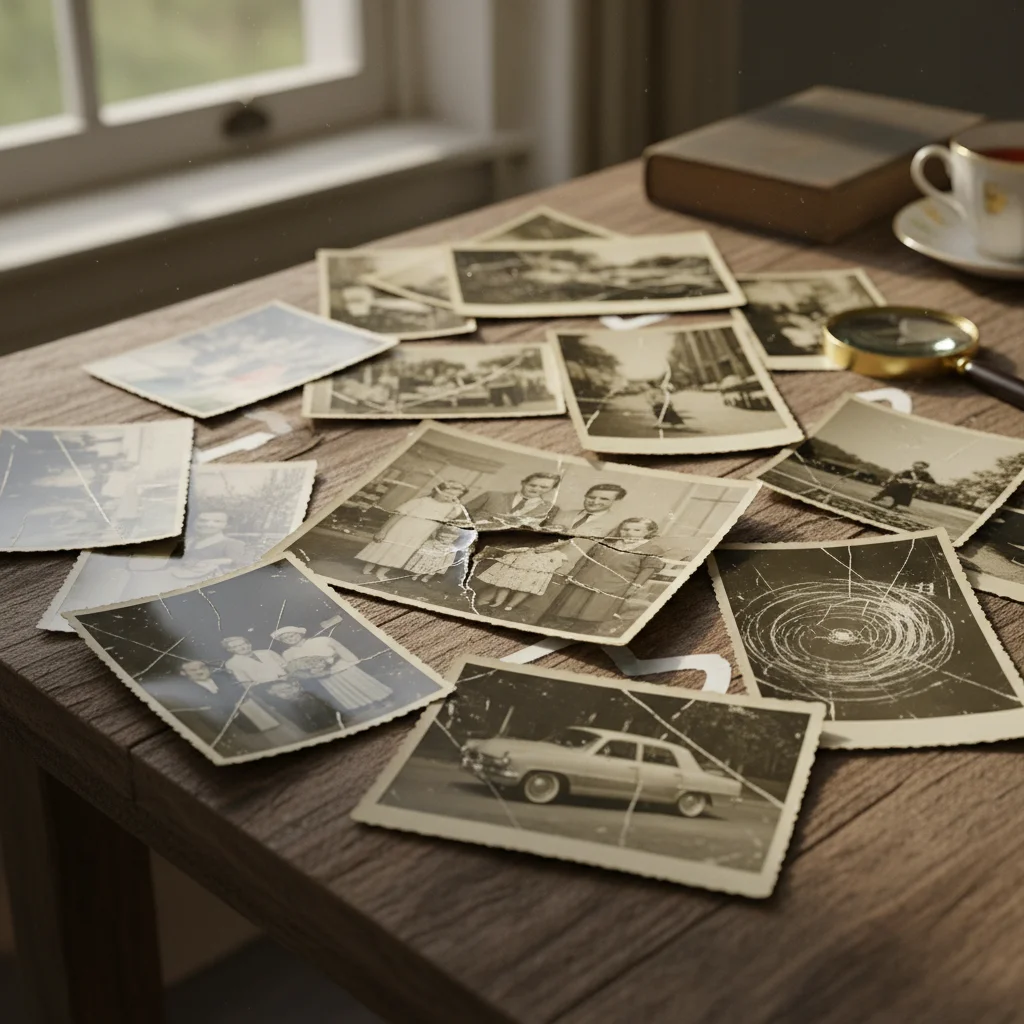
Classic car photo with many fine scratches across surface
Before
Clean car photo with all surface scratches removed
After

Vintage car photo with multiple scratches cleaned

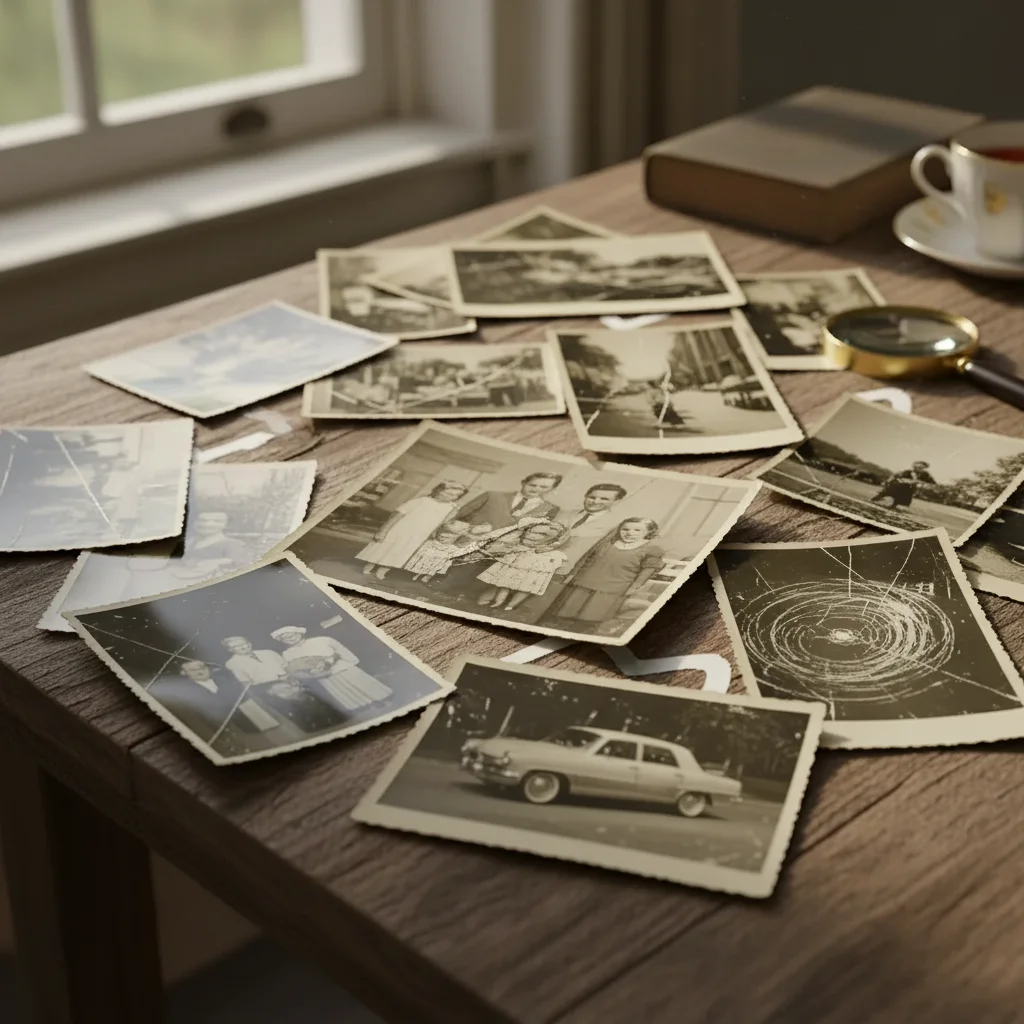
Years of handling had left fine scratches all over this car photo. The AI cleaned the entire surface.

Prompt: remove the fine scratches and surface wear, clean up the photo while preserving all original detail

If something looks off

Repaired areas look blurry or smeared

Why: The AI prioritized removing the scratch over preserving fine texture in that area. This happens more with deep scratches.

Try: repair the scratches while preserving sharp detail and texture, maintain the grain of the original photo

💡 Adding 'preserve texture' or 'maintain grain' helps keep repaired areas consistent with undamaged sections.

Face looks wrong where scratch was removed

Why: Deep scratches across faces require the AI to reconstruct facial features. Complex damage may need careful refinement.

Try: carefully repair the scratch on the face, preserve the person's natural features and likeness

💡 For facial scratches, use markers to guide the AI to that specific area and request 'careful' reconstruction.

AI changed the wrong area or something I didn't want changed

Why: The AI couldn't determine exactly which area you meant from description alone. This happens with ambiguous requests.

Try: Tap a marker on the specific scratch you want removed, then regenerate with the same prompt

💡 Markers tell the AI 'I mean THIS scratch specifically.' Use them when there are many scratches but you only want certain ones fixed.

Some scratches removed but others remain

Why: Fine or faint scratches may be missed if they blend with image content, or the AI prioritized the most obvious damage.

Try: Tap markers on the remaining scratches and use: remove these specific scratches and blend naturally

💡 Light scratches on light backgrounds are hardest to detect—pointing them out with markers helps.

Pattern doesn't match where scratch was repaired

Why: Complex patterns or textures are difficult to reconstruct when data is missing. The AI infers based on surrounding context.

Try: repair the scratch and carefully match the pattern/texture of the surrounding area

💡 Mention the specific pattern type: 'match the plaid pattern' or 'continue the wood grain texture.'

Quick answers

Do I need to mark each scratch before describing the repair?

No! For overall scratch removal, just describe what you want: 'remove all the scratches.' The AI identifies scratch patterns automatically—they have distinctive characteristics that differ from image content. Only use markers when you need to fix specific scratches while leaving others, or when the AI missed particular spots after the first pass.

Can AI repair scratches that cross faces?

Yes, but results depend on scratch severity. Fine scratches across faces repair nearly perfectly. Deep gouges that removed significant facial information require the AI to reconstruct features, which may not be pixel-perfect to the original. For important photos, do overall repair first, then refine facial areas with targeted prompts mentioning 'preserve likeness.'

What's the difference between scratches and cracks?

Scratches are surface marks that didn't remove image content—the information is still there beneath the scratch. Cracks in the photo emulsion actually break apart the image layer. The AI handles both, but cracks require more reconstruction. Use 'repair cracks' for actual emulsion damage and 'remove scratches' for surface marks.

Should I try to clean my photo before scanning?

Light cleaning is fine, but avoid aggressive wiping that might create new scratches. The AI handles dust spots and minor debris along with scratches. If the photo is very delicate, scan it as-is and let the AI handle cleanup—that's safer than risking physical damage during cleaning.

Will the repair be invisible?

For most scratches, yes. The AI matches texture, color, and grain of surrounding areas. Deep scratches on complex patterns or faces may show subtle signs of reconstruction under close inspection, but are invisible at normal viewing distances. The key is matching the original photo's grain pattern.

Ready to fix your scratched photos?

Free to try. No signup required.

Try it free