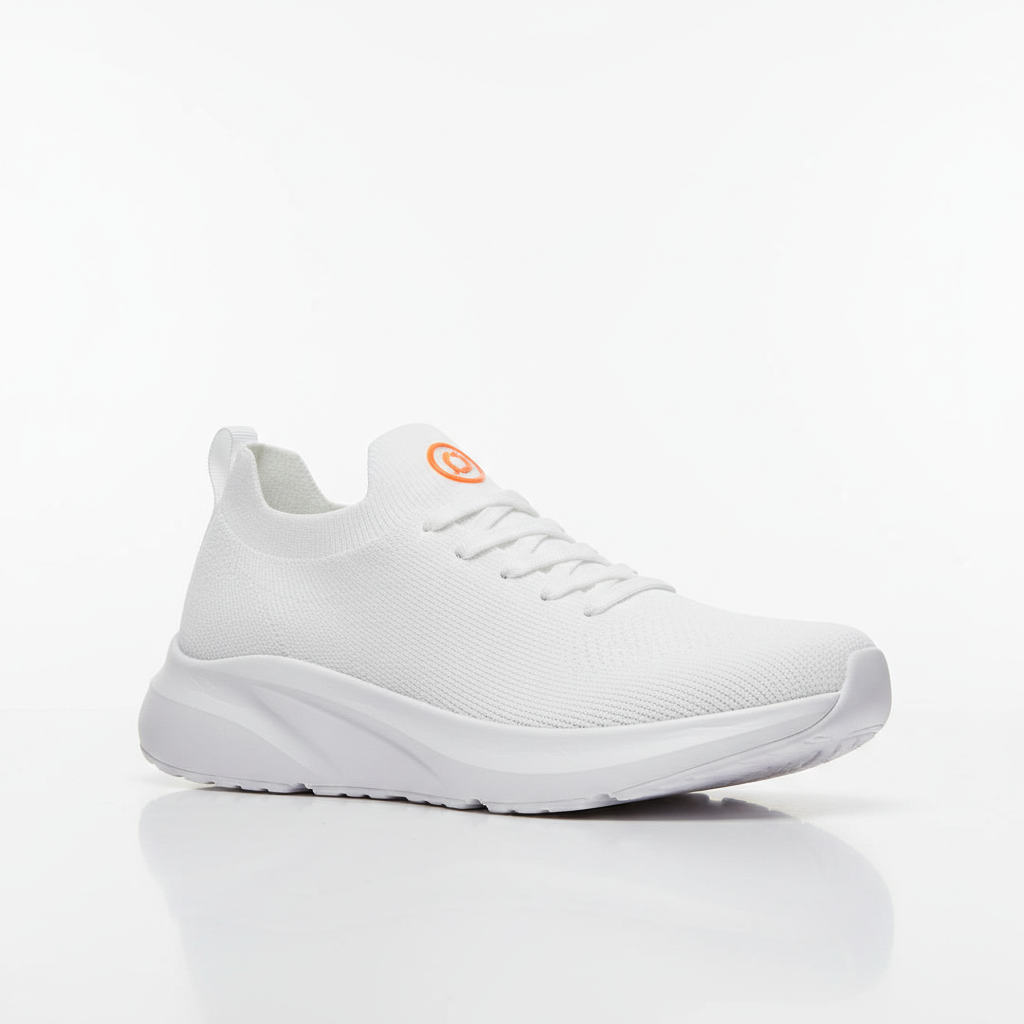
Do I need to mark the product area before recoloring from a reference?
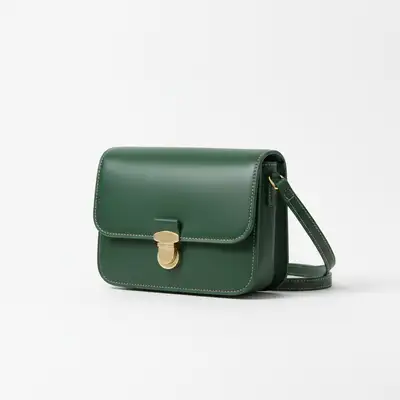
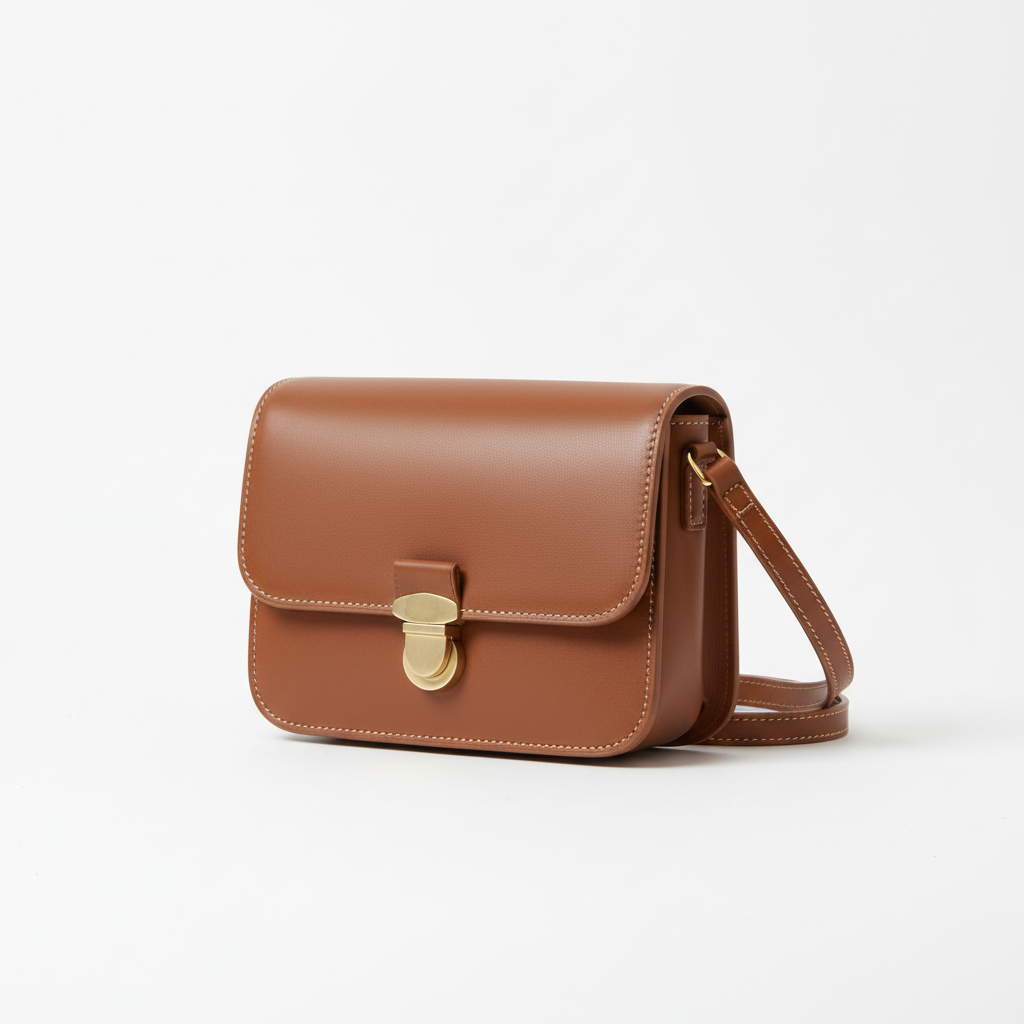
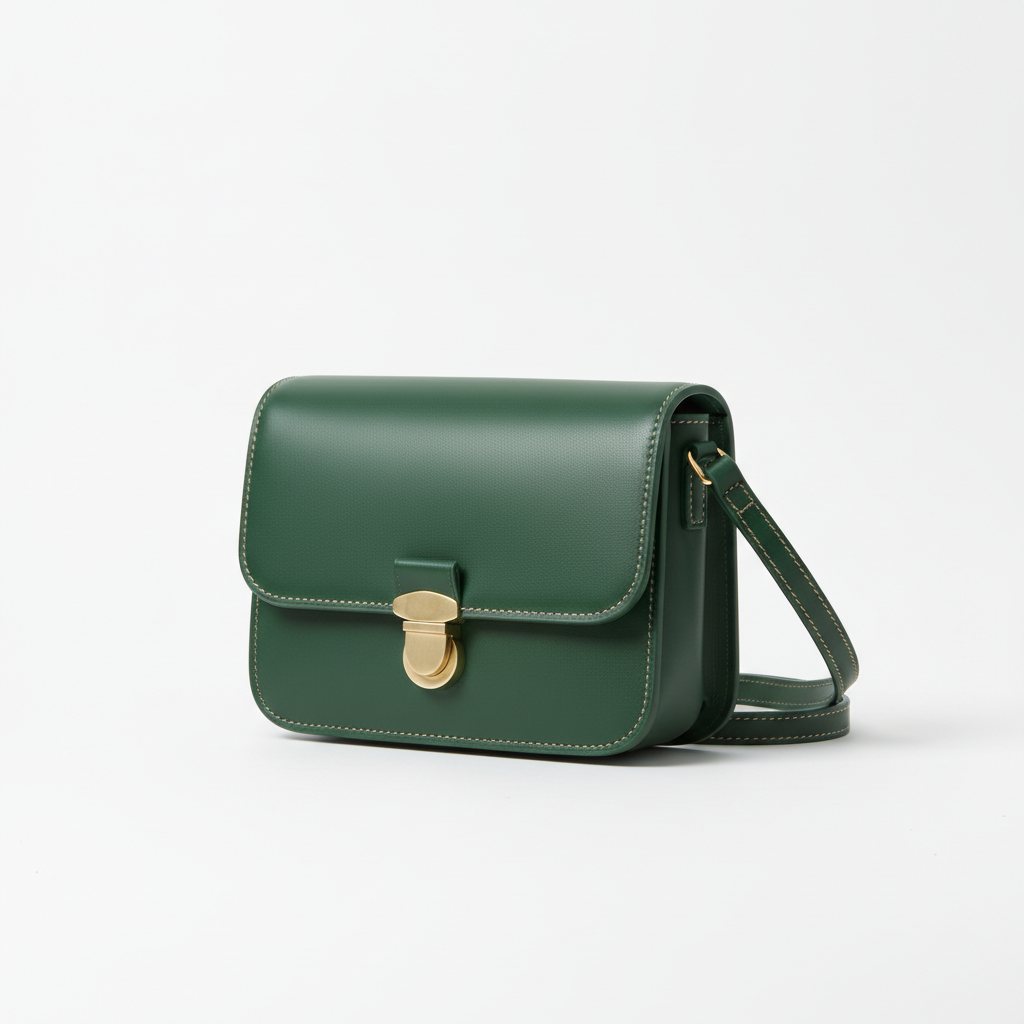
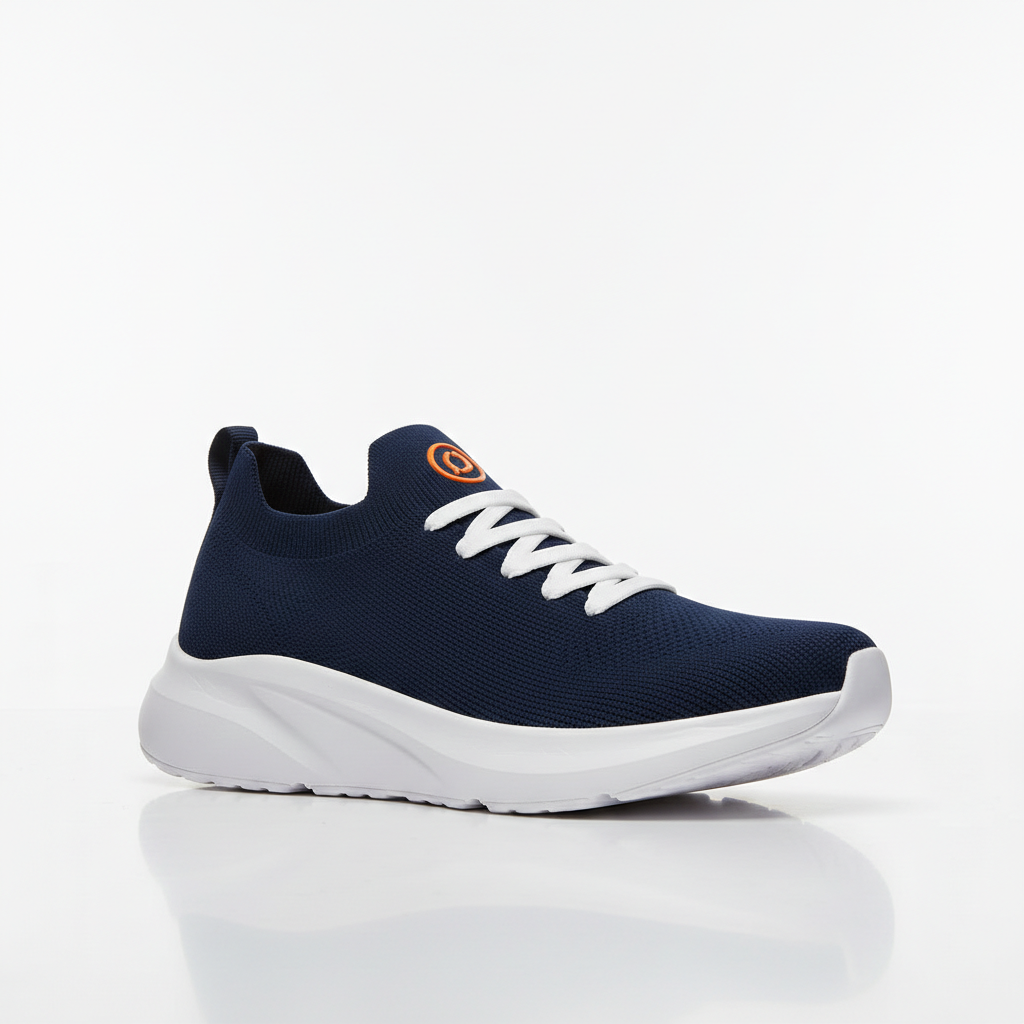
No. Just upload your product photo, add the reference image, and describe what to recolor: 'recolor the bag body to match the reference swatch, keeping hardware unchanged.' The AI identifies the product automatically.
How do I recolor a product photo to match a reference swatch or Pantone chip?
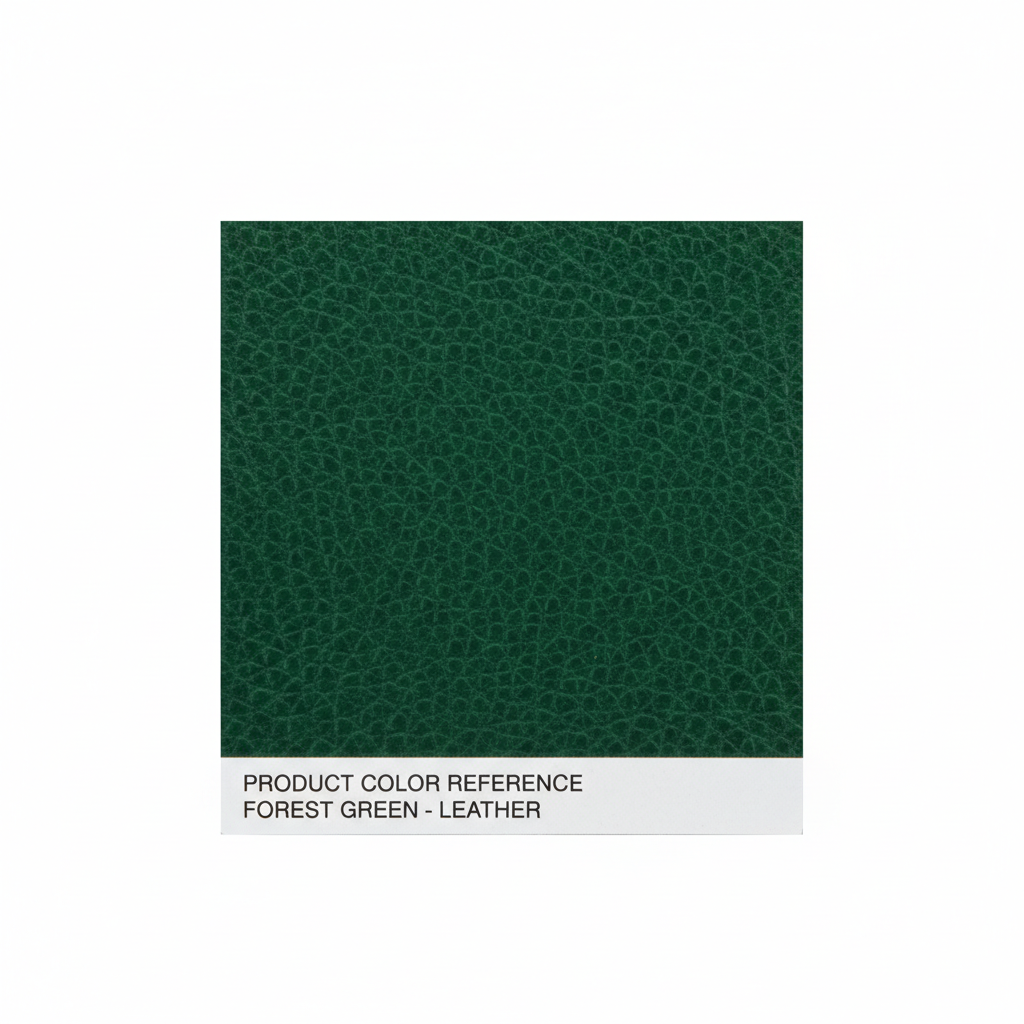
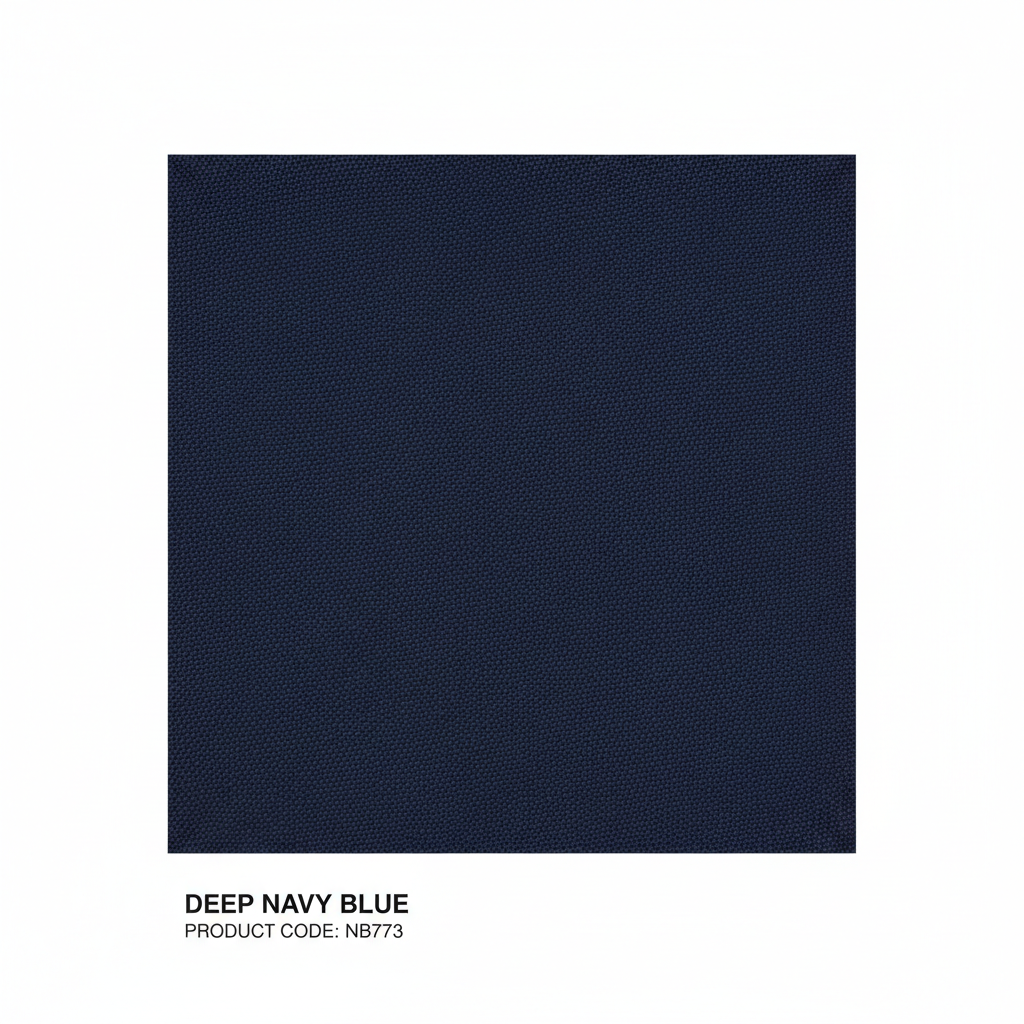
Upload your product photo as the main image, then click '+ Add reference image' and upload a photo of your Pantone card, fabric swatch, paint chip, or any image showing the target color. In the prompt, write: 'recolor the product body to match the color in the reference image, preserving material texture and hardware.' EditThisPic samples the exact hue from your reference rather than guessing from a color name. Free, no account required.
Is there a free tool to generate product color variants without reshooting?
Yes. EditThisPic generates photorealistic product color variants from a single hero photo plus a reference image at no cost, with no account or login required. Upload your product photo, upload your color reference (swatch, Pantone chip, or another product in the target color), describe the recolor, and download the result. One free edit per week. Credit packs are available starting at $4.99 for additional edits.
What should I use as the color reference image?
Any image that shows the target color works: a Pantone or RAL chip photographed on white, a fabric swatch card, a competitor or sample product in the target color, a brand guideline color block, or even a solid-color PNG. For the most accurate match, photograph physical chips under neutral daylight (5000K) on a white surface. Avoid reference images with heavy warm or cool color casts, which shift the sampled hue.
Will the AI preserve the material texture — leather grain, fabric weave, plastic finish — when recoloring?
Yes, when you name the material in your prompt. Writing 'leather grain,' 'woven fabric texture,' 'matte powder coat,' or 'glossy ABS plastic' tells the AI how the color interacts physically with the surface — it recalculates lighting and sheen correctly rather than applying a flat tint. Without the material name, some texture modeling may be approximate.
What is the best AI tool for generating e-commerce product color variants from a photo?
EditThisPic's two-image workflow — product photo plus reference swatch — is purpose-built for this use case. Unlike generic photo editors that require manual selection and Hue/Saturation adjustments, EditThisPic matches the color from the reference image automatically, preserves material texture and lighting, and protects hardware and labels when you name them in the prompt. Results in under 30 seconds, free to try.
Can I generate multiple colorways from a single product photo?
Yes. Run one edit per colorway — upload the same product photo each time and swap in a different reference image for each target color. Each edit takes about 30 seconds. This is significantly faster than reshooting and more consistent than manually adjusting hue in post-production because each result is anchored to the actual reference color.
Can I use this for fashion colorway presentations to retail buyers?
Yes. Fashion brands use this workflow to generate all seasonal colorway options from one sample garment photo before production samples are available. Upload a flat-lay or mannequin shot, upload each trend color swatch as a reference, and generate presentation-ready images within minutes. Results are photo-quality and suitable for PDF lookbooks and digital presentations.
Is this accurate enough for manufacturing color approvals?
It's accurate enough for visual presentation and client sign-off at the concept stage. For final production tolerances (Delta E measurements), physical Pantone or RAL samples are still required — this tool is not a calibrated colorimetric system. However, for communicating design intent and eliminating early-stage sample rounds, the reference-matched output is accurate and professional.
How is this different from just adjusting Hue/Saturation in Photoshop?
Hue/Saturation shifts the entire color gamut uniformly, which changes hardware, backgrounds, and shadows alongside the product, and doesn't match a specific reference hue. EditThisPic's reference-based recoloring samples the exact color from your reference image, identifies the product as the recolor target, preserves non-product elements, and recalculates material-appropriate texture and lighting for the new color — in about 30 seconds without any selection work.
How much does EditThisPic cost?
You get 1 free edit per week — no account needed. After that, one-time credit packs start at $4.99 for 10 edits, valid 12 months, no subscription. Power users who edit daily can pick Studio Membership, a monthly workspace at $49.99/mo for 300 edits. Purchased downloads are clean with no watermark.