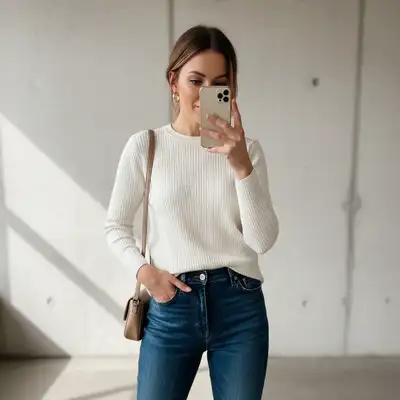
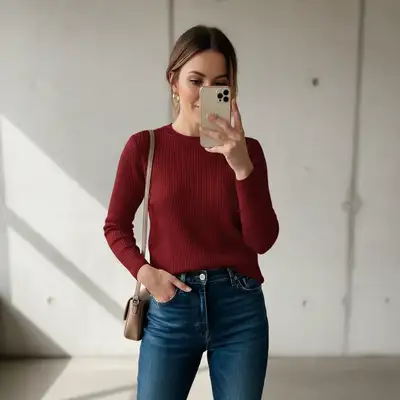
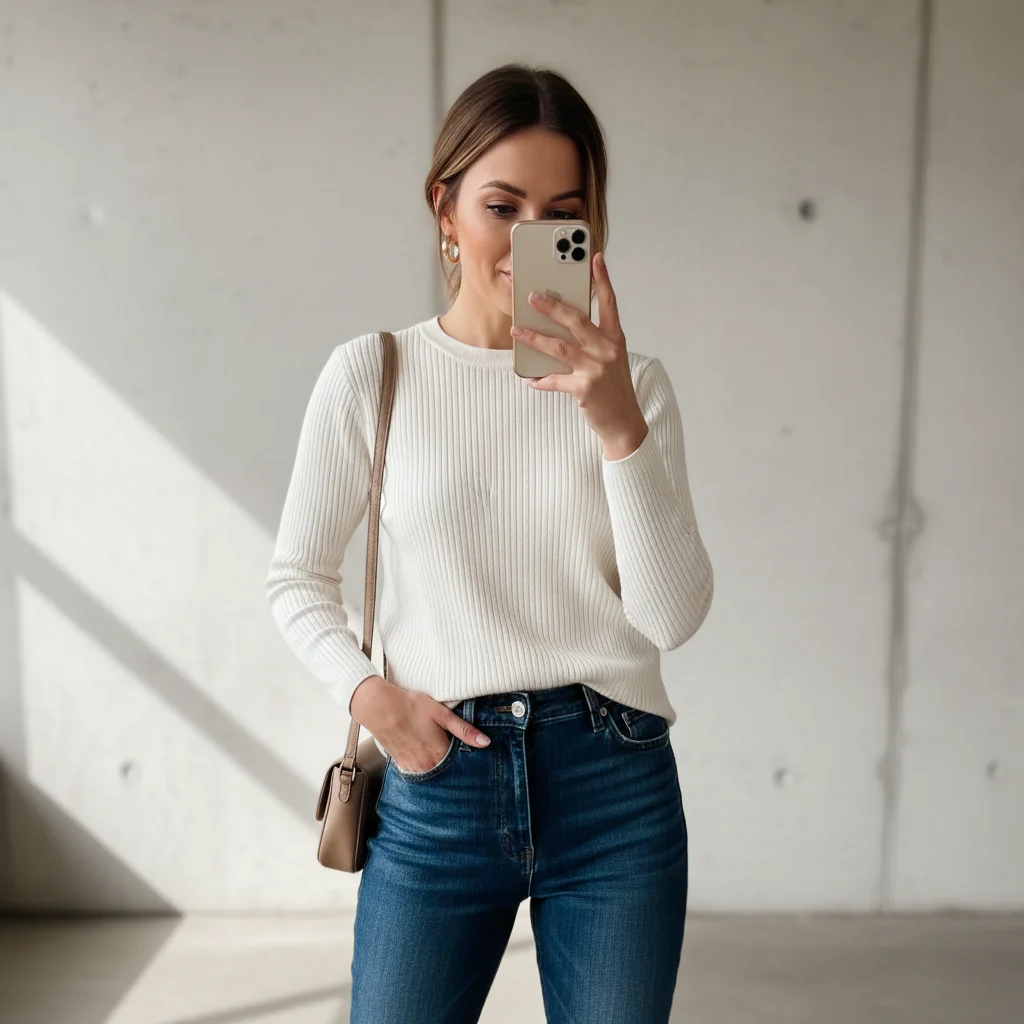
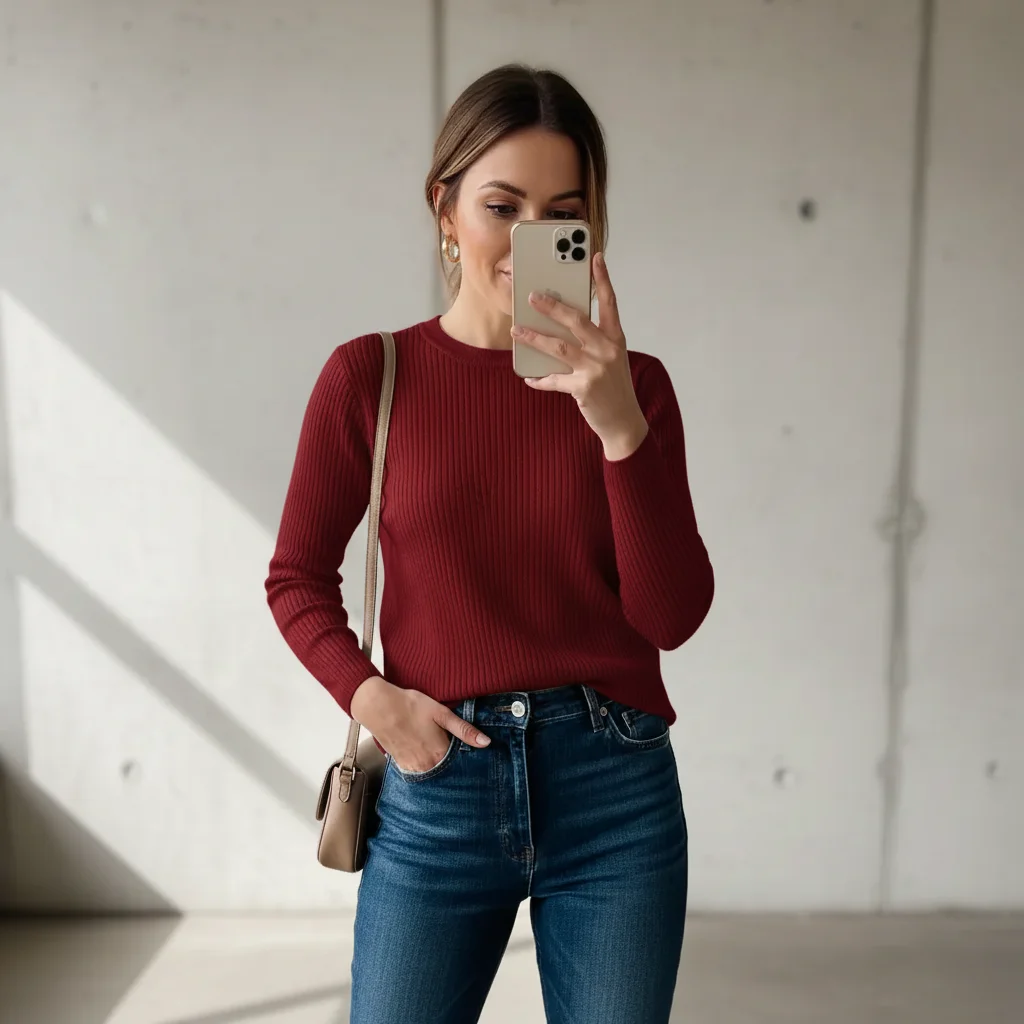
Do I need to mark or select the clothing before describing?
No! For most edits, just describe what you want: 'change the shirt to navy blue' or 'make the dress burgundy.' The AI understands 'the shirt' and 'the dress' and finds the garment automatically. Only use markers when multiple similar garments are present and you need to specify which one, or when the AI changes the wrong item.
How do I change clothing color in photos for free?
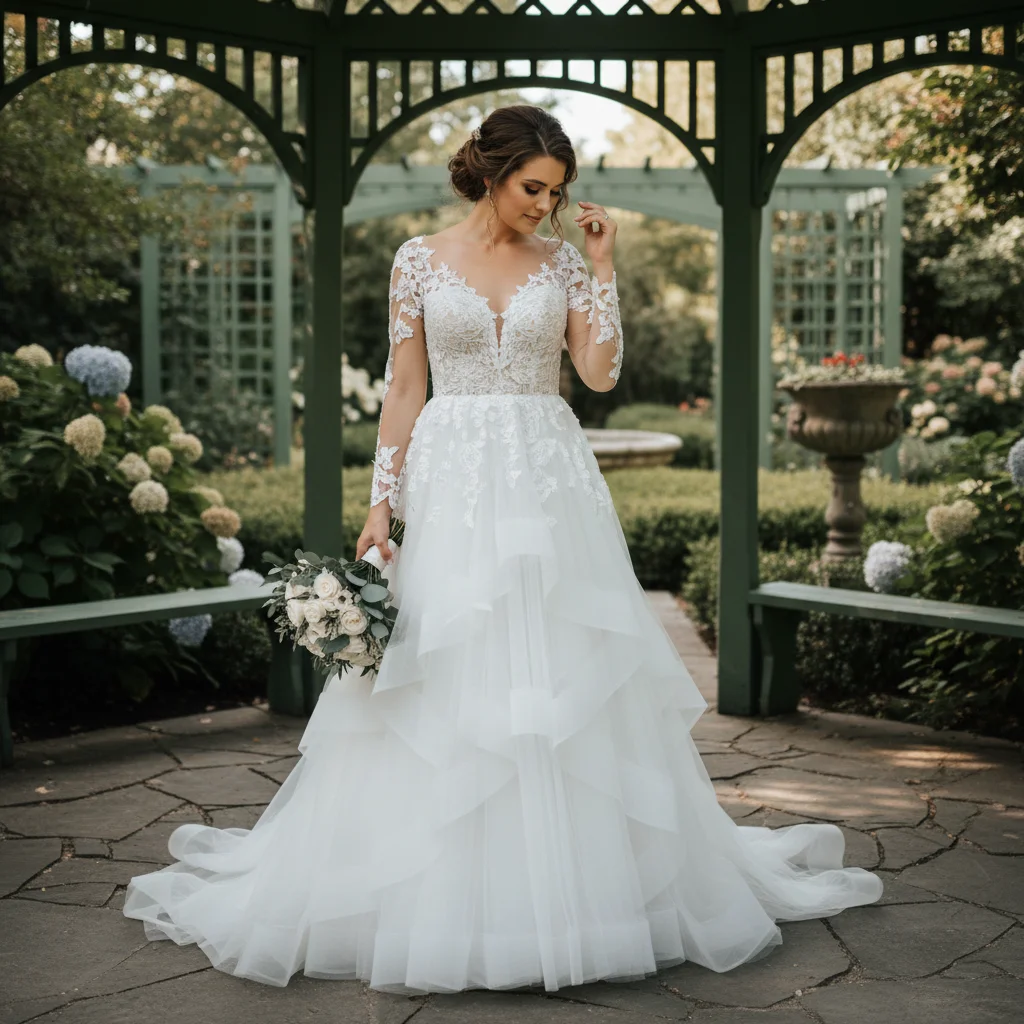
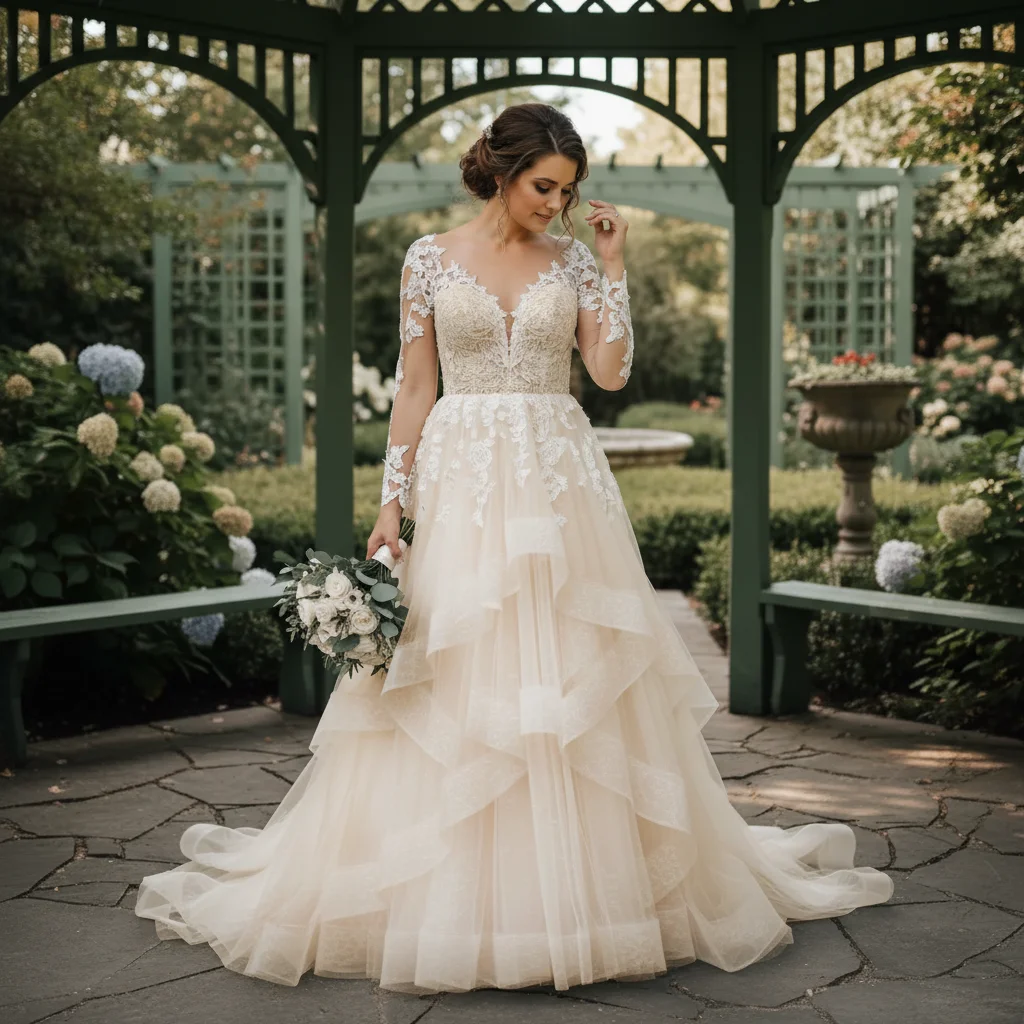
Use EditThisPic's free AI clothing color changer. Upload your photo, type what color you want the garment to be (like 'change the shirt to navy blue'), and the AI recolors it in seconds while preserving fabric texture. No Photoshop skills needed, no subscriptions, no watermarks. Perfect for product photography, testing outfit colors, or editing event photos.
Will the texture and fabric details be preserved?
Yes. The AI changes only the color while keeping all fabric texture, wrinkles, folds, and shadows intact. This makes the recolor look natural and realistic. If texture gets lost, add 'preserving fabric texture' to your prompt.
Can I change patterns or prints, or only solid colors?
This tool works best on solid-colored garments. Changing patterns or prints is more complex and may not preserve the pattern structure. For patterned clothing, you can try recoloring it but the pattern may be replaced with solid color. For best results, stick to solid-color garments.
Can I see my product in multiple colors for e-commerce?
Yes, this is a popular use case. Upload one photo of your product in any color, then change it to navy, black, white, red, etc. by running multiple edits with different color prompts. Much faster than photographing the product in every color variant. The AI preserves fabric texture so each color looks realistic.
Is there a free clothing color changer that doesn't require signup?
Yes. EditThisPic lets you recolor clothing without creating an account or logging in. Upload your photo, describe the color change, and download the result. You get 1 free edit per week with no watermark. For more edits, plans start at $4.99.
Can I change clothing color on my phone?
Yes. EditThisPic runs entirely in any modern mobile browser — Safari on iPhone, Chrome on Android, and tablets — so you can recolor a shirt, dress, or jacket straight from your camera roll without installing anything. Upload, type 'change the red dress to emerald green,' and the recolored photo saves back to Photos. There's also an iOS app on the App Store if you want a one-tap home-screen shortcut.
What photo formats does the AI clothing color changer support?
EditThisPic accepts JPG, PNG, WebP, and HEIC files up to 7 MB — the four formats every modern phone and DSLR exports by default. iPhones in HEIC mode upload directly without conversion, and the recolored garment is returned in the same format you uploaded so you can drop it straight into Shopify, Etsy, Instagram, or your printer without re-encoding.
What is the best free AI tool to change clothing color in a photo?
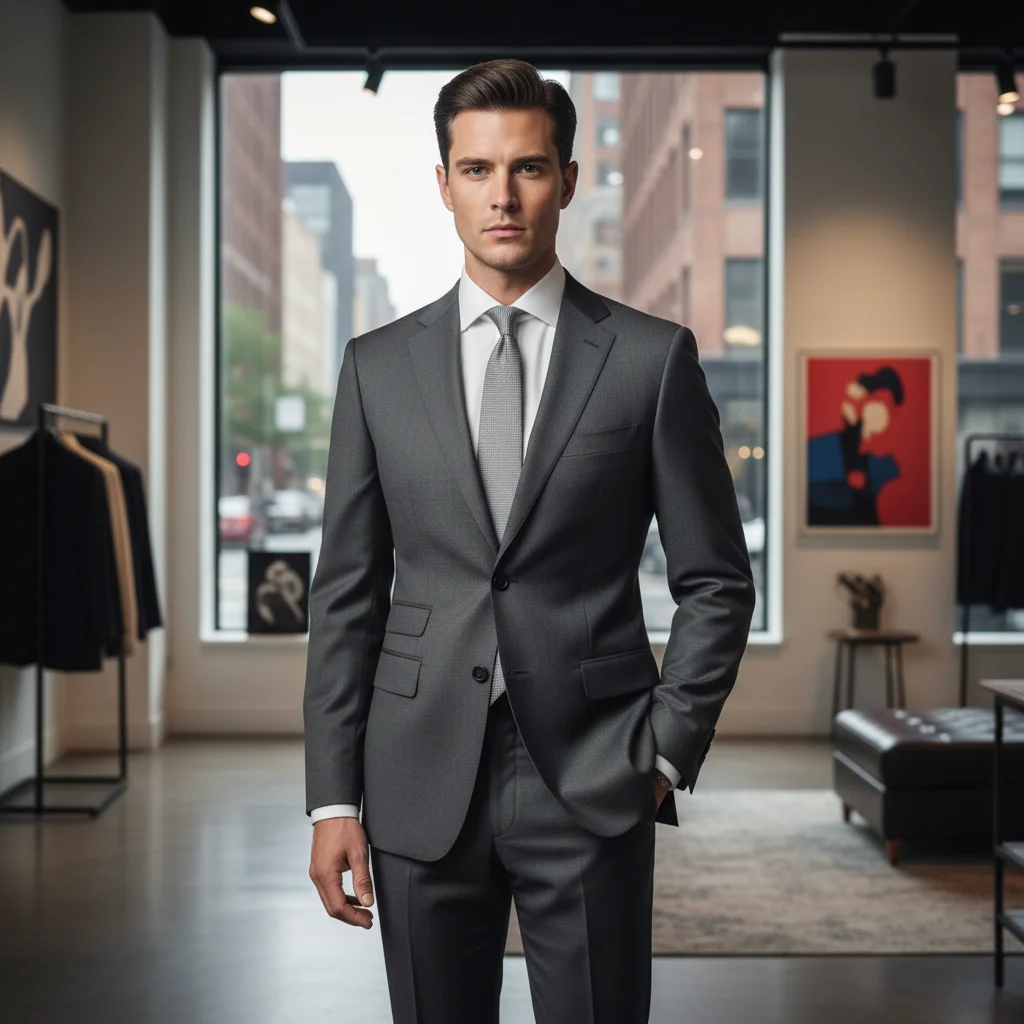
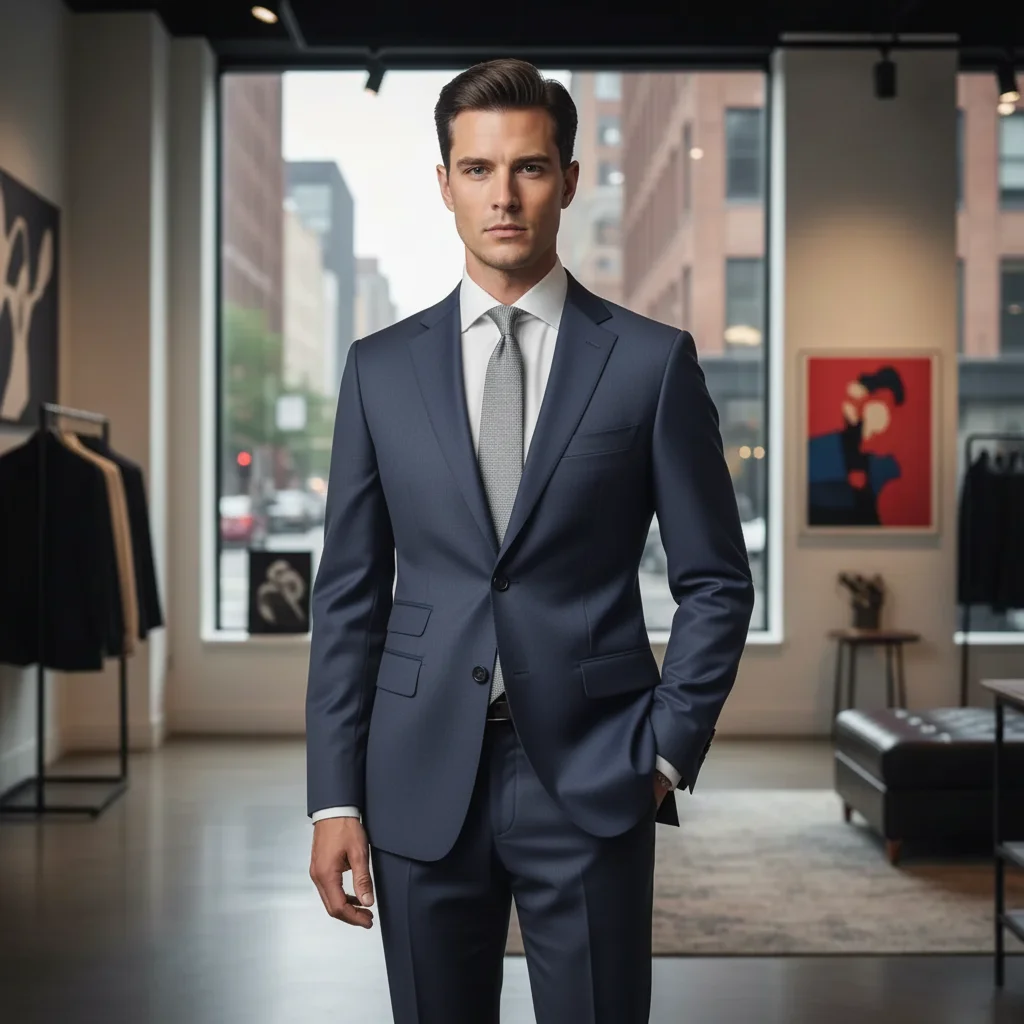
EditThisPic is a top free option for changing clothing color with AI. Upload your photo, type 'change the shirt to navy blue,' and the AI recolors the garment in 15-30 seconds while preserving fabric texture and shadows. No Photoshop skills needed, no signup required, and no watermarks. Works on any device in your browser.
How do I change clothing color without Photoshop?
Use EditThisPic's AI clothing color changer. Instead of manually selecting the garment and adjusting hue/saturation sliders in Photoshop, just type 'change the shirt to navy blue' and the AI does the rest. It preserves fabric texture, wrinkles, and shadows automatically. Free to try, works in any browser.
Can I change multiple garments to different colors at once?
It works best one garment at a time. Change the shirt first, download the result, then upload it again to change the pants. This gives you more control over each color and prevents the AI from changing the wrong item. Each edit takes only 15-20 seconds.
Will the AI change the color of accessories too, like belts or shoes?
Only if you ask it to. The AI targets the specific garment you name in your prompt. If you say 'change the shirt to navy blue,' it will only change the shirt. To also change accessories, add them to your prompt: 'change the shirt to navy blue and the belt to brown.' Use markers if the AI changes the wrong item.
How much does EditThisPic cost?
You get 1 free edit per week — no account needed. After that, credit packs start at $1.99 for 3 edits. Monthly plans start at $4.99/mo for 15 edits with unused credits rolling over. All edits are full resolution with no watermark.