Free • No signup Open Editor

Change Hair Color from Photo

Just type 'change hair to blonde' and see yourself with a new look in seconds.

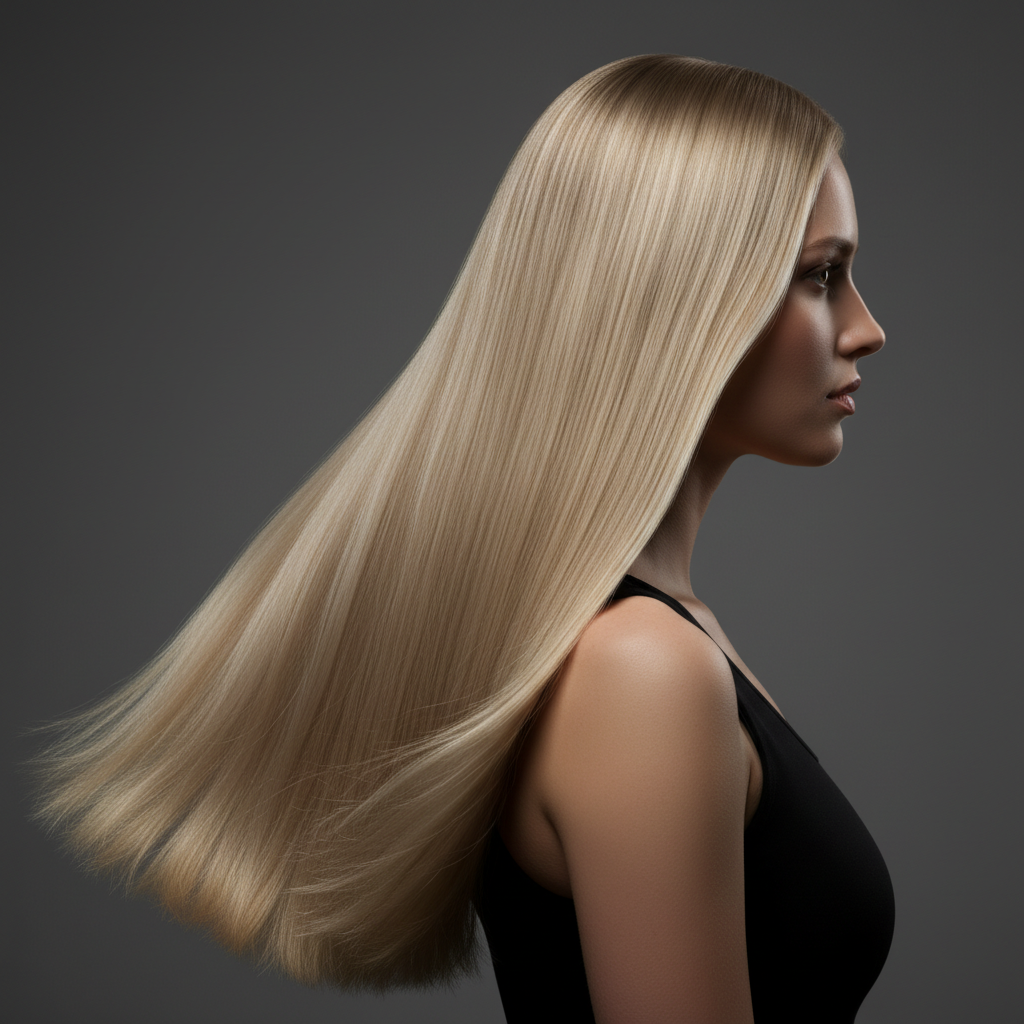
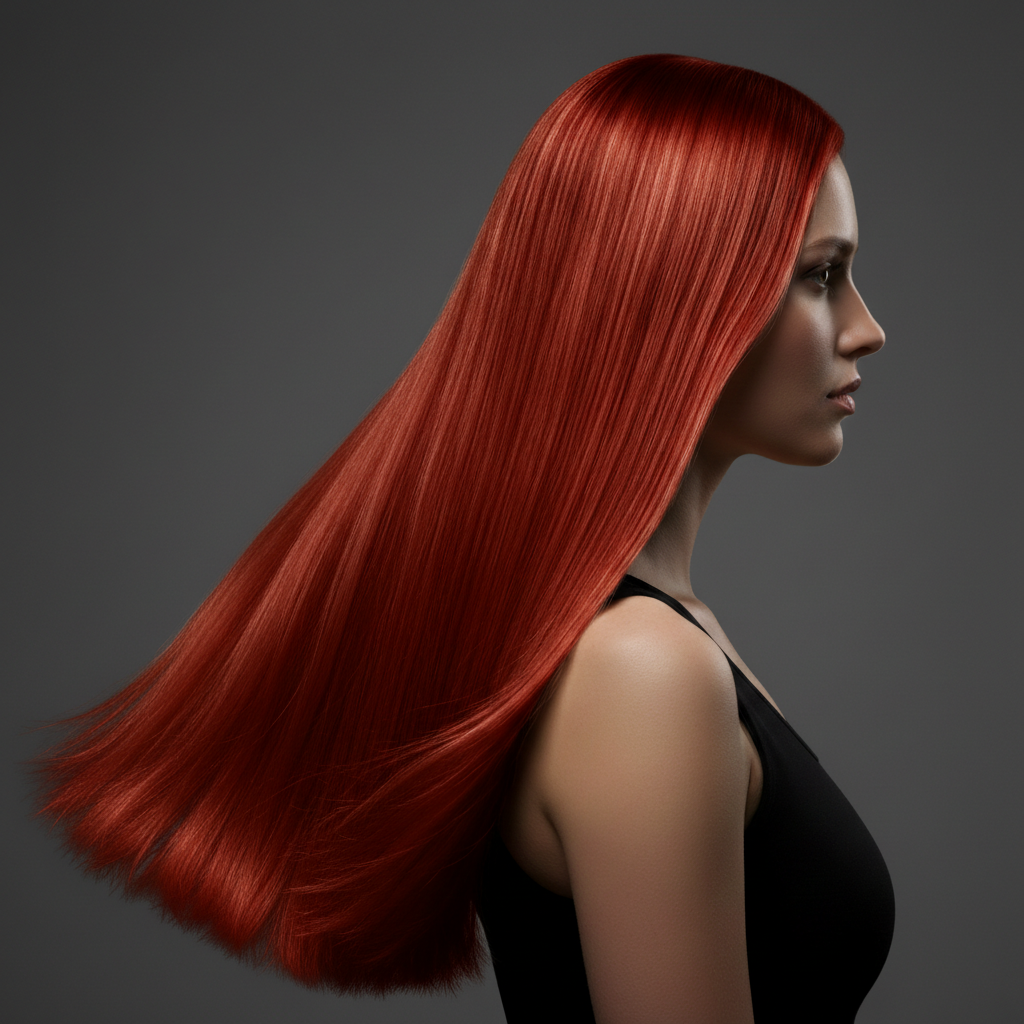
Type what you want: 'change hair color to platinum blonde' or 'make my hair bright red.' The AI identifies hair automatically and transforms the color in 20-30 seconds. No selection tools, no marking required. Perfect for visualizing salon changes before committing. Free, no signup needed.

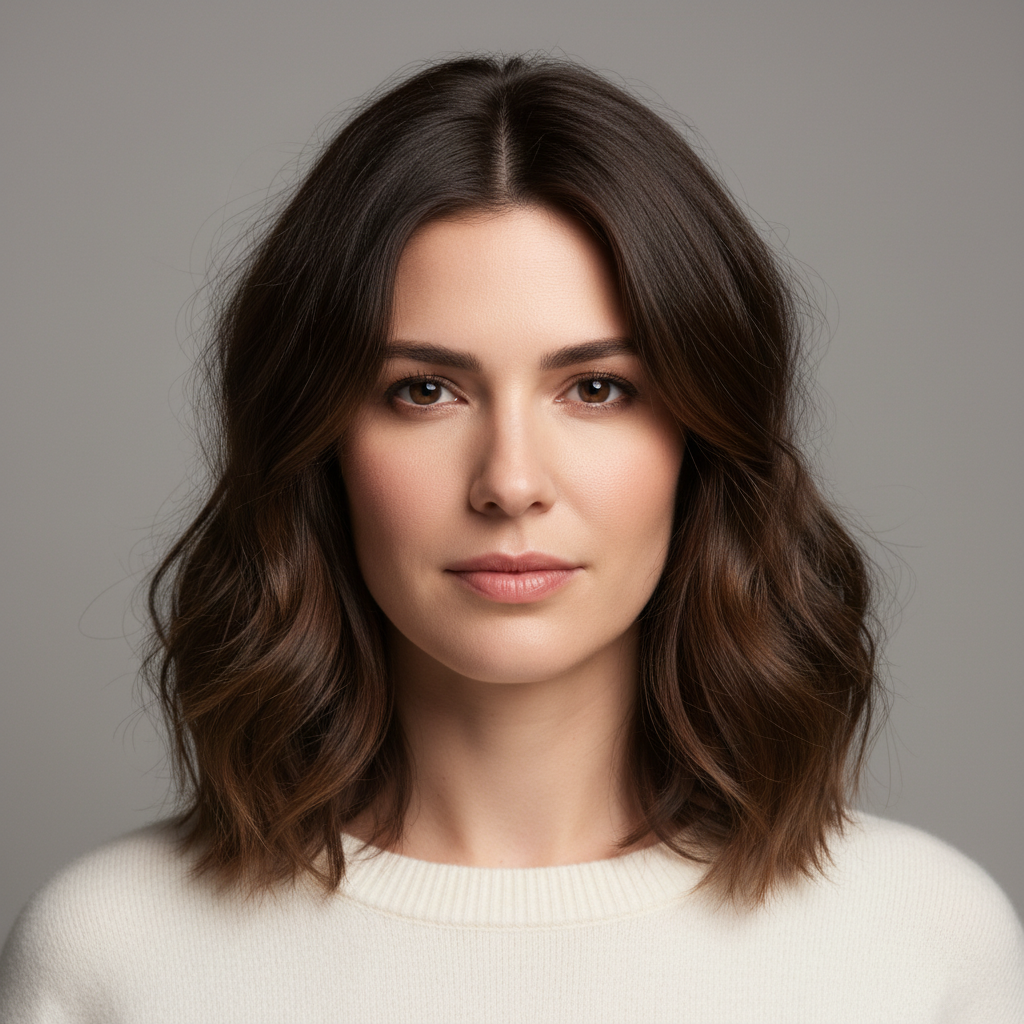
Woman with long dark brown hair in natural lighting
Before
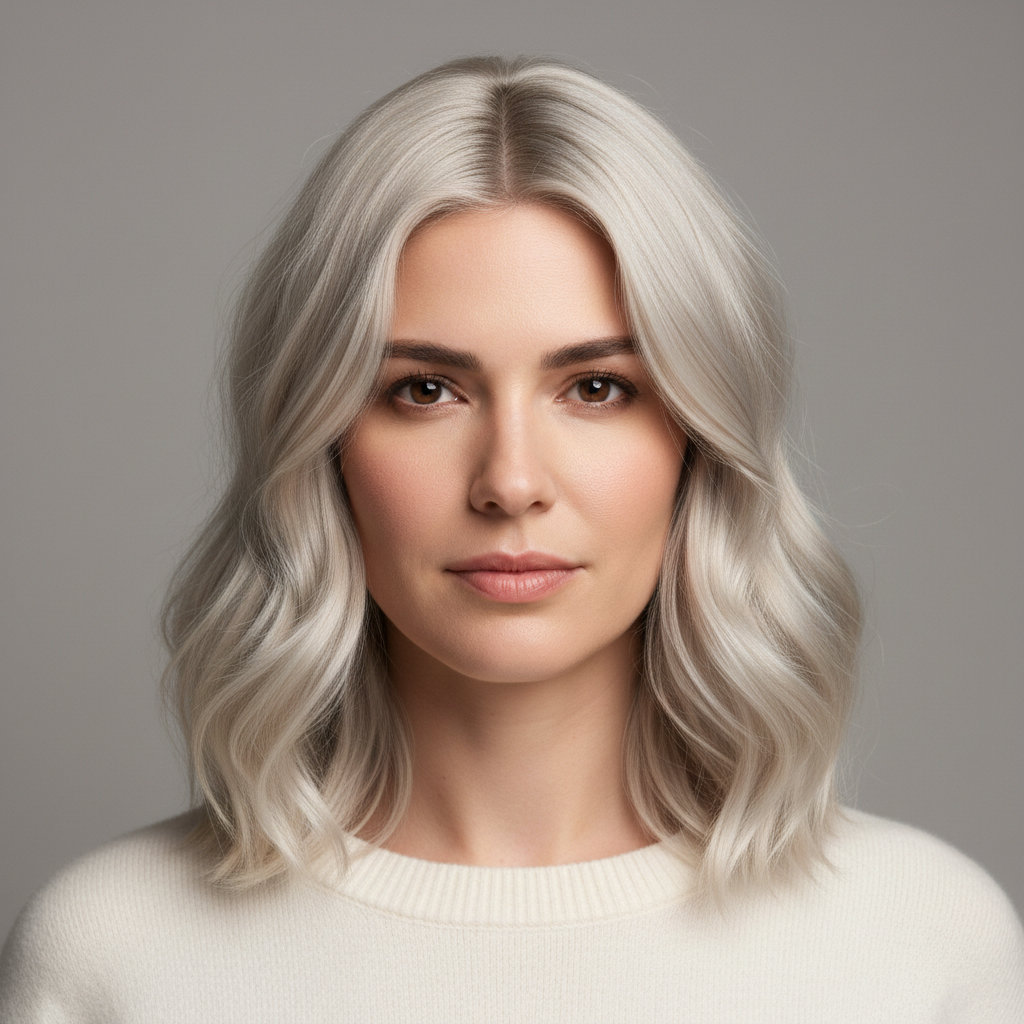
Same woman with warm golden blonde hair
After

How it works

1

Upload your photo

Drop a clear portrait into EditThisPic. JPG, PNG, and WebP up to 7MB. Photos with hair clearly visible and good lighting work best—avoid hats or heavy shadows on the hair.

⏱ Natural color changes: 20-30 seconds. Bold fantasy colors: may need 2-3 refinements over 1-2 minutes.
2

Describe your new hair color

Type exactly what you want: 'change hair color to honey blonde' or 'make my hair vibrant purple.' Be specific about the shade. The AI understands—no marking, no selecting. It knows what hair is.

💡 Reference real shades: 'ash blonde,' 'copper red,' 'deep burgundy.' Vague terms like 'lighter' give unpredictable results.

Copy one of these to get started:

Going blonde for summer change hair color to warm honey blonde with subtle highlights, natural-looking roots
Bold red transformation change hair color to vibrant copper red, rich and saturated throughout
Covering gray preview change hair color to natural medium brown, covering all gray completely with even tone
Fantasy cosplay color change hair color to bright electric blue, vivid and saturated like anime character hair
3 more prompts
Subtle darker shade change hair color to rich dark chocolate brown, deep and glossy
Ombre or balayage effect change hair to dark brown roots fading to caramel blonde at the ends, smooth gradient transition
Platinum or silver look change hair color to icy platinum blonde, cool-toned with no yellow or brass
3

Generate and review

Tap generate and examine the result closely. Check that roots look natural, highlights blend properly, and the color appears consistent from roots to tips. Zoom in on hairline edges.

💡 Look at your eyebrows too—the AI sometimes adjusts them to match. If you want them unchanged, mention it in your prompt.
4

Refine with markers if needed

If the AI changed the wrong person's hair in a group photo, or missed some strands, tap markers on those specific areas and regenerate. Markers help when multiple people are in the shot.

💡 For solo portraits, markers are rarely needed. Use them mainly when you need to specify which person in a group photo.
Try it free
"I showed my stylist three different colors I tried on EditThisPic. Walked out of the salon with exactly the shade I wanted—no regrets." @SalonPreviewJen

See it in action

Woman with long dark brown hair in natural lighting
Before
Same woman with warm golden blonde hair
After

Brunette to blonde salon preview

Wanted to see if blonde would suit her before booking an expensive salon appointment. One prompt showed the transformation clearly.

Prompt: change hair color to warm golden blonde with natural-looking dimension and subtle highlights
Young woman with black hair in selfie
Before
Same woman with vibrant purple hair
After

Bold purple for dating profile

Testing a fun, bold look for updated dating app photos without the commitment of actual dye.

Prompt: change hair color to vibrant purple, rich and saturated from roots to tips
Woman with visible gray and silver hair
Before
Same woman with natural auburn brown hair, gray covered
After

Gray coverage visualization

Wanted to see how covering gray would look before committing to regular dye appointments.

Prompt: change hair color to natural auburn brown, completely covering gray with even tone throughout

If something looks off

AI changed the wrong person's hair in a group photo

Why: When multiple people are in the frame, the AI can't always tell whose hair you mean from description alone.

Try: Tap a marker on the specific person's hair you want to change, then regenerate with the same color prompt

💡 Markers tell the AI 'I mean THIS person's hair specifically.' Essential for group photos.

Hair color looks flat and unnatural

Why: You described a solid color without variation. Real hair has highlights, lowlights, and dimension.

Try: change hair color to [your shade] with natural dimension and subtle variation in tone

💡 Adding 'with natural dimension' prevents the flat, wig-like look that solid colors can create.

Roots don't match the rest of the hair

Why: The AI treated roots and lengths as separate areas. This happens when lighting creates contrast at the scalp.

Try: change hair color to [your shade] with consistent color from roots to tips, seamless throughout

💡 If roots still look off, try 'including roots and hairline' in your prompt.

Eyebrows changed when I only wanted hair changed

Why: The AI assumed matching eyebrows would look more natural. It's being helpful, but sometimes too helpful.

Try: change hair color to [your shade], keeping eyebrows unchanged at their natural color

💡 For dramatic color changes like blue or pink, you usually DO want eyebrows to stay natural.

Color came out too bright or saturated

Why: Terms like 'vibrant' or 'bold' pushed the saturation higher than real hair dye achieves.

Try: change hair color to [your shade], natural-looking saturation like real salon color

💡 For realistic previews, avoid 'vibrant' and 'bold' unless you actually want fantasy-level saturation.

Some strands or sections got missed

Why: Flyaways, thin sections, or shadowed areas sometimes don't get detected as hair.

Try: Tap markers on the missed strands, then regenerate with 'change all hair including highlighted areas to [color]'

💡 Zoom in first to identify exactly which sections need attention before placing markers.

Quick answers

Do I need to mark my hair before describing?

No! Just describe what you want: 'change hair color to blonde' or 'make my hair red.' The AI understands what hair is without you selecting it. Only use markers if there are multiple people in the photo and you need to specify whose hair to change, or if the AI missed some sections.

Can I show this to my hairstylist as a reference?

Absolutely—that's one of the most popular uses. Download the result and bring it to your salon appointment. It shows the stylist exactly what you're envisioning with YOUR face and skin tone, which is far more useful than showing celebrity photos. Many stylists appreciate clients who come prepared like this.

Will it work on curly or textured hair?

Yes. The AI handles all hair textures—straight, wavy, curly, coily, braids, locs. For tightly curled or textured hair, results work best when you add 'maintaining hair texture and curl pattern' to your prompt. This prevents the AI from accidentally smoothing out your natural texture while changing color.

Can I try multiple colors on the same photo?

Yes. Upload once, then run different color prompts to compare. Try 'change hair to strawberry blonde,' download, then try 'change hair to platinum blonde' on the original. Build a comparison gallery to help decide. There's no limit to how many variations you can generate.

How realistic is this compared to actual dye results?

The preview is highly accurate for how a color looks on your skin tone and features. However, real salon results depend on your starting hair color, porosity, and processing time. A stylist may need multiple sessions to achieve very light shades from dark hair. Show your stylist the preview and ask how many appointments it would realistically take.

Ready to try a new hair color?

Free to try. No signup required.

Try it free