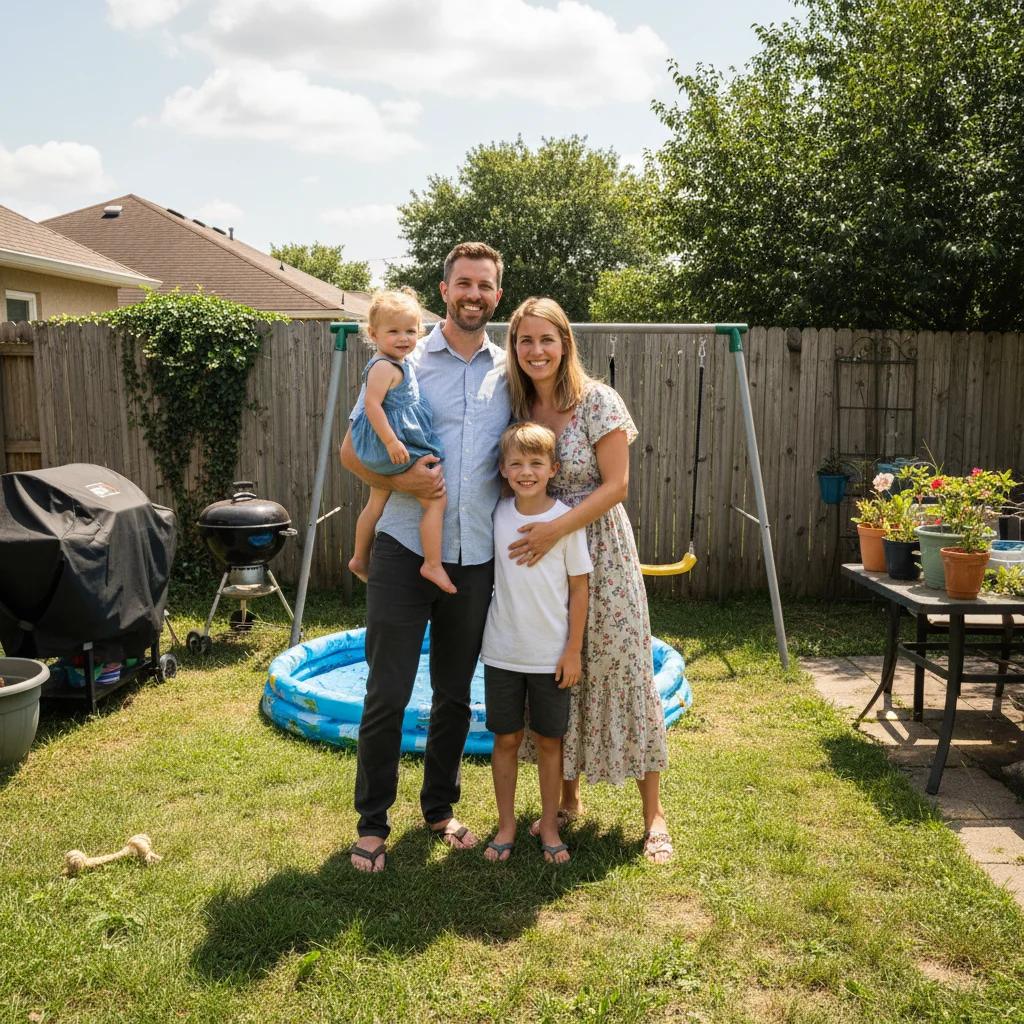
Replace Background from Photo
Swap any backdrop for studio white, nature scenes, or custom environments in seconds.
Type 'replace background with clean white studio backdrop' and EditThisPic's AI handles the rest in 15-30 seconds. No selection tools, no marking required. Just describe what you want. Works on product photos, portraits, and complex subjects with hair. The AI automatically detects the subject and swaps only the background. Free to try, no account needed.
How it works
Upload your photo
Drop your image into EditThisPic. JPG, PNG, WebP up to 7MB. Works best when the subject has clear edges. Hair and fur are handled automatically—no need to worry about fine details.
Describe your new background
Type your instruction: 'replace background with clean white studio backdrop' or 'change the background to a sunny beach scene.' Be specific about colors, lighting, and mood. No marking needed—the AI knows what 'background' means and finds it automatically.
Copy one of these to get started:
replace background with pure white studio backdrop, seamless and shadow-free
replace background with soft gray gradient studio backdrop, professional lighting
replace background with a sunny park setting with blurred green trees and soft natural lighting
replace background with a modern city skyline at golden hour, slightly blurred for depth
3 more prompts
replace background with solid navy blue color, clean and even for graphic design use
replace background with a tropical beach with turquoise water and palm trees, sunny day
replace background with a clean modern office environment with blurred desk and plants
Review the result
Check edge quality at full zoom, especially around hair and fine details. Verify the new background lighting matches the subject. Look for any original background peeking through.
Refine edges if needed
If edges look rough or some original background shows, tap markers on problem areas and regenerate. This tells the AI exactly where to improve. Most replacements work perfectly on the first try.
"I run an Etsy shop and this changed everything. Product photos that used to take 20 minutes in Photoshop now take 30 seconds. The hair edges are perfect." @CraftShop_Miranda
See it in action
Product photo converted to white background
A handmade jewelry photo taken on a kitchen table. The AI replaced the cluttered background with clean white for e-commerce.
replace background with pure white studio backdrop, seamless and shadow-free
Portrait with home background to professional
A selfie taken at home with messy room visible. The AI swapped in a professional studio backdrop for LinkedIn.
replace background with soft gray gradient studio backdrop, professional lighting
Pet photo with nature backdrop added
A dog photographed in a plain backyard. The AI created a beautiful park setting for the portrait.
replace background with a sunny park setting with blurred green trees and soft natural lighting
If something looks off
Hair edges look jagged or have halos
Why: Fine hair strands are the most challenging edge type. The AI may have simplified complex hair boundaries.
replace background with [your background], preserve natural hair edges and fine strands
💡 Adding 'preserve natural hair' prioritizes edge quality over speed. Tap markers on problem hair areas for focused refinement.
Part of the subject was removed with the background
Why: The AI incorrectly classified part of your subject as background, often with similar colors or complex edges.
Tap a marker on the area that should be kept and regenerate with: keep this area, only replace the background behind it
💡 Markers on the subject tell the AI 'this is NOT background' very clearly.
AI changed the wrong area or something I didn't want changed
Why: The AI couldn't determine exactly which area you meant from description alone. This happens with ambiguous requests.
Tap a marker on the specific background area you want replaced, then regenerate with the same prompt
💡 Markers tell the AI 'I mean THIS area specifically.' Use them when description alone is ambiguous.
New background lighting doesn't match subject
Why: The new background has different lighting direction than the original photo, creating an unnatural composite.
replace background with [your background] with lighting matching the subject from [direction]
💡 Look at where shadows fall on your subject and describe that lighting direction in your prompt.
Original background still visible in spots
Why: Some original background peeked through where the AI's edge detection wasn't perfect.
Tap markers on the spots where old background shows and regenerate: clean up these areas and extend the new background
💡 Usually just a few spots need cleanup—markers make this quick.
Quick answers
Do I need to mark the background before describing the replacement?
No! Just describe what you want: 'replace background with white studio.' The AI automatically identifies what's the background versus the main subject. It works for people, products, pets, and objects. Only use markers when you need precision—like specifying which of two people is the subject, or refining edges after your first attempt.
How does it handle hair and fine edges?
The AI is specifically trained on hair, fur, and semi-transparent edges. It preserves individual strands rather than cutting them off. For best results with very fine or flyaway hair, add 'preserve natural hair edges' to your prompt. Complex cases may need a quick refinement pass with markers on problem areas.
Can I replace with a transparent background?
Yes! Use a prompt like 'remove background completely for transparency.' Download the result as PNG to preserve the transparent background. This is perfect for graphic design work where you'll composite the subject onto other images or designs.
Will the subject's shadows look natural on the new background?
The AI adds appropriate shadows based on the new background type. For studio white, it adds natural drop shadows. For scene backgrounds, it integrates lighting more naturally. You can specify shadow preferences: 'with soft drop shadow' or 'no shadow' depending on your needs.
Can I use a specific image as the new background?
Currently EditThisPic works with described backgrounds rather than uploaded images. Describe the scene you want: 'replace with a beach scene' or 'modern office background' and the AI generates an appropriate setting. This often produces more natural results than compositing with a random photo.
Ready to replace your background?
Free to try. No signup required.