Free • No signup Remove Person · Free

Remove Person from Photo

← Browse all body & person tools

Last updated

Describe who or what to remove — 'erase the person on the right' — and the AI removes them and fills the background naturally. No marking required for clear subjects.
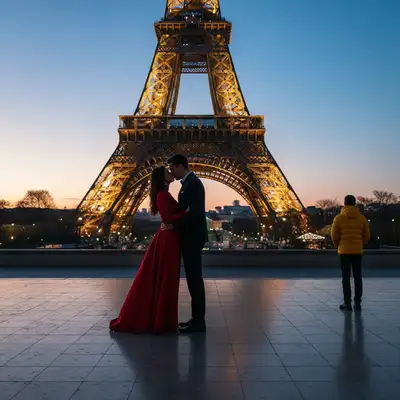

Eiffel Tower photo with stranger in red jacket at right edge Clean Eiffel Tower photo with person removed and background restored

Upload photo to remove person

"remove the person standing in the background on the left and fill with the landmark visible around them, do not alter the main subjects"

Release to upload

1 free edit·then from $4.99

How it works

  1. Upload the photo containing the person or shadow

    Drop your image into EditThisPic — JPG, PNG, or WebP up to 7MB. Works for removing people, photobombers, bystanders, and cast shadows. Photos where the background is visible around the subject give the AI the best fill reference.

    Expect: Person at photo edge with simple background: 15–20 seconds. Person in a crowd or overlapping main subjects: 30–45 seconds and may need one refinement with a marker.
  2. Check the fill area for natural reconstruction

    Zoom to 100% where the person was. Check that the background fill looks natural — sky should continue smoothly, sand or grass should tile without repetition artifacts. People standing at the edge of a photo with simple backgrounds behind them fill almost on the first try.

See it in action

Eiffel Tower photo with stranger in red jacket at right edge
Before
->
Clean Eiffel Tower photo with person removed and background restored
After

Stranger removed from landmark photo

A tourist photo at a famous location had a stranger in a bright red jacket at the right edge. One prompt removed them and filled with the landmark background.

Prompt: remove the person on the far right edge and fill with the sky and landmark background so it looks like they were never there
Outdoor selfie with diagonal phone-arm shadow across the face
Before
->
Same portrait with shadow removed and natural skin tone restored
After

Shadow removed from outdoor selfie

An outdoor selfie had a dark diagonal shadow from the phone-holding arm falling across the subject's face. The AI removed it and restored natural skin tone.

Prompt: remove the dark diagonal shadow falling across the person's face and fill with natural skin tone and lighting matching the surrounding area
Family of 5 with extra person in yellow suit at right end
Before
->
Same family photo with extra person removed and hedge background extended
After

Group photo cleaned up — extra person removed

A family photo had an uninvited guest at one end. The AI removed them and extended the hedge background naturally.

Prompt: remove the person in the bright yellow suit at the far right end of the group and fill with the hedge and garden background behind them

Quick answers

Do I need to mark the person before describing who to remove?

No. For clearly positioned subjects — 'the person on the far right,' 'the stranger in the background' — just describe them and the AI removes them.

Is there a free tool to remove a person from a photo with no login?

Yes. EditThisPic removes people from photos for free with no account and no watermark on the result. Upload your photo, type who to remove and where they are, and download the clean result in 15–30 seconds. Works in any browser on desktop or mobile.

How do I remove a person from a photo for free?

Go to EditThisPic, upload your photo, and type: 'remove the person on the right and fill with the background.' The AI erases the person and reconstructs the scene behind them in 15–30 seconds. No account required, no watermark on the result.

Can it remove a shadow from a photo as well?

Yes. Type: 'remove the shadow falling across the face and fill with natural skin tone matching the surrounding area.' Works for cast shadows from arms, objects, or nearby elements. Shadows that are part of natural directional lighting on the surface cannot be removed.

Can it remove multiple people from a photo at once?

Yes. Type: 'remove all people from this photo and fill each area with the background visible around them.' Works well for street and landscape photos where you want the location without people in the shot.

What's the best way to use AI to remove someone from a photo?

Describe the person's position ('far right,' 'in the background') and a distinctive visual detail ('red jacket,' 'tall person in blue'). Mention what background should fill the gap. Free at EditThisPic, no login needed.

How much does EditThisPic cost?

You get 1 free edit per week — no account needed. After that, credit packs start at $1.99 for 3 edits. Monthly plans start at $4.99/mo for 15 edits with unused credits rolling over. All edits are full resolution with no watermark.

Ready to remove that person from your photo?

Free to try. No signup required.

1 free edit included·Credit packs from $4.99