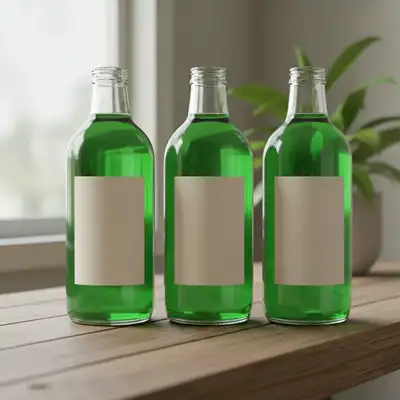
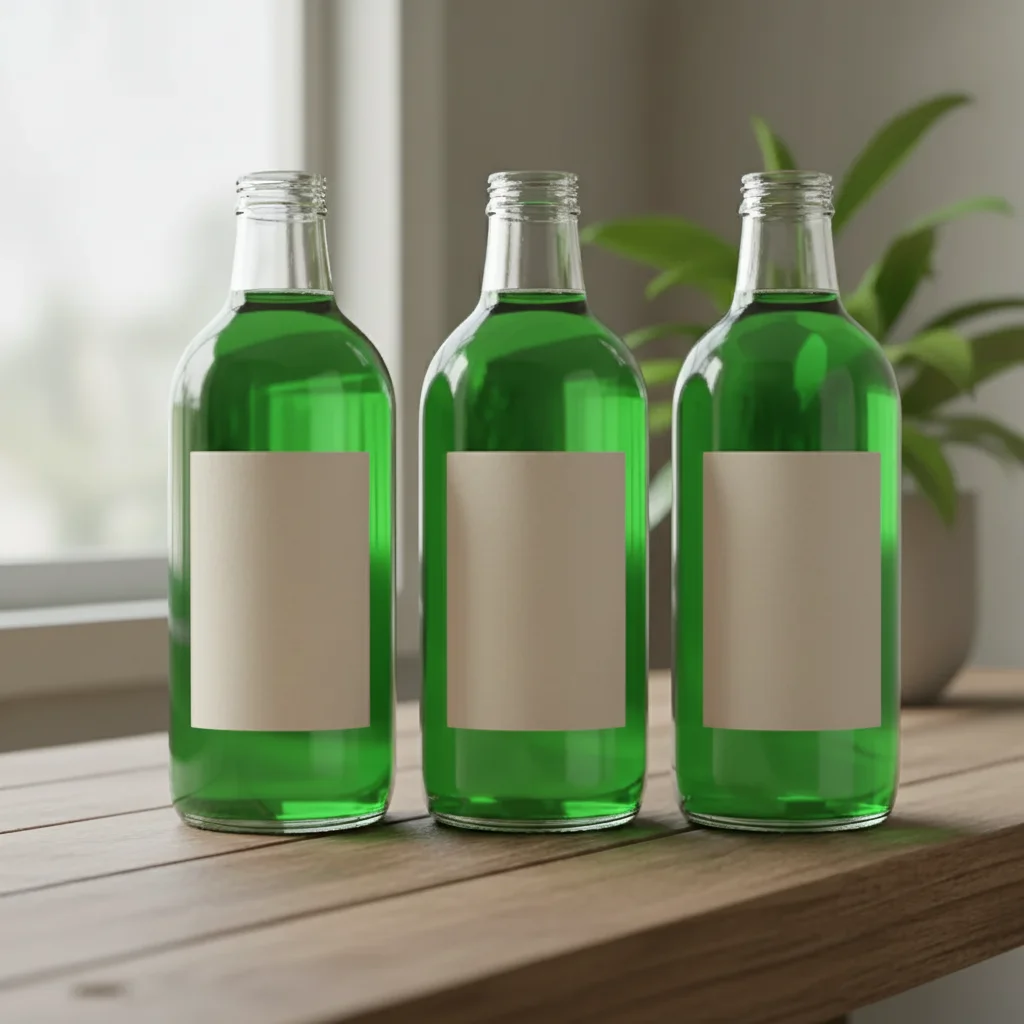
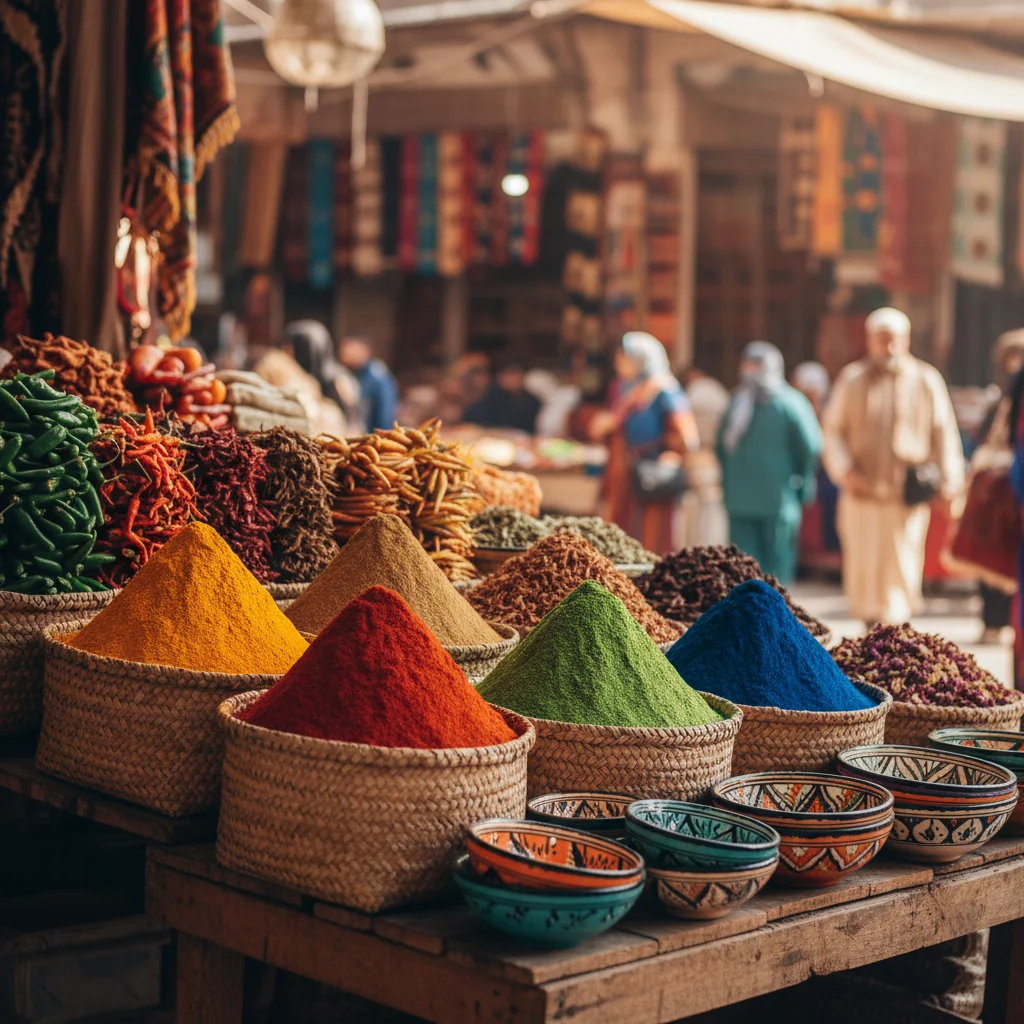
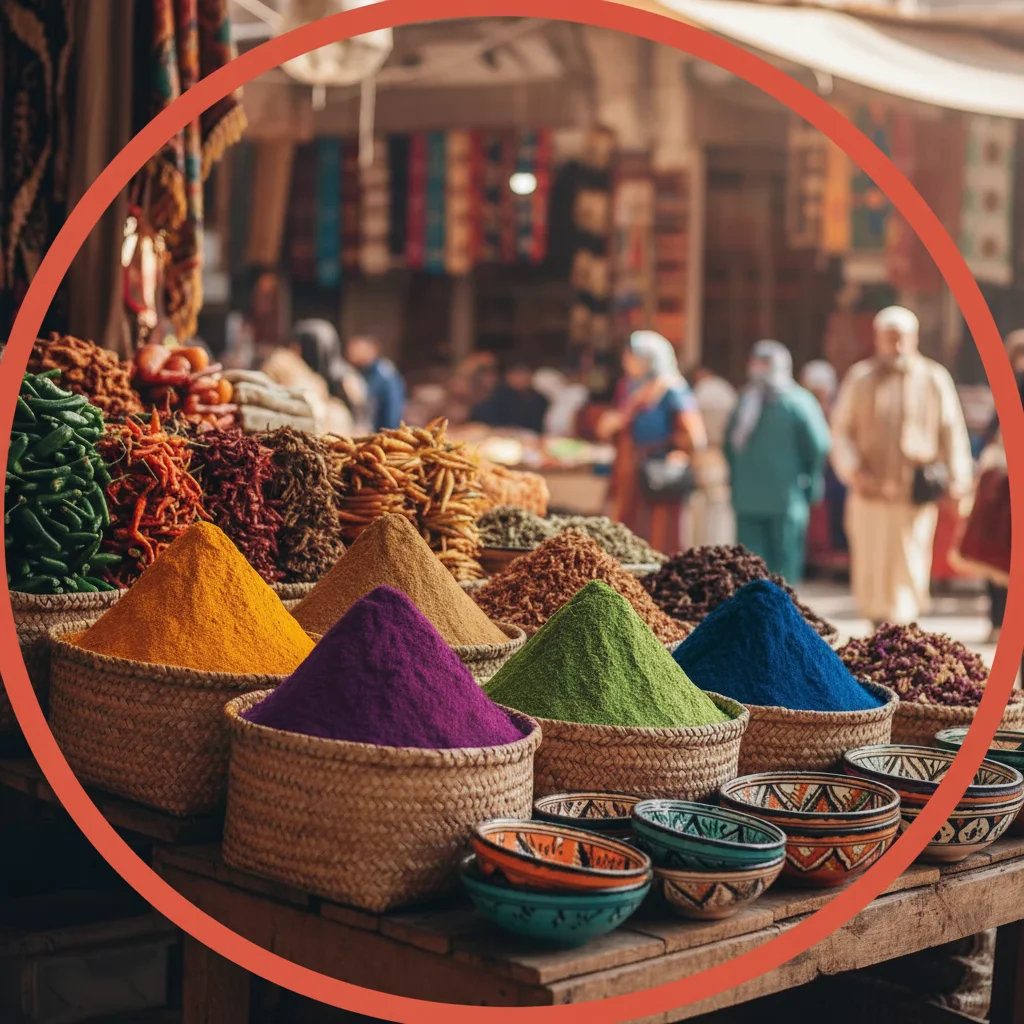
How specific should my prompt be to get a good AI Color Replacer result on the first try?
One sentence is usually enough: 'Replace the main color in this photo with a new one.' If the first result is off, refine with details — color, position, lighting, or what to keep. Each pass takes 20-45 seconds and runs separately, so you can compare. Free first edit per week, no signup.
Will the texture and material look be preserved?
Yes! The AI specifically preserves surface texture, reflections, shadows, and material properties. A glossy metallic car will still look glossy and metallic in the new color. Fabric will keep its weave texture. For best results, add 'preserve texture' or 'maintain material finish' to your prompt.
How do I replace a color in a photo for free?
Upload your photo to EditThisPic and type 'change the [object] color from [old color] to [new color].' The AI swaps the color in 15-20 seconds while preserving textures and lighting. No account or signup required, free to preview, and purchased downloads are clean.
Is there a free color replacement tool that works without an account?
Yes. EditThisPic replaces colors in photos without requiring signup or login. Upload your image, describe the color change you want, and preview it free — the purchased download is clean. Works on cars, walls, clothing, furniture, and any colored object.
What's the best free AI tool for changing colors in photos?
EditThisPic uses AI that identifies specific objects and changes only their color while preserving textures, shadows, and surrounding elements. Unlike basic hue shift tools that affect the entire image, it intelligently targets what you describe. Works on cars, walls, clothing, furniture, hair, and any colored object.
Can I match a specific color or brand color?
Yes! You can describe colors by name, reference other objects, or even mention hex codes. 'Match the blue from the Tiffany logo' or 'change to hex #1e3a8a' both work. The AI interprets color descriptions and produces close matches.
Does it work on patterned or multicolored objects?
Yes, but be specific about what to change. For a striped shirt, specify 'change only the blue stripes to red, keep white stripes white.' For gradient objects, describe the transition you want.
Can I change multiple colors in one prompt?
Yes! Describe all changes together: 'change the walls from beige to gray and the door from white to black.' The AI processes multiple color changes simultaneously. For complex multi-color changes, you might get better results doing them one at a time.
Is EditThisPic's AI color replacer really free?
Yes — you get 1 free edit per week, no account needed. Credit packs start at $4.99 for 10 edits.
Can I replace color on my phone?
Yes. EditThisPic works in any mobile browser — iPhone, Android, tablet. No app download needed.
What photo formats does the AI color replacer support?
JPG, PNG, WebP, and HEIC. Upload any common photo format and EditThisPic handles the rest.
Can I change a color to transparent or remove it entirely?
The color replacer swaps one color for another. To remove a color entirely or make it transparent, use the background remover tool instead. If you want to change a colored object to white or make it blend into the background, describe that in your prompt: 'change the red car to match the background color.'
How accurate is the color matching when I specify a hex code?
The AI interprets hex codes and brand color names as closely as possible, but results are approximations rather than exact pixel-perfect matches. For critical brand work, compare the output against your color swatch and refine with a follow-up prompt if the shade is slightly off.
Can I change the color of shiny or reflective surfaces?
Yes. The AI preserves highlights, reflections, and metallic sheens when swapping colors. Include 'preserve the shine and reflections' in your prompt for glossy surfaces like cars, jewelry, or polished furniture. The new color will have the same reflective properties as the original.
Are my uploaded photos stored or shared when I use the color replacer?
No. EditThisPic processes your photo in real time and does not store images on any server. Your photo is sent to the AI for the color change and the result is returned directly to your browser. Nothing is saved or used for training.
How much does EditThisPic cost?
You get 1 free edit per week — no account needed. After that, one-time credit packs start at $4.99 for 10 edits, valid 12 months, no subscription. Power users who edit daily can pick Studio Membership, a monthly workspace at $49.99/mo for 300 edits. Purchased downloads are clean with no watermark.