Free • No signup Visualize Tattoo · Free

AI Tattoo Visualizer

Describe the tattoo you want and AI shows it on your body. No marking needed.

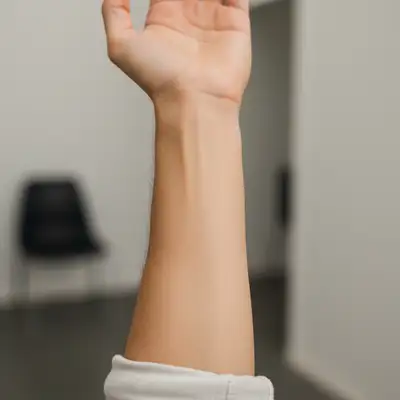
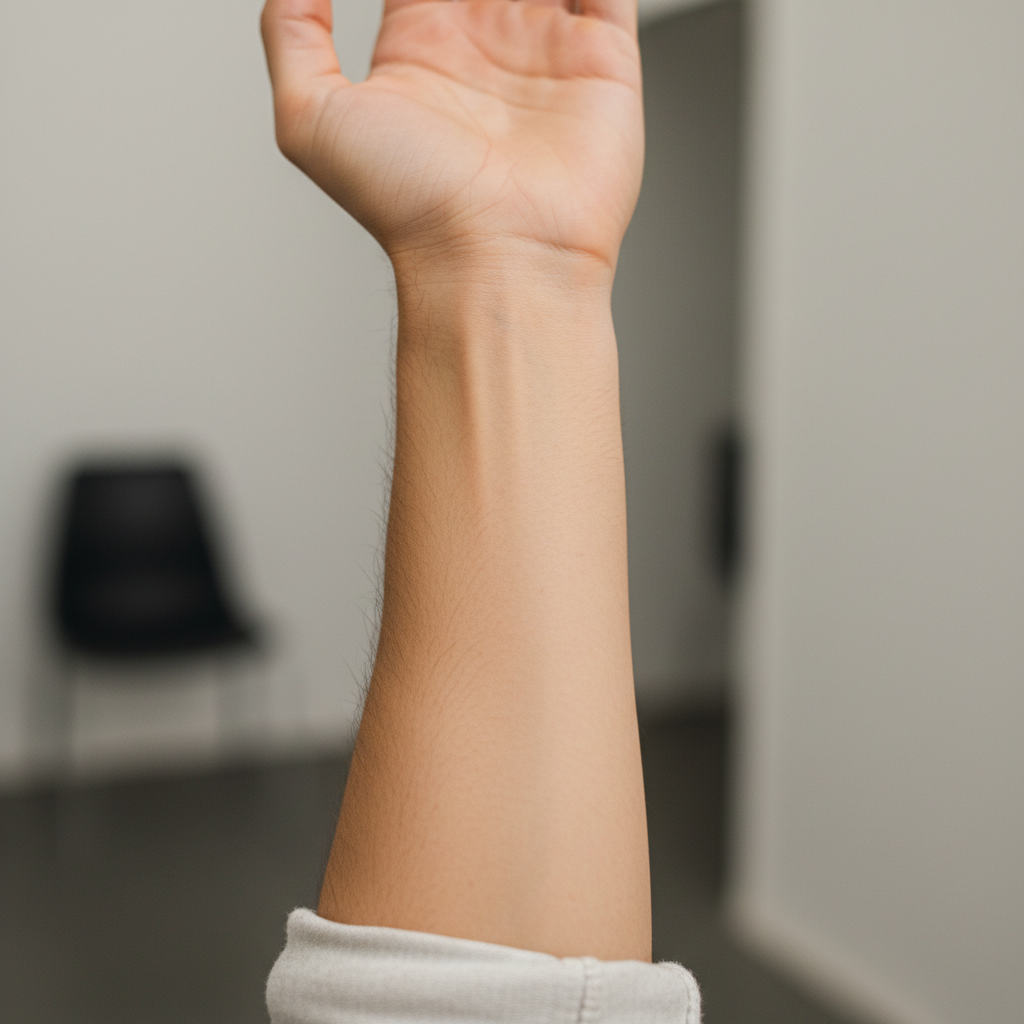
Bare inner forearm with no tattoos
Before
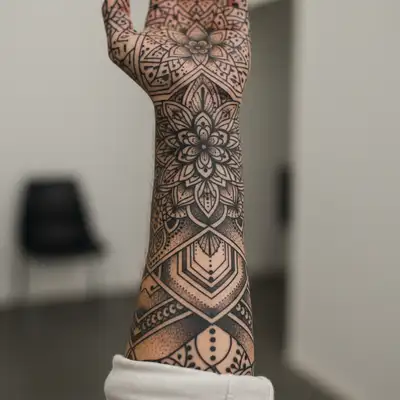
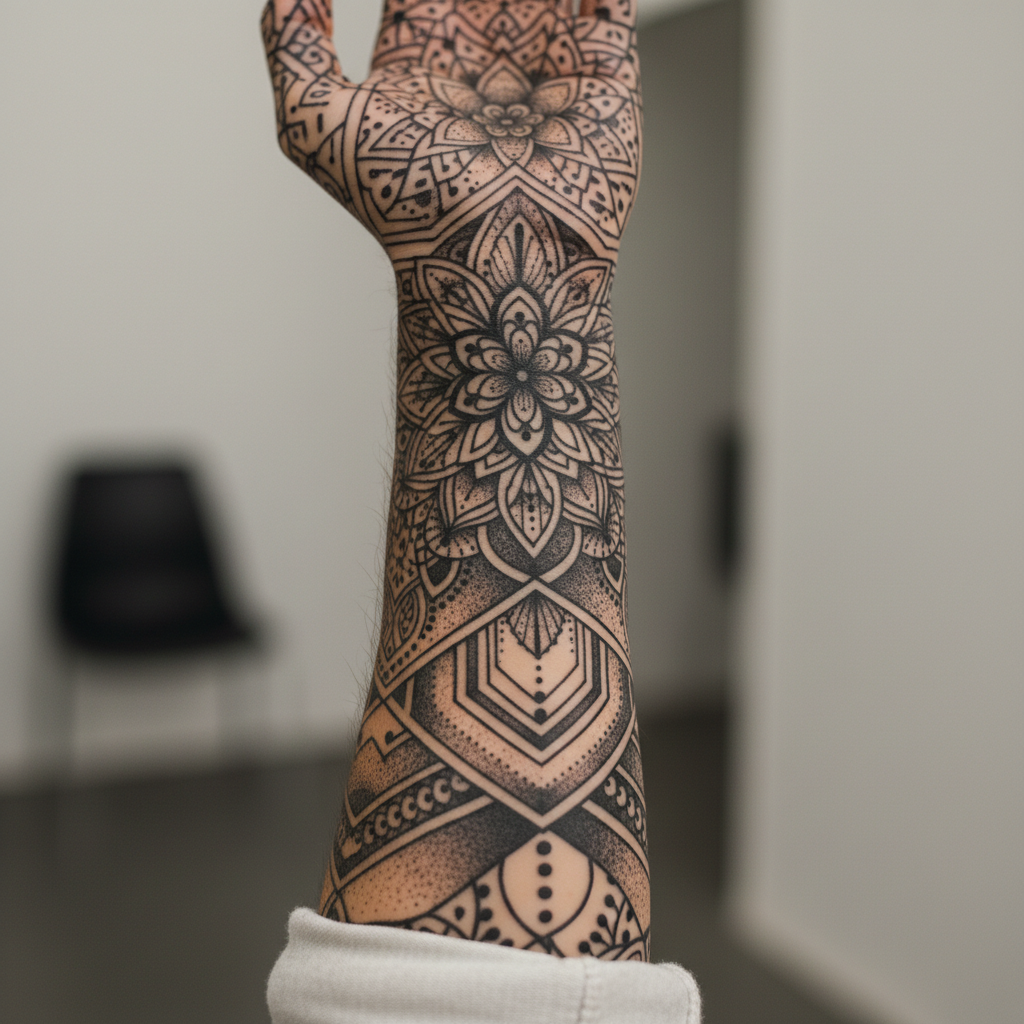
Same forearm with realistic black and grey rose tattoo
After

AI Tattoo Visualizer

Drop your photo here

or click to browse

Release to upload

Free • No signup

Advertisement
Popular use cases:
  • tattoo preview
  • tattoo placement
  • virtual tattoo try on
  • tattoo design visualization
  • before getting inked
  • tattoo artist reference
  • tattoo size preview
  • tattoo style testing

Cost
Free No signup required
Time
Instant results in 15-30 seconds
Works on
Any device - browser, phone, tablet, desktop
Powered by
AI-powered photo editing
Scenario Prompt Time
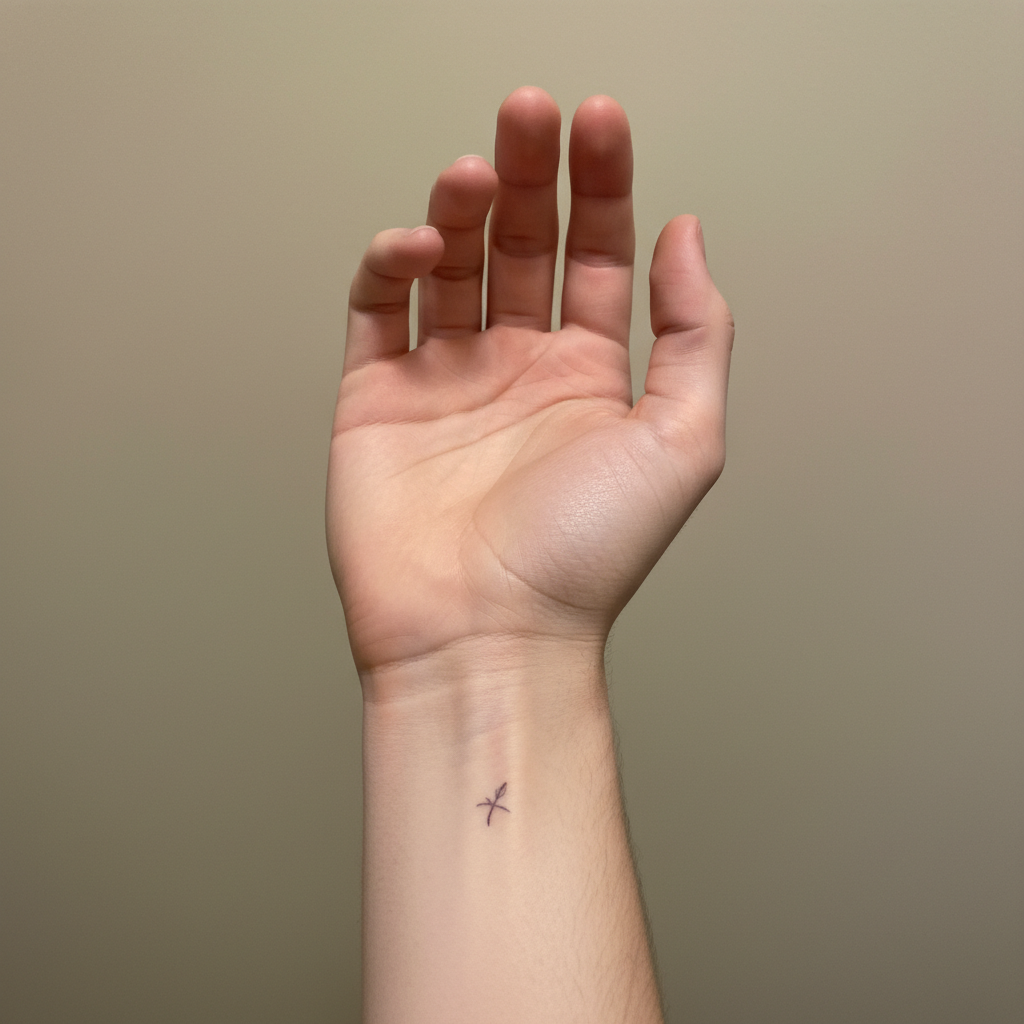
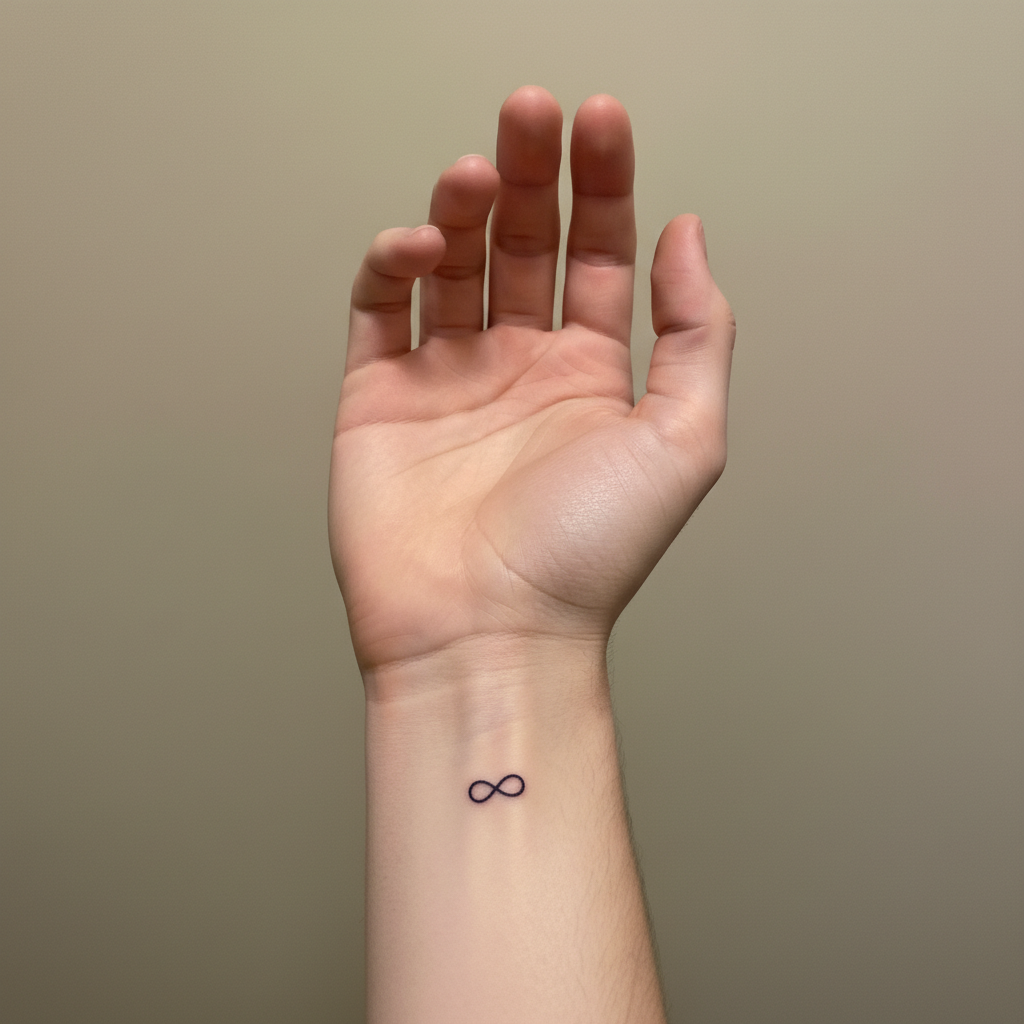
Small minimalist tattoo add a small fine-line arrow tattoo on the wrist 30s
Medium detailed tattoo add a black and grey rose on the forearm 40s
Full sleeve design put a full sleeve Japanese style tattoo on the arm 50s

How it works

  1. Upload your photo

    Drop your image into EditThisPic. JPG, PNG, WebP up to 7MB. Photos where the target skin area is clearly visible and well-lit work best. Bare skin gives more realistic tattoo placement than tattoos through clothing.

    Expect: Small simple tattoo: 30-40 seconds. Detailed sleeve or large piece: 45-60 seconds and may need refinements.
  2. Describe the tattoo

    Type what you want: 'add a rose tattoo on the inner forearm' or 'put a full sleeve tribal tattoo on the right arm.' Be specific about the design, style, size, and placement. No marking needed—the AI places the tattoo on the described body area.

    Tip: Specify tattoo style: 'traditional', 'fine line', 'watercolor', 'blackwork', 'tribal' for more accurate rendering.

    Copy one of these to get started:

    Forearm rose tattoo add a detailed black and grey rose tattoo on the inner forearm, realistic ink style with shading
    Full sleeve tattoo put a full sleeve tattoo on the right arm, Japanese style with koi fish, waves, and cherry blossoms
    Small minimalist tattoo add a small fine-line minimalist arrow tattoo on the inside of the wrist, delicate and thin
    Shoulder tribal design add a bold tribal tattoo on the shoulder and upper arm, geometric black patterns wrapping around the deltoid
    3 more prompts
    Script or text tattoo add a script tattoo along the collarbone area that reads 'carpe diem' in elegant cursive
    Watercolor style tattoo add a watercolor style butterfly tattoo on the shoulder blade, colorful with paint splash effects
    Matching reference design add the tattoo design from the reference image onto the upper arm, sized to fit naturally
  3. Review the placement

    Check that the tattoo follows the body contours naturally. Look for proper wrapping around muscles, realistic ink-on-skin appearance, and correct sizing for the body area. Zoom in on edges and details.

  4. Refine with markers if needed

    If the tattoo placement, size, or orientation needs adjustment, tap markers on the exact location and regenerate. Most tattoo visualizations land well on the first try.

    Tip: Markers are for precision refinement only. Try without them first—you usually won't need them.
Try it free

AI Tattoo Visualizer

Drop your photo here

or click to browse

Release to upload

Free • No signup

"I'd been designing my first tattoo for months. Seeing it actually on my arm in a photo convinced me it was right. Showed the screenshot to my artist and she nailed it." @InkPreview_Jas

See it in action

Bare inner forearm with no tattoos
Before
->
Same forearm with realistic black and grey rose tattoo
After

Rose tattoo on inner forearm

A detailed rose tattoo visualized on a bare forearm to preview placement before getting inked.

Prompt: add a detailed black and grey rose tattoo on the inner forearm, realistic ink style with shading
Bare shoulder and upper arm with no tattoos
Before
->
Same shoulder with bold tribal tattoo wrapping around deltoid
After

Tribal shoulder tattoo preview

A tribal design visualized wrapping around the shoulder to test placement and size.

Prompt: add a bold tribal tattoo on the shoulder and upper arm, geometric black patterns wrapping around the deltoid
Advertisement

If something looks off

AI changed the wrong area or something I didn't want changed

Why: The AI couldn't determine exactly where to place the tattoo from description alone. It may have placed it on the wrong arm or body part.

Try: Tap a marker on the exact spot where the tattoo should go, then regenerate with the same design description

Tip: Markers tell the AI 'put the tattoo HERE specifically.' Use them for precise placement control.

Tattoo looks flat and doesn't follow body contours

Why: The AI placed the tattoo as a flat decal rather than wrapping it around the three-dimensional body surface.

Try: add the tattoo so it wraps naturally around the body contour, following the muscle shape and curves of the skin

Tip: 'Wraps naturally around' and 'following muscle shape' tell the AI to account for body curvature.

Tattoo design doesn't match what I described

Why: Vague descriptions give the AI too much creative freedom. Specific design elements produce more accurate results.

Try: add a [specific style] tattoo with [exact elements], [exact placement], [size reference]

Tip: The more design details you provide (style, elements, size, placement), the closer the result matches your vision.

Tattoo size is wrong for the body area

Why: Without size guidance, the AI estimates and may make the tattoo too large or too small for the intended area.

Try: add the tattoo at [size: small/medium/large], about [X inches], fitting naturally within the [body area]

Tip: Reference the body area for sizing: 'filling the inner forearm' or 'small, about 2 inches on the wrist.'

Tattoo doesn't look like real ink on skin

Why: The AI generated the design with colors or textures that don't match how real tattoo ink appears on skin.

Try: make the tattoo look like real aged ink on skin, with slight skin texture visible through the design

Tip: 'Skin texture visible through' is key—real tattoos have the underlying skin texture, not a smooth overlay.

Quick answers

Do I need to mark where the tattoo should go before describing it?

No! Just describe the placement: 'rose tattoo on the inner forearm' or 'tribal on the shoulder.' The AI understands body anatomy and places it automatically. Use markers only if the AI puts the tattoo in the wrong spot and you need to specify exact placement.

How do I visualize a tattoo on my body for free?

Upload your photo to EditThisPic and type a tattoo description like 'add a rose tattoo on my forearm.' The AI renders a realistic tattoo in 30-45 seconds. Free to use, no account required, no watermarks on the result.

Is there a free AI tattoo visualizer that doesn't require login?

Yes, EditThisPic visualizes tattoos for free with no account needed. Upload your photo, describe the tattoo design and placement, and download the result. No watermarks. Works for any style from fine-line to full sleeves.

Can I preview my own tattoo design using a reference image?

Yes! Click '+ Add reference image' and upload your tattoo design. Then type 'add the tattoo design from the reference image onto my forearm.' The AI applies your specific design to the body area, adjusting for body contours.

Ready to visualize your tattoo?

Free to try. No signup required.

Try it free