Free • No signup Simulate Tan · Free

AI Tan Simulator

Describe the tan you want and AI applies it naturally. No marking needed.

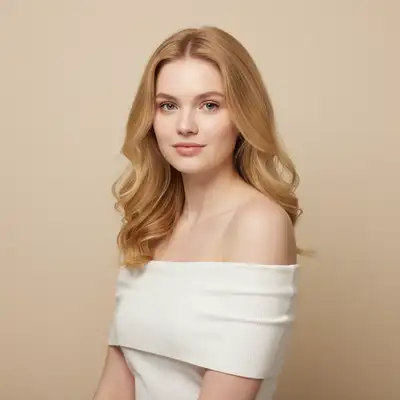
Woman with fair light skin in white top
Before
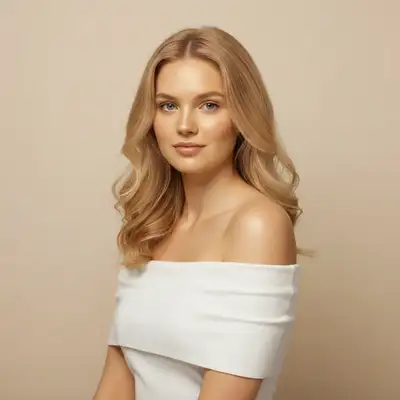
Same woman with golden sun-kissed tan on all visible skin
After

AI Tan Simulator

Drop your photo here

or click to browse

Release to upload

Free • No signup

Advertisement
Popular use cases:
  • tan preview
  • spray tan simulation
  • summer look
  • skin tone adjustment
  • vacation photo editing
  • sun-kissed look
  • bronze skin filter
  • self-tanning preview

Cost
Free No signup required
Time
Instant results in 15-30 seconds
Works on
Any device - browser, phone, tablet, desktop
Powered by
AI-powered photo editing
Scenario Prompt Time
Subtle sun-kissed glow add a subtle healthy tan glow, slightly warmer 25s
Golden beach tan add a natural golden sun-kissed tan 30s
Deep bronze tan give a deep warm bronze tan, two weeks at the beach 35s

How it works

  1. Upload your photo

    Drop your image into EditThisPic. JPG, PNG, WebP up to 7MB. Photos where skin is visible work best—faces, arms, or full body shots. Good lighting helps the AI apply the tan evenly.

    Expect: Face-only tan: 20-30 seconds. Full body with exposed skin: 30-45 seconds and may need refinements.
  2. Describe the tan you want

    Type what you want: 'add a natural golden tan' or 'give this person a warm bronze sun-kissed look.' Specify the depth and warmth of the tan. No marking needed—the AI detects skin and applies the tan to all exposed areas.

    Tip: Use specific terms: 'sun-kissed', 'golden', 'warm bronze', 'deep tan' for clear shade guidance. Avoid just 'darker.'

    Copy one of these to get started:

    Natural golden tan add a natural golden sun-kissed tan to all visible skin, warm and even
    Bronze deep tan give this person a deep warm bronze tan, as if they spent two weeks at the beach
    Subtle healthy glow add a subtle healthy tan glow to the skin, just slightly warmer and sun-touched
    Face tan only add a light golden tan to just the face and neck area, natural sun-exposed look
    3 more prompts
    Mediterranean tan give this person a warm Mediterranean olive tan, even across all visible skin
    Spray tan look add an even all-over tan like a professional spray tan, warm and consistent
    Tan lines preview add a tan to the arms, face, and legs while keeping the torso lighter to show tan lines
  3. Review the result

    Check that the tan looks natural and even across all visible skin. Look for consistent color on the face, neck, and arms. Verify that clothing, hair, and background remain unchanged.

  4. Refine with markers if needed

    If certain skin areas need more or less tan, tap markers on those spots and regenerate. Most tan simulations apply evenly on the first try.

    Tip: Markers are for precision refinement only. Try without them first—you usually won't need them.
Try it free

AI Tan Simulator

Drop your photo here

or click to browse

Release to upload

Free • No signup

"Wanted to see how I'd look with a summer tan for my vacation photos. Tried golden tan and bronze, and it looked so natural my friends thought I'd been to the beach." @SunKissed_Emma

See it in action

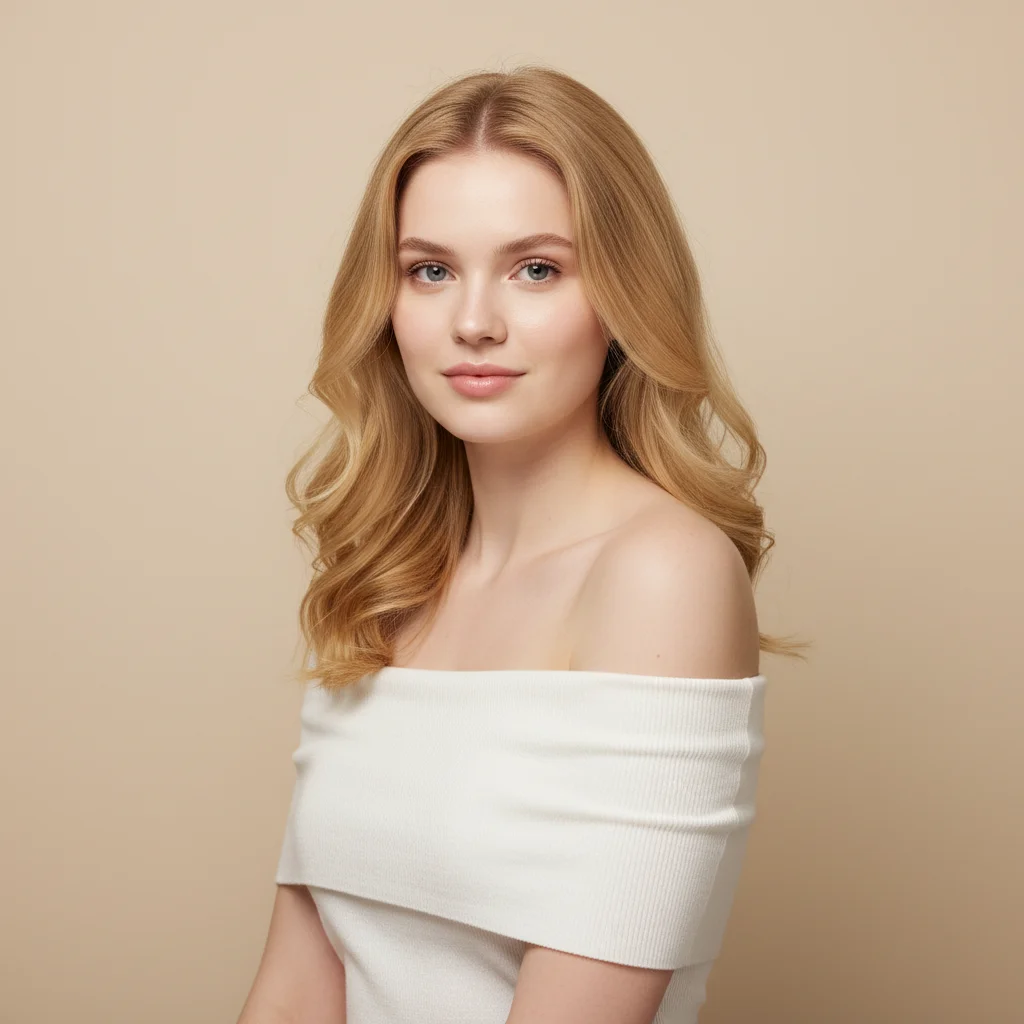
Woman with fair light skin in white top
Before
->
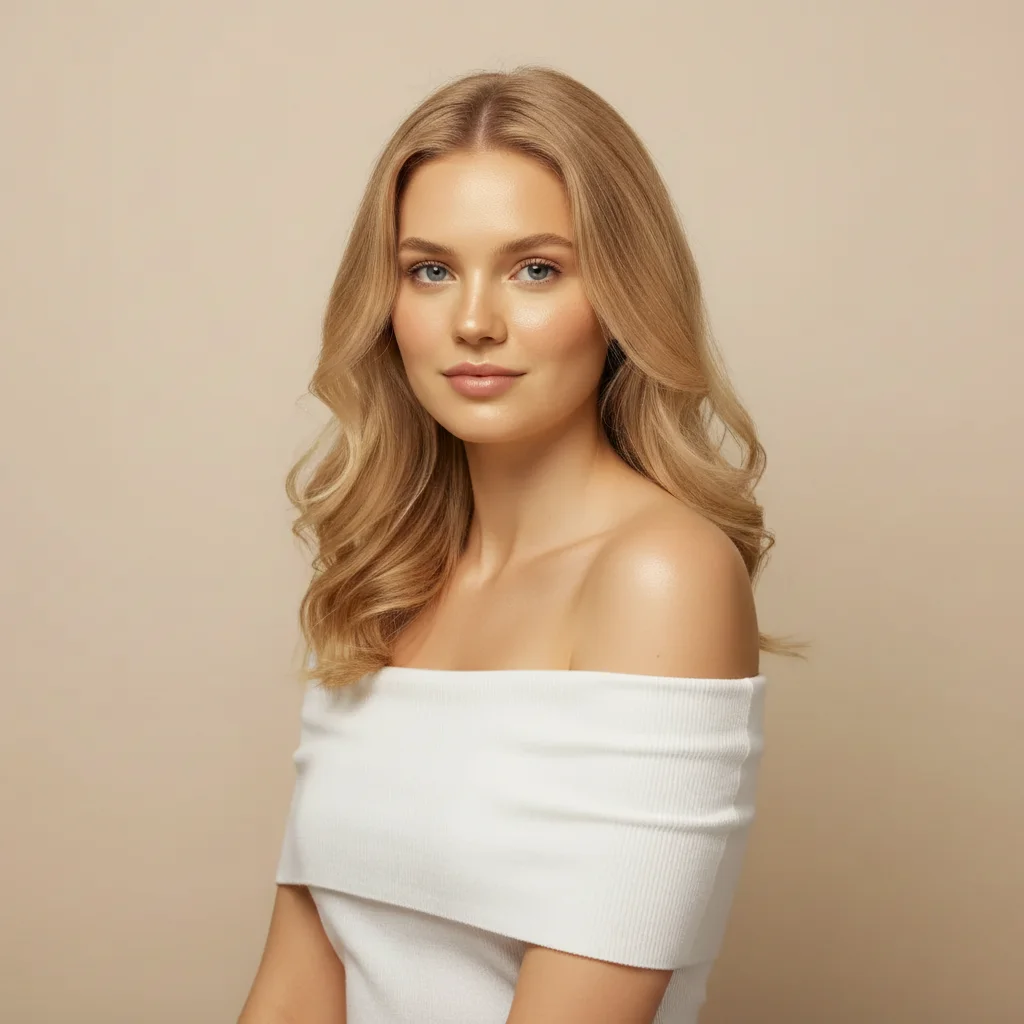
Same woman with golden sun-kissed tan on all visible skin
After

Natural golden tan for summer look

A portrait given a natural golden tan to preview a summer vacation look.

Prompt: add a natural golden sun-kissed tan to all visible skin, warm and even
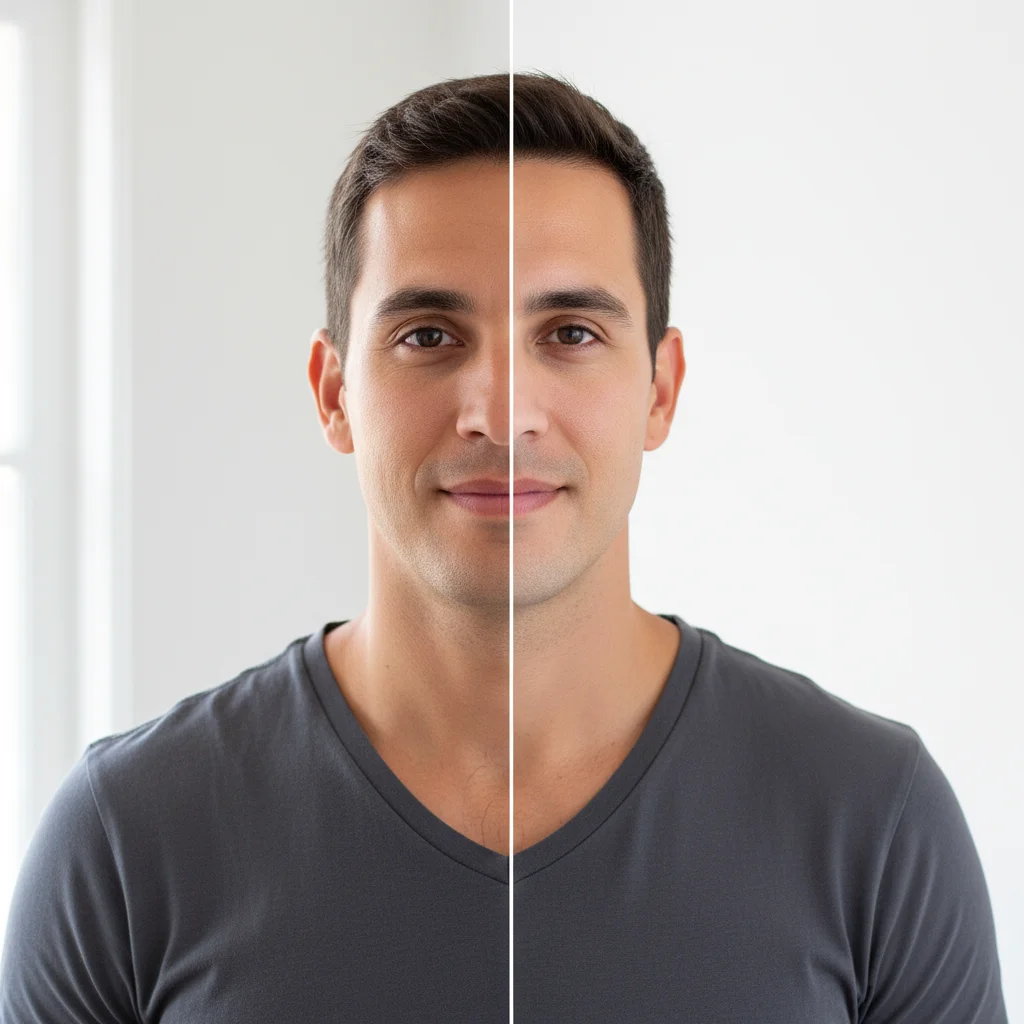
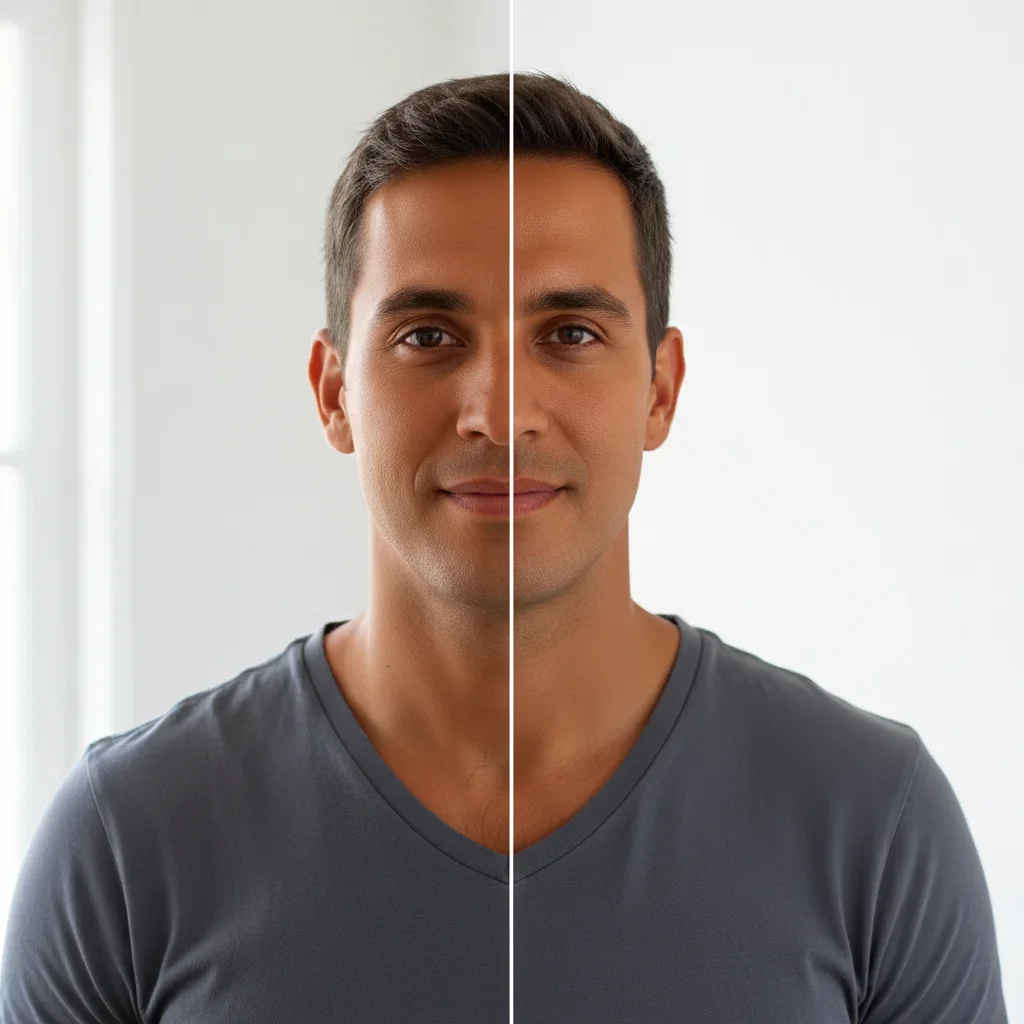
Man with light to medium skin tone
Before
->
Same man with deep warm bronze tan
After

Deep bronze beach tan

A deeper bronze tan applied to visualize an extended beach vacation look.

Prompt: give this person a deep warm bronze tan, as if they spent two weeks at the beach
Advertisement

If something looks off

AI changed the wrong area or something I didn't want changed

Why: The AI couldn't distinguish between skin and similarly-colored clothing or background, applying the tan to non-skin areas.

Try: Tap markers on the skin areas only, then regenerate: apply tan only to skin, not clothing or background

Tip: Markers tell the AI 'I mean THIS area specifically.' Use them when the AI tans non-skin areas.

Tan looks orange or unnatural

Why: Without specific color guidance, the AI may shift the tone toward orange rather than warm golden or bronze.

Try: add a warm golden tan with brown undertones, not orange—natural sun-kissed warmth

Tip: 'Not orange' and 'brown undertones' explicitly steer the AI away from artificial-looking results.

Tan is uneven across different skin areas

Why: Different parts of the skin have different base colors and lighting, making even application challenging.

Try: apply an even consistent tan across all visible skin areas, uniform warmth from face to arms

Tip: 'Uniform warmth' tells the AI to match the tan intensity across all exposed skin.

Hair or eye color also changed

Why: The AI sometimes adjusts hair and eyes when changing skin tone, especially for darker tans.

Try: add a tan to the skin only, keep hair color, eye color, and all other features exactly the same

Tip: Explicitly listing what to keep unchanged prevents the AI from making collateral adjustments.

Tan is too subtle or too strong

Why: The AI's interpretation of 'tan' intensity doesn't match what you had in mind.

Try: adjust the tan to be [lighter/darker] than the current result, [specific shade: light golden/medium bronze/deep brown]

Tip: Using comparative language ('darker than current result') is more precise than starting from scratch.

Quick answers

Do I need to mark my skin before describing the tan?

No! Just type 'add a golden tan' and the AI detects all visible skin and applies the tan automatically. Only use markers if the AI is also tanning non-skin areas like clothing, or if you want to tan only specific body parts.

How do I simulate a tan on my photo for free?

Upload your photo to EditThisPic and type a tan instruction like 'add a natural golden tan.' The AI applies a realistic tan in 30-40 seconds. Free to use, no account required, no watermarks on the result.

Is there a free AI tan simulator that doesn't require login?

Yes, EditThisPic simulates tans for free with no account needed. Upload your photo, describe the tan shade you want, and download the result. No watermarks. Works for golden, bronze, sun-kissed, and custom tan tones.

Can the AI add a natural-looking tan without making it look orange?

Yes! Specify warm tones in your prompt: 'golden tan with warm brown undertones' or 'natural sun-kissed bronze.' Avoid just saying 'make darker.' The AI produces natural-looking results when given specific shade guidance.

Ready to preview your tan?

Free to try. No signup required.

Try it free