Blur Face from Photo
Protect privacy in photos—just describe which face to blur and the AI handles the rest.
Type 'blur the face in this photo' and EditThisPic's AI applies a natural-looking blur in 15-20 seconds. For multiple faces, tap a marker on the specific one you want blurred. No manual selection tools, no pixel-level work. Free, no signup needed.
How it works
Upload your photo
Drop your image into EditThisPic. JPG, PNG, and WebP up to 7MB. The AI works best when faces are clearly visible and not too small in the frame.
Describe which face to blur
Type your instruction: 'blur the face in this photo' for a single face, or 'blur the face of the person on the right' for groups. The AI understands positions like 'left,' 'right,' 'background,' and descriptions like 'the person in the red shirt.'
Copy one of these to get started:
blur the face in this photo with a natural-looking gaussian blur for privacy
blur the face of the person on the right side of the photo, keep all other faces clear
blur the face of the person wearing the red shirt, leave everyone else visible
blur the face of the stranger in the background walking by, keep the main subject sharp
2 more prompts
blur all faces in this photo except for the person in the center who should remain clear
apply a strong heavy blur to the face making it completely unrecognizable, no features visible
Generate and review
Tap generate and check that the correct face is blurred. Verify the blur looks natural and covers the entire face including distinctive features like hair near the face.
Use markers if the AI picked the wrong face
If the wrong face got blurred in a group photo, tap a marker directly on the face you want blurred and regenerate. Markers help when descriptions alone are ambiguous.
"I needed to blur a bystander's face before posting a street photo. Typed 'blur the person's face on the right' and it was done in seconds." @StreetPhotoMike
See it in action
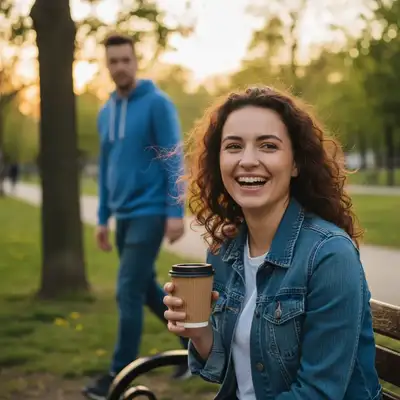
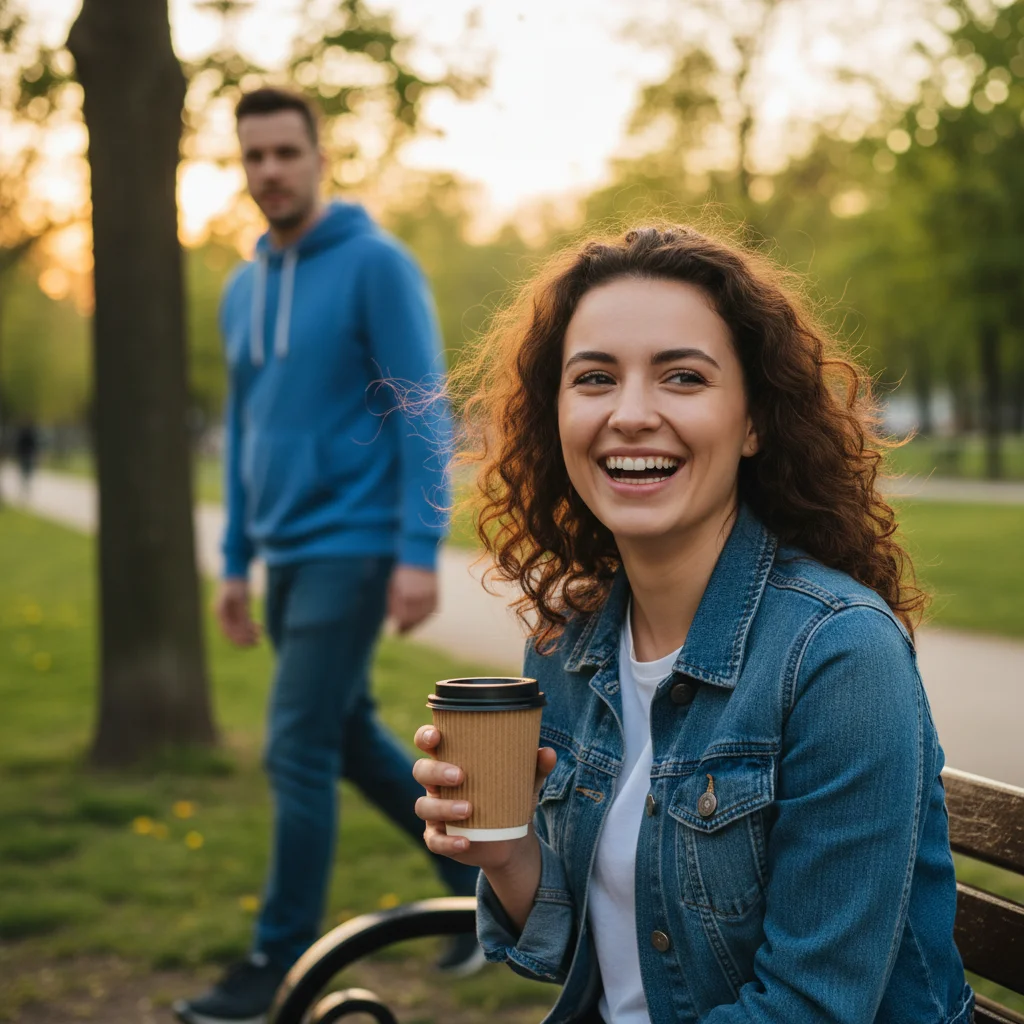
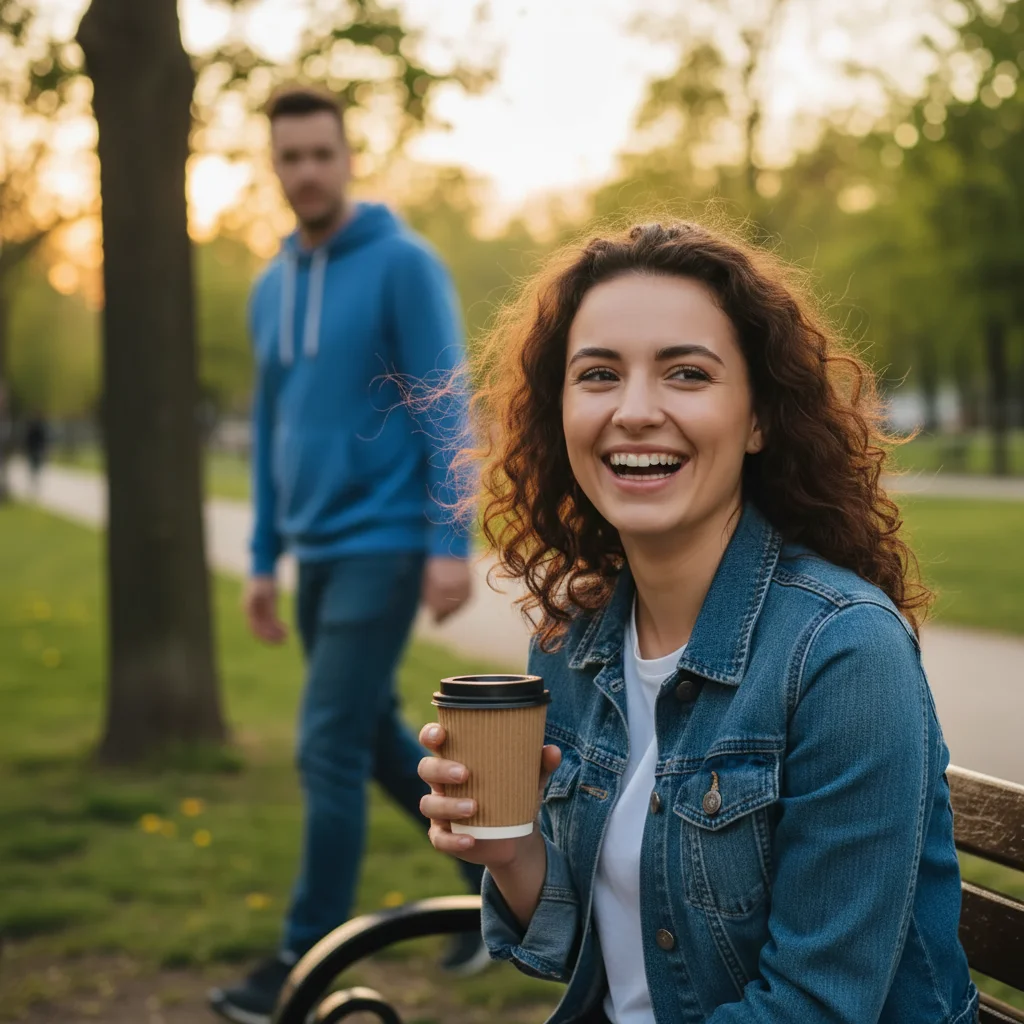
Street photography privacy protection
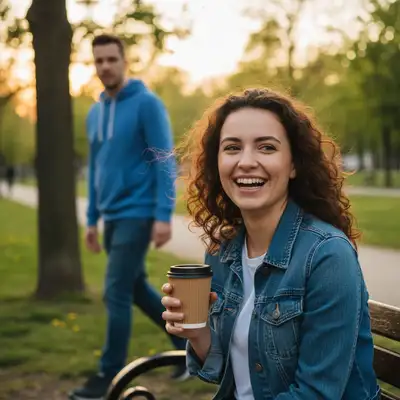
Captured a great candid moment but a recognizable stranger walked through the background. One prompt made it shareable.
blur the face of the person in the background on the left, keep the main subject in focus
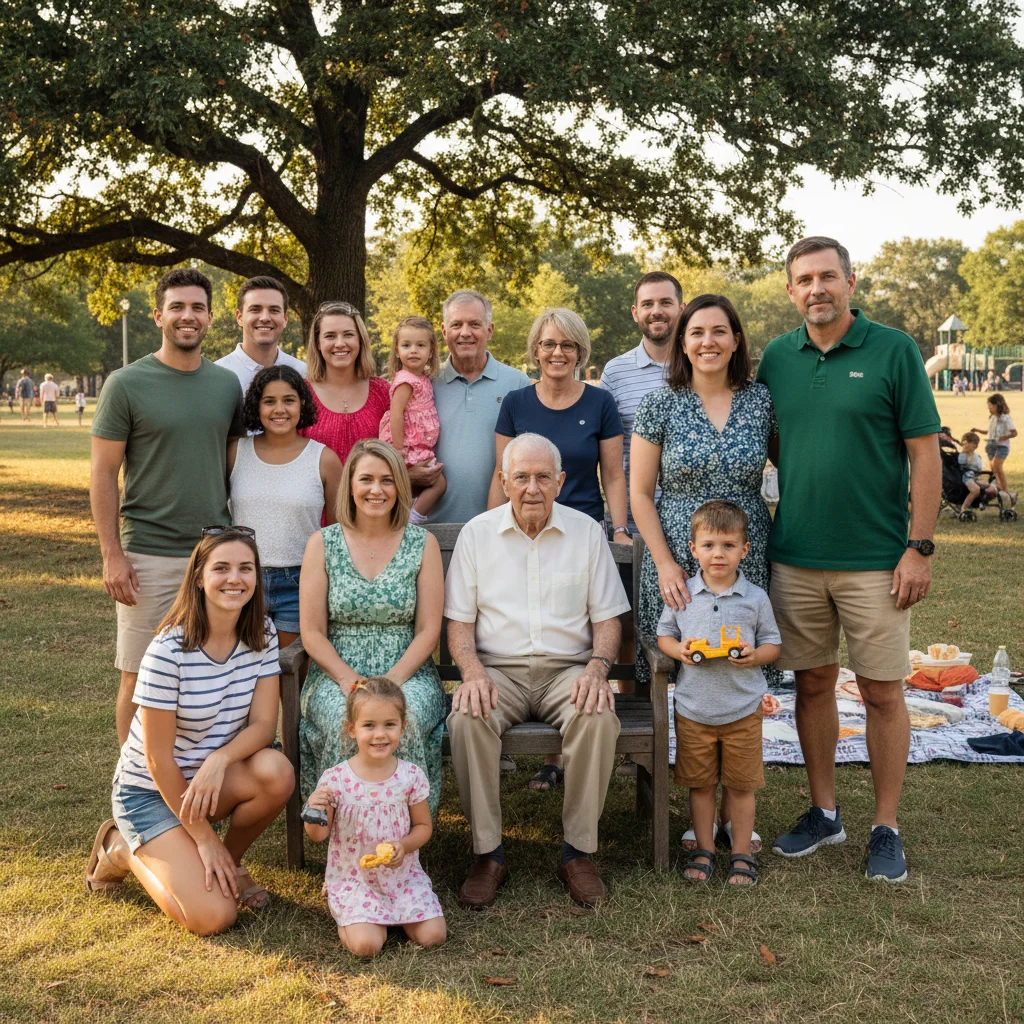
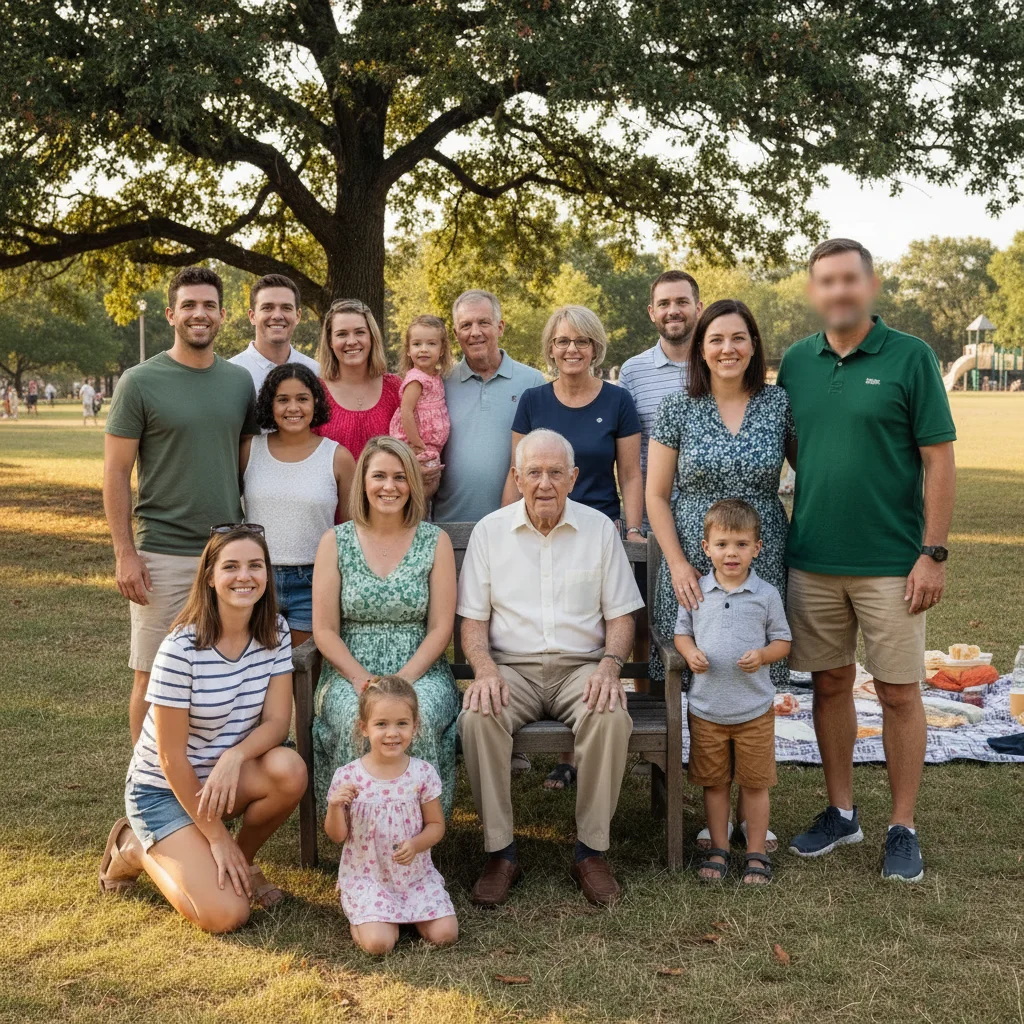
Group photo with one person to anonymize
Family reunion photo but one person asked not to be shared on social media. Blurred just their face while keeping everyone else clear.
blur the face of the person on the far right wearing the green polo shirt, keep all other faces clear and sharp
If something looks off
AI changed the wrong area or blurred the wrong face
Why: With multiple faces, the AI may not correctly identify which one you meant from description alone. Positional words can be ambiguous.
Tap a marker directly on the face you want blurred, then regenerate with 'blur this marked face'
💡 Markers tell the AI 'I mean THIS face specifically.' Use them for any group photo where position descriptions might be unclear.
Blur looks unnatural or pixelated
Why: The AI applied a different blur style than expected. Some blur types look more artificial than others.
blur the face with a smooth natural gaussian blur, soft edges blending into surrounding area
💡 Adding 'gaussian' and 'smooth' produces the most natural-looking privacy blur.
Face not fully covered—features still recognizable
Why: The blur wasn't strong enough or didn't extend to hair and ears which can be identifying.
apply a strong heavy blur covering the entire face including hairline and ears, completely unrecognizable
💡 For true anonymity, specify 'completely unrecognizable' to ensure adequate coverage.
Blur extends beyond the face onto background
Why: The AI included too much area around the face. This happens when the face boundary isn't clear.
blur only the face itself with precise edges, keep the background and hair sharp
💡 Adding 'precise edges' tells the AI to be careful about where the blur stops.
Quick answers
Do I need to mark the face before describing?
Usually no—just describe which face you want blurred. 'Blur the face' works for single-person photos, and 'blur the face on the right' works for groups. Only use markers when the AI picks the wrong face, which typically happens in crowded scenes or when your position description is ambiguous.
Can I blur multiple faces at once?
Yes. Type 'blur all faces in this photo' to blur everyone. To blur specific people, describe them: 'blur the faces of the two people in the background.' For complex selections, you may need to make multiple passes or use markers on each face you want blurred.
Will this blur meet GDPR or privacy law requirements?
EditThisPic applies a strong visual blur that makes faces unrecognizable. For legal compliance, use 'completely unrecognizable' in your prompt and verify the result at full resolution. Legal requirements vary by jurisdiction—consult a legal professional for specific compliance questions.
Can I blur just the eyes instead of the whole face?
Yes. Type 'blur only the eyes, keeping the rest of the face visible' or 'add a black bar over the eyes.' The AI understands partial face concealment and can target specific features while leaving others clear.
Ready to blur a face in your photo?
Free to try. No signup required.