Free • No signup Open Editor

Blur Person from Photo

Protect privacy by describing who to blur—no tracing outlines required.
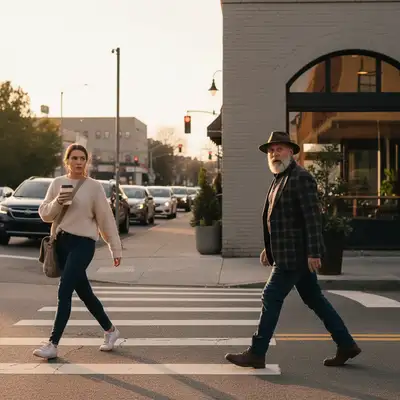
Type 'blur the person in the red jacket' and EditThisPic obscures their entire body in 15-30 seconds. Unlike face-only blur, this covers clothing, posture, and identifying features. For multiple people, tap a marker on who to blur. Free, no signup needed.

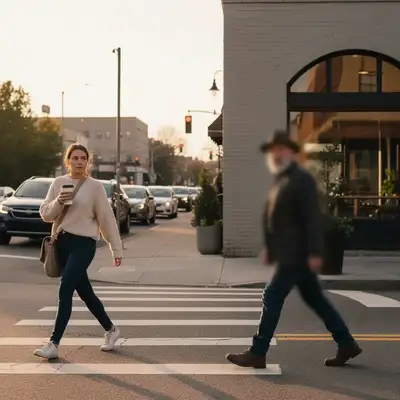
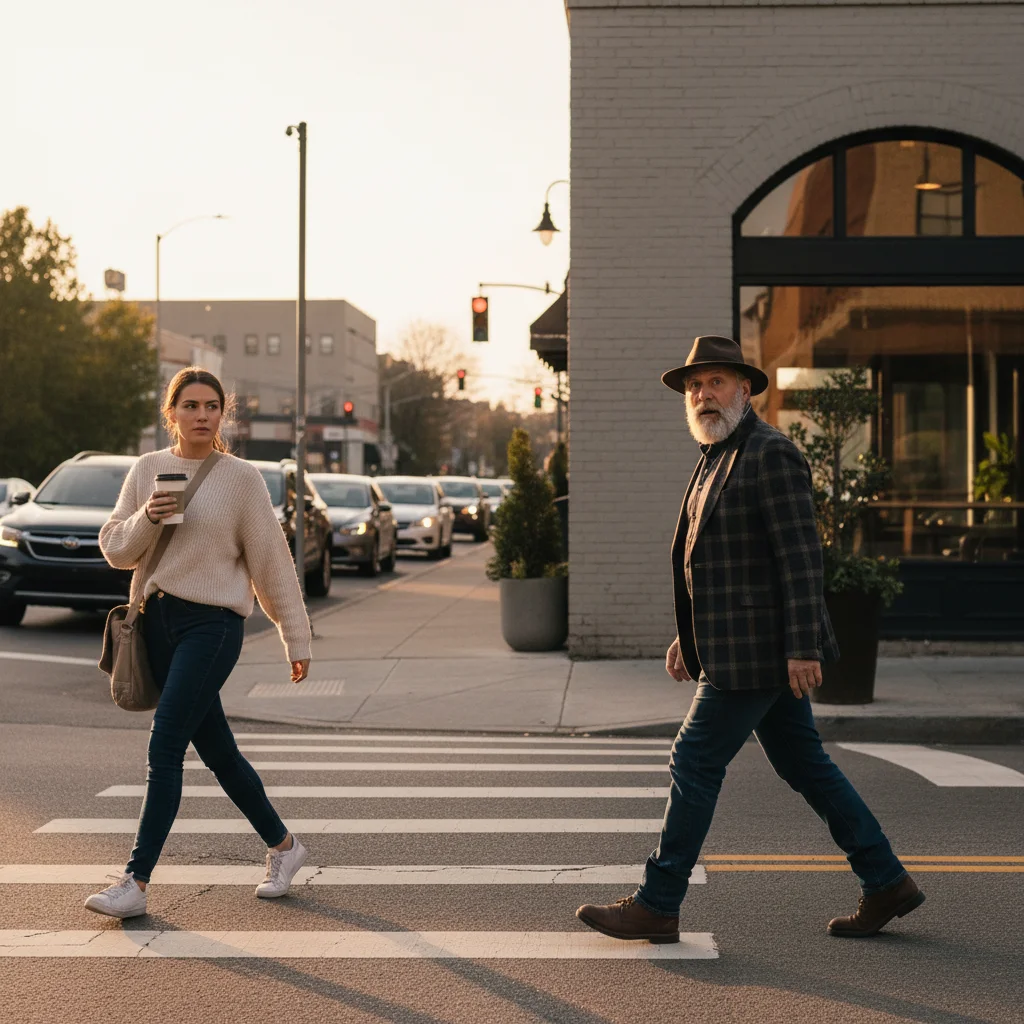
Street scene with pedestrian in orange coat on the right
Before
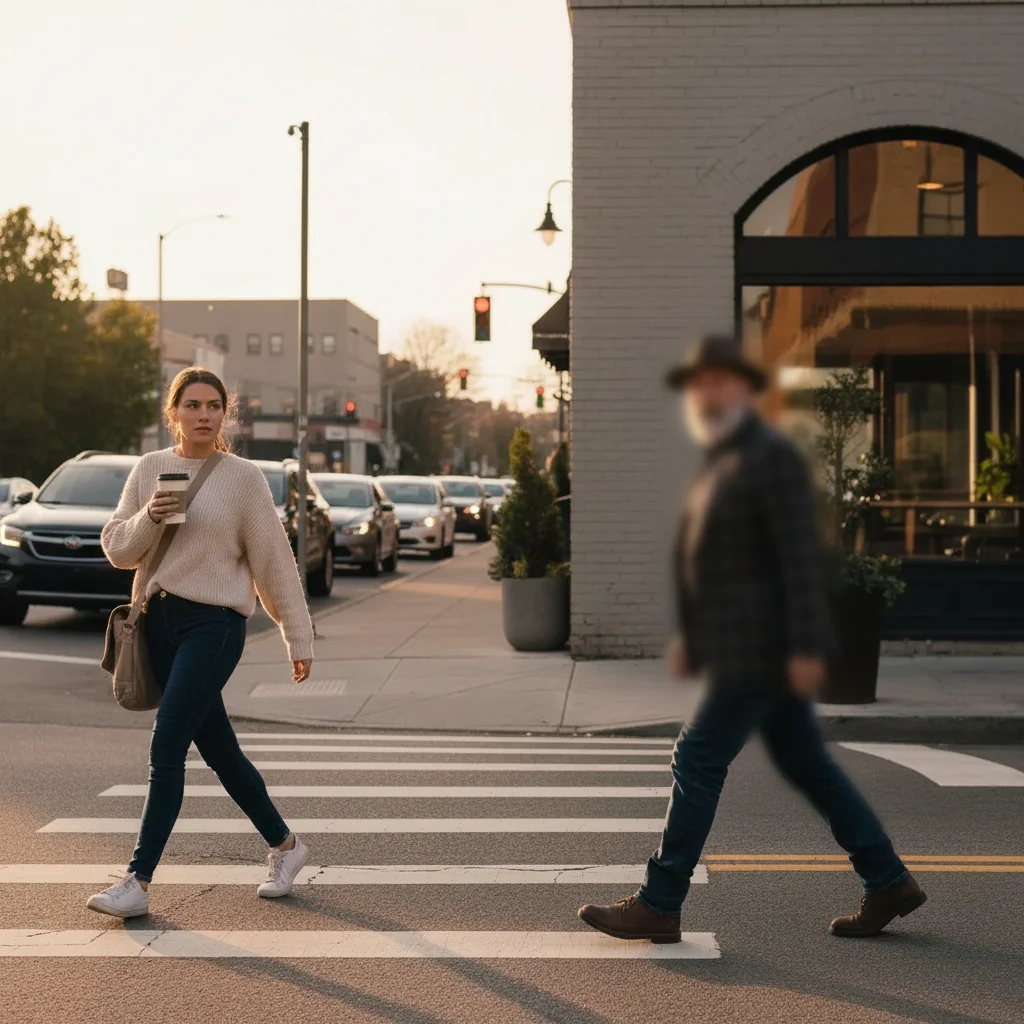
Same street scene with pedestrian fully blurred for privacy
After

How it works

1

Upload your photo

Drop your image into EditThisPic. JPG, PNG, and WebP up to 7MB work best. The AI needs to see enough detail to identify who you want blurred.

⏱ Single person to blur: 15-30 seconds. Multiple people or crowded scenes: may need markers for precision.
2

Describe who to blur

Type your instruction: 'blur the person on the right' or 'blur the man in the yellow shirt.' Be specific about location or clothing. For a single person in the photo, 'blur the person' is enough.

💡 Reference distinctive features: 'blur the person in the red hat' works better than 'blur the second person from the left.'

Copy one of these to get started:

Single bystander in street photo blur the person on the right side of the frame completely, covering their entire body and face
Person identified by clothing blur the person wearing the bright yellow jacket, full body blur for privacy
Background stranger in vacation photo blur the stranger walking in the background behind the main subjects, natural blur that matches the scene
Child privacy in group photo blur the child in the blue shirt on the left edge, complete privacy blur covering face and body
2 more prompts
Multiple people to blur at once blur all people except the woman in the center wearing the white dress
Strong anonymization for sensitive context heavily blur the person on the far left, obscure all identifying features including silhouette and posture
3

Generate and review

Tap generate and check that the entire person is blurred—body, clothing, and any identifying features. Verify the blur didn't accidentally affect people you wanted to keep clear.

4

Use markers for multiple people

If you have several people and the AI blurred the wrong one, tap a marker directly on the person you want blurred, then regenerate. Markers specify 'this person exactly.'

💡 Markers are essential when multiple people wear similar clothing or stand close together.
Try it free
"Had strangers in my street photography shots. Typed 'blur the person on the left' and could finally post them ethically." @StreetLensMarco

See it in action

Street scene with pedestrian in orange coat on the right
Before
Same street scene with pedestrian fully blurred for privacy
After

Street photography privacy fix

Captured a great urban scene but a recognizable pedestrian walked into frame. Full body blur protected their identity while preserving the composition.

Prompt: blur the person on the right side completely, full body privacy blur covering face and clothing
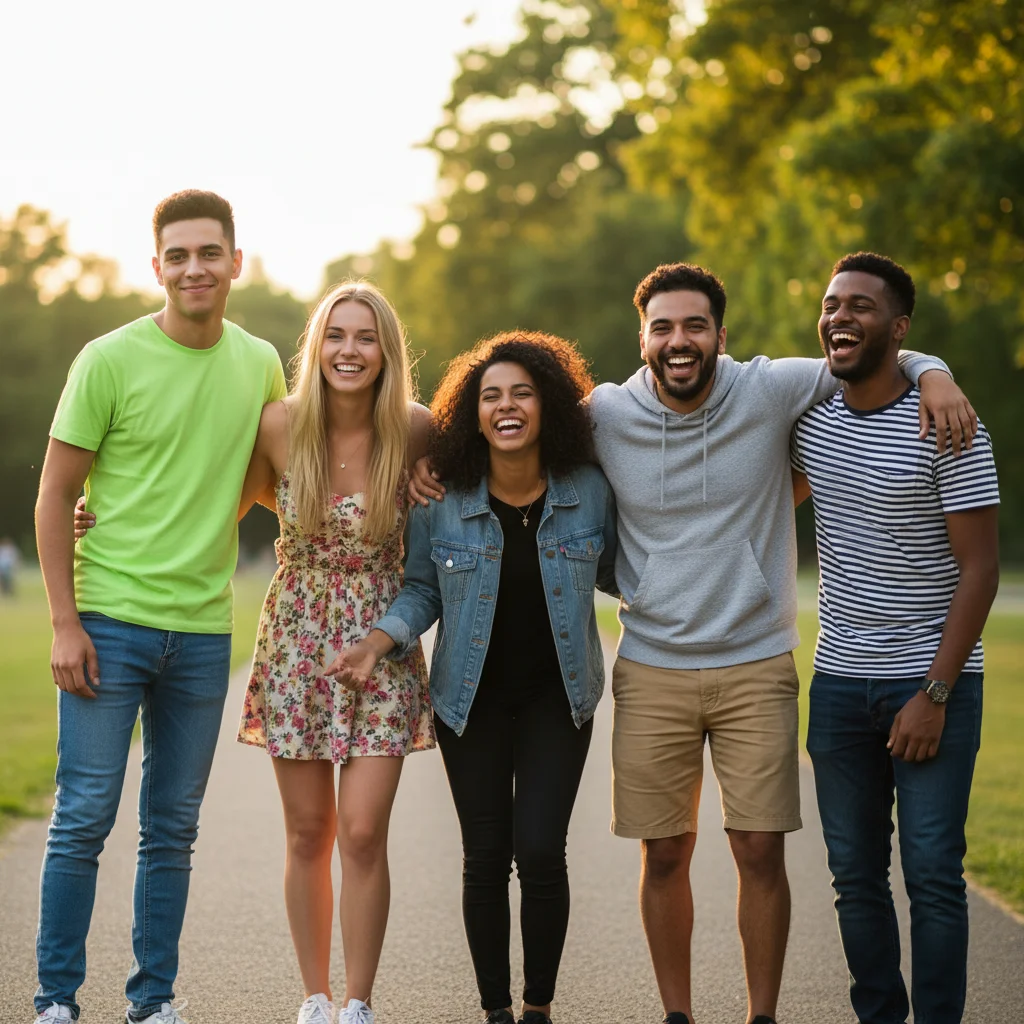
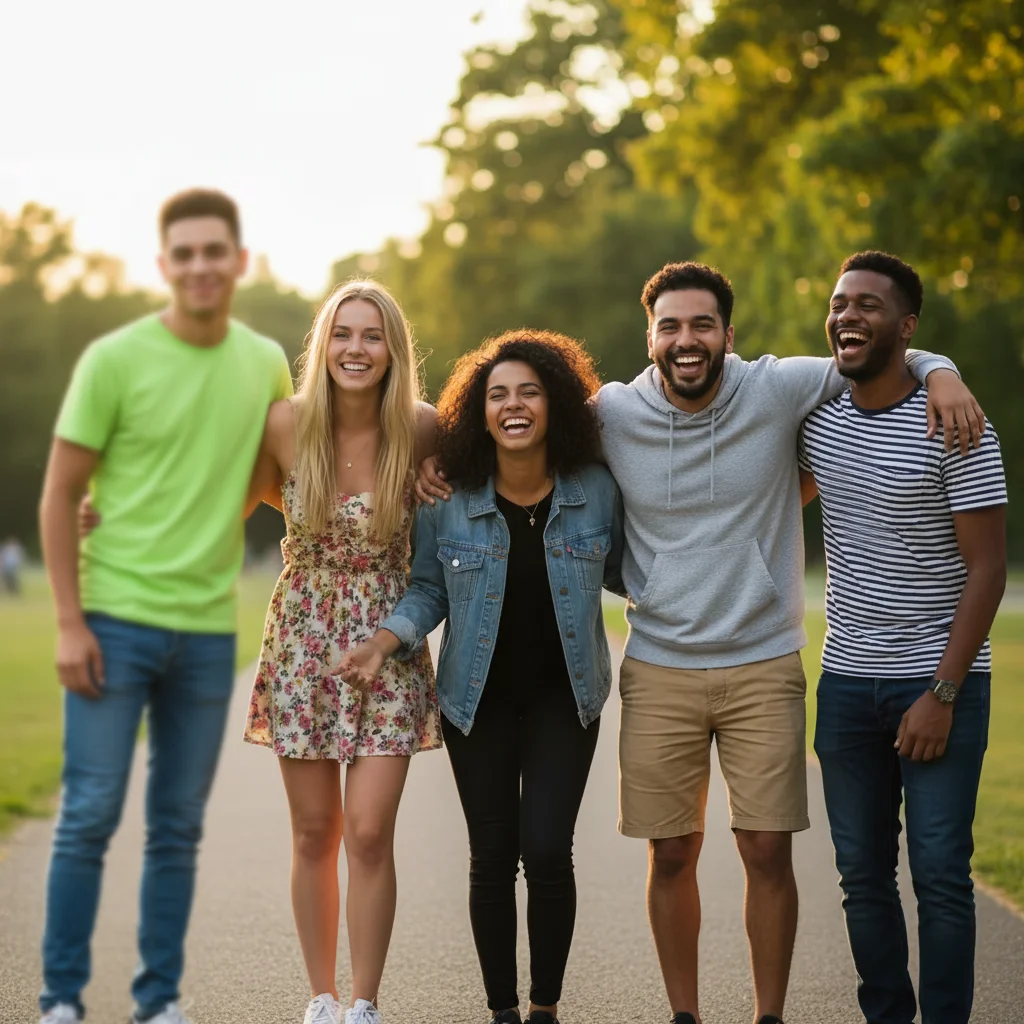
Group of friends with one person in green shirt on left edge
Before
Same group with person on left fully blurred
After

Social media group photo cleanup

Friend asked to be removed from a group photo being posted online. Quick blur kept them anonymous while preserving the memory.

Prompt: blur the person in the bright green shirt on the far left, complete privacy blur covering their whole body

If something looks off

AI changed the wrong area or blurred the wrong person

Why: With multiple people in the frame, your description wasn't specific enough for the AI to identify who you meant.

Try: Tap a marker directly on the person you want blurred, then regenerate with 'blur this person completely'

💡 Markers tell the AI 'I mean THIS person specifically.' Essential for groups or when descriptions are ambiguous.

Only the face was blurred, not the whole body

Why: The AI defaulted to face-only blur. You need to explicitly request full body coverage.

Try: blur the person on the [position] completely, covering entire body, clothing, and all identifying features

💡 Always specify 'entire body' or 'full body' when you need more than face anonymization.

Blur looks unnatural or obviously edited

Why: The blur intensity doesn't match the photo's natural depth of field or lighting conditions.

Try: blur the person with natural-looking gaussian blur that matches the scene's lighting and depth

💡 Adding 'natural blur' or 'subtle blur' produces results that look intentional rather than like a privacy redaction.

Blur extended to nearby objects or other people

Why: The person was close to others or objects, and the AI couldn't determine exact boundaries.

Try: Tap a marker on the specific person, then try 'blur only this marked person, keep everything else sharp'

💡 For crowded scenes, markers are nearly always necessary to get precise boundaries.

Quick answers

Do I need to mark the person before describing?

Not usually. For a single person or someone with distinctive clothing, just describe them: 'blur the person in the red jacket.' The AI understands. Use markers only when you have multiple similar-looking people or the AI blurs the wrong person on first try.

What's the difference between blurring a person vs. blurring just their face?

Face blur only obscures facial features. Full person blur covers their entire body—clothing, posture, tattoos, and any identifying features. For true privacy protection, full person blur is more thorough since people can often be identified by their clothing, body shape, or distinctive accessories.

Can I blur multiple people at once?

Yes. Try 'blur all people except the woman in the center' or 'blur everyone in the background.' For selective blur of specific individuals, you may need to process one at a time or use markers to identify exactly who should be blurred.

Will this work for GDPR or privacy compliance?

EditThisPic provides visual anonymization suitable for most social media and casual publishing needs. For legal or regulatory compliance, consult your legal team about specific requirements—some jurisdictions have standards for anonymization strength that may require verification.

Ready to protect someone's privacy?

Free to try. No signup required.

Try it free