Free • No signup Blur Background bokeh · Free

Add Bokeh Blur to Background

Describe your ideal background and AI replaces it seamlessly.

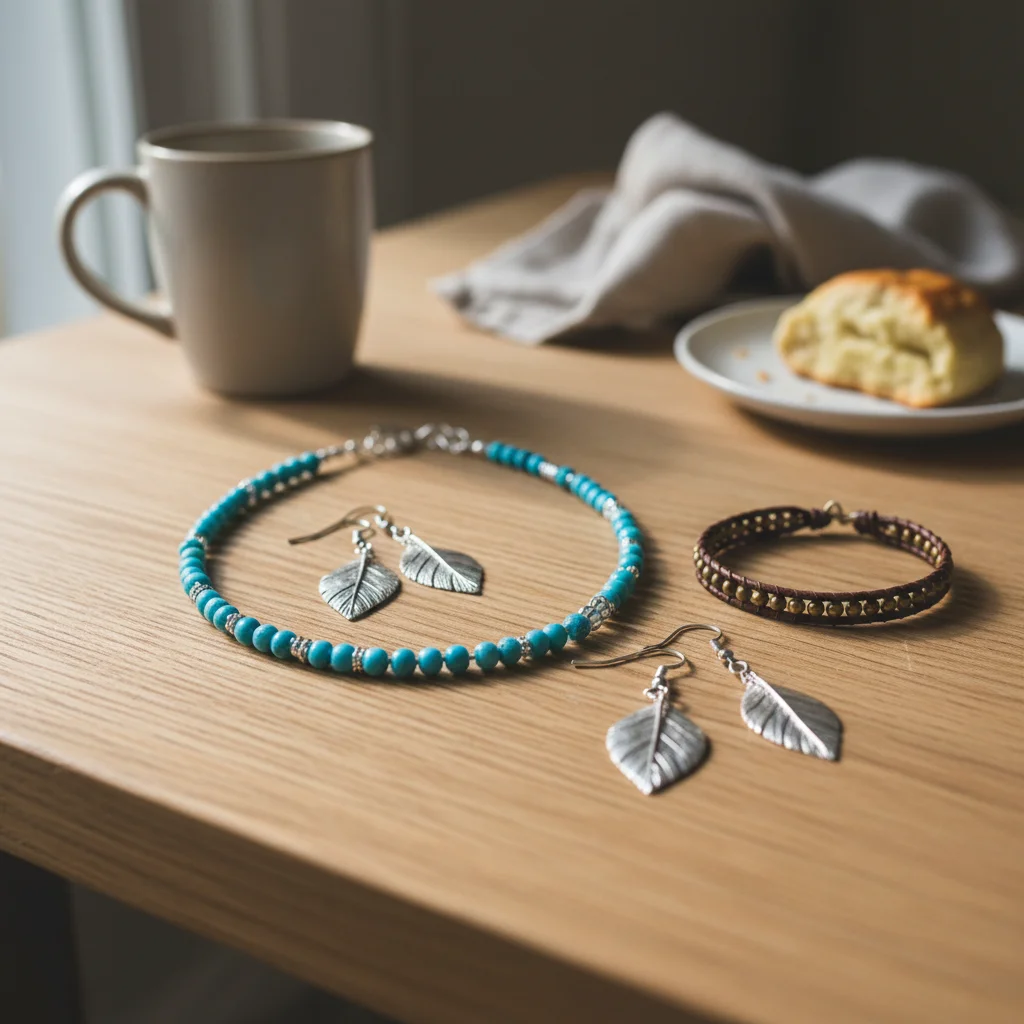
Phone portrait with cluttered background
Before
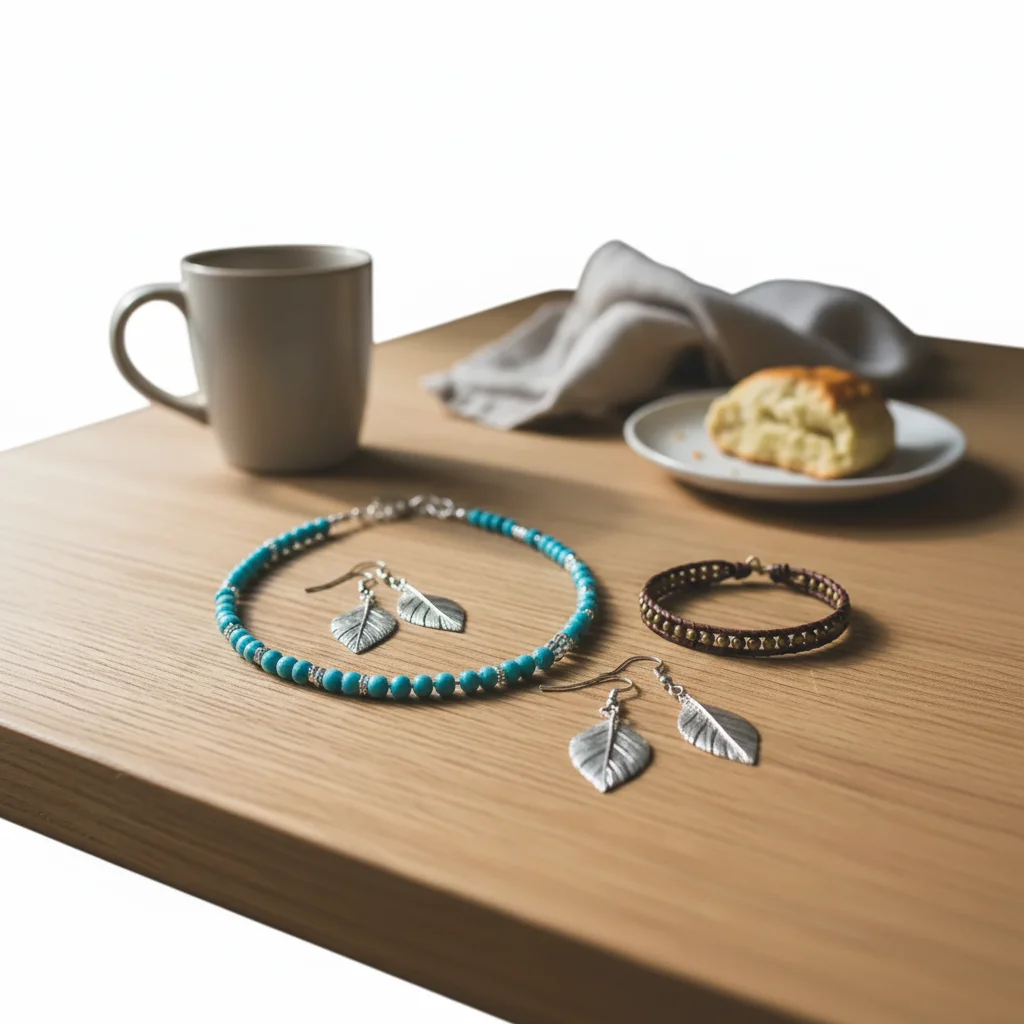
Same portrait with beautiful bokeh blur
After

Add Bokeh Blur Background to Photo

Drop your photo here

or click to browse

Release to upload

Free • No signup

Popular use cases:
  • blur background bokeh
  • AI background bokeh editor
  • photo background bokeh tool
  • free background bokeh editing

Cost
Free No signup required
Time
Instant results in 15-30 seconds
Works on
Any device - browser, phone, tablet, desktop
Powered by
AI-powered photo editing

How it works

  1. Upload your photo

    Upload a clear photo showing the area you want to edit. Good lighting and sharp focus help the AI deliver better background bokeh results. JPG, PNG, WebP up to 7MB.

    Expect: Most edits complete in 20-45 seconds. Complex changes may need 1-2 refinements.
  2. Describe your edit

    Type what you want: 'Add a soft bokeh blur to the background with circular light spots.' Be specific about details for best results. The AI understands natural language — no technical skills needed.

    Tip: For best edge quality, use photos where the subject contrasts with the background.

    Copy one of these to get started:

    Classic Portrait Bokeh Add soft bokeh blur to the background while keeping the person sharp and in focus
    City Light Bokeh Blur the background with large circular bokeh light spots from city lights
    Gentle Blur Add a gentle, subtle background blur with smooth bokeh, not too strong
    Christmas Bokeh Blur the background to create colorful circular bokeh from Christmas lights
    2 more prompts
    Nature Bokeh Add creamy bokeh blur to the background greenery with soft circular highlights from sunlight through leaves
    Strong Isolation Apply heavy bokeh blur to completely isolate the subject with very smooth, creamy background
  3. Review the result

    Use the before/after slider to compare results. Check that the background bokeh edit blends naturally with surrounding areas — look for consistent lighting, color matching, and clean edges throughout.

  4. Refine if needed

    If any areas need fine-tuning, tap markers on those specific spots and describe what to fix. The AI can adjust individual regions without redoing the entire edit — useful for perfecting background bokeh details in tricky areas.

    Tip: Markers are optional. Try without them first — the AI usually gets it right.
Try it free

Add Bokeh Blur Background to Photo

Drop your photo here

or click to browse

Release to upload

Free • No signup

"My phone photos now look like they were shot on a DSLR with a 50mm lens!" @PhonePhotographer

See it in action

Phone portrait with cluttered background
Before
->
Same portrait with beautiful bokeh blur
After

Phone Photo to DSLR Look

Phone portrait enhanced with professional bokeh blur.

Prompt: Add soft bokeh blur to the background keeping the person sharp
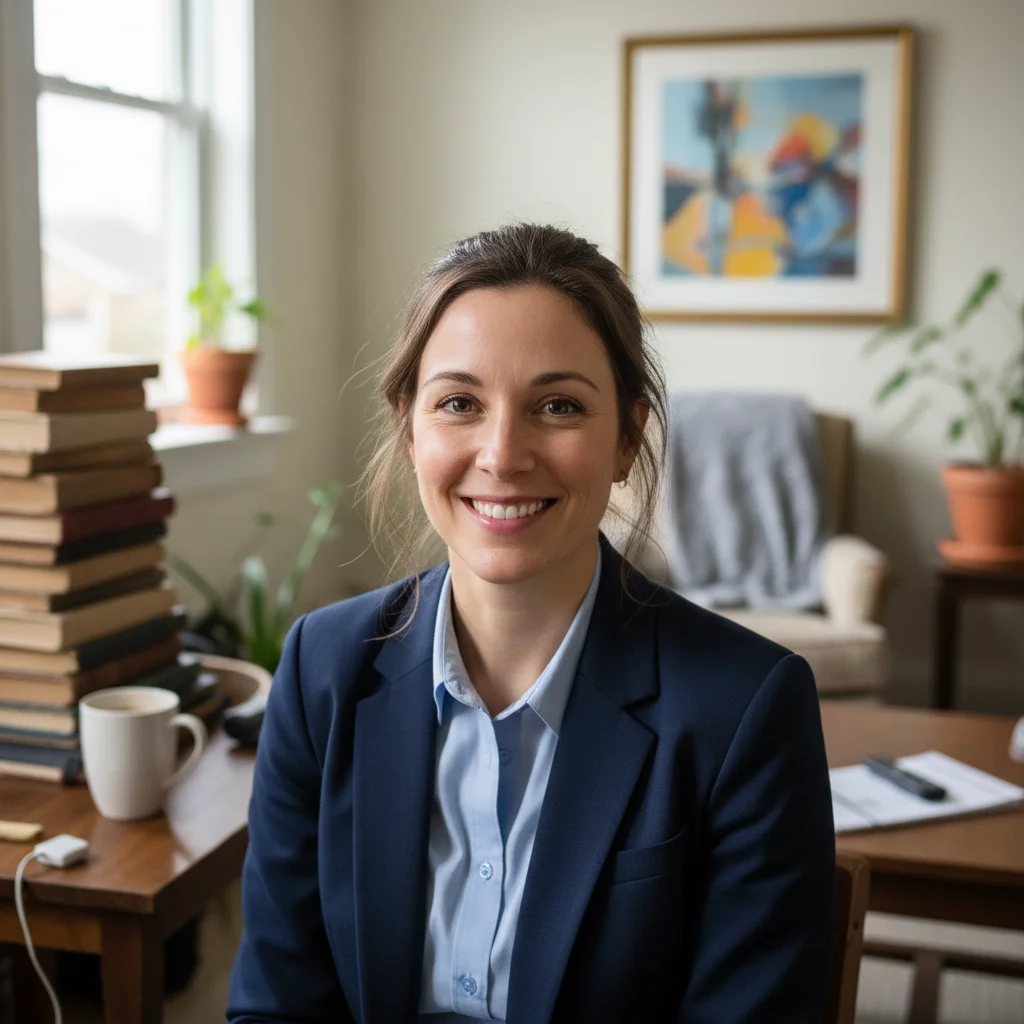
Night portrait with distracting background
Before
->
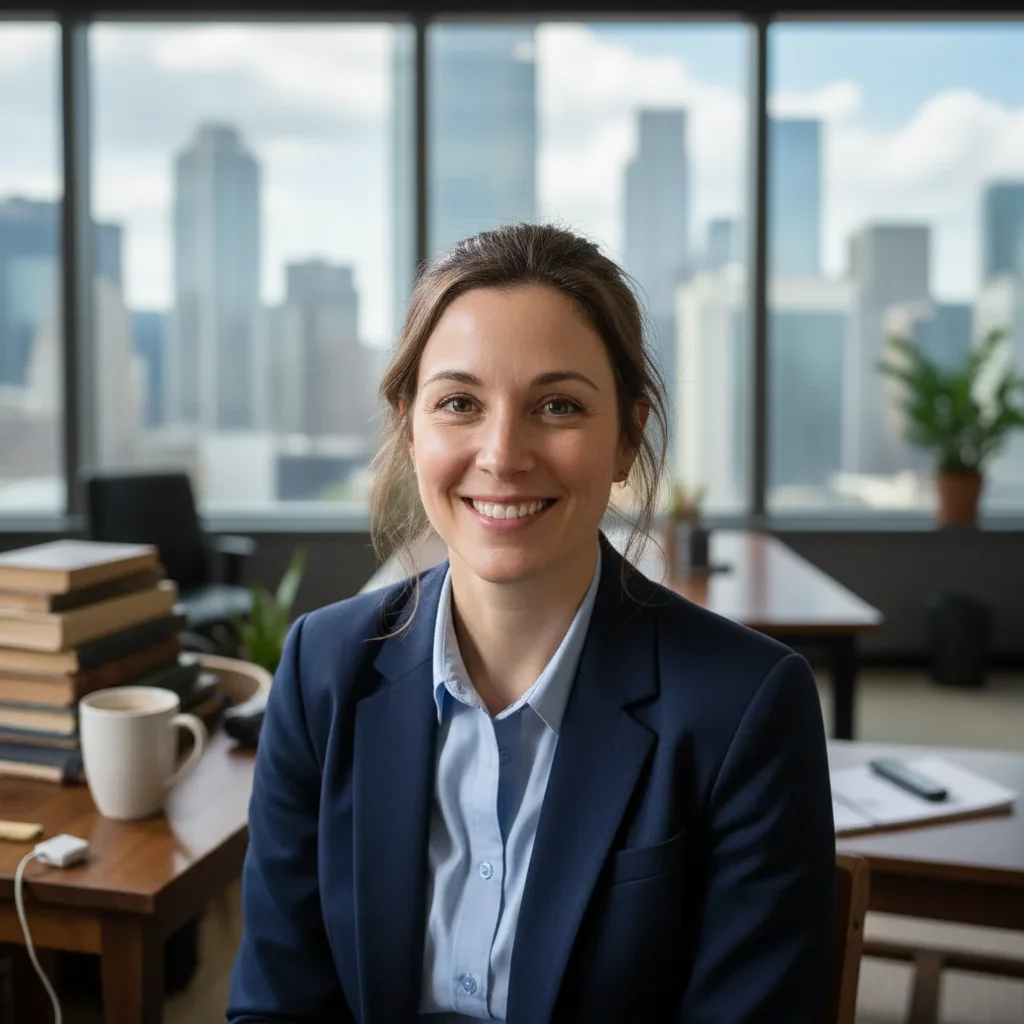
Portrait with city light bokeh effect
After

Night Photo with City Bokeh

Evening portrait given glamorous city light bokeh.

Prompt: Blur background with large circular bokeh from city lights

Detailed Guides by Scenario

📷

Privacy & Compliance

Blur background bokeh to protect privacy, comply with regulations, and keep sensitive information safe before sharing photos.

Common Scenarios

  • Blurring background bokeh in photos before posting to social media or a public website
  • Protecting background bokeh in images shared in legal, medical, or educational contexts
  • Meeting GDPR or privacy requirements by obscuring background bokeh in published content

Best Practices

  • Mark the background bokeh precisely — a tight selection gives a cleaner blur than a broad one
  • Use a Gaussian-style blur for a natural look rather than pixelation, which can look dated
  • Double-check the result at full zoom to confirm background bokeh is completely unreadable
📷

Content Creation & Publishing

Prepare photos for blogs, news articles, and social media by blurring background bokeh that shouldn't be identifiable.

Common Scenarios

  • Blurring background bokeh in street photography before publishing in an article or portfolio
  • Obscuring background bokeh in screenshots or photos for a tutorial or how-to guide
  • Protecting background bokeh in event photos shared on a company blog or newsletter

Best Practices

  • Apply just enough blur to anonymize without making the photo look obviously censored
  • If multiple background bokeh instances appear, mark and blur each one individually for best results
  • For editorial use, a softer blur looks more professional than heavy pixelation
📷

Real Estate & Business

Blur background bokeh in property listings, business photos, and commercial imagery for security and professionalism.

Common Scenarios

  • Obscuring background bokeh in property listing photos to protect homeowner privacy
  • Blurring background bokeh in office or storefront photos before publishing online
  • Protecting background bokeh in construction or project documentation shared with clients

Best Practices

  • Process all listing photos consistently — the same blur strength and style across the set
  • Blur background bokeh thoroughly — real estate photos are scrutinized closely by potential buyers
  • Run a final check by downloading the full-res image to confirm the blur holds at all zoom levels

If something looks off

AI changed the wrong area

Why: The AI couldn't determine exactly which area you meant from the description alone.

Try: Tap a marker on the specific area you want to edit, then regenerate with the same prompt

Tip: Markers tell the AI exactly where to focus. Use them when description alone is ambiguous.

Result looks unnatural or blurry

Why: The AI may need more specific guidance about the look you want.

Try: Add a soft bokeh blur to the background with circular light spots, ensure natural lighting and sharp details that match the rest of the photo

Tip: Adding 'natural' and 'realistic' to your prompt helps the AI prioritize believability.

Subject's hair edges look rough against new background

Why: Fine hair strands are the hardest element for AI to separate from the original background.

Try: Regenerate with 'pay special attention to hair edges for a smooth, natural transition'

Tip: For best edge quality, use photos where the subject contrasts with the background.

New background has wrong perspective or scale

Why: The background scene was shot from a different angle or distance than the subject.

Try: Add 'match the camera angle and perspective of the subject' to your background description

Tip: Describe the background's perspective: 'eye-level outdoor scene' or 'shot from slightly above.'

Color temperature clash between subject and background

Why: The subject was lit with warm indoor light but placed on a cool outdoor background (or vice versa).

Try: Add 'match the color temperature and lighting warmth between subject and background'

Tip: Mention the lighting mood you want: 'warm golden hour lighting on everything' unifies the look.

Quick answers

What is bokeh blur?

Bokeh is the aesthetic quality of out-of-focus areas in a photo. It creates soft, circular light spots in the background, giving a professional depth-of-field look typically seen in DSLR photography.

Will my subject stay sharp?

Yes. The AI detects your subject (person, pet, product) and keeps it perfectly sharp while only blurring the background.

Is this free?

Yes. EditThisPic offers free bokeh blur effects with no signup or login required.

Can I control the blur strength?

Yes. Describe "subtle blur," "medium bokeh," or "heavy bokeh" in your prompt to control the intensity.

Does it work on phone photos?

Absolutely. This is especially useful for phone photos that lack the shallow depth of field that DSLR cameras naturally produce.

Can I add colored bokeh?

Yes. Specify the color of the bokeh lights — warm golden, cool blue, colorful Christmas lights, or any color you want.

What photo formats does the add bokeh blur to background tool support?

JPG, PNG, WebP, and HEIC. Upload any common photo format and EditThisPic handles the rest.

How long does it take to blur background bokeh?

Usually 20-45 seconds. Upload your photo, describe what you want, and the AI delivers the result.

Ready to change your background?

Free to try. No signup required.

Try it free