Free • No signup Enhance Photobooth photo · Free

Photobooth Photo Enhancer — Restore Old Strips Free

Last updated

Photograph or scan your photobooth strip, upload it, and describe what to restore — fading, scratches, discoloration, or black-and-white colorization. AI restores it in 20 seconds.

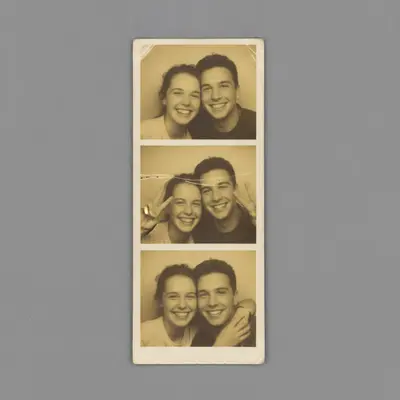
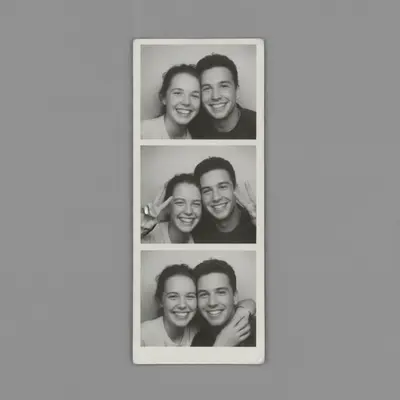
1990s photobooth strip with three frames, heavy yellow-brown discoloration, faded faces barely visible, horizontal scratches Restored photobooth strip with corrected color, sharpened faces in all three frames, scratch repaired, clear contrast

Upload photo to enhance photobooth photo

"restore this old photobooth strip — correct the yellow-brown discoloration, restore natural skin tones, sharpen the faces and details"

Release to upload

1 free edit·then from $4.99

How it works

  1. Photograph or scan your photobooth strip

    Use your phone camera to photograph the strip flat on a neutral surface under even lighting — avoid flash reflections. A flatbed scanner gives better detail for heavily damaged strips. Upload the resulting JPG, PNG, WebP, or HEIC up to 7MB.

    Expect: Gently faded or slightly scratched strips: clear results in one pass. Heavily damaged strips with torn edges, large scratches, or severe yellowing: AI handles most damage in one pass, but very small frames may benefit from a cropped per-frame upload for detailed face restoration.
  2. Describe what needs restoring

    Type your enhancement instruction: 'restore this photobooth strip — sharpen the faces, fix the fading and scratches, correct the discoloration' or 'enhance this black-and-white photo booth strip — increase contrast, sharpen the images, add subtle colorization.' Be specific about what problems you see: fading, scratches, yellowing, blur, torn corners.

    Tip: Mention the strip's era and condition for better results: '1990s photobooth strip, severe fading and yellowing' tells the AI what kind of degradation to correct. For colorization, add 'warm natural skin tones' to guide the palette.

    Copy one of these to get started:

    Faded strip — general restoration restore this photobooth strip — sharpen the faces, fix the fading and discoloration, repair any scratches or spots
    Yellow or brown discoloration restore this old photobooth strip — correct the yellow-brown discoloration, restore natural skin tones, sharpen the faces and details
    Black-and-white strip colorization restore and colorize this black-and-white photobooth strip — sharpen the faces, add natural realistic colors to skin, hair, and clothing, keep the photobooth strip format intact
    Scratched or spotted strip repair this photobooth strip — remove the scratches and surface spots, fill with matching background, sharpen the images in each frame
    3 more prompts
    Blurry faces enhance this photobooth strip — sharpen and clarify the faces in each frame, improve the focus without over-sharpening edges, restore fine facial details
    Per-frame crop for heavy damage enhance and restore this single photobooth frame — sharpen the face, fix the fading, correct the contrast, repair any visible damage
    Full restoration with contrast fix fully restore this photobooth strip — fix fading and discoloration, sharpen faces, improve contrast so the images are clear and vivid, repair scratches or surface damage
  3. Review the restored strip

    Check that faces are sharpened and fading is corrected. Zoom in to individual frames — particularly the smallest ones — to verify detail restoration. If small frames are still blurry, crop to one frame and run a second enhancement pass with 'sharpen the face detail in this frame.'

  4. Download and print your restored strip

    Download the enhanced strip as a PNG (best for printing) or JPEG. The output is a digital image — to print it as a physical strip, take it to a photo printing service and request the original strip dimensions, or print on 2×6-inch paper at home.

See it in action

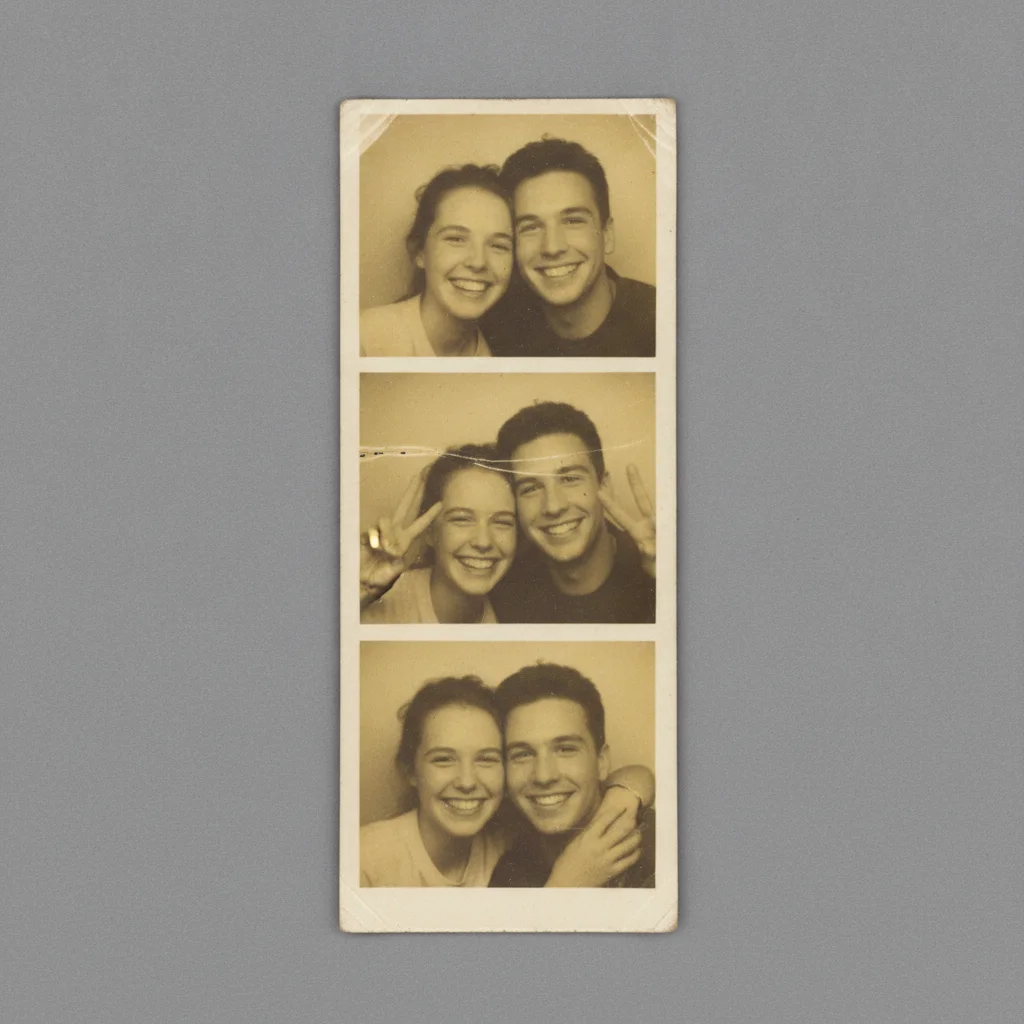
1990s photobooth strip with three frames, heavy yellow-brown discoloration, faded faces barely visible, horizontal scratches
Before
->
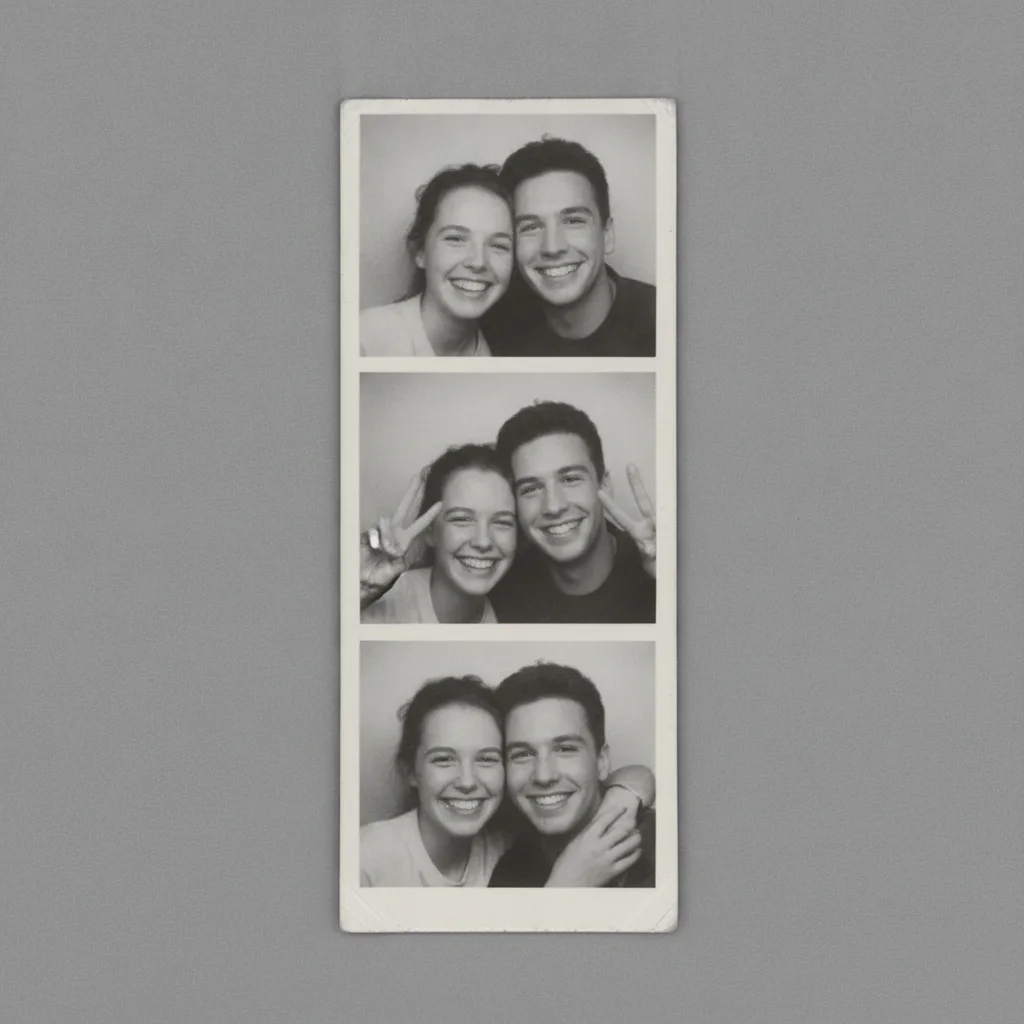
Restored photobooth strip with corrected color, sharpened faces in all three frames, scratch repaired, clear contrast
After

1990s faded strip fully restored

A 3-frame photobooth strip from the mid-1990s with significant yellowing and loss of contrast in all frames. Single restoration pass corrected the color cast, sharpened faces, and restored the black-and-white tones to near-original clarity.

Prompt: restore this photobooth strip — sharpen the faces, fix the fading and discoloration, repair any scratches or spots
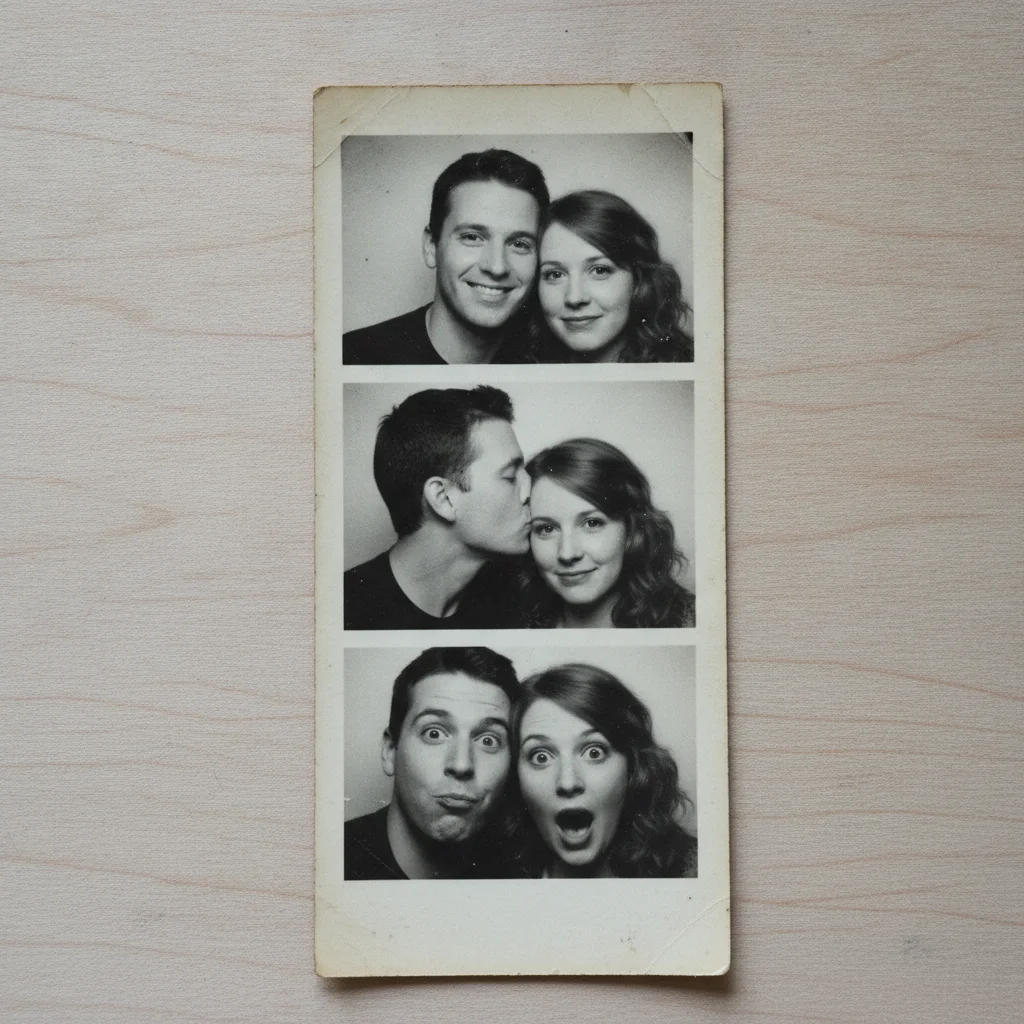
Black-and-white photobooth strip with three frames showing a couple, mild surface speckling, preserved original borders
Before
->
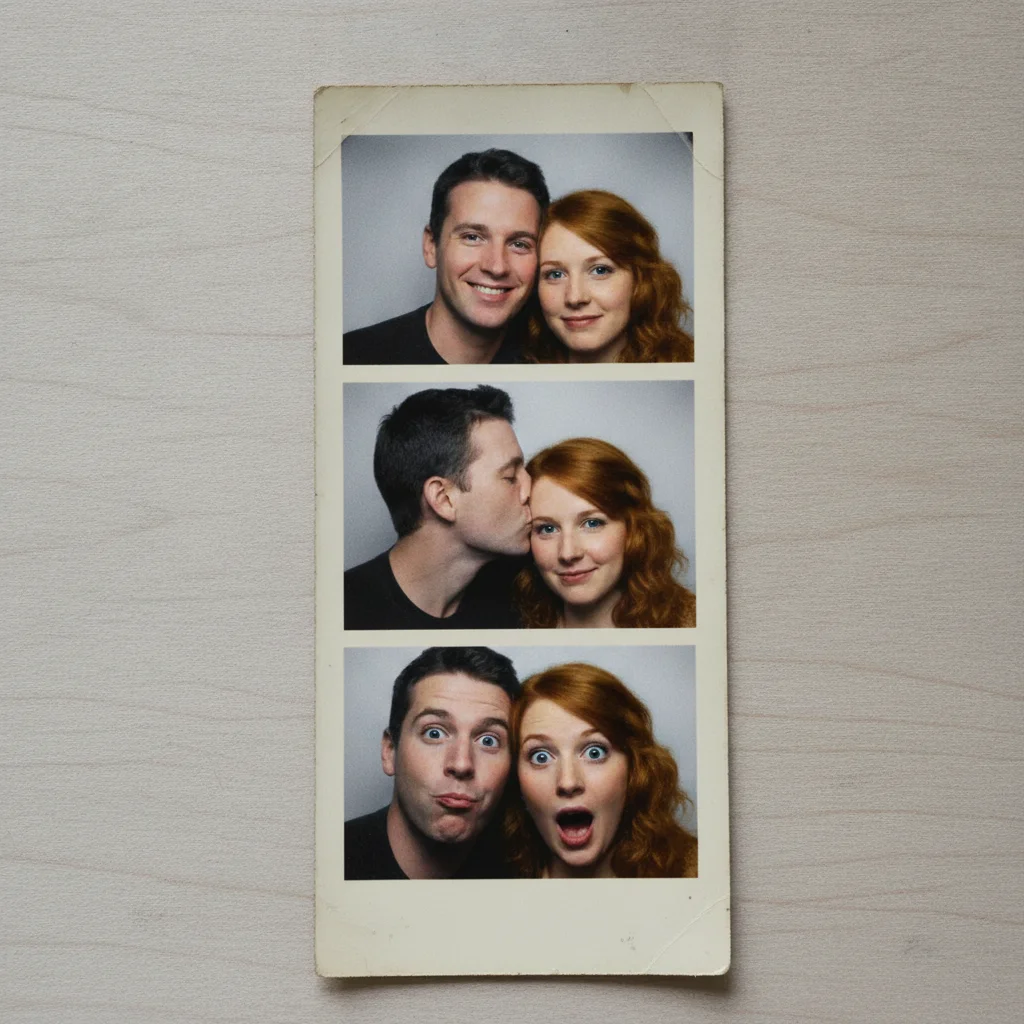
Colorized photobooth strip with three frames showing couple in natural skin tones, hair and clothing colors added, strip layout preserved
After

Black-and-white strip colorized

A black-and-white photobooth strip restored and colorized — natural skin tones, hair, and clothing colors added across all frames while preserving the original strip layout.

Prompt: restore and colorize this black-and-white photobooth strip — sharpen the faces, add natural realistic colors to skin, hair, and clothing, keep the photobooth strip format intact
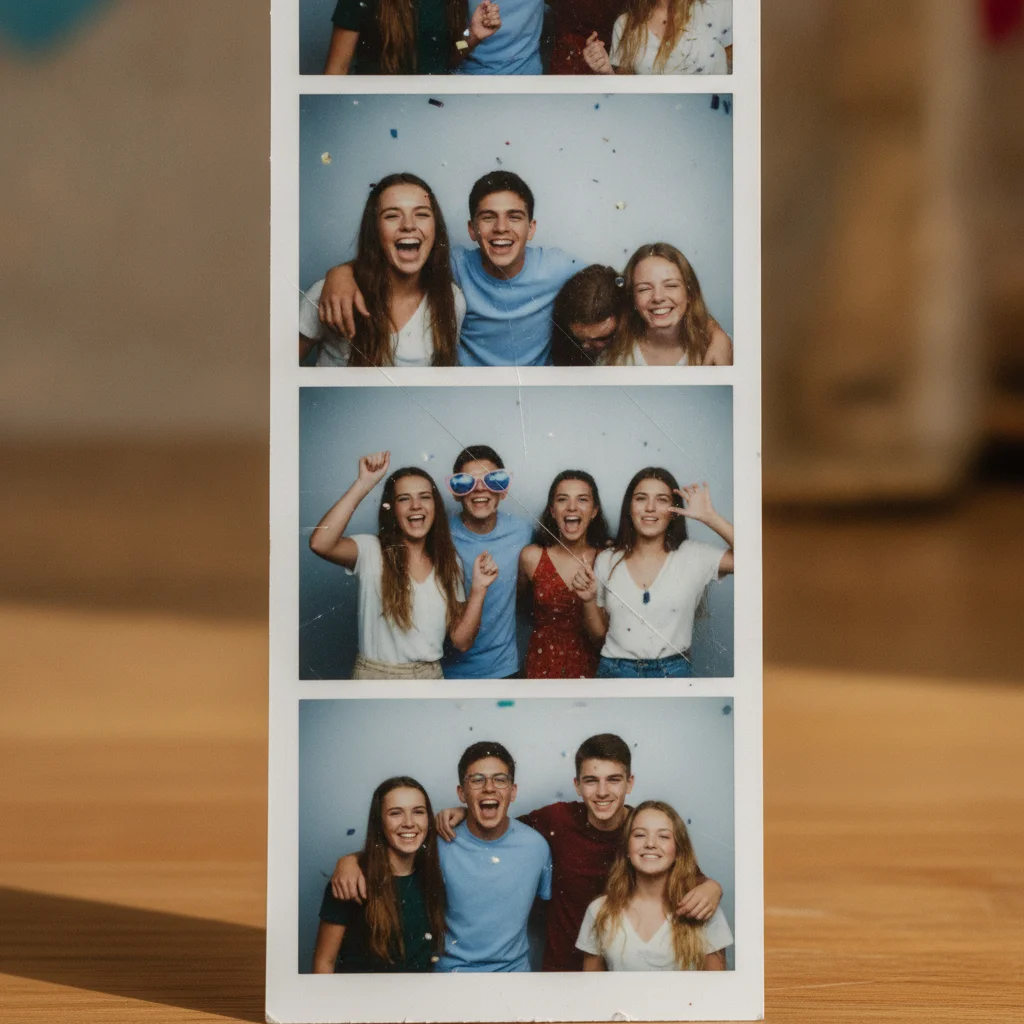
Color photobooth strip with four frames, prominent diagonal scratch across second frame, small scratches on other frames
Before
->
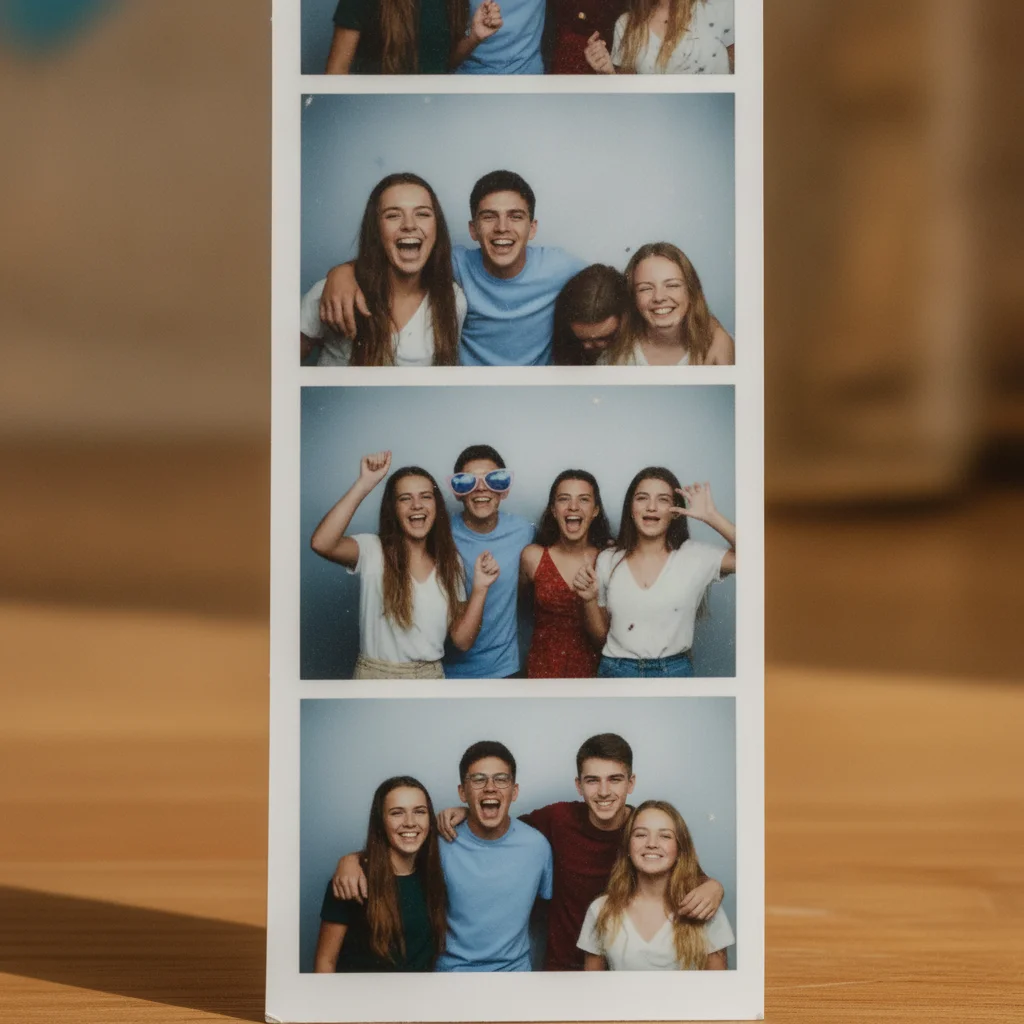
Restored photobooth strip with diagonal scratch repaired and filled, surface scratches removed, sharpened faces in all frames
After

Scratched strip repaired

A photobooth strip with multiple surface scratches and a large diagonal scratch across the second frame. The AI filled the scratch areas with matching content and restored face sharpness across all frames.

Prompt: repair this photobooth strip — remove the scratches and surface spots, fill with matching background, sharpen the images in each frame

Quick answers

Do I need to mark anything before describing the photobooth restoration I want?

No. Upload a photo or scan of your photobooth strip, then describe what needs fixing: 'restore this photobooth strip — fix fading, sharpen faces, repair scratches.' The AI processes the full strip from your text description. No selection tools or masking required.

How do I enhance a photobooth strip for free?

Photograph or scan your strip, upload the image to EditThisPic (JPG, PNG, WebP, or HEIC up to 7MB), type 'restore this photobooth strip — sharpen faces, fix fading and scratches,' and click Generate. The AI restores it in about 20 seconds. Free with no account required — one free edit per week, additional edits from $1.99 for a 3-pack.

Can AI fix a heavily faded or yellowed photobooth strip?

Yes, for most fading and yellowing. The AI corrects color casts and restores contrast effectively on strips with typical age-related discoloration. Very heavily degraded strips — where faces are nearly invisible through the damage — may need a second enhancement pass or individual frame crops for the best face detail recovery.

How should I photograph my photobooth strip for the best results?

Lay the strip flat on a plain white or neutral surface. Use natural daylight or a desk lamp positioned to one side (not directly overhead) to avoid flash glare. Clean the strip surface gently with a soft cloth before photographing. A flatbed scanner at 600 DPI or higher gives the sharpest input for heavily damaged strips — more detail in the scan means more detail the AI can recover.

Can I colorize a black-and-white photobooth strip?

Yes. Upload the black-and-white strip and type: 'restore and colorize this black-and-white photobooth strip — add natural realistic skin tones, hair color, and clothing colors, keep the strip layout intact.' The AI adds color while preserving the strip format. If you know specific colors in the original, include them in the prompt for a more accurate colorization.

What is the best way to restore a photobooth strip with scratches?

Prompt: 'repair this photobooth strip — remove the scratches and surface spots, fill with matching background, sharpen the images in each frame.' For a prominent scratch that runs through a face, add 'reconstruct the face features obscured by the scratch' to guide the fill. Very deep scratches that cut through important facial features may produce approximate reconstructions — the AI infers what was there based on surrounding image context.

Is EditThisPic's photobooth photo enhancer really free?

Yes. EditThisPic gives one free Fast edit per week with no account and no watermark on the output. For older family strips with multiple damage types that need several enhancement passes, additional edits start at $1.99 for a 3-pack or $4.99/month for 15 credits on the Lite plan.

Can I work on individual frames from a photobooth strip?

Yes, and this is the best approach for small frames or heavy damage. Crop your strip photo to a single frame before uploading — the larger the face in the image, the more detail the AI can recover. Run the full-strip enhancement first for overall fading and scratches, then crop and run per-frame sharpening on any frames where faces are still blurry.

Can I print the restored strip after downloading?

Yes. Download the restored image as PNG (best for print quality) and take it to any photo printing service — ask for the original strip dimensions (typically 2×6 inches) or print to standard photo strip paper at home. The restored image is a standard digital file, so any printer or service that handles digital photos can reproduce it.

How does EditThisPic compare to Photoshop for photobooth restoration?

Photoshop gives full manual control — layer adjustments, healing brush, frequency separation for fine face work — and is the best tool for archival-quality restoration of irreplaceable prints. EditThisPic is faster for a clean keepsake result: describe the damage, get a restored image in 20 seconds, no software to install. For a family photobooth strip you want to re-share or reprint, EditThisPic is sufficient. For museum-quality archival restoration, a professional tool with manual control is more appropriate.

Does this work on photo booth strips from different eras?

Yes. The AI handles color and black-and-white prints from various decades. 1950s–1970s black-and-white strips typically benefit most from combined sharpening + colorization. 1980s–1990s color strips often have yellow or orange color casts from chemical aging that the AI corrects well. 2000s digital-era strips typically need sharpening and minor contrast work rather than color correction.

How much does EditThisPic cost?

You get 1 free edit per week — no account needed. After that, credit packs start at $1.99 for 3 edits. Monthly plans start at $4.99/mo for 20 edits with unused credits rolling over. All edits are full resolution with no watermark.

Ready to restore your photobooth strips?

Free to try. No signup required.

1 free edit included·Credit packs from $4.99