AI Photo Editor for Event Photos
Last updated
Save every event photo, even the ones with photobombers and bad lighting.
Drop your photo here
"remove the person photobombing in the background behind the main subjects, fill naturally with the venue environment"
Release to upload
Built for Event Photographers
Events are chaotic. You can't control crowds, venue lighting, or who walks behind your subjects. But you can fix what went wrong after the fact. EditThisPic lets you describe what needs to change - remove that random guest, brighten the dark corner, clean up the background. The AI handles the tedious work so you can deliver a perfect album.
Tools Event Photographers Use Most
Remove Photobomber
Eliminate unwanted guests who walked into your shot
Enhance Lighting
Fix dark venue lighting and balance exposure
Remove Objects
Clear exit signs, cables, and venue clutter from frame
Enhance Faces
Improve facial details in group shots and portraits
How to AI Photo Editor for Event Photos
-
Upload your event photo
Drop your event image into EditThisPic. JPG, PNG, WebP up to 7MB. Works with wedding receptions, corporate events, birthday parties, concerts, and any gathering. Flash photos, ambient light, outdoor venues - any conditions work.
Single person removal: 25 seconds. Lighting fixes across a photo: 20 seconds. Complex group shot cleanup: may need 2-3 passes. -
Describe your edit in plain English
Type what you need: 'remove the waiter visible behind the bride' or 'brighten this dark reception photo and fix the yellow color cast.' Be specific about who or what to remove. For lighting, describe the look you want - 'natural,' 'bright,' or 'warm but not yellow.'
For group shots, use identifiers: 'the person in the red dress on the left' or 'the tall man behind the groom' helps the AI find the right person. -
Review and download
Check that removed people left natural-looking backgrounds. Verify skin tones look healthy after lighting adjustments. Ensure group shots have all intended faces visible and sharp. Download your album-ready event photo.
Copy-Paste Prompts for Event Photos
remove the person photobombing in the background behind the main subjects, fill naturally with the venue environment
'Behind the main subjects' tells the AI which layer of people to target
brighten the image significantly while keeping skin tones natural, reduce harsh shadows and balance exposure
'Skin tones natural' prevents the AI from over-brightening faces to the point of looking washed out
correct the yellow color cast to neutral white balance, make skin tones look healthy and natural
Works for any color cast - tungsten yellow, fluorescent green, or mixed lighting
remove the catering staff member visible at the edge of the frame, extend the background naturally
Works for any service staff - DJ, bartender, photographer assistant
Show 4 more prompts
remove the exit sign and any cables or equipment visible on the ceiling, fill with natural venue ceiling
Venues often have distracting safety signage - this cleans up the background
fix the red eye on all people in the photo, make eyes look natural
'All people' ensures the AI catches everyone, not just the main subjects
enhance all faces in the group shot to be sharp and clear, improve skin tones while keeping the image natural
Great for large group photos where some faces are soft or poorly lit
remove the random person walking through the foreground, restore the floor and background naturally
'Foreground' and 'background' help the AI understand depth in busy event scenes
| Edit Type | Prompt | Time | |
|---|---|---|---|
| Remove photobomber | remove photobomber in background |
25s | Try This → |
| Fix dark lighting | brighten, keep skin tones natural |
20s | Try This → |
| Fix color cast | correct yellow cast, neutral balance |
20s | Try This → |
| Fix red eyes | fix red eye on all people |
20s | Try This → |
Real Examples
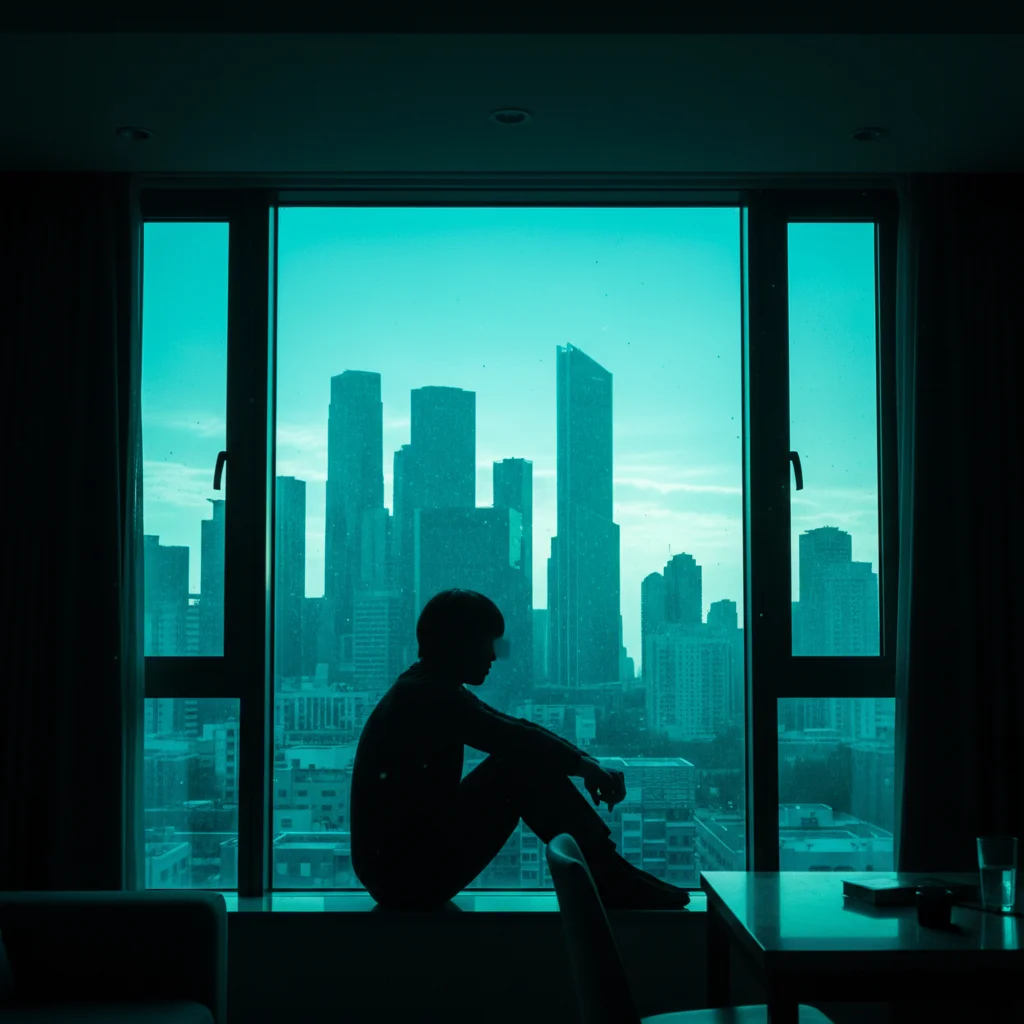
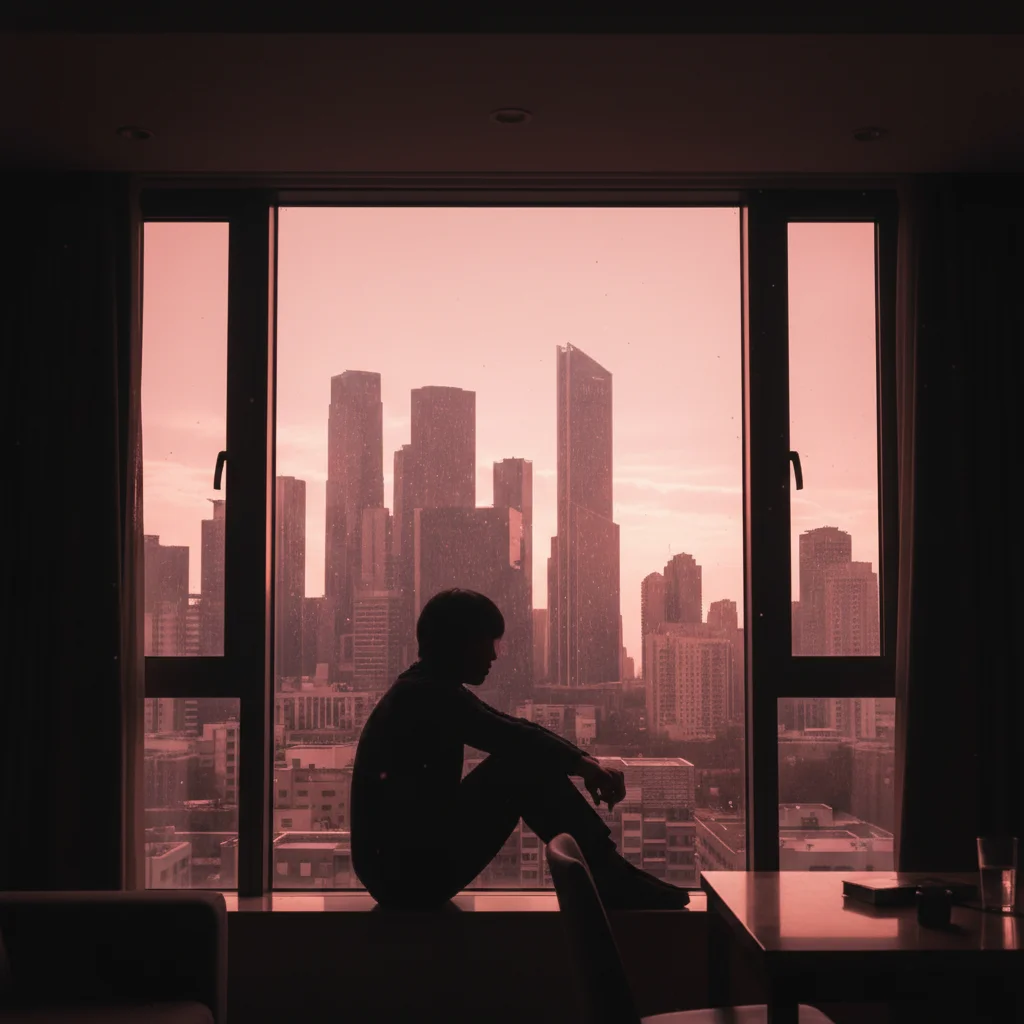
Backlit Indoor Scene Corrected
Photo taken indoors against a bright window with a city view — strong backlight turned the subject into a silhouette. Lighting correction warmed the scene and brought out detail.
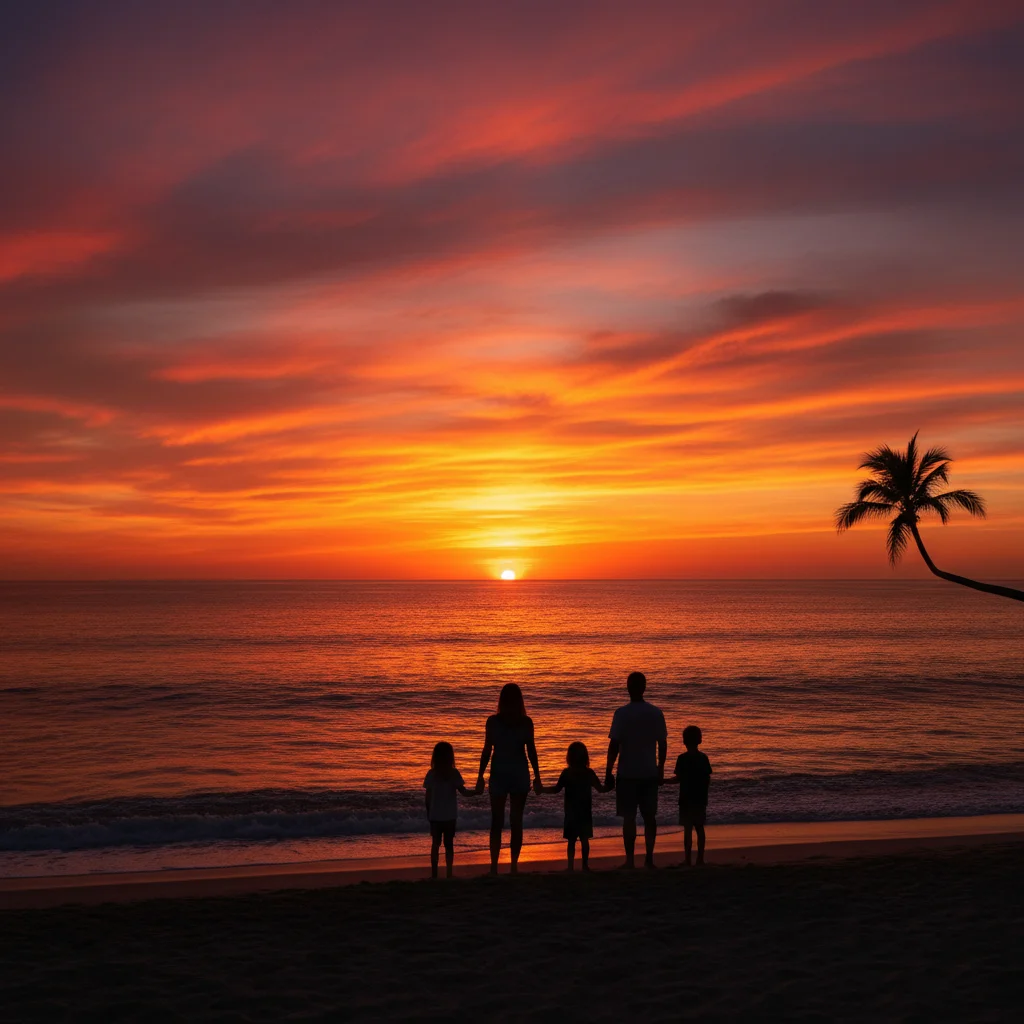
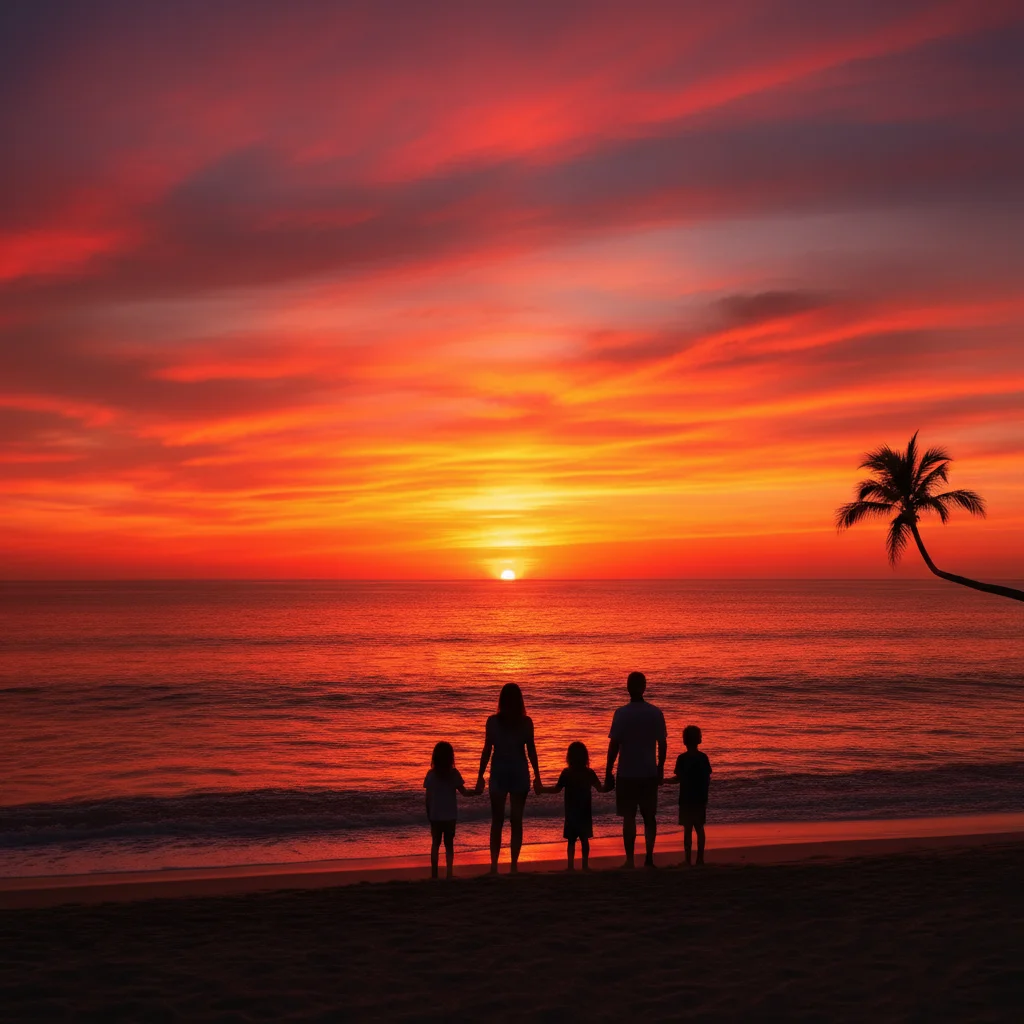
Beach Group Shot Brightened
Family photo at the beach with the sun behind them — subjects appeared as dark silhouettes. Warm exposure correction made faces and details visible.
Correct the backlight exposure on this outdoor photo, warm up the color balance and bring out the subjects
When Things Go Wrong
Lighting fix made skin look orange or unnatural
Why: Correcting color casts can sometimes over-correct or shift skin tones incorrectly.
adjust the skin tones to look natural and healthy, keep the lighting correction but fix skin colors
'Natural and healthy skin tones' is the key phrase for realistic results.
Group faces still look soft after enhancement
Why: Significantly out-of-focus faces can only be improved so much - the AI can't recreate missing detail.
sharpen the faces as much as possible while keeping them looking natural, enhance details
Very soft faces may look better slightly improved than artificially sharpened.
Frequently Asked Questions
Can I remove someone from a group photo without leaving a gap?
Yes. The AI will fill the space naturally, adjusting the remaining people and background to look seamless. For tightly grouped people, you may need a refinement pass to blend edges where the removed person was touching others.
Will the lighting fix work consistently across multiple photos from the same venue?
Yes. Save your lighting prompt and reuse it for photos from the same venue with similar lighting conditions. This ensures consistent look across an album. 'Brighten and correct yellow cast, natural skin tones' works well as a repeatable prompt.
Can it fix motion blur from dancing or movement?
Minor blur can be sharpened with 'enhance sharpness and detail.' However, significant motion blur is difficult to fully correct - the AI can improve it but can't recreate detail that was never captured. For dancing shots, try it and see if the improvement is acceptable.
How does it handle flash photography with harsh shadows?
Describe what you want: 'soften the harsh flash shadows, create more even lighting across the scene.' The AI can fill in shadow areas and balance exposure. Works well for typical flash photos from events.
Can I edit photos from concerts or low-light venues?
Yes. Low-light photos can be brightened and enhanced, though there are limits to how much detail can be recovered from very dark images. Stage lighting and colored lights can be balanced or preserved depending on your prompt.
What about corporate event photos with logos that need to stay?
Be specific about what to keep: 'remove the photobomber but keep the company banner visible.' The AI follows instructions, so mention any branded elements that must remain in frame.
Is EditThisPic's AI photo editor for event photos really free?
Yes — you get 1 free edit per week, no account needed. Plans start at $4.99/month for 15 edits.
Can I event photos on my phone?
Yes. EditThisPic works in any mobile browser — iPhone, Android, tablet. No app download needed.
Popular use cases
Ready to perfect your event photos?
Free to try. No signup required. No watermarks.
Upload Your Event PhotoTrusted by 15,000+ users