Grátis • Sem cadastro Remove Tourists · Grátis

Remove Tourists from Photo

Last updated

Get that perfect empty landmark shot without waiting hours for crowds to clear.
Colosseum interior with six tourists in colorful shirts blocking the view
Before
Clean Colosseum interior with all tourists removed showing stone arches
After

Remove Tourists from Photo

Upload photo to remove tourists

Free • Results in 30 seconds • No signup

Release to upload

GratisSem cadastroSem marca d'agua

1 free edit·then from $1.99

Popular use cases:
  • travel photographers
  • vacation photos
  • landmark photography
  • Instagram travel content
  • tourism marketing
  • architectural photography
  • destination weddings
  • travel bloggers

Cost
Free No signup required
Time
Instant results in 15-30 seconds
Works on
Any device - browser, phone, tablet, desktop
Powered by
AI-powered photo editing
Scenario Prompt Time
Remove all tourists remove all tourists and restore the landmark background 25s
Keep companions remove strangers but keep the person in [description] 30s
Crowded scene remove tourists in foreground first, then background 45s
Specific area only remove tourists on the [left/right] side only 20s

How it works

  1. Envie sua foto

    Arraste sua imagem para o EditThisPic. JPG, PNG, WebP up to 7MB. Works with landmark photos, beach shots, museum interiors, scenic overlooks, busy streets, or any location with unwanted people in the background.

    Expect: Few tourists on simple backgrounds: 20-30 seconds. Crowded scenes with complex architecture or patterns: may need 2-4 refinements for perfect results.
  2. Describe who to remove

    Type your instruction: 'remove all the tourists in the background and restore the landmark' or 'remove the people walking through the shot and show the empty plaza.' Be specific about keeping your travel companions if needed. No marking required - a IA entende what 'tourists' and 'people in background' mean.

    Tip: Add 'keep the person in the blue dress in the center' or similar to preserve your travel companions while removing all strangers.

    Copy one of these to get started:

    Clear all tourists from famous landmark remove all the tourists and people in the background and restore the landmark architecture naturally
    Keep travel companion while removing strangers remove all the strangers in the background but keep the person in the center wearing the red jacket untouched
    Beach or coastal scene cleanup remove all the tourists on the beach and in the water, restore the sand and ocean naturally
    Museum or gallery interior remove all the visitors walking through the museum and restore the marble floor pattern and gallery walls
    4 more prompts
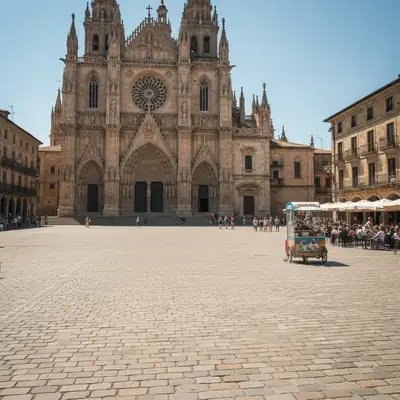
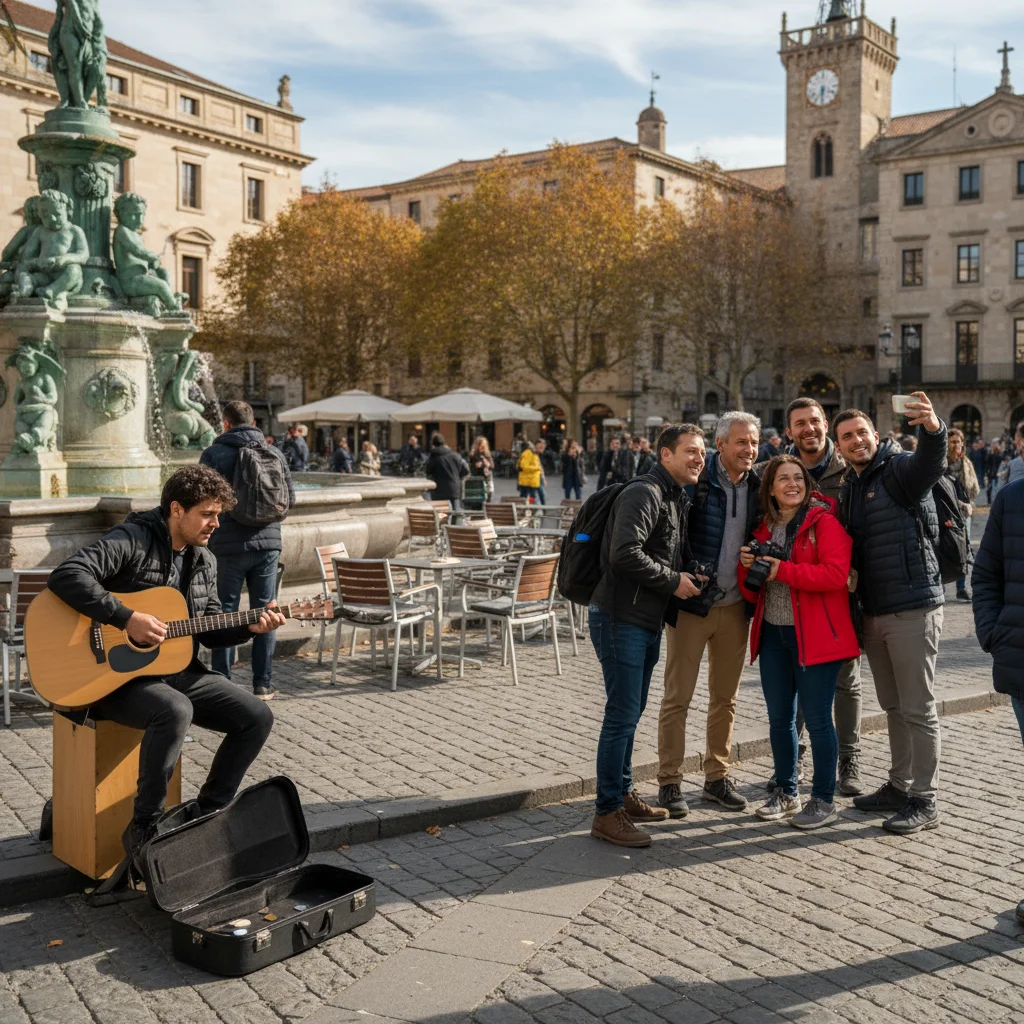
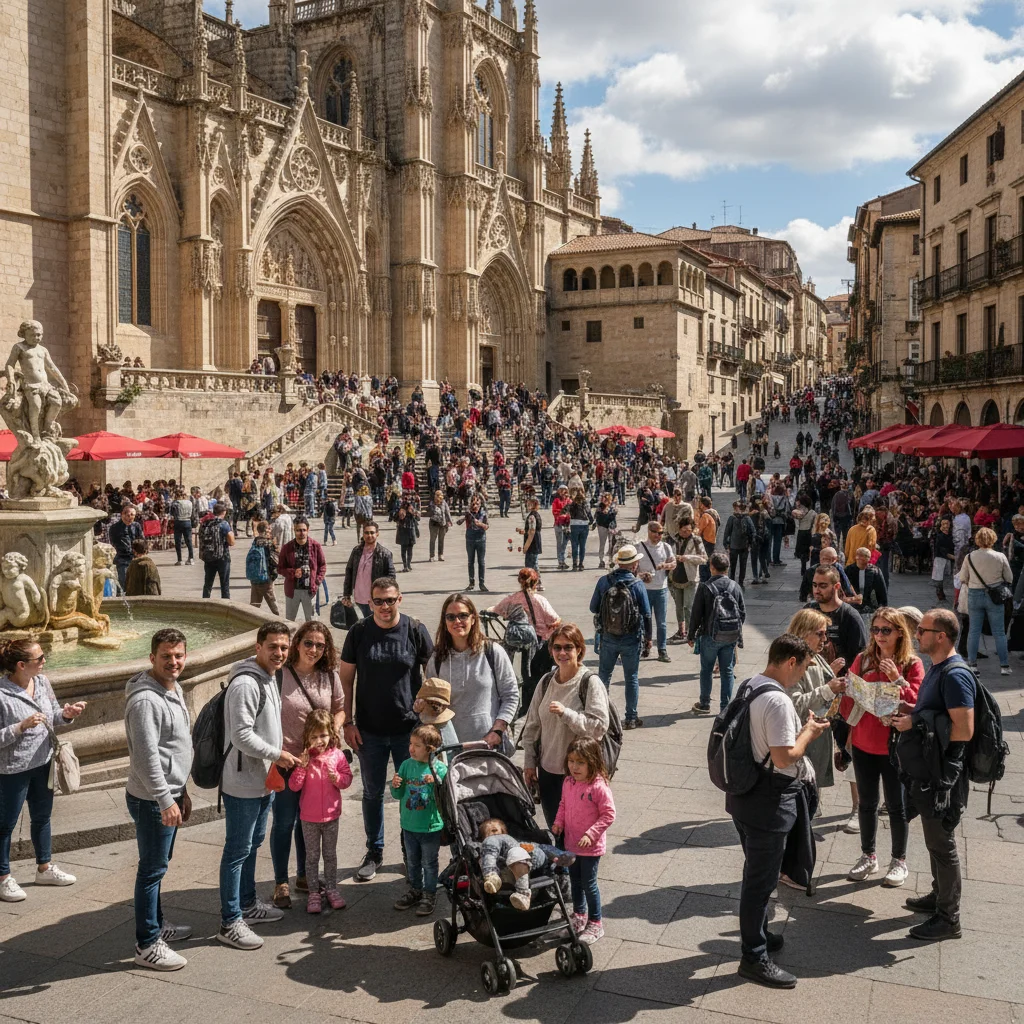
    Crowded plaza or public square remove all the people from the plaza and show the empty cobblestone square with the surrounding buildings
    Scenic overlook or viewpoint remove the tourists blocking the view and restore the natural landscape and horizon behind them
    Partial cleanup - specific area only remove only the tourists on the left side of the frame, keep the right side exactly as it is
    Temple, church, or religious site interior remove all the visitors from inside the temple and restore the stone floor and architectural details
  3. Gere e revise

    Check that all unwanted people are removed and the background looks natural. Zoom in to verify architectural details, floor patterns, and landscape elements are properly reconstructed. Pay attention to shadows and reflections.

  4. Refine with markers if needed

    If some tourists remain or the AI accidentally removed your travel companion, tap markers on those specific people and regenerate. This helps with very crowded scenes or when people overlap.

    Tip: Mark people at the edges of frame first - they're easiest to remove cleanly since background extends naturally.
  5. Process in stages for heavy crowds

    For extremely crowded photos, work in stages. First remove the most prominent people, then address remaining figures in a second pass. This gives better background reconstruction than trying to remove everyone at once.

    Tip: Start with 'remove the tourists in the foreground first' then 'now remove the remaining people in the background' for complex scenes.
Try it free

Remove Tourists from Photo

Upload photo to remove tourists

Free • Results in 30 seconds • No signup

Release to upload

Grátis • Sem cadastro

See it in action
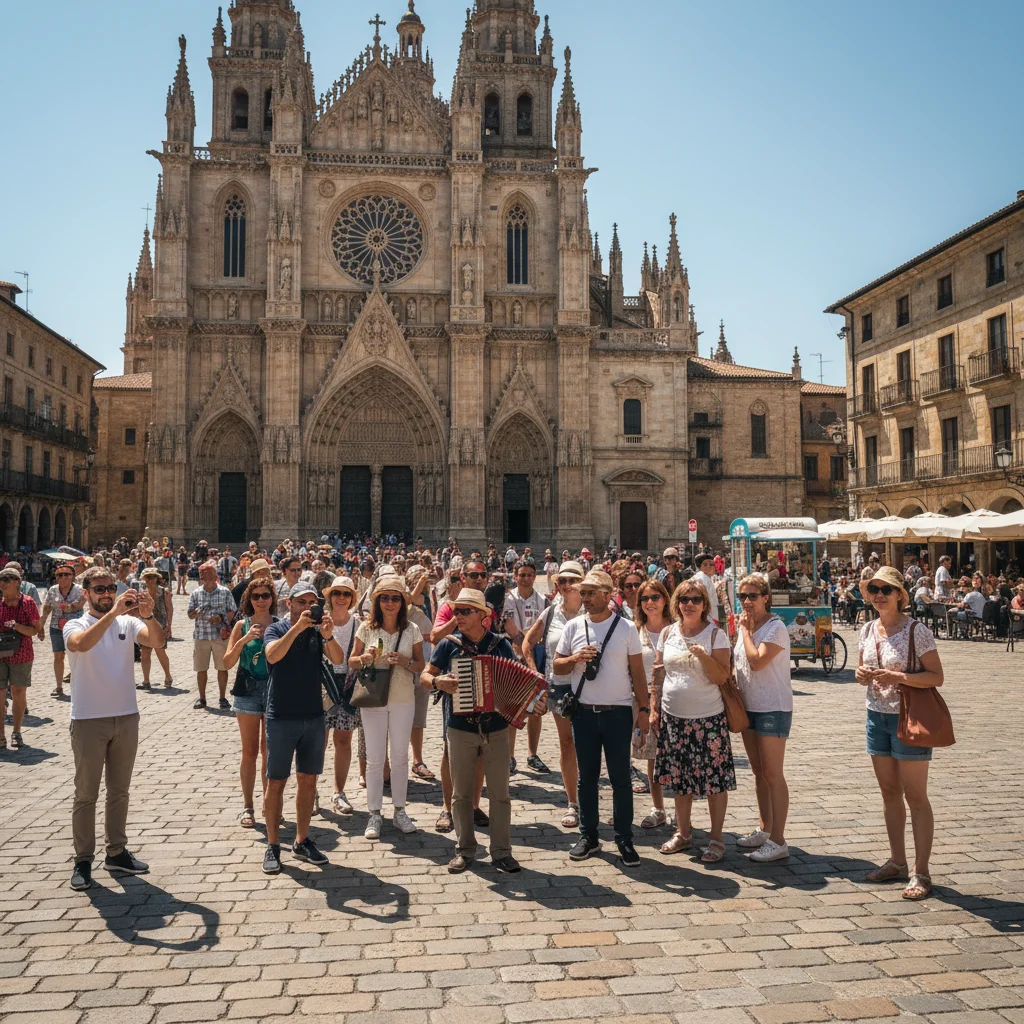
Colosseum interior with six tourists in colorful shirts blocking the view
Before
->
Clean Colosseum interior with all tourists removed showing stone arches
After

Empty Colosseum shot achieved

Crowded tourist photo of the Roman Colosseum transformed into a clean architectural shot worthy of a travel magazine.

Prompt: remove all the tourists in the background and restore the ancient stone architecture
Tropical beach crowded with tourists in colorful swimwear
Before
->
Empty paradise beach with pristine white sand and turquoise water
After

Paradise beach without crowds

Popular tropical beach was packed with sunbathers and swimmers. Removed everyone for that perfect postcard-worthy shot.

Prompt: remove all the tourists on the beach and in the water, restore the sand and turquoise ocean naturally
Art museum gallery with visitors in yellow and red blocking artwork
Before
->
Clean museum gallery with visitors removed and marble floor restored
After

Art museum gallery cleared

Wanted a clean shot of the gallery without other visitors walking through. AI reconstructed the marble floor pattern perfectly.

Prompt: remove all the museum visitors and restore the gallery floor and walls completely
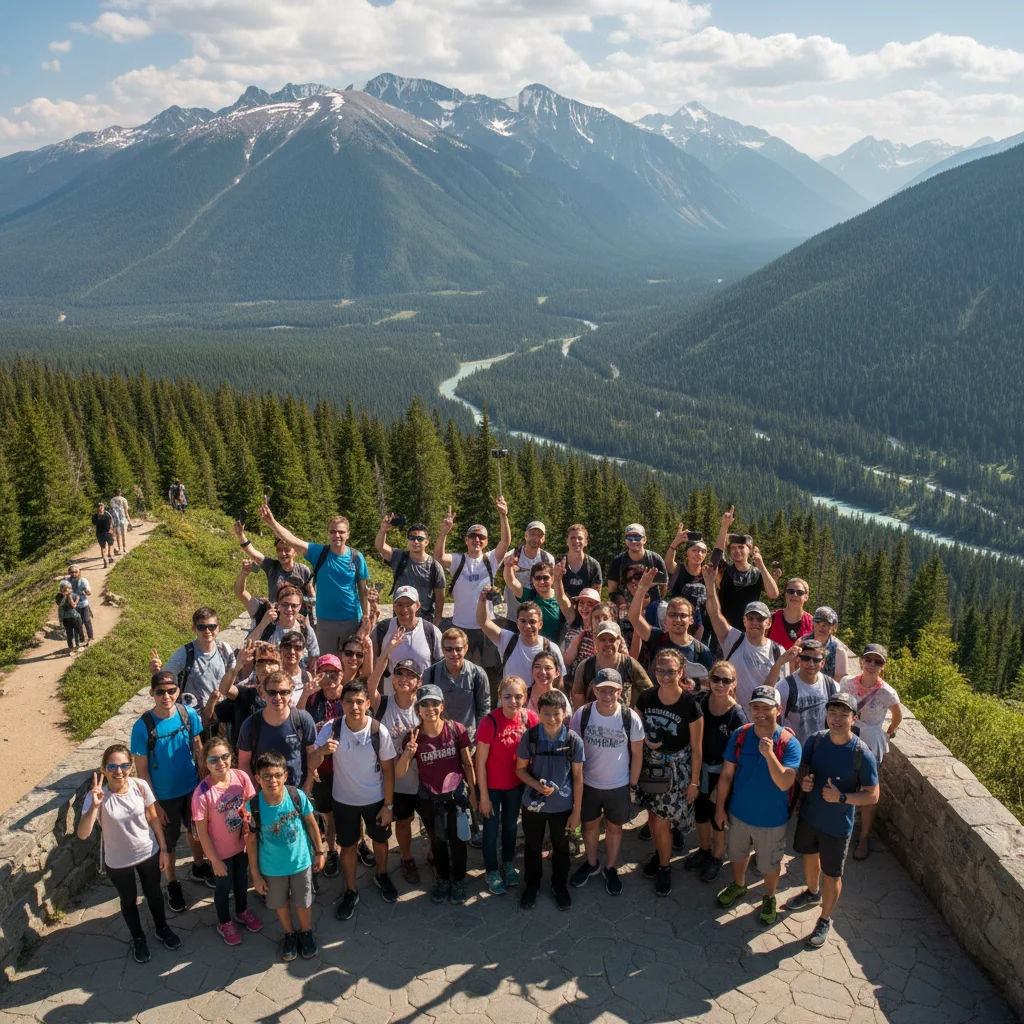
Mountain viewpoint with tourists in colorful jackets at railing
Before
->
Clean mountain viewpoint with tourists removed showing full landscape
After

Mountain viewpoint cleared

Scenic overlook was crowded with tourists taking selfies. Removed them all to capture the pure landscape vista.

Prompt: remove all the tourists at the viewpoint and restore the natural mountain landscape behind them

If something looks off

AI removed my travel companion along with the tourists

Why: The AI interpreted 'tourists' or 'people' to include everyone in the photo, not distinguishing between strangers and your group.

Try: restore the person in the [color] clothing at [position] while keeping all other tourists removed

Tip: Always describe who to keep in your original prompt: 'remove strangers but keep the woman in the blue sundress in the center.'

Some tourists still remain in the photo after processing

Why: Partially hidden people, those blending with backgrounds, or very crowded scenes may need multiple passes.

Try: Tap markers on each remaining person, then regenerate with 'remove these specific people and restore the background'

Tip: Process very crowded scenes in stages - remove foreground people first, then background in a second pass.

Reconstructed architectural details look wrong

Why: The AI had to infer complex architecture, patterns, or textures that weren't fully visible behind the people.

Try: fix the background architecture where tourists were removed to match the visible [columns/arches/stonework] pattern

Tip: Reference specific nearby visible elements: 'match the brick pattern to the area on the left.'

Floor or ground pattern doesn't continue correctly

Why: Repeating patterns like tiles, cobblestones, or marble require the AI to extend patterns it could only partially see.

Try: correct the floor pattern where the tourists were removed to continue the [tile/cobblestone/marble] design seamlessly

Tip: Zoom in and mark specific pattern breaks for targeted fixes in subsequent passes.

Shadows from tourists still visible on ground

Why: The AI focused on removing the people but their cast shadows remain as artifacts.

Try: remove the remaining shadows on the ground where the tourists were standing and blend naturally

Tip: Include 'and their shadows' in your original prompt for cleaner first-pass results.

AI changed the wrong area or removed something important

Why: The AI couldn't determine exactly which people you wanted removed based on the description alone.

Try: Tap markers only on the specific people to remove, then regenerate with the same prompt

Tip: Markers tell the AI exactly who to remove when your description might be ambiguous in crowded scenes.

Reflections of tourists visible in windows or water

Why: Reflections are processed separately from the actual people and may be missed.

Try: remove the reflections of tourists in the [windows/water/glass surfaces] as well

Tip: For scenes with reflective surfaces, mention 'remove tourists and their reflections' in your original prompt.

Quick answers

Do I need to mark each tourist before describing who to remove?

No! Basta descrever what you want: 'remove all tourists in the background' or 'clear the people from the plaza.' The AI understands who counts as 'tourists' or 'strangers.' Only use markers when the AI misses specific people, when you need to specify exactly who to remove in a very crowded scene, or when it accidentally removes someone you wanted to keep.

Can I keep some people while removing others?

Yes, this is a common need. Describe who to keep specifically: 'remove all strangers but keep the woman in the blue dress in the center' or 'clear tourists but preserve the couple on the left.' Be specific about clothing colors, positions, or other distinguishing features so the AI knows exactly who to preserve.

How does it handle complex backgrounds like famous architecture?

The AI reconstructs architectural details, floor patterns, and landscape elements based on visible portions of the image. For famous landmarks like the Eiffel Tower or Colosseum, it often 'knows' the typical appearance from training. Complex repeating patterns may need refinement passes.

Will this work on extremely crowded photos with dozens of people?

Yes, but heavily crowded scenes work best when processed in stages. The AI performs better when some background is visible between people. Start with 'remove tourists in the foreground' then 'remove remaining people in background' for optimal reconstruction quality.

What about shadows and reflections cast by the tourists?

The AI typically removes shadows along with the people. If shadows remain, include 'and their shadows' in your prompt or mark the shadow areas for a second pass. Reflections in windows, water, or glass may need separate mention: 'remove tourists and their reflections.'

Does it work better on certain types of landmarks or locations?

The tool works on all locations but performs best when some background is visible between tourists. Outdoor landmarks with sky backgrounds, beaches with sand and water, and museums with visible floor patterns all reconstruct well. Very tight crowds with no visible background may need multiple passes.

How much does EditThisPic cost?

You get 1 free edit per week — no account needed. After that, credit packs start at $1.99 for 3 edits. Monthly plans start at $4.99/mo for 15 edits with unused credits rolling over. All edits are full resolution with no watermark.

How EditThisPic compares

Tool Free tier Per-edit cost AI-powered Signup required
EditThisPic 1 free edit/week From 27¢ Yes (Gemini) No
Adobe Photoshop 7-day trial ~$22.99/mo subscription Yes (Firefly) Yes
Remove.bg Low-res preview only ~20¢/HD edit Background only Yes (for HD)
Canva Basic tools only $15/mo Pro for AI Partial (Pro tier) Yes

Ready to get that perfect empty landmark shot?

Gratis to try. Sem cadastro required.

1 free edit included·Credit packs from $1.99