How to Remove Dark Circles from Photos
To remove dark circles from a photo, upload your image to EditThisPic and type 'remove the dark circles under the eyes' or 'brighten the under-eye area.' The AI evens out the skin tone beneath your eyes while keeping the rest of your face natural. Free, no signup.
Why Dark Circles Look Worse in Photos
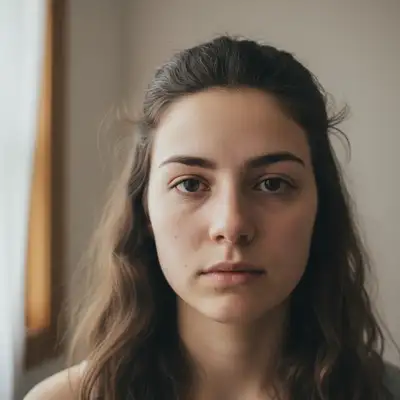
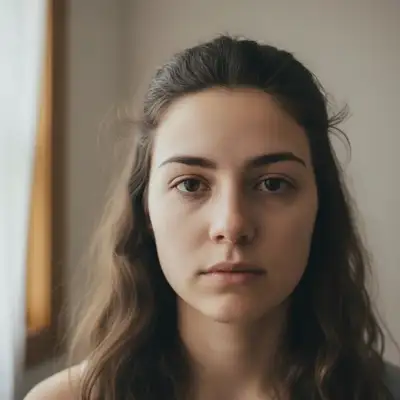
Cameras pick up more contrast than your eyes do. The thin skin under your eyes sits over blood vessels and hollow bone, creating shadows that direct flash intensifies. Overhead lighting, common in offices and bathrooms, casts downward shadows that deepen the effect. Even well-rested people can look exhausted in photos taken under harsh lighting. AI retouching evens out these shadows without removing the natural depth that makes eyes look real.
Types of Under-Eye Issues the AI Can Fix
- Dark circles from genetics or thin skin (bluish-purple discoloration)
- Under-eye bags and puffiness (raised areas below the eyes)
- Shadows cast by harsh overhead or side lighting
- Hollow under-eye areas that create deep shadows
- Discoloration from fatigue, allergies, or aging
How AI Under-Eye Correction Works
The AI analyzes skin tone around and beneath the eyes, then brightens the darker areas to match the surrounding skin. It reduces puffiness by smoothing contour transitions. The correction preserves the natural subtle shadow under the eye so the result doesn't look flat or plastic. It handles asymmetrical dark circles too, adjusting each eye independently.
Keeping It Natural
The goal is 'well-rested,' not 'airbrushed.' Start with 'reduce the dark circles' rather than 'remove all shadows under the eyes.' Some shadow under the eye is natural and removing it entirely makes the face look uncanny. If the first edit is too subtle, ask for more. If it's too strong, say 'make it more subtle — just reduce, don't remove.'
When to Use Under-Eye Retouching
Professional headshots are the most common use case — you want to look alert and polished. Job interview photos, LinkedIn profile pictures, and speaker bios all benefit from a quick under-eye touch-up. Wedding and event photos where you were tired but needed to look your best. Morning-after photos from vacations. Any portrait where harsh lighting made you look more tired than you actually were.
Step-by-Step Guide
Upload Your Portrait
Drop your photo into EditThisPic. Headshots, selfies, and portraits all work. The closer the face is to the camera, the more precisely the AI can target the under-eye area.
Describe What to Fix
Type 'remove the dark circles under the eyes,' 'brighten the under-eye area,' or 'reduce the bags under the eyes.' Be specific: 'just the left eye' if only one side is dark.
Check the Result
Zoom in on the eye area. The skin tone should look even but not flat. Some natural shadow should remain. If the result looks too smooth, ask for 'a more natural look with some texture.'
Fine-Tune If Needed
If circles are still visible, try 'brighten the under-eye area more.' If the edit went too far, say 'bring back some of the natural shadow — it looks too flat.' Small adjustments get the best results.
Frequently Asked Questions
Erase Under-Eye Dark Circles
Upload your photo and brighten those tired-looking eyes in seconds. Free, instant results.
Drop your photo to start editing
"remove the dark circles under the eyes and restore natural skin tone"
Release to upload