Kostenlos • Keine Anmeldung Remove Pet · Kostenlos

pet aus Foto entfernen

Erase pets from photos with a simple text description.
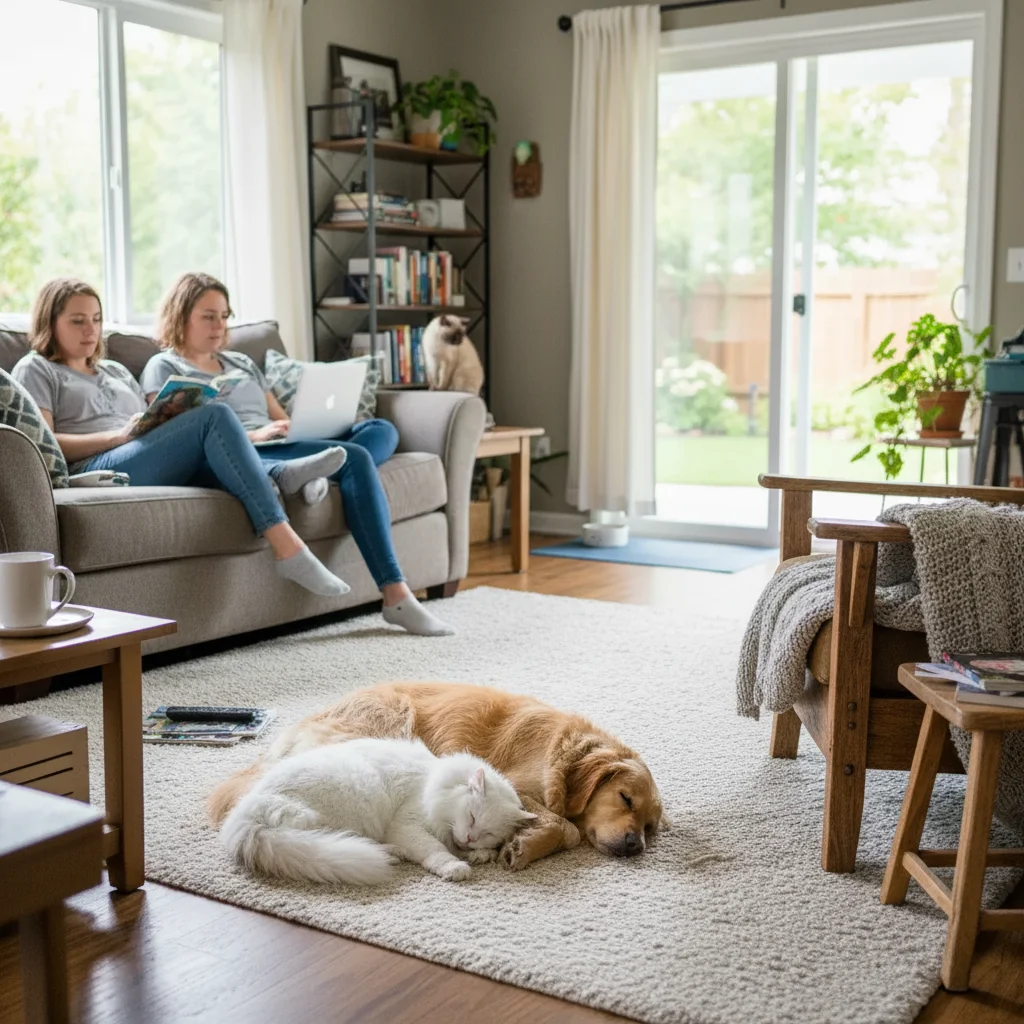
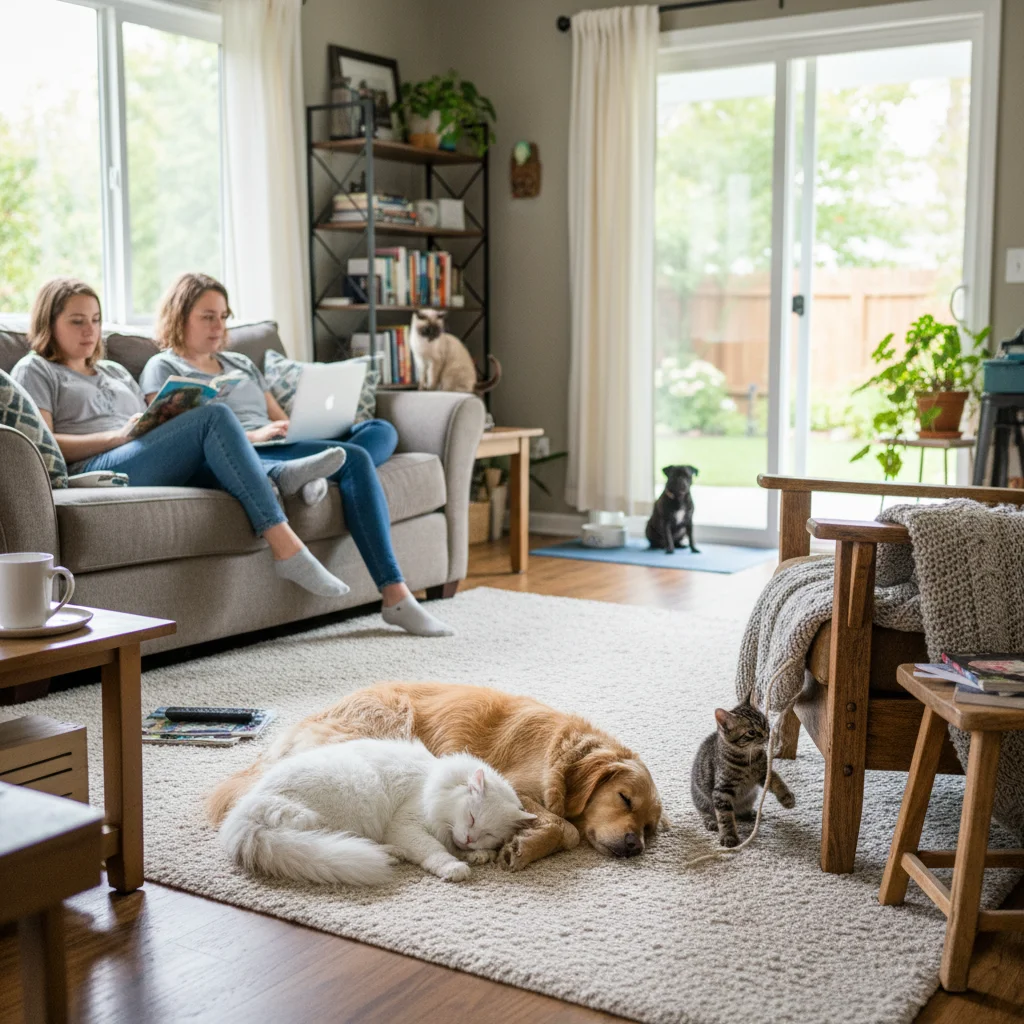
Living room with golden retriever on hardwood floor
Before
Clean living room with pet removed, hardwood floor restored
After

pet aus Foto entfernen

Drop your photo here

or click to browse

Release to upload

Kostenlos • Keine Anmeldung

Advertisement
Popular use cases:
  • Real estate photography
  • Property listings
  • Airbnb photos
  • Rental photos
  • Interior photography
  • Home staging
  • Furniture photos

Cost
Free No signup required
Time
Instant results in 15-30 seconds
Works on
Any device - browser, phone, tablet, desktop
Powered by
AI-powered photo editing
Scenario Prompt Time
Dog on floor remove the dog and fill with matching floor 25s
Cat on furniture remove the cat and show upholstery underneath 30s
Pet in yard remove the pet and continue the grass naturally 20s

How it works

  1. Upload your photo

    Drop your image into EditThisPic. JPG, PNG, WebP up to 7MB. Photos where the pet is clearly visible against a distinct background work best for clean removal.

    Expect: Pet against simple background: 20-30 seconds. Complex scenes or pets overlapping with subjects: may need 2-3 refinements.
  2. Describe what you want

    Type your instruction: 'remove the dog and fill with the background' or 'erase the cat from the photo.' Be specific about which pet if multiple animals are present. No marking needed - the AI recognizes pets automatically.

    Tip: Describe what should fill the space: 'fill with matching floor tiles' or 'continue the grass pattern' for more realistic results.

    Copy one of these to get started:

    Dog in room photo remove the dog and fill the space with matching floor and background
    Cat on furniture remove the cat from the couch and show the upholstery underneath
    Pet in outdoor photo remove the pet from the yard and continue the grass naturally
    Multiple pets remove all pets from the photo and fill with clean background
    3 more prompts
    Pet with shadow remove the dog and its shadow completely from the room
    Real estate listing cleanup remove the pet for real estate photo, show empty floor space
    Specific pet in group remove only the black cat on the left, keep the other pets visible
  3. Generate and review

    Check the area where the pet was. Verify the background is reconstructed seamlessly, floor or ground patterns match, and no pet remnants (fur, shadows, toys) remain.

  4. Refine with markers if needed

    If part of the pet remains or the background looks patchy, tap markers on those spots and regenerate. This is optional - most pet removals work without markers.

    Tip: Mark any pet accessories (toys, bowls, bed) separately if you want those removed too.
Try it free

pet aus Foto entfernen

Drop your photo here

or click to browse

Release to upload

Kostenlos • Keine Anmeldung

"Needed a clean shot of my living room for the rental listing. Removed my cat from the couch in seconds!" @landlord_jenny_m

See it in action

Living room with golden retriever on hardwood floor
Before
->
Clean living room with pet removed, hardwood floor restored
After

Living room listing cleanup

Real estate photo needed without the family dog. AI removed the pet and reconstructed the floor.
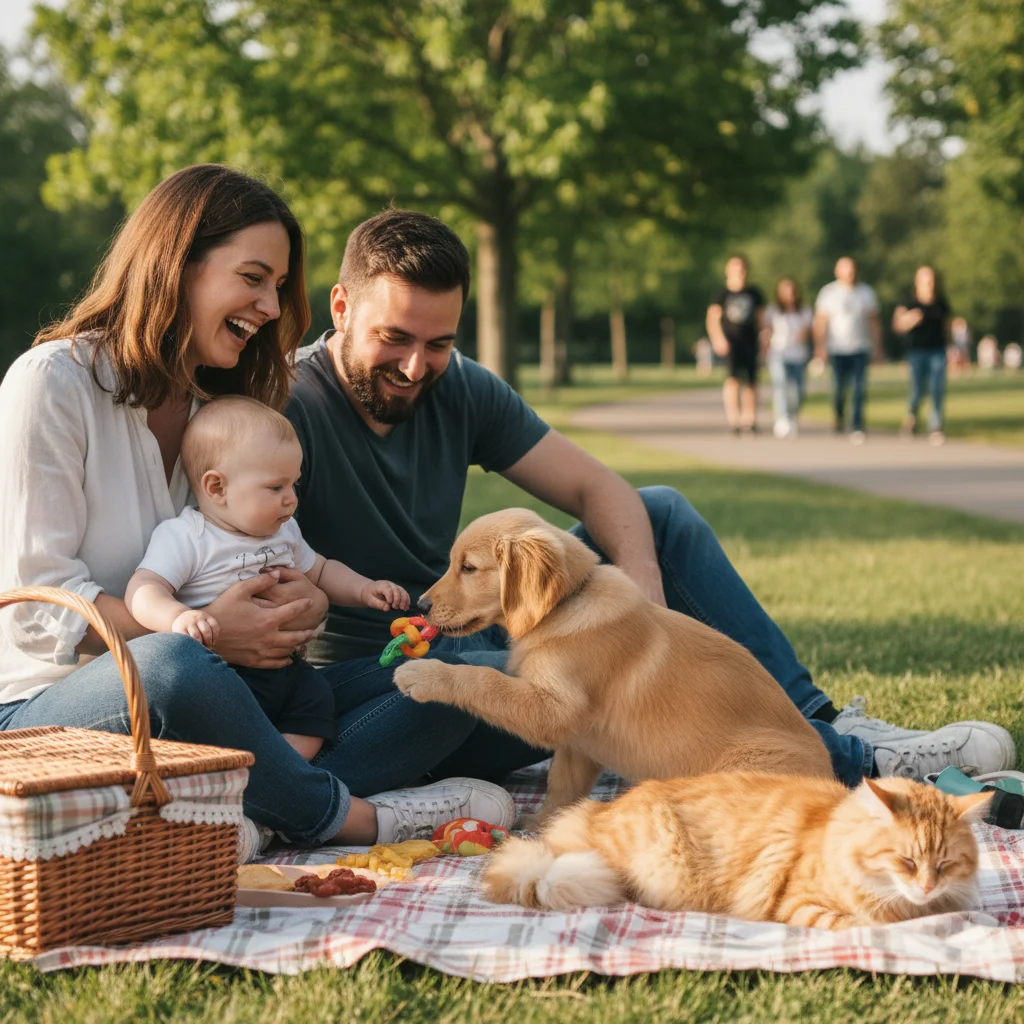
Prompt: remove the dog and fill the space with matching floor and background
Gray sofa with black cat sitting on cushion
Before
->
Clean gray sofa with cat removed, cushion restored
After

Cat removed from couch

Furniture photo for sale needed without the cat. AI revealed the clean upholstery underneath.
Prompt: remove the cat from the couch and show the upholstery underneath
Backyard with small white dog on grass
Before
->
Clean backyard with dog removed, grass continued naturally
After

Backyard pet removal

Garden photo for Airbnb needed without the dog. AI continued the grass pattern seamlessly.

Prompt: remove the pet from the yard and continue the grass naturally
Advertisement

If something looks off

Pet shadow or outline still visible after removal

Why: The AI removed the pet but left the shadow or color variation it created on the surface.

Try: remove the pet and any shadow or discoloration it left behind

Tip: Pets often cast obvious shadows - mention shadow removal specifically.

Floor or background pattern looks patchy

Why: The AI had difficulty reconstructing continuous patterns where the pet was located.

Try: remove the pet and reconstruct the [floor type] pattern seamlessly

Tip: Be specific about surface: 'hardwood planks,' 'carpet texture,' 'tile pattern' helps matching.

AI changed the wrong area or something I didn't want changed

Why: The AI couldn't determine exactly which area you meant from description alone. This happens with ambiguous requests.

Try: Tap a marker on the specific pet you want to change, then regenerate with the same prompt

Tip: Markers tell the AI 'I mean THIS one specifically.' Use them when description alone is ambiguous.

Pet accessories like toys or bowls still visible

Why: The AI focused on removing the animal but not associated objects that weren't mentioned.

Try: remove the pet along with its toys, bowl, and bed from the photo

Tip: List all pet-related items you want removed in your prompt.

Part of the pet still visible at edges

Why: Pets with similar coloring to backgrounds or those partially obscured may not be fully detected.

Try: Tap markers on remaining pet parts and regenerate: 'remove all traces of the pet'

Tip: Zoom in to check edges carefully, especially tails and ears.

Quick answers

Do I need to mark the pet before describing?

No! Just describe what you want: 'remove the dog' or 'erase the cat.' The AI recognizes pets automatically. Only use markers when multiple pets are present and you need to specify which one, or when parts remain after the first attempt.

Will the background look natural after removing the pet?

In most cases, yes. The AI reconstructs the surface behind the pet based on surrounding patterns. Simple, consistent backgrounds like floors, grass, or solid surfaces give the best results. Describe the surface type for better matching.

Can I remove multiple pets at once?

Yes! Use 'remove all pets' in your prompt. For photos with many animals, you may get better results removing them one at a time, especially if they're overlapping or in complex positions.

What about pet hair left on furniture?

Scattered pet hair is harder to detect than the pet itself. For best results, focus on removing the pet first. Light fur on fabric may blend into the reconstruction naturally, or you can run a second pass focusing on the specific area.

Is this useful for real estate photos?

Absolutely! Real estate agents commonly need pet-free photos for listings. Use prompts like 'remove the pet for real estate photo' to get clean, professional-looking spaces suitable for property listings.

Ready to remove that pet?

Free to try. No signup required.

Try it free