Grátis • Sem cadastro Remove Double chin · Grátis

Remove Double Chin from Photo

Last updated

Slim and contour your chin naturally with one simple instruction.

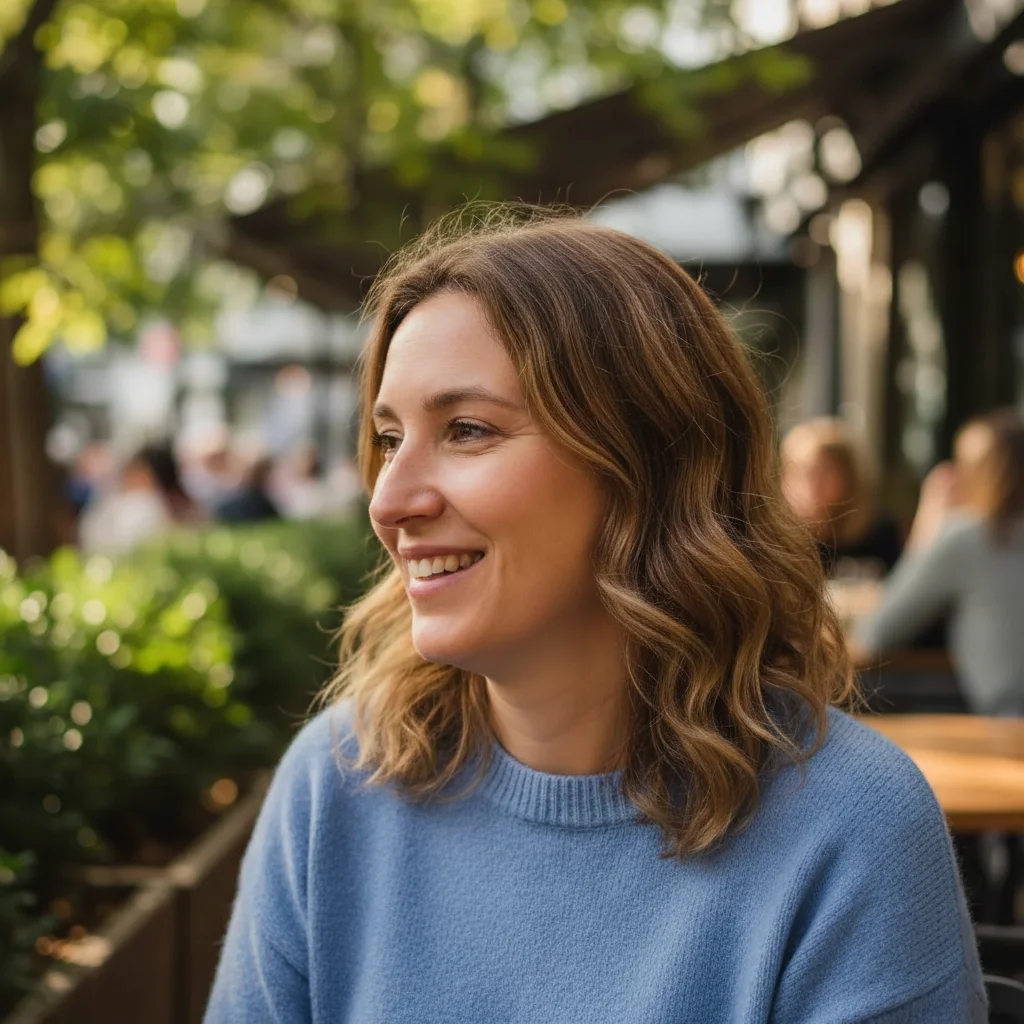
Professional headshot with undefined chin area
Before
Same headshot with naturally contoured jawline
After

Remove Double Chin from Photo

Upload photo to remove double chin

Free • Results in 30 seconds • No signup

Release to upload

GratisSem cadastroSem marca d'agua

1 free edit·then from $1.99

Popular use cases:
  • LinkedIn headshots
  • dating profile photos
  • selfie improvement
  • wedding guest photos
  • professional portraits
  • social media photos
  • video call thumbnails
  • resume photos

Cost
Free No signup required
Time
Instant results in 15-30 seconds
Works on
Any device - browser, phone, tablet, desktop
Powered by
AI-powered photo editing
Scenario Prompt Time
Professional headshot slim and contour chin for defined jawline 15s
Selfie from bad angle fix unflattering chin angle naturally 20s
Group photo (just you) reduce my double chin without changing others 25s

How it works

  1. Envie sua foto

    Drop your portrait into EditThisPic. JPG, PNG, WebP up to 7MB. For best results, use a photo where your face is clearly visible. Any lighting works, though even lighting produces the most natural results.

    Expect: Simple portraits: 15-30 seconds. Complex angles or multiple people: may need 2-3 refinements.
  2. Descreva o que voce quer

    Type your instruction: 'slim and contour the chin area for a more defined jawline' or 'reduce the double chin and create a natural-looking neckline.' Be specific about how natural you want it. The AI understands facial features and will make subtle, realistic adjustments. Sem marcacao necessaria.

    Tip: Include 'subtle' or 'natural-looking' in your prompt for conservative changes that still look like you.

    Copy one of these to get started:

    General chin slimming for portraits slim and contour the chin area for a more defined jawline while keeping the face natural
    Professional headshot refinement reduce the double chin and create a clean jawline suitable for a professional headshot
    Selfie with challenging angle slim the chin area and improve the jawline definition while maintaining natural shadows
    Group photo where you want to slim just your chin reduce my double chin and define my jawline without changing anything else in the photo
    4 more prompts
    Wedding or formal event photo subtly contour the chin and neck area for a more flattering look while preserving the formal portrait quality
    Casual photo with double chin from camera angle fix the unflattering chin angle and create a natural-looking jawline as if photographed from a better angle
    Dating profile photo slim the chin area and define the jawline for a confident, natural-looking profile photo
    Photo with shadows under chin reduce the double chin while blending the shadows naturally for a clean neckline
  3. Revise o resultado

    Check the edited photo at full zoom. Look at the jawline transition, neck area, and overall facial proportions. The best edits enhance without dramatically changing your appearance. Toggle between before and after to see the difference.

  4. Refine with markers if needed

    If specific areas need adjustment, tap a marker on that spot and regenerate. For example, if one side of the jawline needs more work, mark that area specifically. This is optional and most portraits work without markers.

    Tip: Markers are for precision refinement, not a required step. Try without them first.
Try it free

Remove Double Chin from Photo

Upload photo to remove double chin

Free • Results in 30 seconds • No signup

Release to upload

Grátis • Sem cadastro

See it in action

Professional headshot with undefined chin area
Before
->
Same headshot with naturally contoured jawline
After

Professional headshot refinement

LinkedIn headshot needed a cleaner jawline. One prompt created a subtle but noticeable improvement while keeping the professional look.

Prompt: slim and contour the chin area for a more defined jawline while keeping the face natural
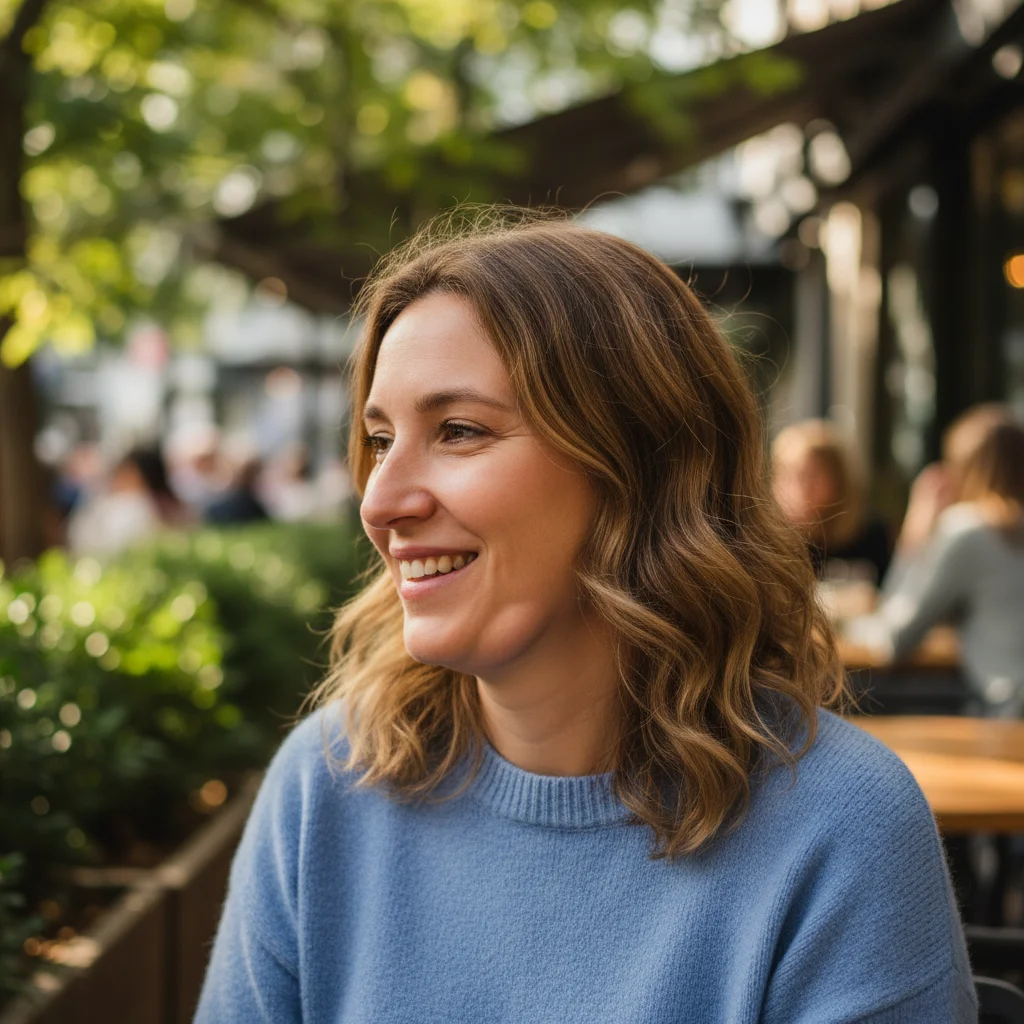
Selfie from below showing double chin from camera angle
Before
->
Same selfie with naturally corrected jawline
After

Selfie with challenging downward angle

Selfie taken from below created an unflattering chin angle. The AI corrected it while preserving the natural shadows and expression.

Prompt: slim the chin area and improve the jawline definition while maintaining natural shadows

Wedding guest with double chin visible in candid moment
Before
->
Same photo with subtly contoured jawline
After

Wedding guest photo

Candid photo at a wedding caught an unflattering moment. Subtle contouring preserved the genuine smile while creating a more flattering profile.

Prompt: subtly contour the chin and neck area for a more flattering look while preserving the formal portrait quality

If something looks off

The edit looks too dramatic or unnatural

Why: The AI interpreted your request as wanting significant changes. Without qualifiers like 'subtle' or 'natural,' it may over-correct.

Try: make a very subtle, natural-looking reduction to the chin area while keeping my face shape recognizable

Tip: Less is more with facial edits. Start with 'subtle' and you can always request more if needed.

The jawline looks too sharp or angular

Why: The AI created an overly defined edge. Real jawlines have soft transitions and natural curves.

Try: soften and contour the chin area with a natural, rounded jawline transition

Tip: Include 'soft' or 'rounded' to prevent harsh geometric edges that look edited.

AI changed the wrong area or something I didn't want changed

Why: The AI couldn't determine exactly which area you meant from description alone. This happens with ambiguous requests.

Try: Tap a marker on the specific chin area you want to change, then regenerate with the same prompt

Tip: Markers tell the AI 'I mean THIS one specifically.' Use them when description alone is ambiguous.

The neck shadows look fake or harsh

Why: When slimming the chin, the AI had to recreate the shadow patterns. Complex lighting can confuse it.

Try: slim the chin while preserving and blending the original shadow patterns naturally

Tip: Photos with even, frontal lighting are easier to edit than dramatic side-lit portraits.

My face looks thinner than I want

Why: Chin contouring sometimes affects perceived face shape. The AI may have over-applied the slimming effect.

Try: reduce just the double chin area while keeping my full face shape and cheeks unchanged

Tip: Specifying 'cheeks unchanged' helps the AI focus only on the chin.

The edit is visible at the hairline or jaw boundary

Why: The AI had trouble blending the edit at the edge where chin meets hair or clothing.

Try: Tap a marker on the visible edge and regenerate: 'blend the jawline transition smoothly into the neck and hair'

Tip: Edge refinement is where markers help most. One tap on the problem area usually fixes it.

Quick answers

Do I need to mark my chin area before describing?

No! Basta descrever what you want: 'slim and contour the chin area for a more defined jawline.' The AI understands facial anatomy and knows where the chin is. Only use markers when you need precision, like specifying exactly which side needs more work, or refining edges after your first attempt.

Will the edit look fake or obviously photoshopped?

Good chin edits are subtle enough that they look like a flattering photo angle rather than obvious editing. Use words like 'subtle' and 'natural' in your prompt. The AI preserves skin texture, shadows, and facial proportions. Most people won't notice the edit, they'll just think it's a nice photo.

Can I slim my chin in a group photo without affecting others?

Yes. Include 'without changing anything else in the photo' in your prompt. The AI will focus on your chin area only. If it accidentally affects someone else, use markers to isolate exactly your chin area.

What camera angles work best for this edit?

Any angle works, but photos taken from slightly above eye level or straight on produce the most natural results. Extreme upward angles (like low selfies) require more AI interpretation, which can sometimes look less natural. The edit still works but may need a refinement pass.

Will this change my identity or make me unrecognizable?

No. The AI makes proportional adjustments that enhance rather than transform. Think of it like the difference between a bad photo angle and your best photo ever. You still look like you, just photographed from a more flattering perspective.

How is this different from face-slimming filters?

Filters apply the same effect to everyone. EditThisPic's AI analyzes your specific facial structure, lighting, and shadows to make targeted adjustments. The result looks like a well-lit photo, not a filter. You can also control exactly how much change you want by adjusting your prompt.

How much does EditThisPic cost?

You get 1 free edit per week — no account needed. After that, credit packs start at $1.99 for 3 edits. Monthly plans start at $4.99/mo for 15 edits with unused credits rolling over. All edits are full resolution with no watermark.

How EditThisPic compares

Tool Free tier Per-edit cost AI-powered Signup required
EditThisPic 1 free edit/week From 27¢ Yes (Gemini) No
Adobe Photoshop 7-day trial ~$22.99/mo subscription Yes (Firefly) Yes
Remove.bg Low-res preview only ~20¢/HD edit Background only Yes (for HD)
Canva Basic tools only $15/mo Pro for AI Partial (Pro tier) Yes

Ready to look your best in every photo?

Gratis to try. Sem cadastro required.

1 free edit included·Credit packs from $1.99