Grátis • Sem cadastro Remove Mask · Grátis

Remove Mask from Photo

Reveal faces behind masks with AI-powered face reconstruction.
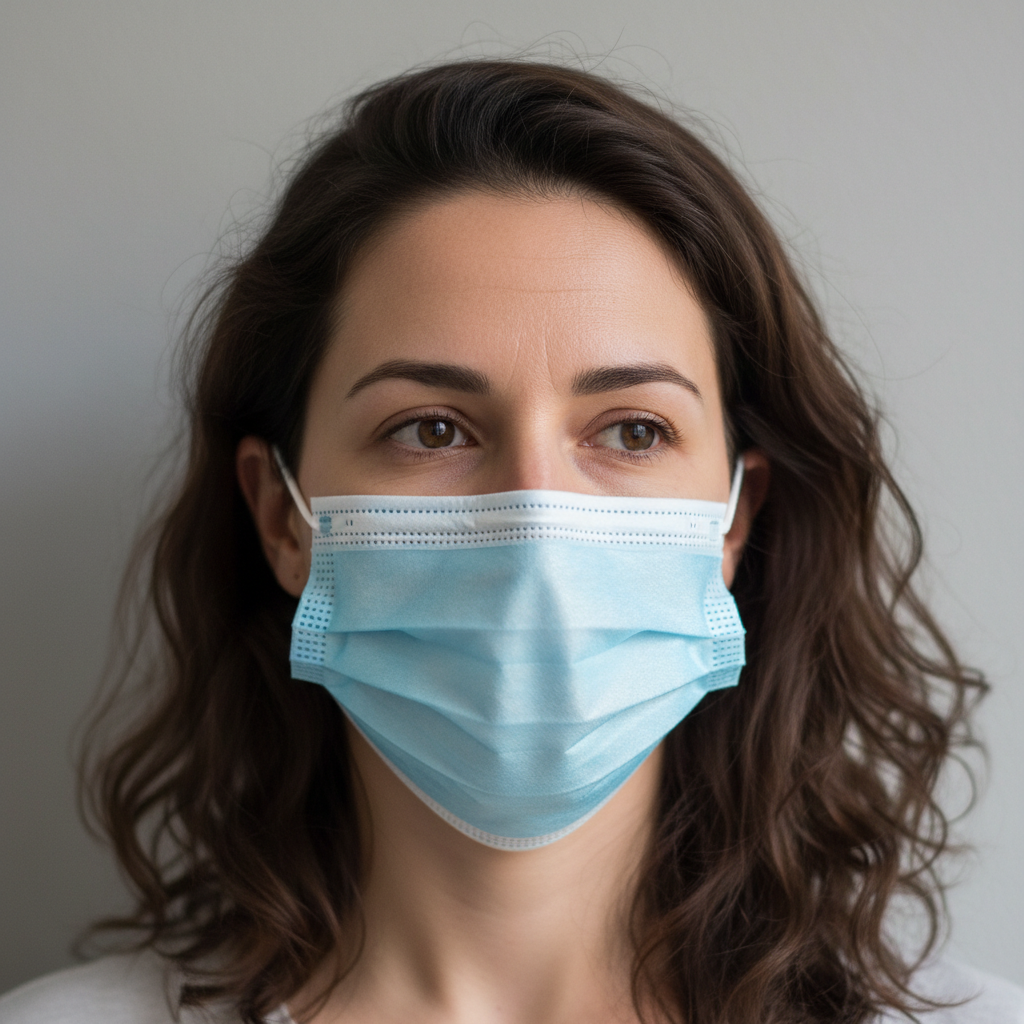
Woman wearing light blue surgical mask with eyes visible
Before
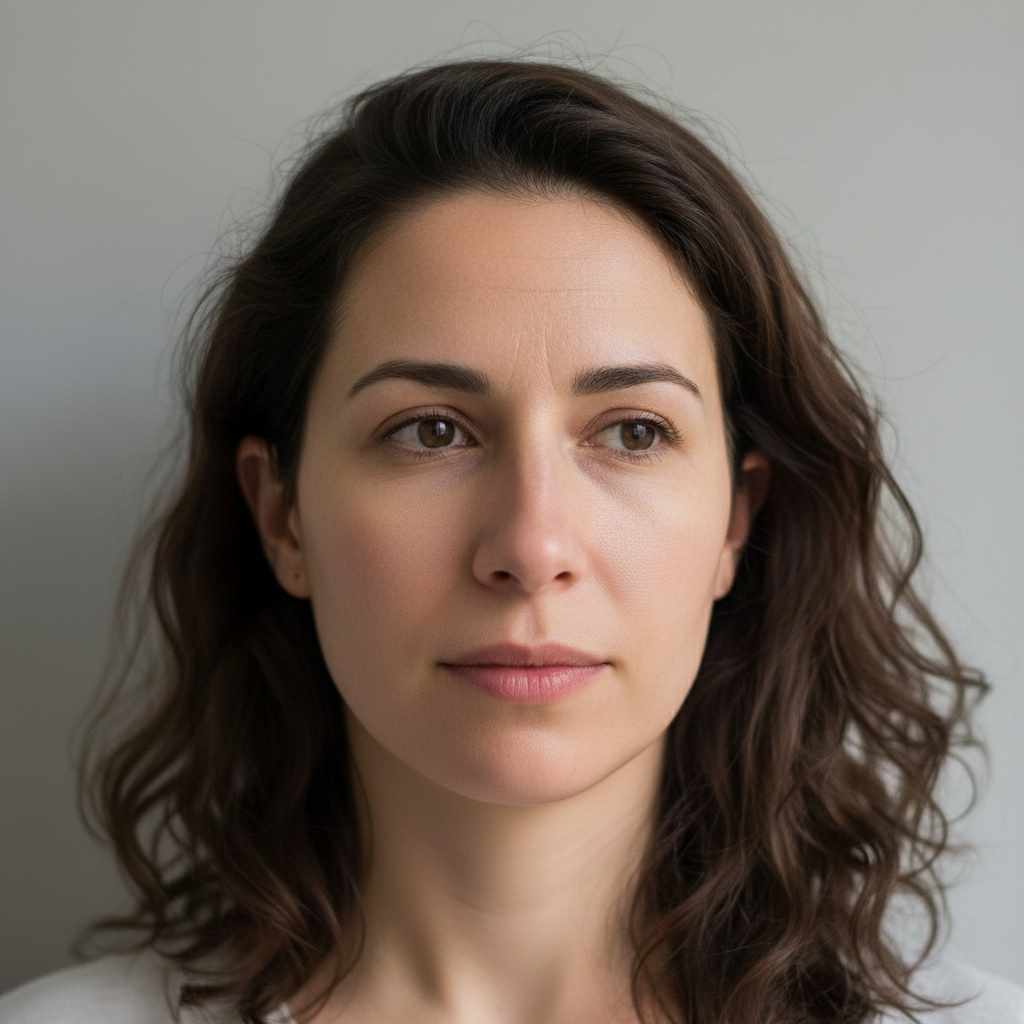
Same portrait with mask removed, full face with natural features visible
After

Remove Mask from Photo

Drop your photo here

or click to browse

Release to upload

Grátis • Sem cadastro

Advertisement
Popular use cases:
  • pandemic photos
  • COVID-era family pictures
  • dating profile photos
  • professional headshots
  • passport photos
  • social media pictures
  • family portraits
  • event photos
  • travel memories
  • wedding photos from masked events

Cost
Free No signup required
Time
Instant results in 15-30 seconds
Works on
Any device - browser, phone, tablet, desktop
Powered by
AI-powered photo editing
Scenario Prompt Time
Surgical mask remove surgical mask and reveal natural face, match skin tone 35s
Cloth mask remove cloth mask and show natural facial features 35s
N95 respirator remove N95 mask and reveal face with natural features 45s

How it works

  1. Envie sua foto

    Drop your masked portrait into EditThisPic. JPG, PNG, WebP up to 7MB. Photos with good lighting on the visible face areas (eyes, forehead, cheeks above mask) give the AI better context for reconstructing the covered features.

    Expect: Well-lit portraits with partial face visible: 30-45 seconds. Full-coverage masks or challenging angles: may need 2-4 refinements for natural-looking results.
  2. Descreva o que voce quer

    Type your instruction: 'remove the face mask and show the natural face underneath' or 'take off the mask and reveal realistic facial features.' Be specific about skin tone matching if needed. No marking required - the AI recognizes face masks automatically and understands what to generate.

    Tip: Add context like 'match the skin tone of the forehead' or 'natural smile' to guide the facial reconstruction.

    Copy one of these to get started:

    Standard surgical or medical mask remove the surgical face mask and reveal the natural face underneath, match skin tone with the visible forehead and cheeks
    Cloth or fabric mask remove the cloth face mask and show natural facial features, realistic nose and mouth with matching skin tone
    N95 or respirator mask remove the N95 mask and reveal the face underneath, natural-looking nose, mouth, and chin area
    Want a specific expression remove the face mask and show a natural smile, friendly expression with matching skin tone
    4 more prompts
    Professional headshot needed remove the mask for a professional portrait, show natural neutral expression appropriate for business photo
    Group photo with multiple masks remove the face mask from the person on the left and show their natural face, match their visible skin tone
    Preserve other features remove only the face mask, keep the rest of the face exactly the same, natural nose and mouth
    Side profile view remove the mask from this side profile and show the natural nose, lips, and chin from this angle
  3. Review the reconstructed face

    Examine the generated facial features carefully. Check that the nose shape looks proportional to the face, the mouth and lips appear natural, skin tone matches the visible areas, and the chin/jawline blends seamlessly. Look at full zoom to verify details.

  4. Refine with markers if needed

    If facial features look unnatural or proportions seem off, tap markers on problem areas and regenerate with more specific instructions. For skin tone mismatches, mark the affected area and request matching. This is optional but helpful for complex cases.

    Tip: If the mouth expression is wrong, specify: 'slight smile' or 'neutral expression' in a follow-up prompt.
  5. Fine-tune details

    For professional results, make additional passes to refine specific features. Address any remaining artifacts, uneven skin texture, or lighting inconsistencies between the reconstructed and original areas.

    Tip: Multiple refinement passes often produce the most natural-looking results for face reconstruction.
Advertisement
Try it free

Remove Mask from Photo

Drop your photo here

or click to browse

Release to upload

Grátis • Sem cadastro

"Had so many pandemic-era family photos where everyone was masked. Finally got usable portraits for our holiday cards!" @sarah_memories

See it in action

Woman wearing light blue surgical mask with eyes visible
Before
->
Same portrait with mask removed, full face with natural features visible
After

Surgical mask removed for portrait

Pandemic-era photo needed for a dating profile. AI removed the medical mask and generated natural facial features.

Prompt: remove the surgical face mask and reveal the natural face underneath, match skin tone with the visible forehead and cheeks

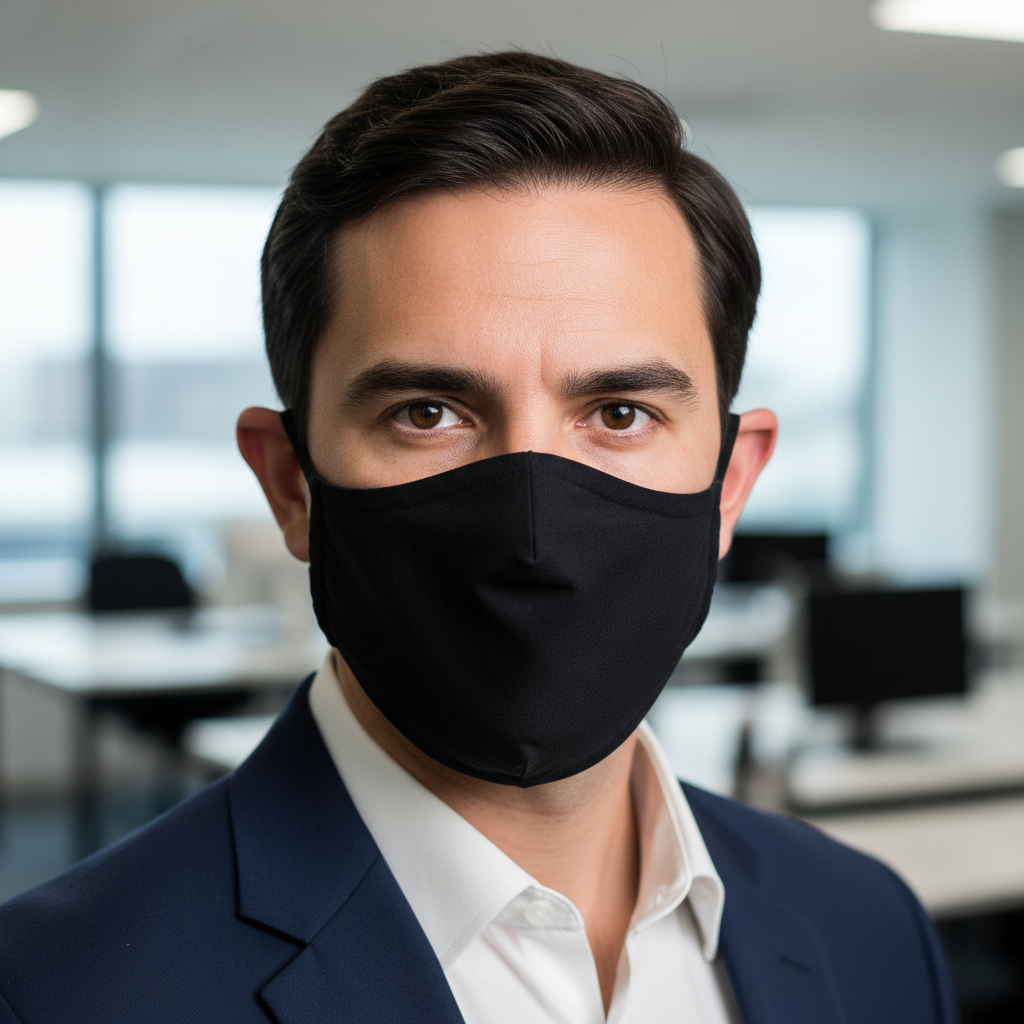
Man in business attire wearing black cloth face mask
Before
->
Same professional portrait with mask removed, showing natural face
After

Black cloth mask removed

Professional photo from a masked event needed for LinkedIn. AI revealed natural face behind the fabric mask.

Prompt: remove the cloth face mask and show natural facial features, realistic nose and mouth with matching skin tone
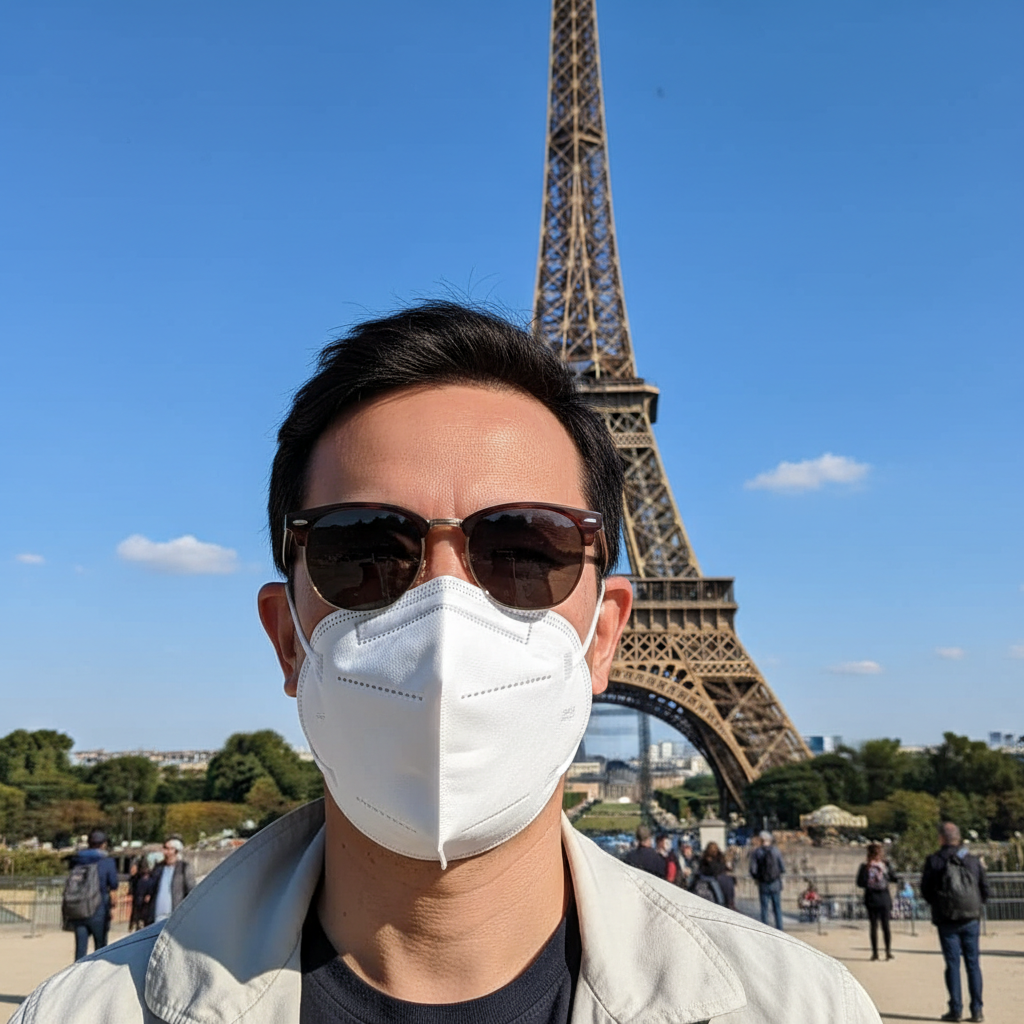
Tourist wearing white N95 mask at landmark
Before
->
Same travel photo with N95 mask removed, full face visible
After

N95 respirator mask removed

Travel photo during mask mandates. AI reconstructed the face behind the white N95 mask for a proper vacation memory.

Prompt: remove the N95 mask and reveal the face underneath, natural-looking nose, mouth, and chin area

If something looks off

Facial features look artificial or disproportionate

Why: The AI had limited visible face reference and generated features that don't match the face shape or proportions visible in the upper face.

Try: remove the mask and show more natural-proportioned nose and mouth that match this face shape

Tip: If results are consistently off, try describing specific features: 'smaller nose' or 'fuller lips'.

Skin tone mismatch between visible and reconstructed areas

Why: Lighting differences on the visible face versus shadow under the mask can cause tone inconsistency.

Try: remove mask and match skin tone exactly with the visible forehead, even lighting across the face

Tip: Tap markers on the mismatched areas and request 'blend skin tone with surrounding area'.

AI changed the wrong area or something I didn't want changed

Why: The AI couldn't determine exactly which area you meant from description alone. This happens with ambiguous requests.

Try: Tap a marker on the specific area you want to change, then regenerate with the same prompt

Tip: Markers tell the AI 'I mean THIS one specifically.' Use them when description alone is ambiguous.

Expression looks wrong or unnatural

Why: Without seeing the original mouth position, the AI guessed an expression that may not match the eyes.

Try: remove mask and show a natural [smile/neutral/serious] expression that matches the eyes

Tip: Look at the eyes in your photo - are they smiling? Match the mouth expression to them.

Mask edges or straps still visible

Why: Mask straps against hair or ears may not be fully detected during the initial removal.

Try: Tap markers on remaining mask straps and regenerate: 'remove all traces of the face mask including straps'

Tip: Address straps separately from face reconstruction for cleaner results.

Jawline or chin looks wrong

Why: The AI must reconstruct the entire lower face which requires inferring bone structure from limited visible information.

Try: remove mask and show natural jawline that matches the visible face width and bone structure

Tip: If the person has distinctive jawline features, describe them: 'sharp jawline' or 'rounded chin'.

Results different each generation

Why: Face reconstruction involves generating new features, so each attempt produces variations based on the AI's interpretation.

Try: Keep trying until you get a version you like, then refine that specific result

Tip: Generate 2-3 versions and choose the best base result to refine further.

Quick answers

Do I need to mark the mask before describing?

No! Basta descrever what you want: 'remove the face mask' or 'take off the mask and show the face.' The AI recognizes face masks automatically. Only use markers if you need to refine specific areas of the reconstructed face or remove stubborn mask straps.

Will the face look like the actual person?

The AI generates plausible facial features based on visible parts of the face (eyes, forehead, cheek bones, skin tone). It creates a realistic face that matches the overall appearance, but cannot recreate the person's exact features since those were hidden. Results are natural-looking but may differ from reality.

What types of masks work best?

Surgical masks and cloth masks with clear edges work best. N95 respirators and masks with complex strapping may require more refinement. Masks that reveal some cheek area give the AI better context for skin tone and face shape matching.

Can I specify what the face should look like?

Yes! Add details to your prompt: 'show a slight smile' or 'neutral expression with closed mouth.' You can also suggest features like 'natural nose' or 'full lips' though the AI will try to match what seems proportional to the visible face.

How do I get consistent results across multiple photos?

For a photo series, find your best result first, then use similar prompts for other photos. Note what works: 'slight smile' or 'neutral expression.' Results will vary but using consistent descriptive language helps maintain a similar look.

Can I remove masks from group photos?

Yes, but work on one person at a time. Specify which person: 'remove the mask from the person on the left' or tap a marker on that specific mask. This gives you control over each face reconstruction.

Ready to reveal the face behind the mask?

Gratis to try. Sem cadastro required.

Try it free