How to Turn a Photo into a Painting with AI
To turn a photo into a painting, upload your image to EditThisPic and type 'turn this into an oil painting,' 'make this look like a watercolor,' or 'convert to impressionist painting.' The AI applies realistic brush strokes, color blending, and texture to transform your photo into any painting style. Free, no signup required.
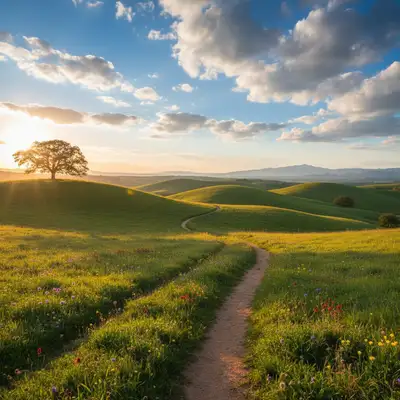
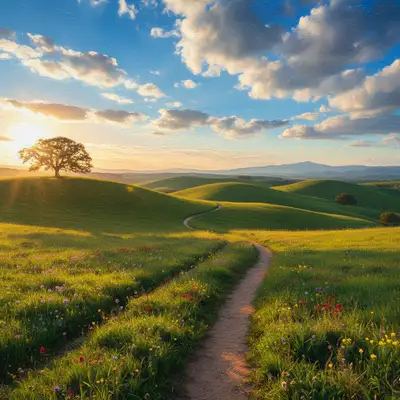
Transform Any Photo into a Work of Art
You do not need painting skills or expensive software to turn a photograph into a painting. AI can analyze the colors, shapes, and composition of any photo and re-render it with the texture and brushwork of an actual painted canvas. The result looks like it was created by hand, with visible brush strokes, color blending, and the subtle imperfections that make paintings feel alive.
Painting Styles You Can Create
- Oil painting — rich colors, visible brush strokes, classic gallery look
- Watercolor — soft edges, translucent washes, delicate color bleeding
- Impressionist — loose brushwork, vibrant color, light-focused like Monet
- Acrylic — bold colors, sharp contrasts, modern feel
- Renaissance — dramatic lighting, fine detail, old-master technique
- Abstract — simplified shapes, exaggerated colors, interpretive composition
How AI Photo-to-Painting Works
The AI studies the structure of your photo — edges, lighting, color distribution — and reinterprets it using the visual language of the painting style you choose. For an oil painting, it adds thick brush strokes and blends colors on the canvas. For watercolor, it softens edges and lets colors bleed into each other. The AI preserves the composition and subjects of your original photo while completely changing how they are rendered.
Why Turn Photos into Paintings
Wall art is the most popular use. A family portrait converted to an oil painting makes a striking canvas print. Landscape photos become watercolor art for the living room. Pet owners turn their favorite dog or cat photo into a painted portrait. Social media creators use painting effects to stand out from standard photo posts. Gift-givers commission AI paintings as personalized presents without the cost of a human portrait artist.
Tips for the Best Painting Results
Describe the specific style you want. 'Turn this into a painting' gives a generic result, but 'convert to a thick-brushstroke oil painting with warm tones' gives the AI much more to work with. Photos with strong composition and good lighting translate best. Landscapes, portraits, and still life subjects work especially well because those are the subjects most paintings depict. If the first result is too subtle, try 'make it look more like a hand-painted canvas with heavier brush strokes.'
Turning Landscape Photos into Paintings
Landscapes are the most natural fit for painting conversion. A sunset photo becomes a dramatic oil painting. A mountain scene transforms into a watercolor that captures the atmosphere without the sharpness of a photograph. Tell the AI what mood you want: 'turn this landscape into a moody impressionist painting' or 'convert to a bright watercolor with warm golden tones.' The AI adjusts color saturation and brushwork to match.
Step-by-Step Guide
Upload Your Photo
Drop your image into EditThisPic. Portraits, landscapes, pets, and still life all convert well. JPG, PNG, or WebP up to 7MB.
Describe the Painting Style
Type the style you want: 'turn this into an oil painting,' 'make it look like a watercolor,' or 'convert to impressionist style with visible brushstrokes.' The more specific you are, the better the result.
Review the Painting
Use the before/after slider to compare your original photo with the painted version. Check that the brushwork, color palette, and overall feel match what you wanted.
Refine or Try Another Style
Not the right look? Try a different style: 'make the brush strokes thicker' or 'switch to watercolor instead.' You can experiment with multiple painting styles on the same photo.
Frequently Asked Questions
Ready to Turn Your Photo into a Painting?
Upload your photo and let AI transform it into art. Free, no signup.
Drop your photo to start editing
"convert this photo to a realistic oil painting with visible brush strokes, rich colors, and dramatic lighting"
Release to upload