Free • No signup Transform Photo style · Free

Transform Photo to Watercolor Style

← Browse all creative effects

Last updated

Turn any photo into a beautiful watercolor painting — soft edges, flowing color, and paper texture.
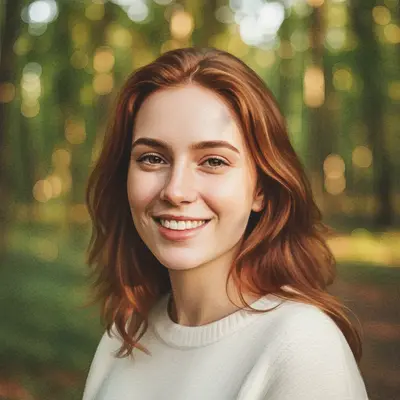
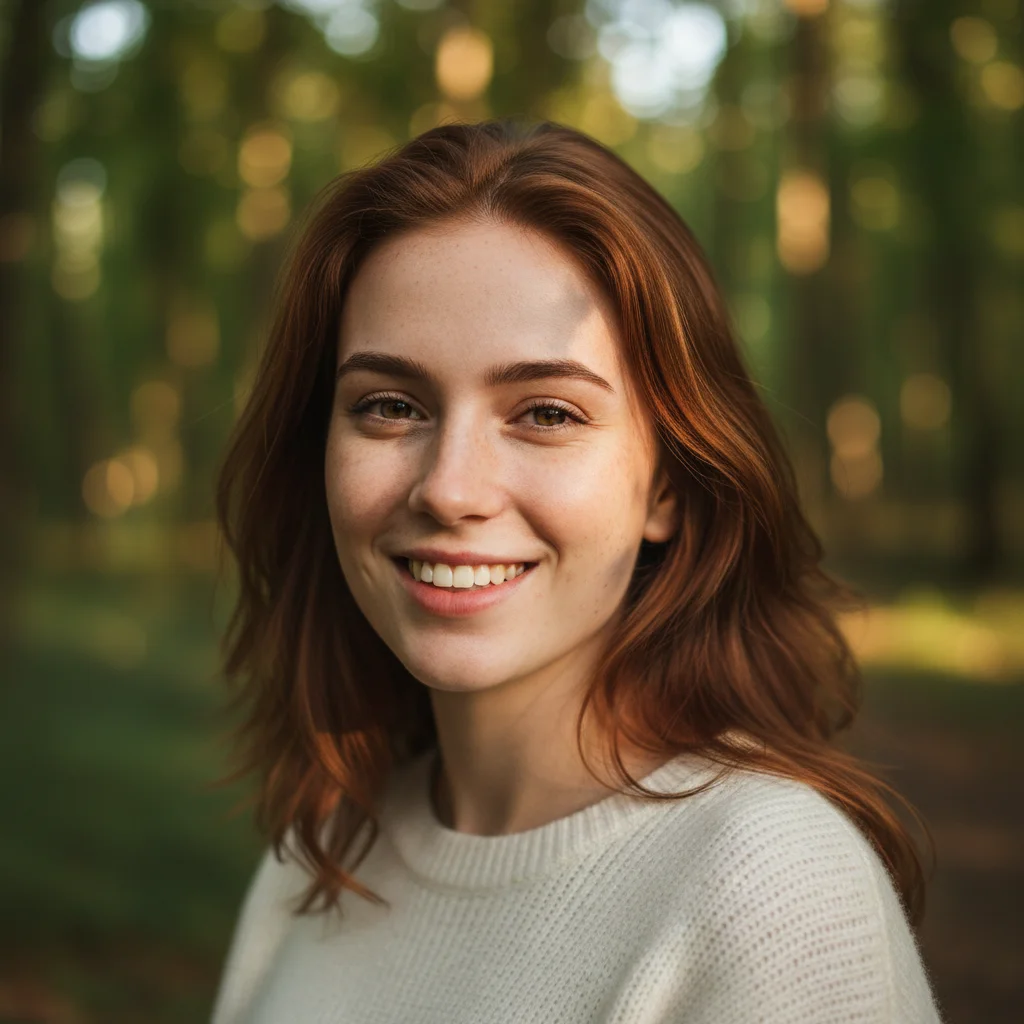
Portrait photo with natural outdoor lighting
Before
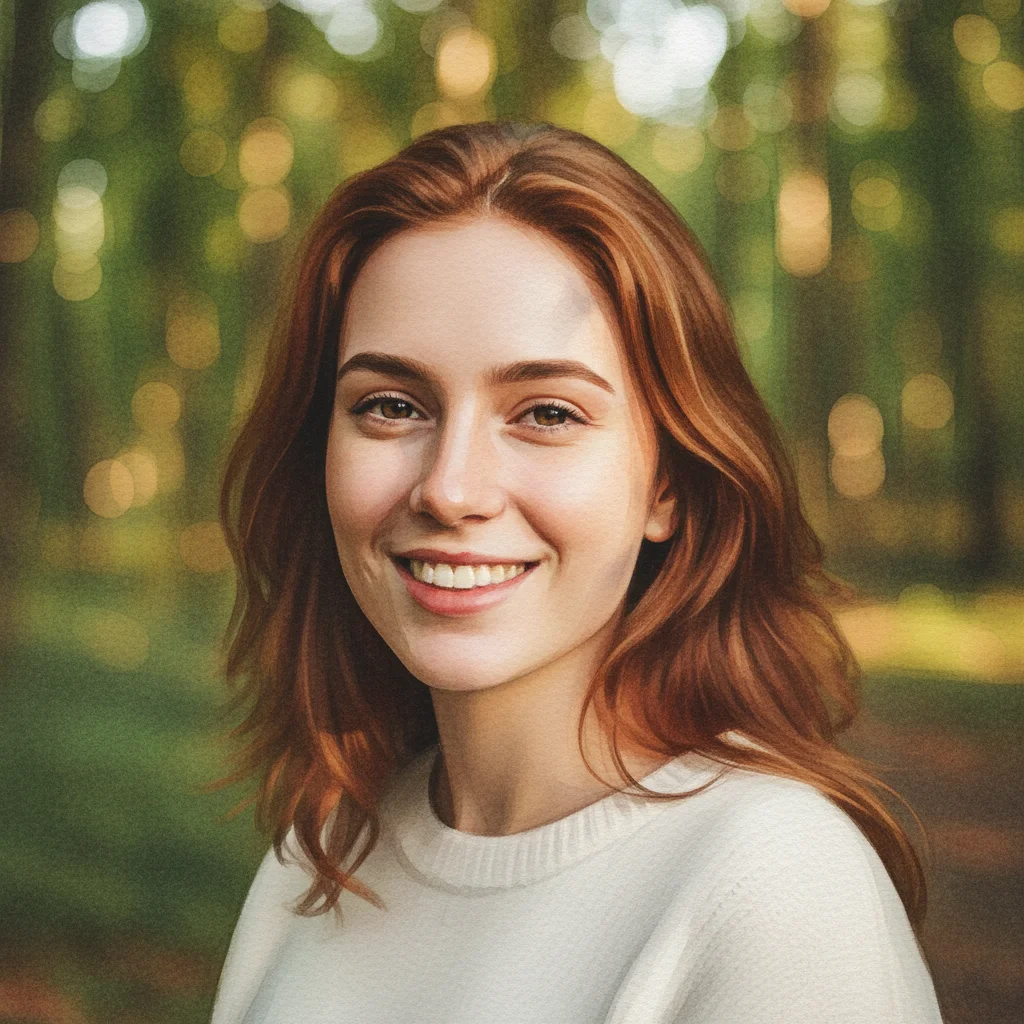
Portrait transformed into soft watercolor painting with delicate color washes
After

Upload photo to transform photo style

"convert to traditional watercolor with wet-into-wet color bleeding, visible paper texture, and transparent color washes"

Release to upload

FreeNo signupNo watermark

1 free edit·then from $1.99

Popular use cases:
  • watercolor photo effect
  • photo to watercolor painting
  • watercolor style conversion
  • soft watercolor portrait
  • watercolor art from photo
  • botanical watercolor photo
  • digital watercolor effect

Cost
Free No signup required
Time
Instant results in 15-30 seconds
Works on
Any device - browser, phone, tablet, desktop
Powered by
AI-powered photo editing
Scenario Prompt Time
Classic watercolor watercolor with soft edges, flowing color, paper texture 15s
Traditional wet-into-wet watercolor with color bleeding and transparent washes 20s
Vibrant loose vibrant loose watercolor with expressive brushwork 20s
Soft pastel soft pastel watercolor with gentle muted washes 15s

How it works

  1. Upload your photo

    Drop any photo into EditThisPic. JPG, PNG, or WebP up to 7MB. Portraits, landscapes, flowers, architecture, and nature scenes all transform beautifully into watercolor. Photos with distinct subjects and good lighting produce the most convincing watercolor results.

    Expect: Simple portraits and flowers: 15-20 seconds. Complex landscapes or architectural scenes: 25-35 seconds.
  2. Describe the watercolor style you want

    Type your instruction: 'transform this into watercolor painting style with soft edges and flowing color' or 'convert to traditional watercolor with paper texture and color bleeding.' Specify the mood — loose and expressive, tight and detailed, soft pastel, or vibrant saturated. No marking needed — just describe the effect.

    Tip: Add descriptors like 'visible paper texture' for authenticity, 'color bleeding at edges' for wet-into-wet effects, or 'loose expressive brushwork' versus 'delicate detailed strokes' to control the style tightness.

    Copy one of these to get started:

    Classic watercolor transformation transform this photo into watercolor painting style with soft edges, flowing color, and paper texture
    Traditional wet-into-wet watercolor convert to traditional watercolor with wet-into-wet color bleeding, visible paper texture, and transparent color washes
    Vibrant loose watercolor transform into vibrant loose watercolor with expressive bold brushwork, saturated colors, and fluid paint movement
    Soft pastel watercolor convert to soft pastel watercolor with delicate muted colors, gentle washes, and a dreamy atmospheric quality
    3 more prompts
    Botanical watercolor illustration transform into detailed botanical watercolor illustration with precise brushwork, natural greens and pinks, and white paper showing through
    Abstract expressionist watercolor transform into abstract watercolor with flowing paint, unexpected color combinations, and expressive freedom
    Urban sketch watercolor transform into urban watercolor sketch style with loose ink outlines, light transparent washes, and a quick travel sketch quality
  3. Review the watercolor qualities

    Look for the characteristics of watercolor painting — transparent color layers, soft blurred edges where colors meet, the texture of paper grain, and natural color bleeding effects. Check that the subject is still clearly readable while the surrounding areas have that flowing painted quality.

  4. Refine specific areas if needed

    If certain areas need more or less watercolor intensity — stronger effects on the background, preserved detail on a face — tap markers on those areas and regenerate with adjusted instructions. Most watercolor transformations work beautifully in one attempt.

    Tip: For portraits: markers on the face help preserve facial recognition while the background gets a more expressive watercolor treatment.
Try it free

Upload photo to transform photo style

"transform into vibrant loose watercolor with expressive bold brushwork, saturated colors, and fluid paint movement"

Release to upload

Free • No signup

See it in action

Portrait photo with natural outdoor lighting
Before
->
Portrait transformed into soft watercolor painting with delicate color washes
After

Portrait to soft watercolor painting

A portrait photo transformed with the delicate color washes and soft-edge quality of traditional watercolor — expressive without losing the subject's character.

Prompt: transform this portrait into watercolor painting style with soft edges, gentle color washes, and paper texture
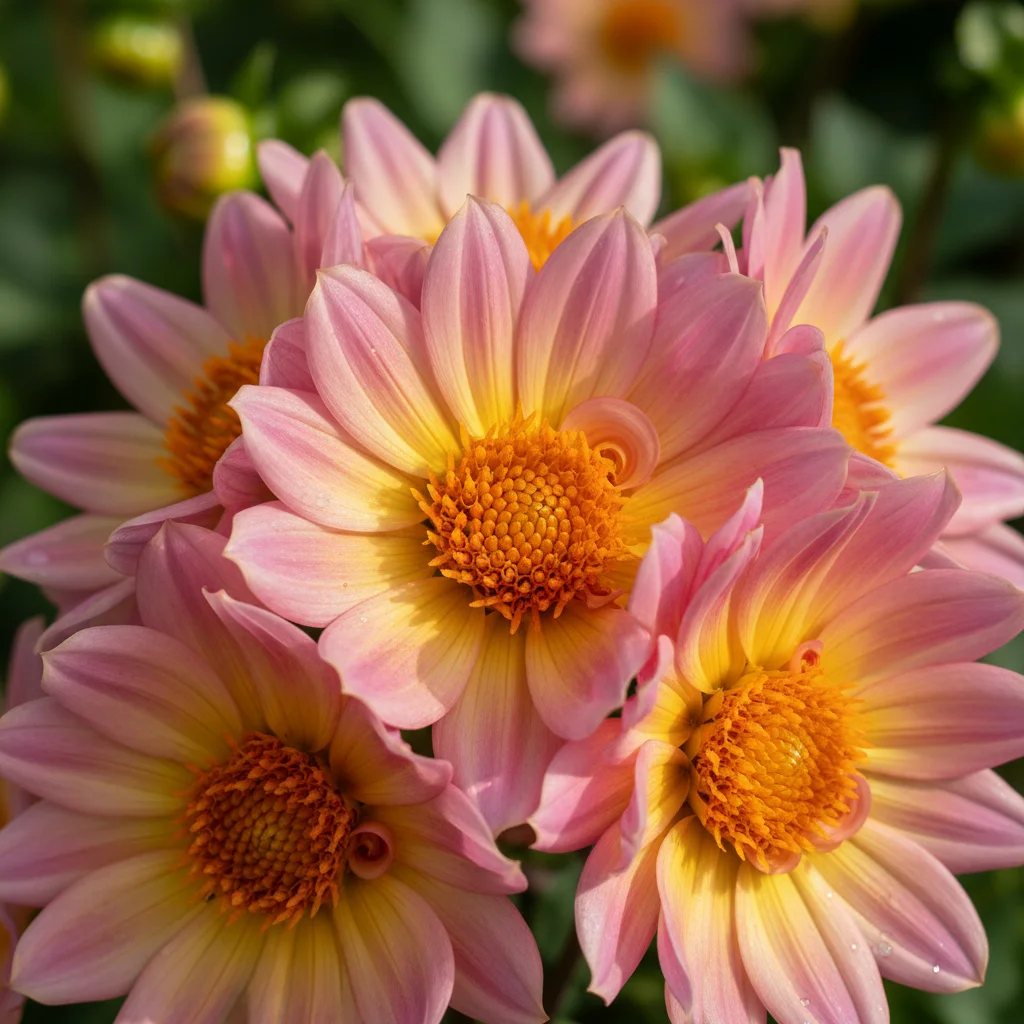
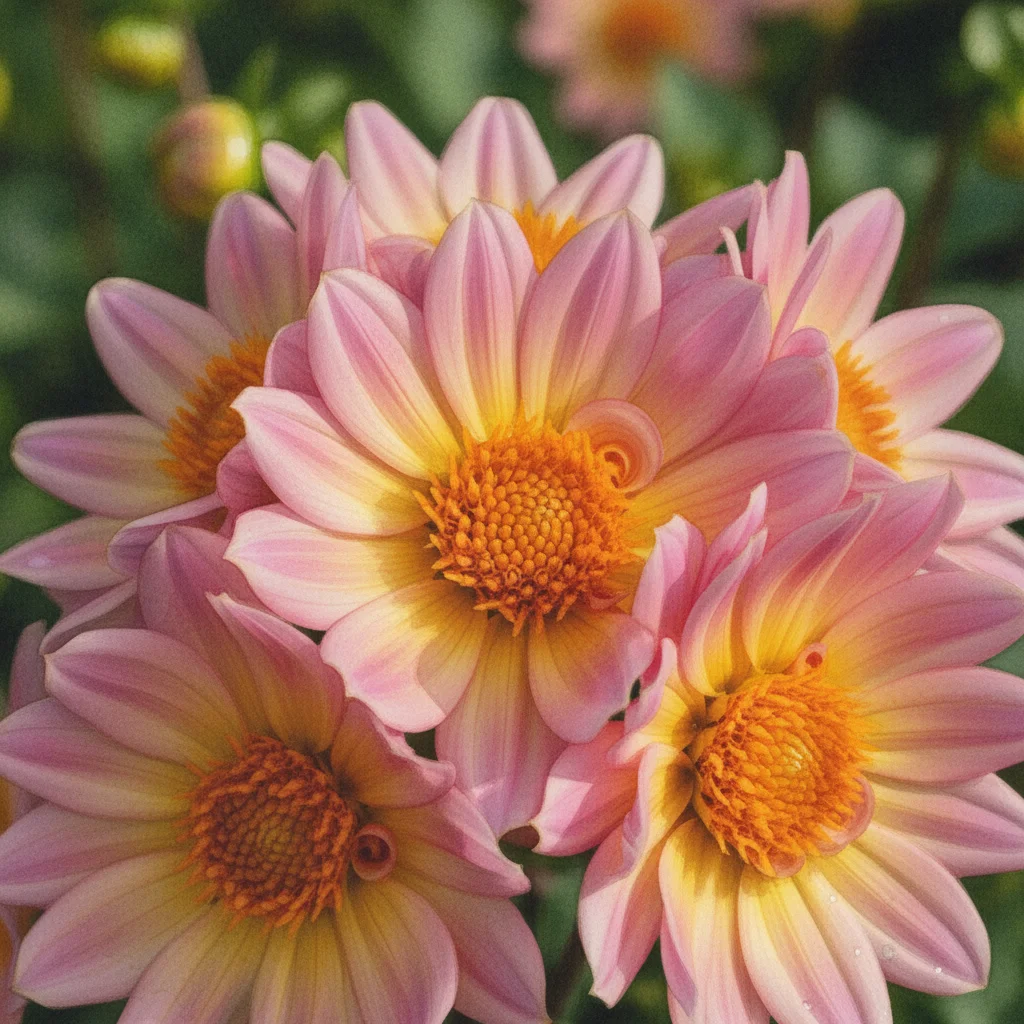
Close-up flower photo with colorful petals in natural light
Before
->
Flower transformed into botanical watercolor illustration
After

Flower photo to botanical watercolor

A flower photograph rendered in precise botanical watercolor style — the traditional scientific illustration approach with natural colors and detailed brushwork.

Prompt: transform into botanical watercolor illustration with detailed brushwork, natural flower colors, and visible paper texture
Urban street scene with buildings and pedestrians
Before
->
Urban scene transformed into loose watercolor sketch with transparent washes
After

Cityscape to urban watercolor sketch

An urban street photo transformed into the classic loose line-and-wash watercolor sketch style — quick, gestural, with light transparent color washes.

Prompt: transform into urban watercolor sketch style with loose washes, architectural line quality, and light transparent colors

If something looks off

Watercolor effect is too subtle — looks like a photo filter

Why: The AI applied a light watercolor touch, prioritizing photo realism.

Try: transform boldly into watercolor painting with highly visible color bleeding, paper grain texture throughout, and expressive loose brushwork — clearly a painted watercolor, not a photograph

Tip: Ask for 'clearly a painted watercolor, not a photograph' — this explicit direction pushes the AI toward stronger artistic transformation.

Colors look muddy or over-blended

Why: The watercolor bleeding effect was too strong for the image's color range.

Try: watercolor with clean color areas and controlled bleeding — distinct color regions with natural edges, not over-blended

Tip: Request 'clean color areas' and 'controlled bleeding' to prevent over-mixing. Watercolor should blur at edges, not everywhere.

AI changed the wrong area or something I didn't want changed

Why: The AI couldn't determine exactly which areas from description alone needed different treatment.

Try: Tap a marker on the specific area you want changed, then regenerate with the same prompt

Tip: Markers are especially useful when you want the background fully watercolor but the face more restrained.

Important details lost in the transformation

Why: Watercolor's soft-edge aesthetic reduces fine detail by design.

Try: watercolor style preserving the key details — clear subject reading while adding soft watercolor texture and color bleed around the edges

Tip: 'Clear subject reading' tells the AI to keep the main subject legible while softening surroundings.

Paper texture looks artificial or over-rendered

Why: The AI over-emphasized the paper grain, making it look like a texture overlay rather than natural paper.

Try: subtle natural paper texture — watercolor grain should be felt, not seen as an obvious overlay

Tip: Ask for 'subtle' or 'natural' paper grain — the texture should enhance without dominating.

Quick answers

Do I need to mark areas before the watercolor transformation?

No! Just describe the style you want: 'transform into watercolor with soft edges and color bleeding.' The AI handles the full image. Only use markers when you want different watercolor intensity in specific areas — like a more expressive background versus a more detailed face.

How do I transform a photo to watercolor style for free?

Upload your photo to EditThisPic, type 'transform this into watercolor painting style with soft edges, flowing color, and paper texture,' and the AI delivers the result in 15-30 seconds. No signup required, no watermark on the output.

What's the difference between this and the watercolor converter tool?

Both create watercolor-style transformations. This page (ai-photo-watercolor-style) focuses on the style transformation approach via text prompts. The ai-watercolor-style-converter page offers similar functionality. Both work the same way — upload your photo and describe the watercolor effect you want.

Which photos make the best watercolor paintings?

Photos with clear subjects and interesting natural light work best. Portraits, flowers, landscapes, architecture, and garden scenes all translate beautifully. Photos with lots of fine detail can become overly complex — watercolor style is best appreciated with clear, readable subjects.

Can I control whether the watercolor looks loose or detailed?

Yes. Use descriptive modifiers: 'loose expressive watercolor with big gestural strokes' for free-flowing effects, or 'detailed botanical watercolor with precise brushwork' for tighter illustration quality. The style tightness is entirely controlled by your description.

Can I make just the background watercolor while keeping the subject photographic?

Yes. Upload your photo, tap markers on the background area, and type 'apply watercolor painting texture to the background only, keep the subject photographic.' Markers help the AI target only the areas you specify.

How much does EditThisPic cost?

You get 1 free edit per week — no account needed. After that, credit packs start at $1.99 for 3 edits. Monthly plans start at $4.99/mo for 15 edits with unused credits rolling over. All edits are full resolution with no watermark.

Ready to transform your photo into watercolor?

Free to try. No signup required.

1 free edit included·Credit packs from $1.99