Free β€’ No signup Convert Photo to sketch style Β· Free

Sketch Style Converter

Transform photos into realistic pencil sketches instantly with AI - no marking needed
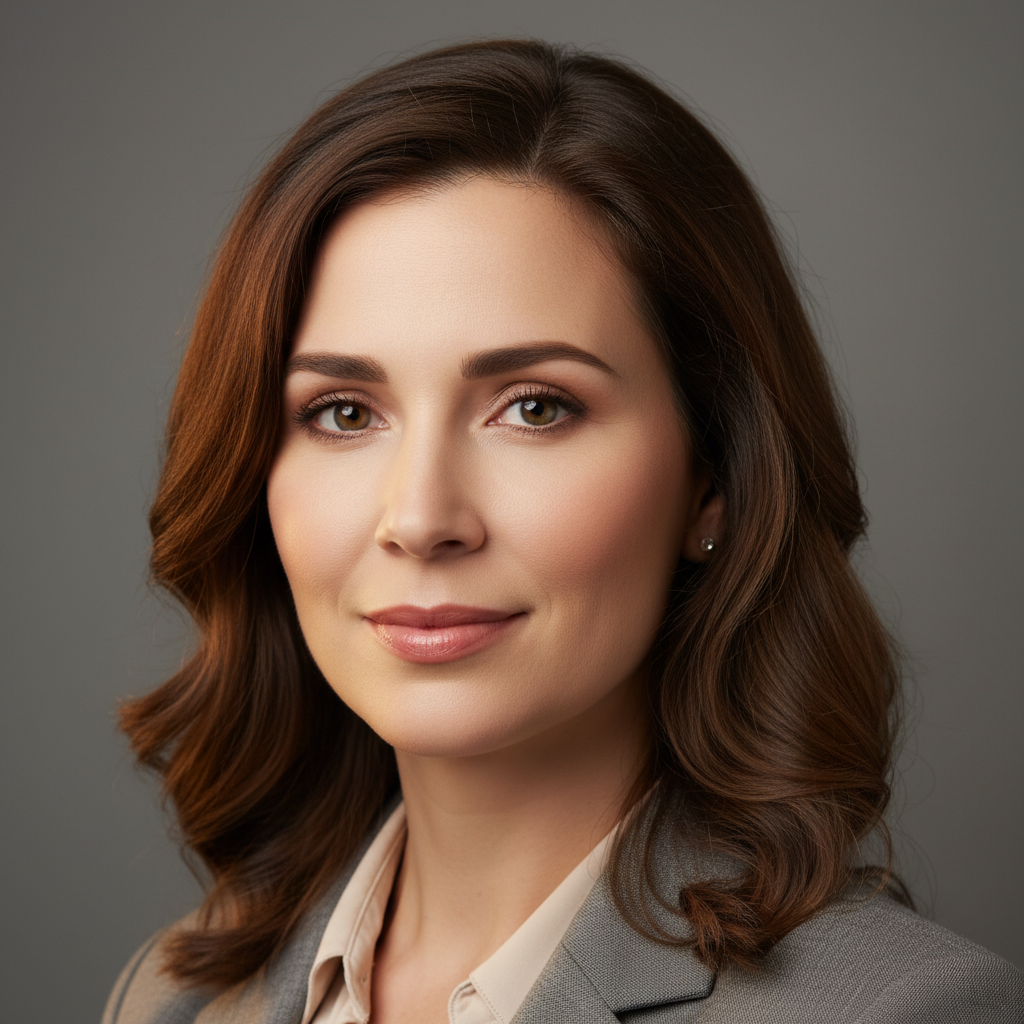
Professional portrait photo of person in blue shirt
Before
β†’
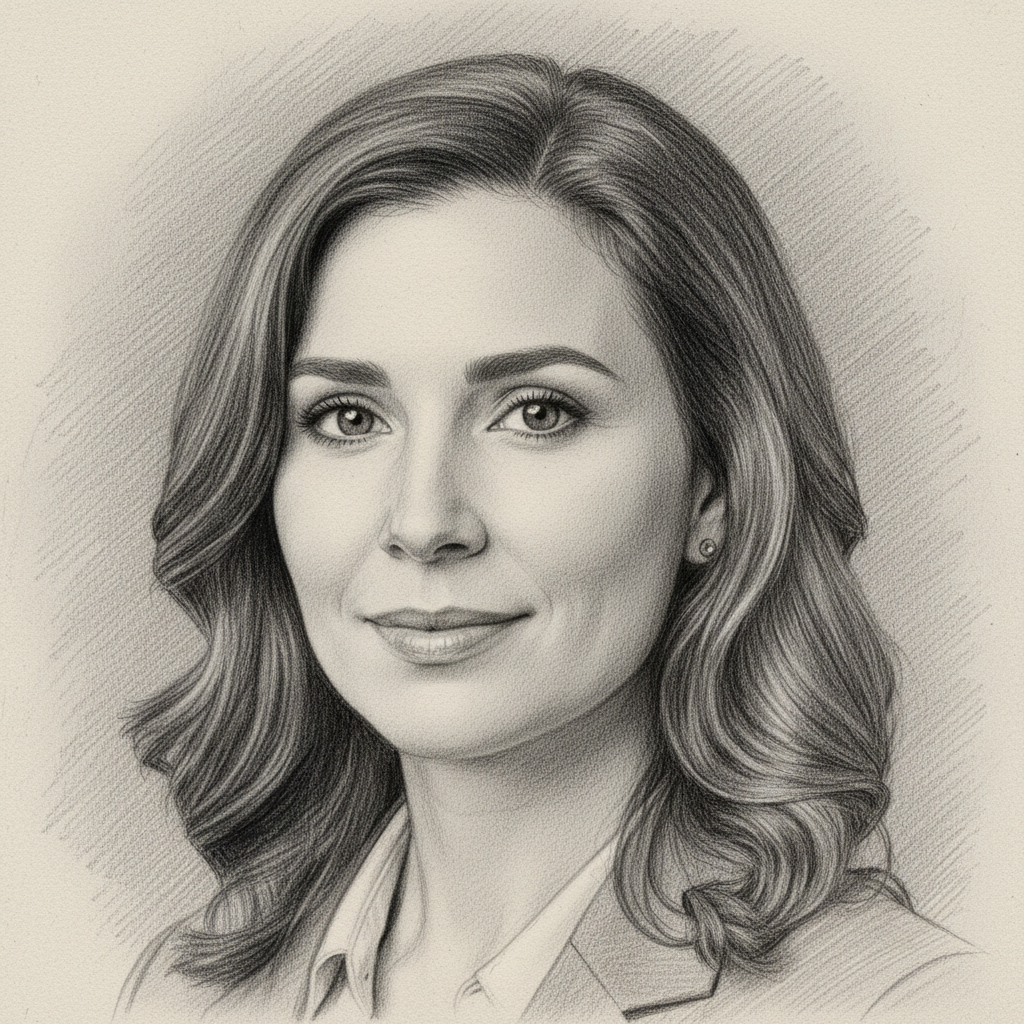
Same portrait converted to detailed pencil sketch with realistic shading
After

Convert Photo to Sketch Style

Upload photo to convert photo to sketch style

Free β€’ Results in 30 seconds β€’ No signup

Release to upload

FreeNo signupNo watermark
Popular use cases:
  • pencil sketch
  • drawing style
  • artistic sketch
  • hand drawn

Cost
Free No signup required
Time
Instant results in 15-30 seconds
Works on
Any device - browser, phone, tablet, desktop
Powered by
AI-powered photo editing
Scenario Prompt Time
Portrait Convert this portrait to pencil sketch 10s
Landscape Transform this landscape into sketch 12s
Object Convert to detailed pencil drawing 8s

How it works

  1. Upload your photo

    Choose any photo you want to convert to sketch style. Portraits, landscapes, and objects all work well. Photos with good contrast and clear subjects produce the best sketch effects.

    Expect: Simple photos: 8-12 seconds. Complex scenes: 15-20 seconds with detailed sketch rendering.
  2. Describe what you want

    THIS IS THE KEY STEP. Type your sketch conversion instruction like 'convert this portrait to pencil sketch' or 'transform to detailed drawing style'. Be specific about the sketch style you want - pencil, charcoal, fine line drawing, etc. No marking needed - just describe.

    Tip: Mention specific sketch styles like 'realistic pencil sketch' or 'artistic charcoal drawing' for better results

    Copy one of these to get started:

    Portrait sketching Convert this portrait to realistic pencil sketch
    Landscape drawing Transform this landscape into detailed pencil drawing
    Pet sketch Convert this pet photo to charcoal sketch style
    Object drawing Transform to detailed line drawing sketch
    2 more prompts
    Fine art style Convert to artistic pencil sketch with soft shading
    Bold sketch Transform to bold charcoal drawing with strong contrast
  3. Review the result

    Check the sketch conversion quality, especially shading and line details. Zoom in to see how well fine details like facial features or texture patterns were converted to sketch style.

  4. Refine with markers if needed

    OPTIONAL. Use markers when you want to emphasize specific areas for sketch conversion, like making certain features more prominent in the drawing. Most sketch conversions work perfectly without markers.

    Tip: Markers help when you want different sketch intensities in different areas of the image.
Try it free ↓

Convert Photo to Sketch Style

Upload photo to convert photo to sketch style

Free β€’ Results in 30 seconds β€’ No signup

Release to upload

Free β€’ No signup

See it in action

Professional portrait photo of person in blue shirt
Before
->
Same portrait converted to detailed pencil sketch with realistic shading
After

Portrait to Pencil Sketch

Professional headshot transformed into realistic pencil drawing with detailed facial features and natural shading.
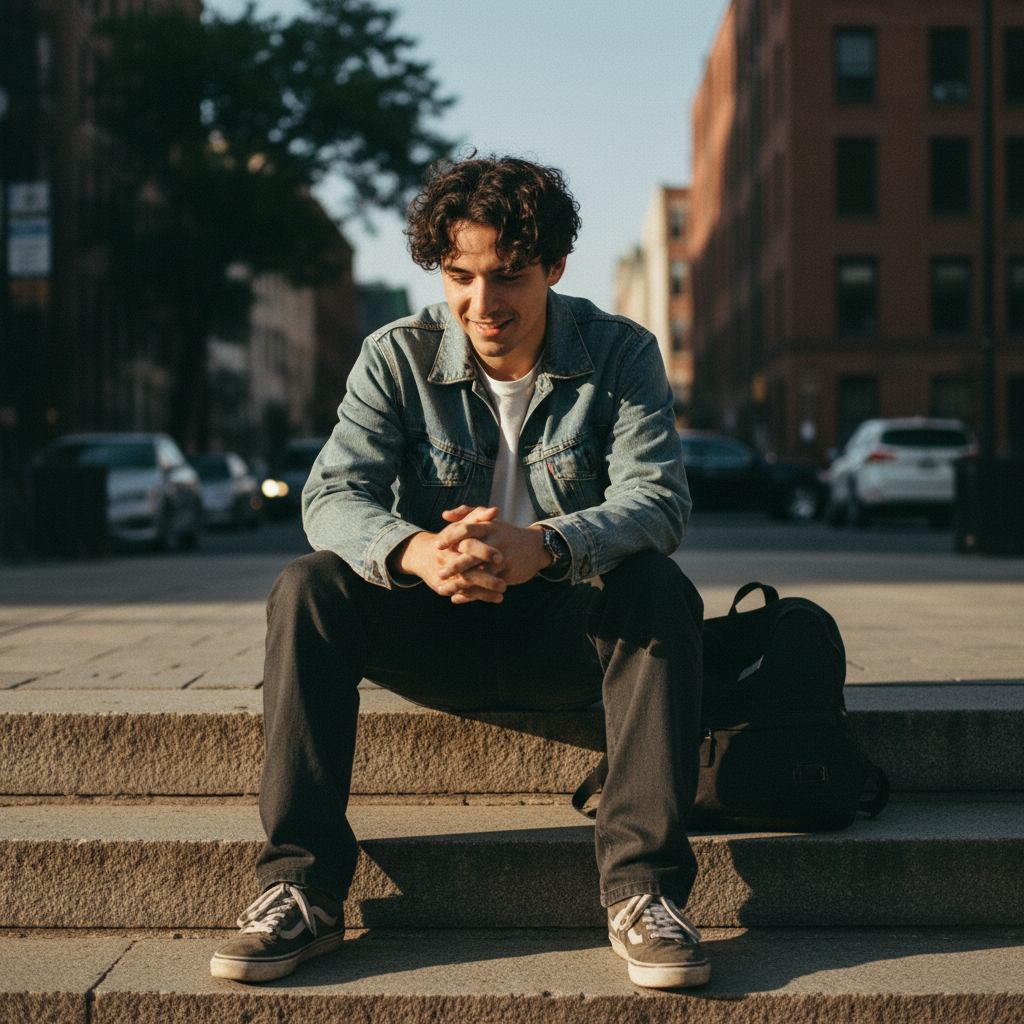
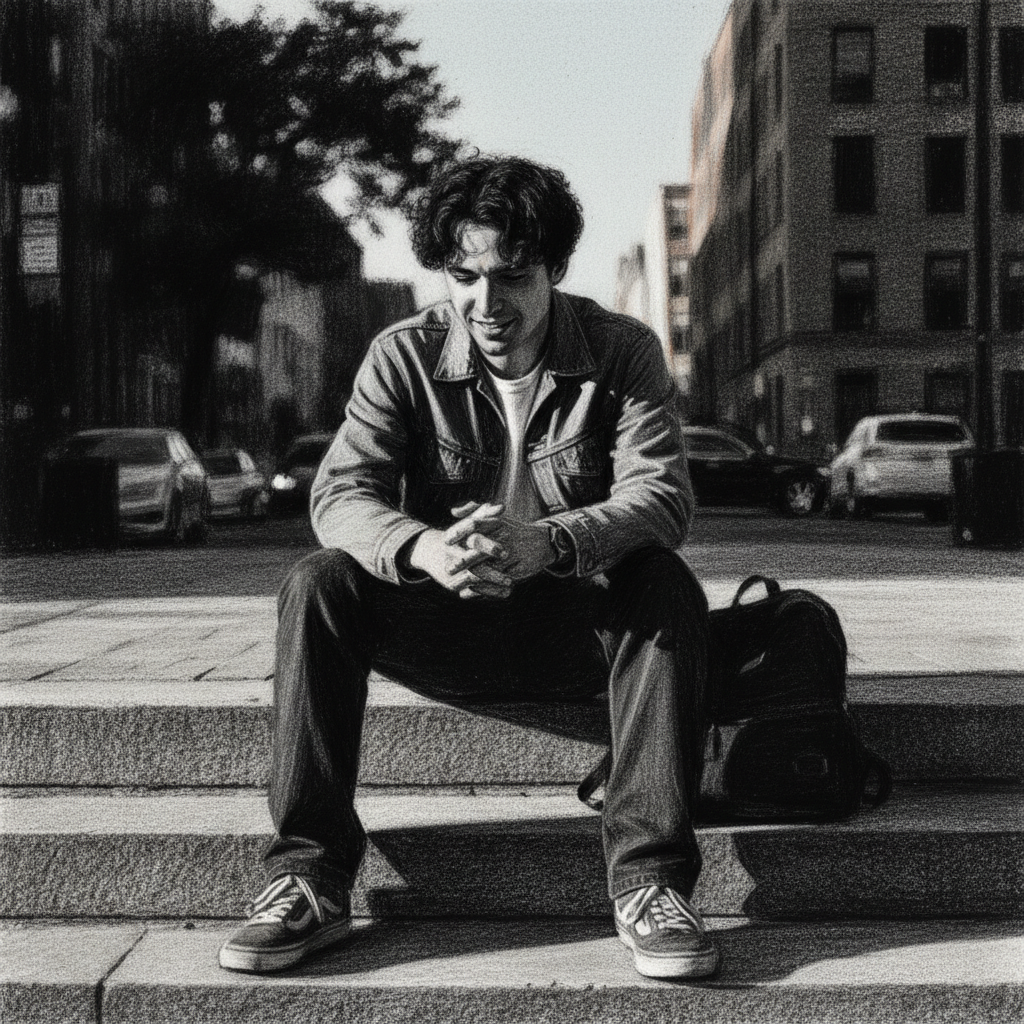
Prompt: Convert this portrait to realistic pencil sketch
Mountain landscape with red barn and tree
Before
->
Same landscape converted to pencil drawing with artistic shading
After

Landscape to Artistic Drawing

Mountain landscape converted to detailed pencil drawing showing texture and depth through sketch techniques.

Prompt: Transform this landscape into detailed pencil drawing

If something looks off

AI changed the wrong area or something I didn't want changed

Why: The AI couldn't determine exactly which area you meant from description alone.

Try: Tap a marker on the specific area you want to change, then regenerate with the same prompt

Tip: Markers tell the AI 'I mean THIS one specifically.' Use them when description alone is ambiguous.

Sketch looks too light or faint

Why: The AI interpreted your request as a subtle sketch style.

Try: Try 'convert to bold pencil sketch with strong contrast' or 'transform to dark charcoal drawing'

Tip: Use words like 'bold', 'strong', 'dark', or 'heavy' for more dramatic sketch effects.

Lost important details in the sketch conversion

Why: Complex photos sometimes lose fine details during style transformation.

Try: Use markers on important areas and try 'convert to detailed pencil sketch preserving facial features'

Tip: For portraits, specifically mention preserving eyes, nose, or other important facial features.

Quick answers

Do I need to mark areas before converting to sketch style?

No! Just describe what you want converted. The AI will transform your entire photo into pencil sketch style automatically. Only use markers when you want to emphasize specific areas or need precision control over the sketch conversion.

How do I convert photos to sketch style for free?

Upload your photo to EditThisPic and type an instruction like 'convert to pencil sketch'. The tool is completely free to try with no account needed. You get realistic sketch effects in seconds without any watermarks.

Is there a free sketch converter that doesn't require login?

Yes, EditThisPic is free to try with no account needed. Just upload your photo and describe the sketch style you want - pencil, charcoal, line drawing, etc. No signup required and no watermarks on your sketches.

What's the difference between pencil and charcoal sketch styles?

Pencil sketches tend to be lighter with fine details and subtle shading. Charcoal sketches are bolder with stronger contrast and more dramatic shadows. Just specify which style you prefer in your instruction.

Can I control how detailed the sketch conversion is?

Yes! Use descriptive words in your prompt like 'detailed pencil sketch' for fine lines and shading, or 'simple line drawing' for minimal sketch effects. You can also use markers to emphasize areas that need more sketch detail.

Ready to convert your photo to sketch style?

Free to try. No signup required.