How to Extend Photo Background with AI
To extend a photo background, upload your image to EditThisPic and describe what you want to expand: 'extend the sky above' or 'add more beach on the left side.' The AI analyzes your photo's existing content and generates a seamless continuation in any direction. Free, no signup required.
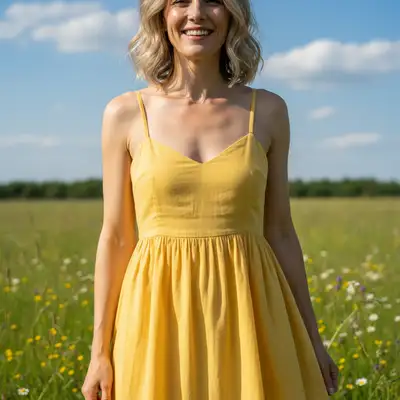
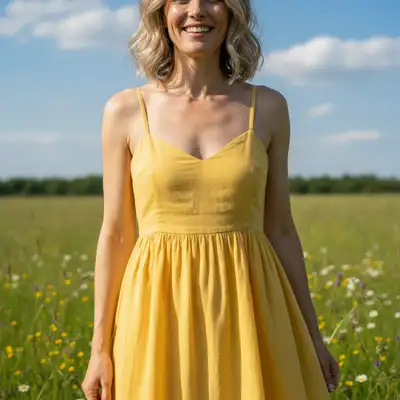
Why Extend Image Borders with AI?
Cropped too tight, wrong aspect ratio for social media, or just want more breathing room in a composition? AI outpainting solves all of these. Instead of awkwardly stretching pixels or adding blank borders, AI generates new content that naturally continues your photo's scene. The result looks like the photo was taken with a wider lens.
How AI Outpainting Works
AI outpainting reads the edges of your image and predicts what should exist beyond the frame. It matches lighting, color temperature, texture, and perspective. Extending a landscape adds more sky and terrain. Extending a portrait adds more background environment. The AI understands depth and context, so the generated content blends seamlessly with the original pixels.
Common Reasons to Extend a Photo Background
- Converting portrait photos to landscape for desktop wallpapers
- Adding headroom above subjects for social media headers
- Expanding product photos for e-commerce listings
- Creating wider panoramic views from single shots
- Fixing compositions that were cropped too tightly
- Adapting photos to different aspect ratios (16:9, 4:5, 1:1)
Extend in Any Direction
You can expand your photo in any direction or multiple directions at once. Need more sky? Extend upward. Want a wider scene? Extend left and right. Preparing a vertical story post from a horizontal photo? Extend top and bottom. Just describe the direction and the AI handles the rest, generating content that matches the existing edges perfectly.
Tips for the Best Extension Results
Photos with simple, repeating backgrounds (sky, grass, water, walls) extend most cleanly. Be specific about what you want generated: 'extend the background with more ocean and sky' gives better results than just 'make it bigger.' For complex scenes with people, extend away from the subjects so faces and bodies remain untouched. Start with small extensions and build up if you need more.
Step-by-Step Guide
Upload Your Photo
Drop or select the image you want to extend. Any format works: JPG, PNG, or WebP up to 7MB.
Describe the Extension
Tell the AI what to extend and in which direction. For example: 'extend the background to the right with more of the beach and ocean' or 'add more sky above the buildings.'
Review the Expanded Image
Check that the new content blends naturally with the original photo. Look at the seam area where the original ends and the extension begins. It should be invisible.
Refine or Extend Further
If you need more extension, use the result as your new starting image and repeat. You can also adjust specific areas: 'make the extended sky bluer' or 'add clouds to the new area.'
Frequently Asked Questions
Ready to Extend Your Photo?
Upload your image and describe the expansion. AI handles the rest. Free, no signup.
Drop your photo to start editing
"Extend the background"
Free to try · no sign-up · photos are never shared
Release to upload