Free • No signup Uncrop Photo · Free

Uncrop Photo with AI

Expand beyond cropped edges with AI-generated content that matches your photo.
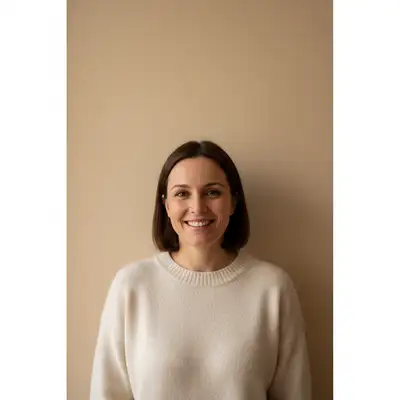
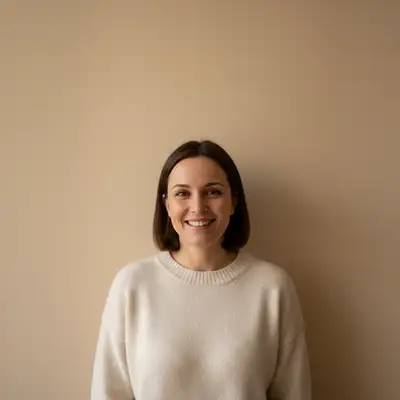
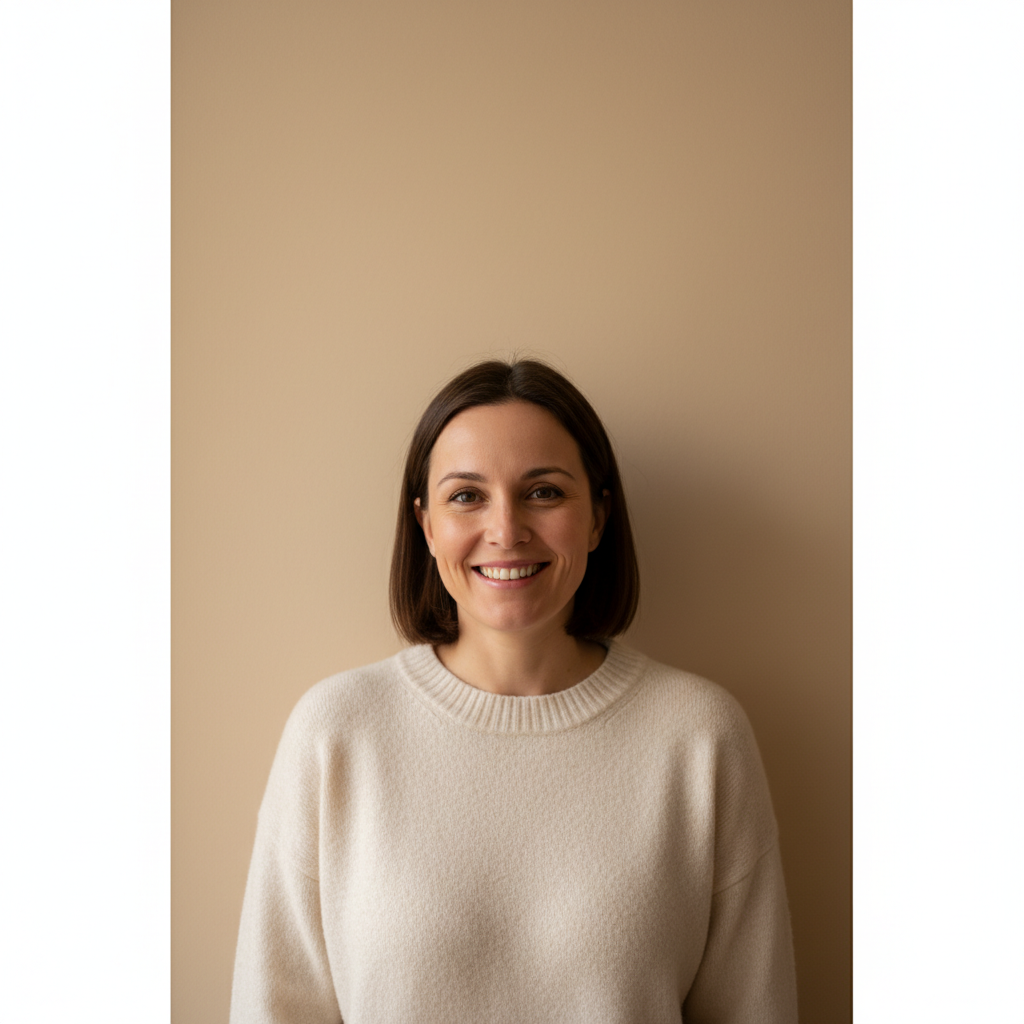
Tightly cropped vertical portrait with subject filling the frame
Before
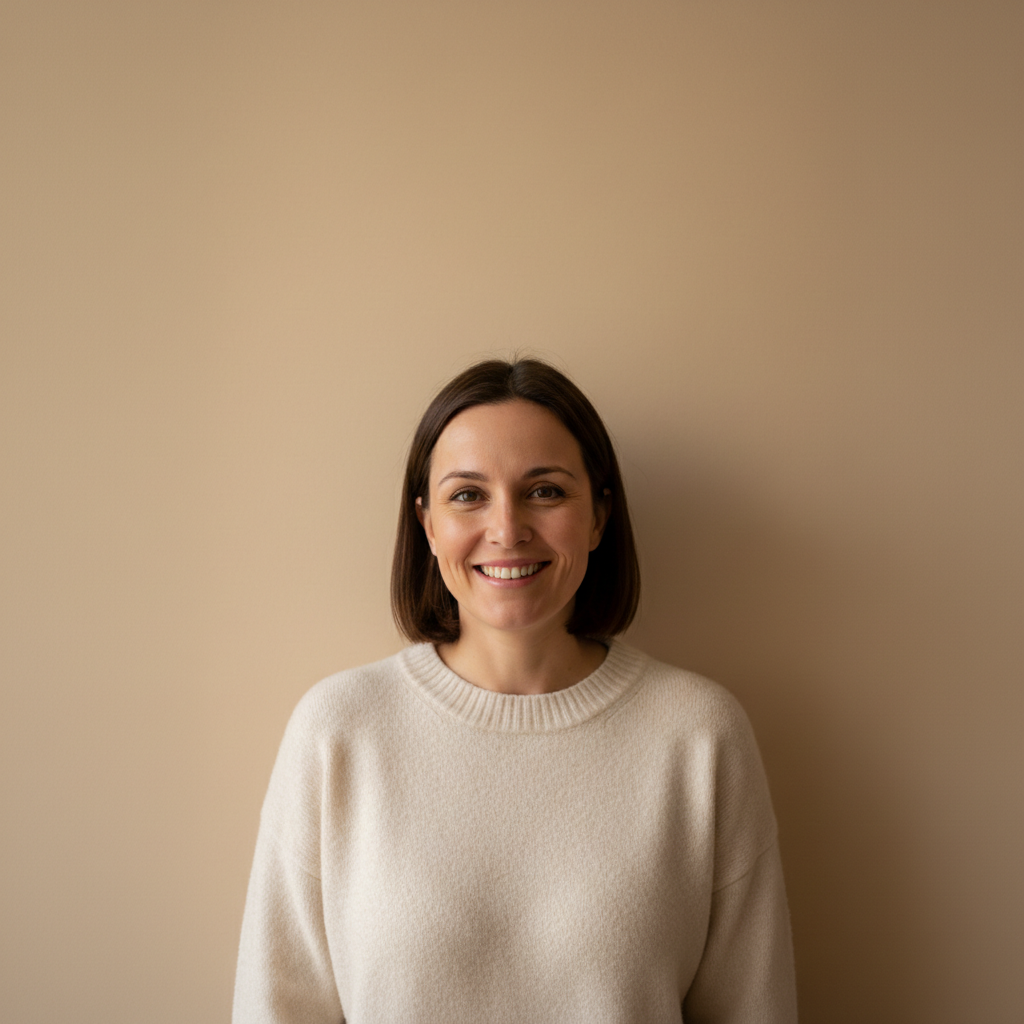
Same portrait expanded to landscape with matching wall extended on both sides
After

Uncrop Photo

Drop your photo here

or click to browse

Release to upload

Free • No signup

Advertisement
Popular use cases:
  • AI outpainting
  • Photo expansion
  • Aspect ratio fix
  • Make photo wider
  • Make photo taller
  • Recover cropped edges
  • Instagram format
  • Banner sizing

Cost
Free No signup required
Time
Instant results in 15-30 seconds
Works on
Any device - browser, phone, tablet, desktop
Powered by
AI-powered photo editing
Scenario Prompt Time
Make wider extend left and right to make this wider 25s
Make taller extend top and bottom to make this taller 25s
Portrait to landscape outpaint to landscape orientation 30s
Fit 16:9 expand to fit 16:9 aspect ratio 30s

How it works

  1. Upload your photo

    Drop your cropped image into EditThisPic. JPG, PNG, and WebP up to 7MB work best. Higher resolution photos give the AI more detail to match when generating the uncropped areas.

    Expect: Simple uncropping: 20-40 seconds. Complex scene generation: may need 2-3 refinements over 1-2 minutes.
  2. Describe what you want

    Type your instruction: 'uncrop this image - show more of the scene above and below' or 'extend the edges to make this photo wider.' Be specific about which direction to expand. The AI understands directional language without needing you to mark anything.

    Tip: Mention what you expect to see in the expanded area: 'uncrop to show more sky above' gives better results than just 'uncrop top.'

    Copy one of these to get started:

    Making a photo wider extend this photo to the left and right to make it wider, continuing the background naturally on both sides
    Recovering cropped headroom uncrop this image - show more of the scene above and below to add breathing room around the subject
    Converting portrait to landscape outpaint to make this portrait landscape orientation, extending both sides with matching background
    Fitting specific aspect ratio expand the background to fit 16:9 aspect ratio, adding content on the necessary sides to reach that format
    3 more prompts
    Making photo taller extend the sky and ground to make this photo taller, maintaining the same lighting and atmosphere
    Recovering cropped edges uncrop this photo to reveal more of the scene that was cut off, especially on the right side where the subject appears cropped
    Creating space for text overlay expand the top of this photo with more sky area for adding text, matching the existing sky color and clouds
  3. Generate and review

    Tap generate and examine where the original photo meets the new content. Check for seamless blending at boundaries, consistent lighting direction, and natural continuation of backgrounds like walls, sky, or ground.

    Tip: Zoom to 100% and check the seam line carefully—visible transitions are the most common issue to spot.
  4. Refine with markers if needed

    If boundaries look unnatural or the AI generated something unexpected, tap markers on problem areas and regenerate with more specific instructions. Most uncropping works without markers.

    Tip: Markers are for precision refinement, not required. Try describing what should appear in the expanded area instead.
Try it free

Uncrop Photo

Drop your photo here

or click to browse

Release to upload

Free • No signup

"Needed to make my portrait fit a landscape frame. One prompt and suddenly there's more wall and floor on each side. Magic." @FrameItRight

See it in action

Tightly cropped vertical portrait with subject filling the frame
Before
->
Same portrait expanded to landscape with matching wall extended on both sides
After

Portrait uncropped for landscape frame

Vertical portrait needed to fit a horizontal frame. AI extended both sides with matching indoor background.

Prompt: outpaint to make this portrait landscape orientation, extending both sides with the same warm indoor wall and natural lighting

Tightly framed professional headshot with minimal background
Before
->
Same headshot extended wider with office background on both sides
After

Headshot extended for LinkedIn banner

Professional headshot needed more width to work as a LinkedIn banner. AI extended the office background on both sides.

Prompt: extend this photo to the left and right to make it wider, continuing the office background naturally on both sides
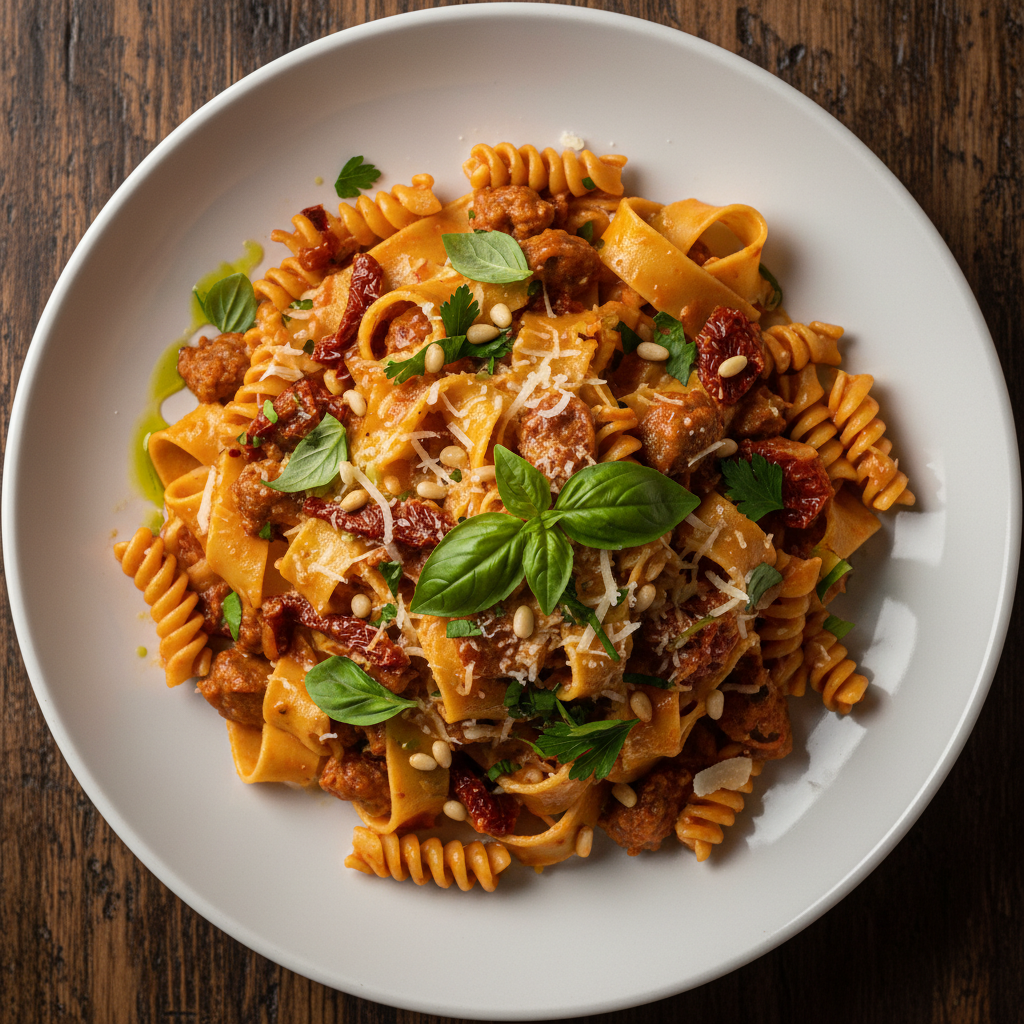
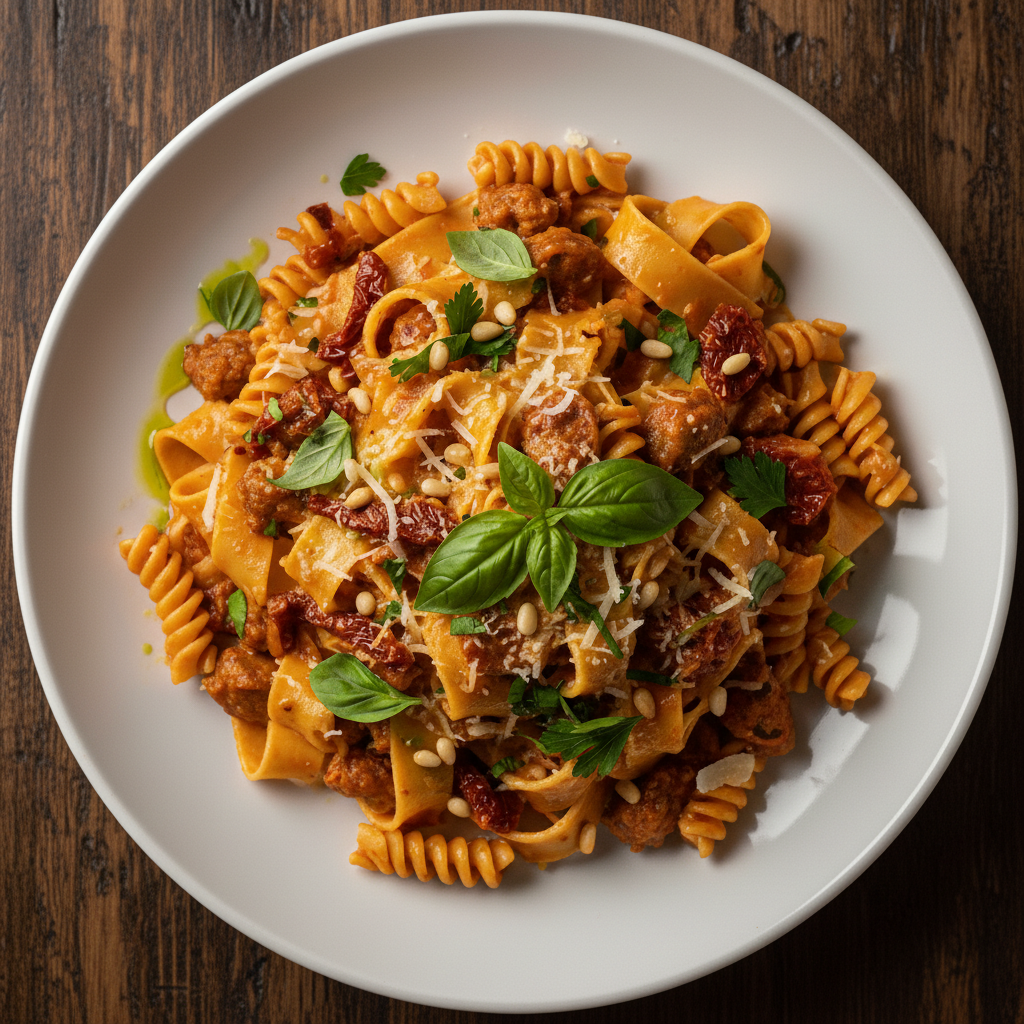
Tightly framed overhead shot of pasta dish with plate filling the frame
Before
->
Same dish photo expanded with more wooden table visible around the plate
After

Food photo expanded for menu

Restaurant dish photo needed more space around it for menu layout. AI extended the wooden table surface around the plate.

Prompt: extend this photo on all sides to add more space around the dish, continuing the wooden table surface
Advertisement

If something looks off

AI changed the wrong area or something I didn't want changed

Why: The AI couldn't determine exactly which direction you meant from description alone. This happens with ambiguous requests.

Try: Tap a marker on the specific edge you want to expand, then regenerate with the same prompt

Tip: Markers tell the AI 'I mean THIS edge specifically.' Use them when description alone is ambiguous.

Visible seam where new content meets original

Why: The AI-generated content doesn't perfectly match lighting, color, or texture at the boundary. Common with complex textures or strong directional light.

Try: uncrop this photo with seamless blending at the edges, matching the exact lighting direction and color temperature of the original

Tip: If the seam persists, tap markers along the visible boundary and regenerate focusing on blending.

Generated area looks blurry or artificial

Why: The AI had limited context to generate realistic content, especially with unique or complex scenes.

Try: uncrop this photo with sharp, realistic detail matching the quality of the original image, continuing [specific element like 'the brick texture' or 'the wood grain']

Tip: Name the specific textures or elements that should continue into the new area.

AI added unexpected objects in the expanded area

Why: Without specific guidance, the AI guessed what should appear based on scene context.

Try: uncrop this photo showing only [what you want], no additional objects, people, or elements

Tip: Be explicit about what should NOT appear: 'only more wall, no furniture or decorations.'

Colors don't match between original and expanded areas

Why: Color matching is challenging, especially with gradients, warm/cool lighting, or specific color temperatures.

Try: uncrop this photo matching the exact [warm/cool] color temperature and [specific colors] from the original

Tip: Name the dominant colors you see: 'matching the warm golden tones' gives better results.

The AI generated too much or not enough expansion

Why: The AI interpreted the amount of expansion differently than you expected.

Try: uncrop this photo, expanding approximately [X]% on the [direction] to achieve [target format like '16:9' or 'landscape orientation']

Tip: Specifying the target aspect ratio or percentage gives the AI a clear goal.

Quick answers

Do I need to mark the areas I want to uncrop?

No! Just describe which direction to expand: 'uncrop to show more above and below' or 'extend the left and right sides.' The AI understands directional language. Markers are only needed if the AI expands the wrong direction or you want to refine specific boundary areas—but most uncropping works with description alone.

How do I uncrop a photo to make it wider for free?

Upload your photo to EditThisPic and type 'extend this photo to the left and right to make it wider.' The AI generates new content that matches your existing background. It's free with no login required—you can uncrop as many photos as you need.

Is there a free AI outpainting tool that doesn't require signup?

Yes. EditThisPic offers free AI outpainting with no account needed. Just upload your photo, describe which direction to expand, and the AI generates new content beyond the edges. No watermarks, no signup, no credit card required.

What is the best free tool for extending photo edges?

EditThisPic's AI outpainting handles edge extension well for most photos. Just type what you want: 'extend both sides to make this wider' or 'add more sky above.' The AI analyzes your photo and generates matching content. It works for portraits, landscapes, product photos, and most other image types.

Can I recover content that was cropped out of a photo?

The AI doesn't recover the original cropped content—it generates new content that plausibly matches what could have been there. For simple backgrounds like walls, sky, or grass, results look very natural. For complex scenes with specific elements that were cropped, the AI will create something appropriate but not identical to what was originally there.

Ready to uncrop your photo?

Free to try. No signup required.

Try it free