Free • No signup Extend Image · Free

AI Outpainting Tool

Before
Before
After
After

Free AI Outpainting Tool

Drop your photo here

or click to browse

Release to upload

Free • No signup

Advertisement

Cost
Free No signup required
Time
Instant results in 15-30 seconds
Works on
Any device - browser, phone, tablet, desktop
Powered by
AI-powered photo editing

How it works

  1. Upload Your Image

    Choose the photo you want to extend beyond its current borders. Works with any aspect ratio or image size.

    Expect: Simple extend: 20-30 seconds. Complex extend: 30-45 seconds and may need refinements.
  2. Describe the Extension

    Tell the AI what should appear in the extended areas - new scenery, continued patterns, or creative additions. Specify direction and style to match your vision.

    Copy one of these to get started:

    extend Extend left and right sides showing more of the street scene with matching urban buildings, parked cars, and sidewalks under the same afternoon lighting
    extend Extend upward adding more dramatic storm clouds in dark grays and purples matching the moody atmosphere of the original photo
    extend Extend downward revealing more of the beach with wet sand, small waves, and scattered seashells matching the coastal scene
    extend Extend all sides to create a wider mountain panorama, adding more peaks, forest slopes, and alpine meadows under the same golden hour light
    3 more prompts
    extend Extend right side showing the continuation of the indoor hallway with matching hardwood floors, white walls, and recessed lighting
    extend Extend top and bottom creating a taller portrait orientation, adding sky above and ground below while maintaining subject position
    extend Extend left side revealing more of the formal garden with manicured hedges, stone pathways, and flowering plants matching the estate grounds aesthetic
  3. Review Generated Content

    Check that the outpainted areas blend naturally with your original image. Verify lighting, perspective, and style consistency across the extended canvas.

  4. Download Your Extended Image

    Save your outpainted image in full resolution with no watermark. The expanded canvas includes all new generated content.

Try it free

Free AI Outpainting Tool

Drop your photo here

or click to browse

Release to upload

Free • No signup

See it in action

Before
Before
->
After
After

Landscape Panorama Extension

Extend left and right sides showing more desert terrain with additional orange-lit rock formations, sandy ground, and sparse desert vegetation matching the dramatic sunset lighting
Prompt:
Before
Before
->
After
After

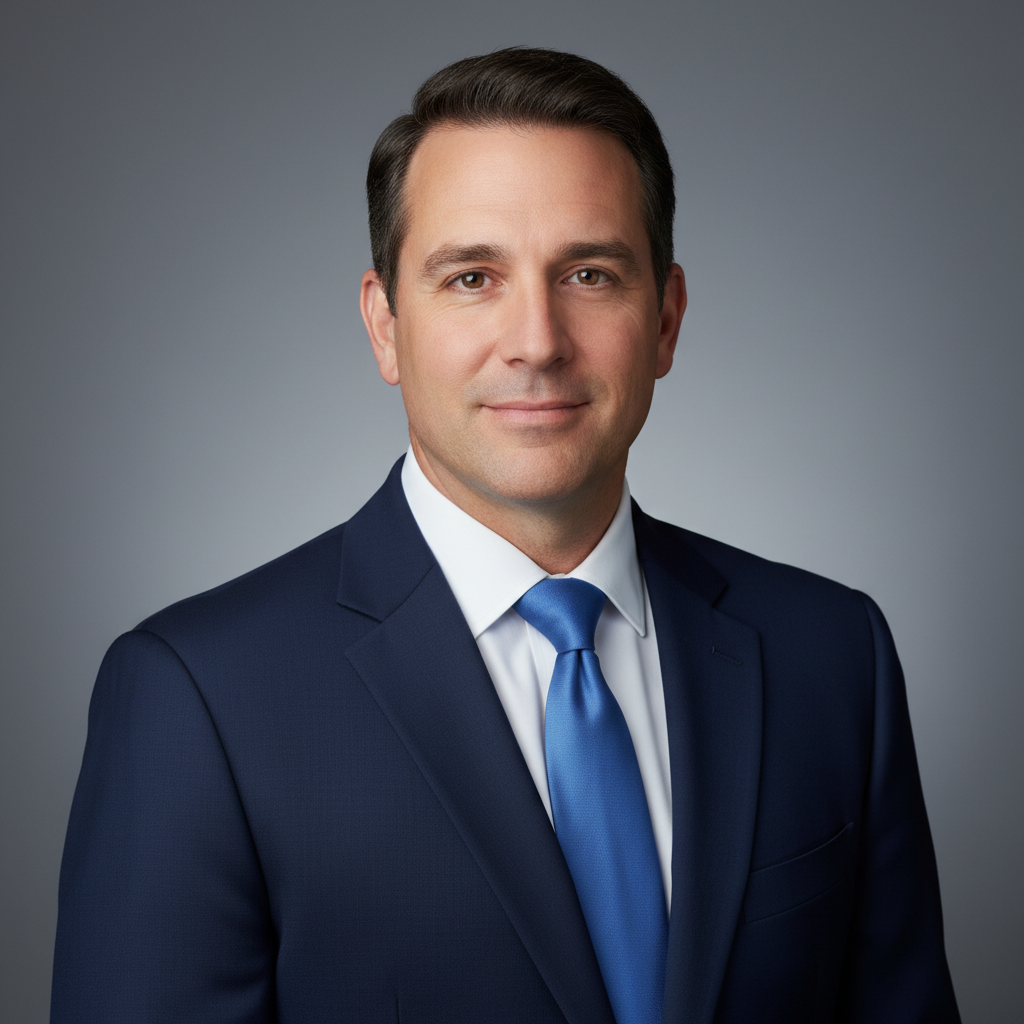
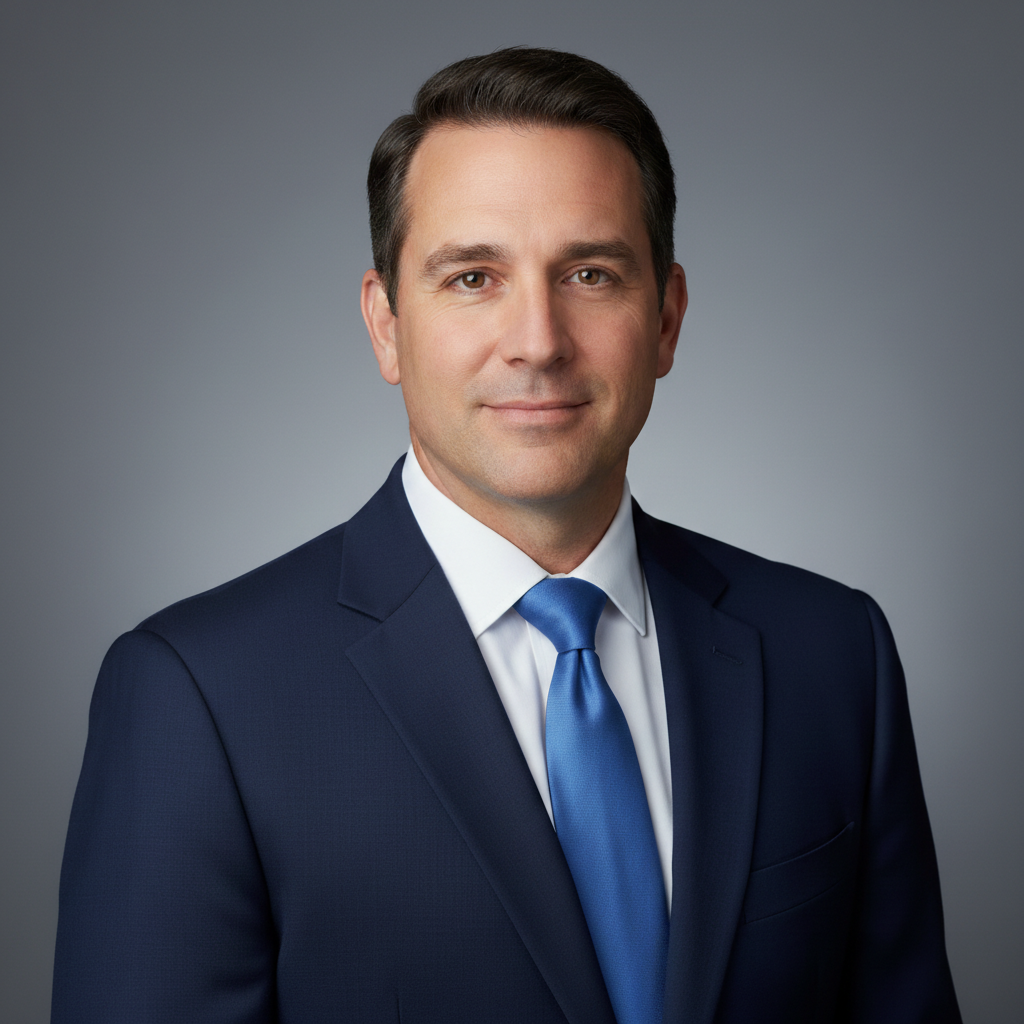
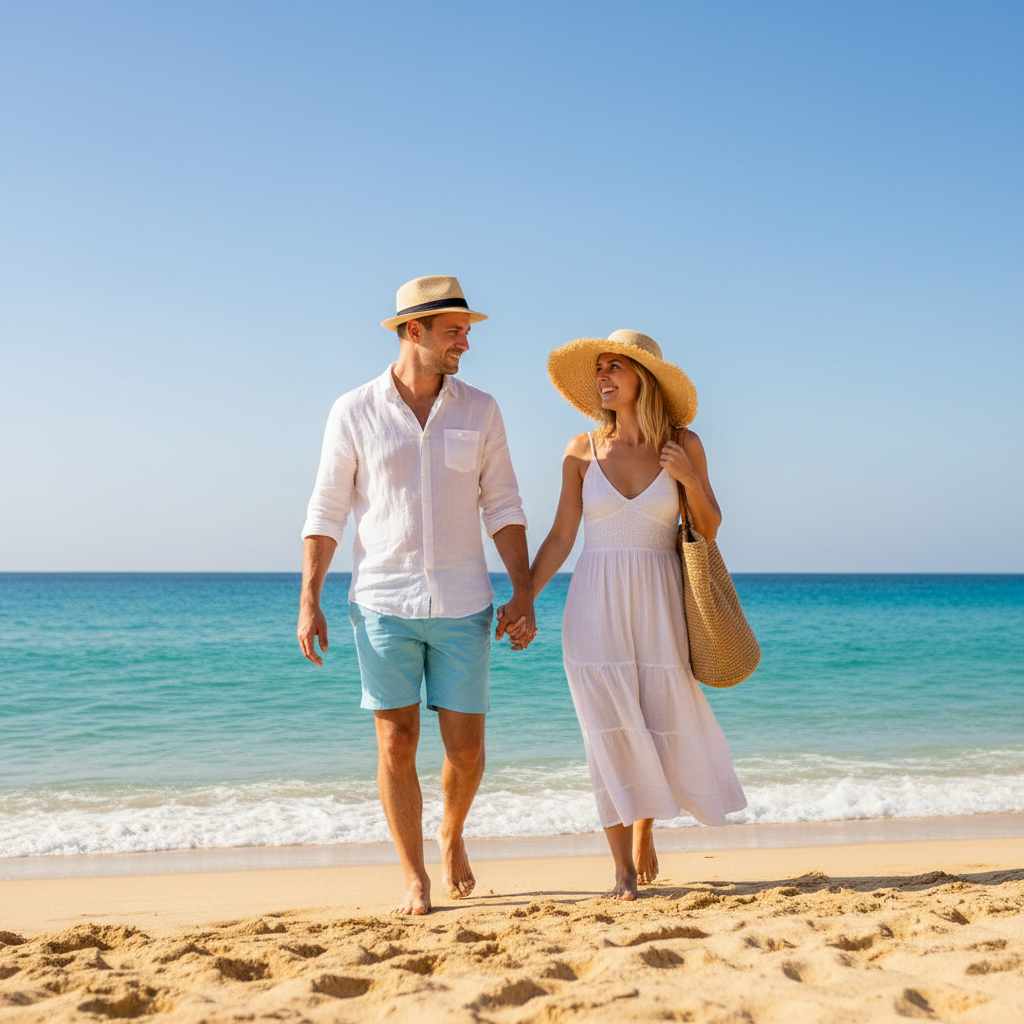
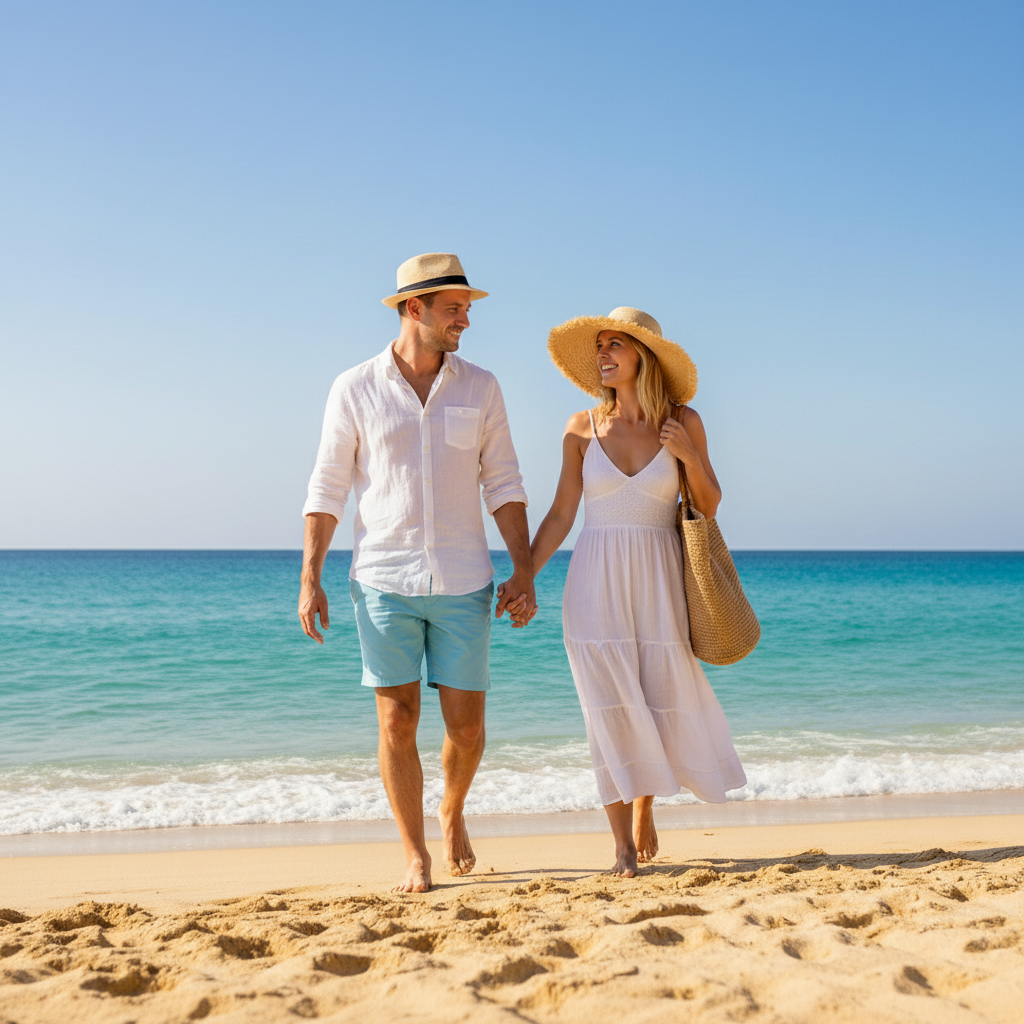
Portrait Uncrop

Extend all sides by 150 pixels showing full head and shoulders, continuing the solid magenta backdrop with matching studio lighting and even tone
Prompt:
Before
Before
->
After
After

Architectural Scene Expansion

Extend both sides revealing more of the symmetrical facade with matching turquoise stone work, golden window frames, and ornate architectural details under evening illumination

Prompt:
Advertisement

If something looks off

AI changed the wrong area or something I didn't want changed

Why: The AI couldn't determine exactly which area you meant from description alone.

Try: Tap a marker on the specific area you want to change, then regenerate with the same prompt

Tip: Markers tell the AI 'I mean THIS one specifically.' Use them when description alone is ambiguous.

Quick answers

Do I need to mark where to extend the image?

No marking needed. Just describe which direction to extend (top, bottom, left, right, all sides) and what should appear in the new areas. The AI handles boundary detection and seamless generation automatically.

What's the difference between outpainting and background extension?

Outpainting generates entirely new content beyond borders (revealing more of a scene), while background extension typically continues existing patterns or textures. Outpainting is more creative and can add new elements.

Can outpainting work with any image type?

Yes, works with photos, illustrations, product shots, portraits, and landscapes. Best results come from images with clear context that helps the AI understand what should logically extend beyond the borders.

How do I control what appears in the outpainted areas?

Be specific in your description: mention objects, scenery, lighting conditions, and style. The more detail you provide about what should appear, the better the AI can generate matching content.

Can I outpaint in multiple directions at once?

Yes, you can extend all sides simultaneously or specific combinations (top and bottom, left and right). Describe what should appear in each direction for best results.

Ready to edit your photo?

Free to try. No signup required.

Try it free