Free • No signup Open Editor

Extend Background from Photo

Just describe where you need more space. AI generates matching background seamlessly.

Type 'extend the background to the left with matching sky and clouds' and EditThisPic's AI generates new content that blends perfectly in 20-40 seconds. No cropping tools, no manual cloning. Just describe what you need. Works for aspect ratio changes, adding headroom, and creating banner crops. Free, no signup needed.

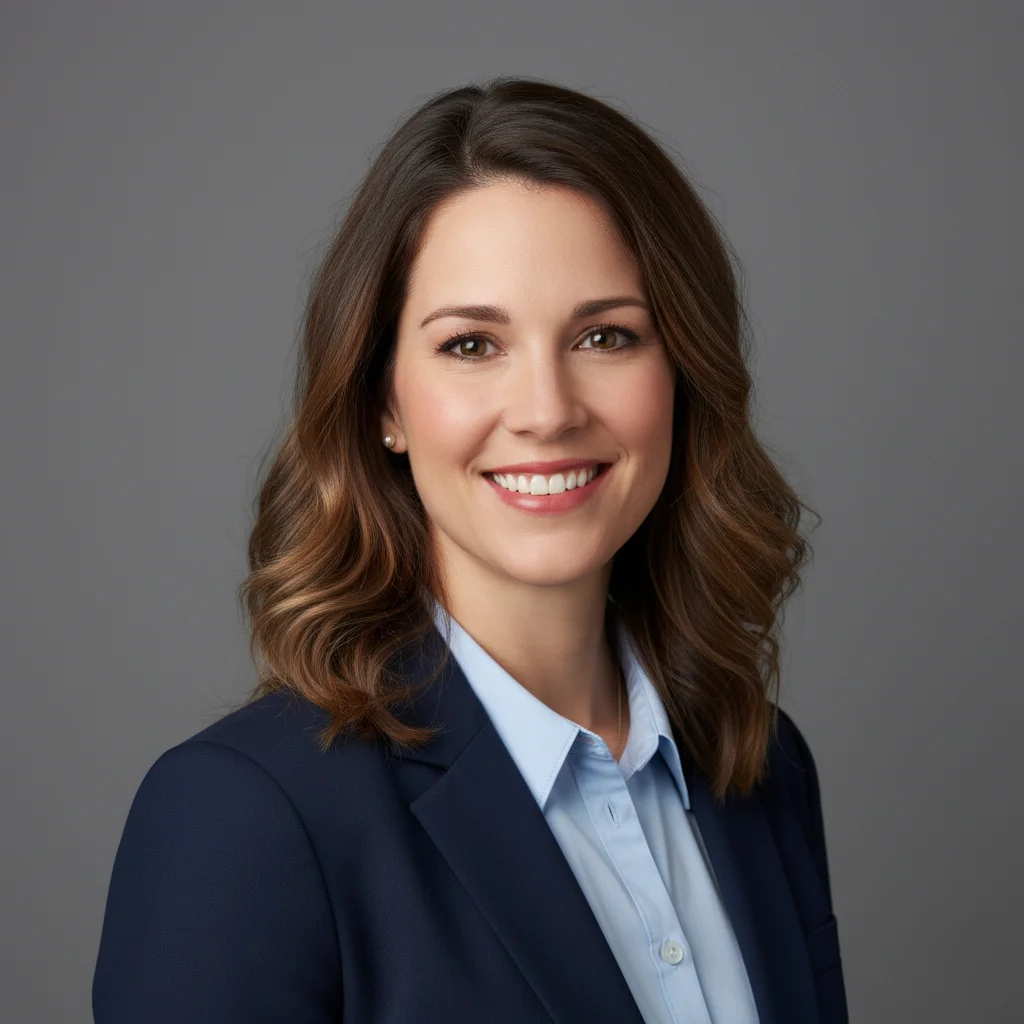
Vertical headshot with tight crop on gray background
Before
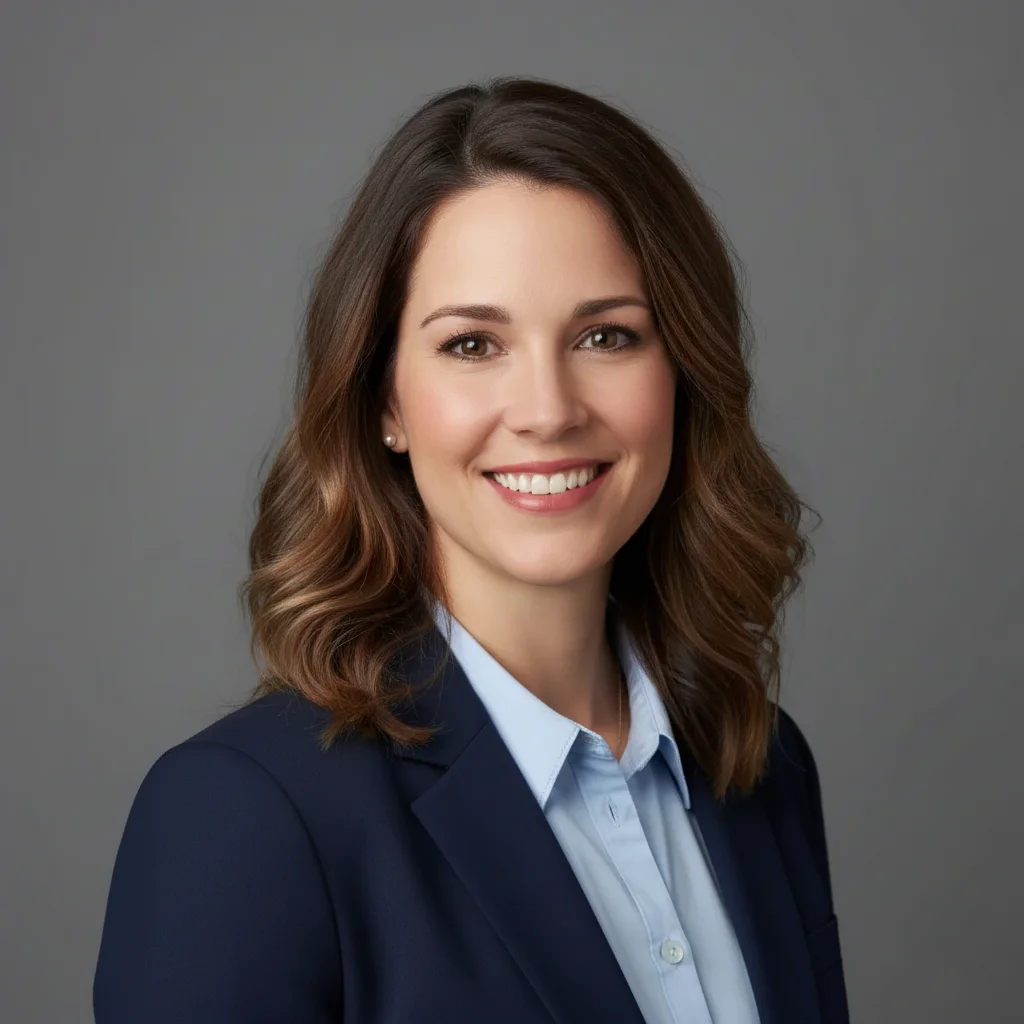
Same headshot extended to landscape with matching gray background
After

How it works

1

Upload your photo

Drop your image into EditThisPic. JPG, PNG, and WebP up to 7MB work best. Photos with consistent textures or patterns in the background extend more seamlessly.

⏱ Simple backgrounds like sky or walls: 20-30 seconds. Complex patterns or scenes: may need 2-3 refinements.
2

Describe how to extend

Type exactly what you need: 'extend the background upward to add more headroom' or 'add more background space on both sides for banner crop.' Be specific about which direction and how much. The AI understands and generates matching content.

💡 Mention key elements to match: 'extend with matching blue sky and soft clouds' helps the AI continue the existing scene naturally.

Copy one of these to get started:

Portrait to landscape for social media banner extend the background on both left and right sides to create landscape aspect ratio, matching the existing background texture and colors
Adding headroom above subject extend the background upward above the head to add more headroom, continuing the sky and background naturally
Square to 16:9 for YouTube thumbnail add more background space on left and right to convert to 16:9 widescreen ratio, seamlessly matching the scene
Vertical to square for Instagram post extend background on left and right to make square 1:1 ratio, matching colors and lighting of existing background
3 more prompts
Creating print-ready image with bleed extend the background outward on all four sides by about 10 percent for print bleed margin, continuing the existing textures
Product photo needing more context space extend the background below and to the sides to add more negative space around the product, matching the surface texture
Environmental portrait with more scene extend the background on the right side to show more of the environment and setting, generating matching scenery
3

Generate and review

Tap generate and examine where the new content meets the original. Check for texture continuity, lighting consistency, and natural transitions. These seam areas need the most attention.

💡 Zoom to 100% at the edges where new content was added. That's where mismatches become visible when used in final designs.
4

Refine the transition if needed

If the new area looks different or the seam is visible, tap markers along the transition zone and regenerate. This helps the AI focus on blending that specific boundary.

💡 Markers are for precision refinement, not required. Most simple extensions like sky or solid colors work perfectly without them.
Try it free
"Needed to turn a portrait shot into a landscape banner. Typed 'extend background on both sides' and it matched my sky perfectly." @DesignWithMark

See it in action

Vertical headshot with tight crop on gray background
Before
Same headshot extended to landscape with matching gray background
After

Portrait to landscape banner

Vertical headshot needed for website hero banner. Extended both sides to create widescreen crop without losing the subject.

Prompt: extend the background on both left and right sides to create landscape 16:9 aspect ratio, matching the plain gray studio backdrop seamlessly
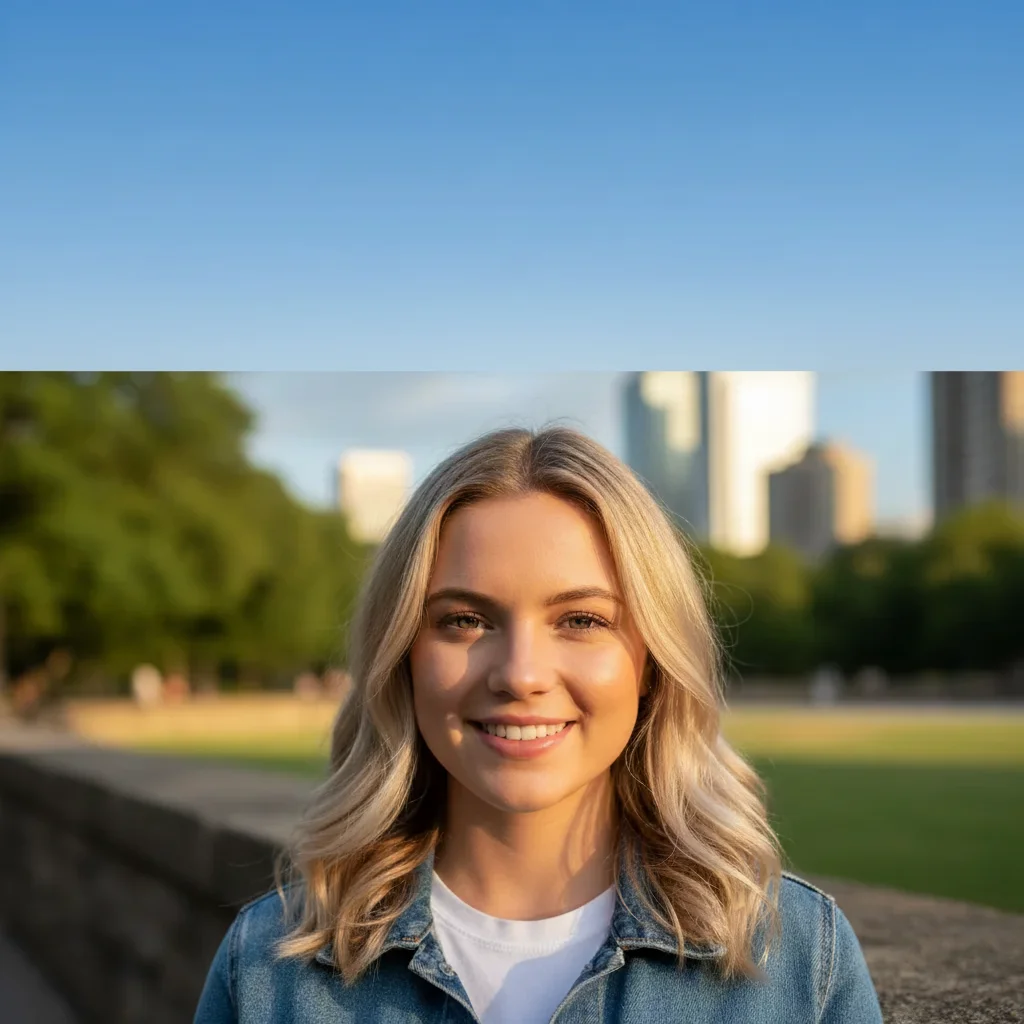
Portrait with head cropped too tight at top edge
Before
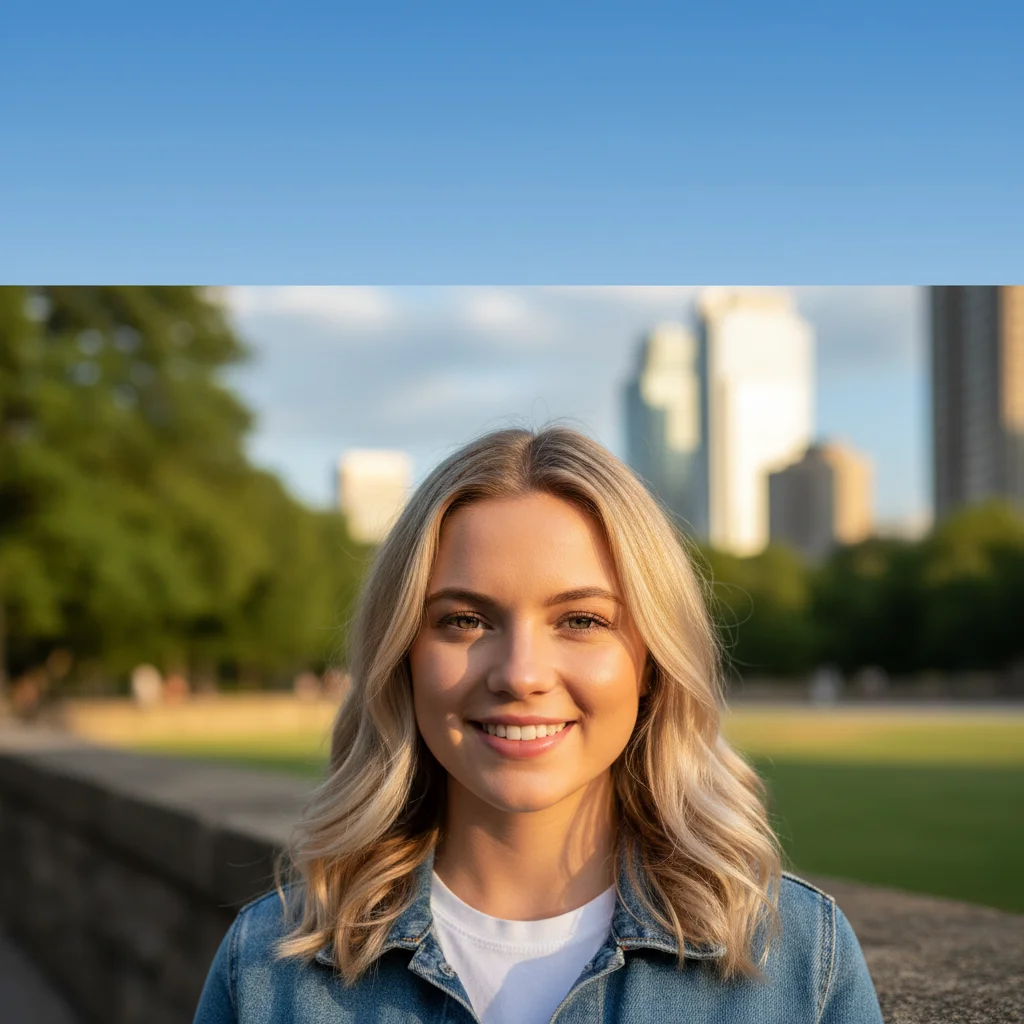
Same portrait with extended sky giving proper headroom
After

Adding headroom for better composition

Subject's head was cropped too tight at the top. Extended upward to add breathing room while matching the sky.

Prompt: extend the background upward above the head to add more headroom and sky, continuing the blue gradient naturally

Tight product shot with minimal surrounding space
Before
Same product with extended background creating space for text
After

Product photo for wide banner

Product shot was too tight for marketing banner. Extended the surface and background to create space for text overlay.

Prompt: extend the background on both sides and below to add more negative space around the product, matching the white marble surface texture and soft lighting

If something looks off

AI changed the wrong area or something I didn't want changed

Why: The AI couldn't determine exactly which area you meant from description alone. This happens when your photo has multiple possible extension directions.

Try: Tap a marker on the specific edge where you want extension, then regenerate with the same prompt

💡 Markers tell the AI 'I mean THIS edge specifically.' Use them when description alone is ambiguous.

Visible seam where new content meets original

Why: The lighting or texture in the generated area doesn't perfectly match the original. Complex backgrounds are harder to blend than simple ones.

Try: extend the background with seamless blending, matching the exact lighting direction and texture of the original

💡 If the seam persists, tap markers along the transition line and regenerate to focus the AI on that boundary.

Extended area has different color temperature

Why: The AI generated content with slightly different warmth or saturation. This is common when extending outdoor scenes.

Try: extend the background matching the exact color temperature and saturation of the original photo

💡 Be specific about colors: 'matching the warm golden sunset tones' rather than just 'matching colors.'

Pattern or texture doesn't continue naturally

Why: Complex repeating patterns like bricks or tiles are harder for AI to extend coherently than organic textures like sky or foliage.

Try: extend the background continuing the [brick/tile/pattern] pattern naturally, maintaining the same scale and alignment

💡 For geometric patterns, mention 'maintaining alignment and perspective' to help the AI match the grid.

Extended area looks artificial or too smooth

Why: The AI defaulted to a simplified version of the background instead of matching its full complexity.

Try: extend the background with realistic detail matching the texture and grain of the original photo

💡 Adding 'matching the photo grain' helps preserve the authentic look rather than AI-smoothed appearance.

Quick answers

Do I need to mark where to extend before describing?

No! Just describe what you want: 'extend background on the left' or 'add more sky above.' The AI understands directional instructions. Only use markers if you need to refine the transition after your first attempt, but most simple extensions work without them.

Can I extend in multiple directions at once?

Yes. Type 'extend the background on both left and right sides' or 'add more space on all four sides.' The AI can generate matching content in multiple directions simultaneously. This is perfect for aspect ratio conversions where you need to add space symmetrically.

How much can I extend a photo?

For best results, extend up to 50% of the original dimension in any direction. Larger extensions require more AI generation and may show inconsistencies. If you need dramatic expansion, consider doing it in stages: extend once, then extend the result again.

What backgrounds extend best?

Simple, consistent textures extend most seamlessly: clear sky, solid colored walls, out-of-focus bokeh, water, and grass. Complex patterns like detailed architecture or crowds are harder because the AI must generate believable continuation. For complex scenes, be extra specific in your prompt about what elements should continue.

Can I use this to change the aspect ratio of my photo?

Absolutely. This is one of the most popular uses. Type 'extend background on left and right to convert to 16:9 widescreen' or 'add space above and below for 4:5 portrait.' The AI adds matching content to reach your target ratio without cropping or stretching your subject.

Ready to extend your background?

Free to try. No signup required.

Try it free