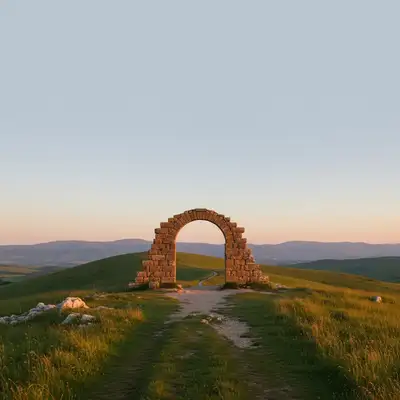
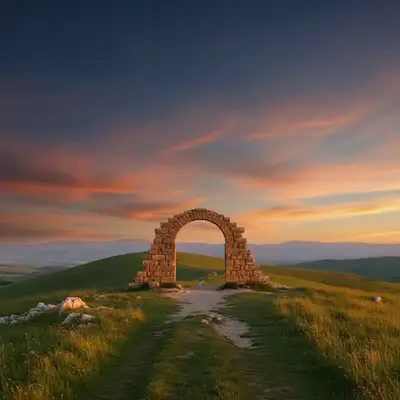
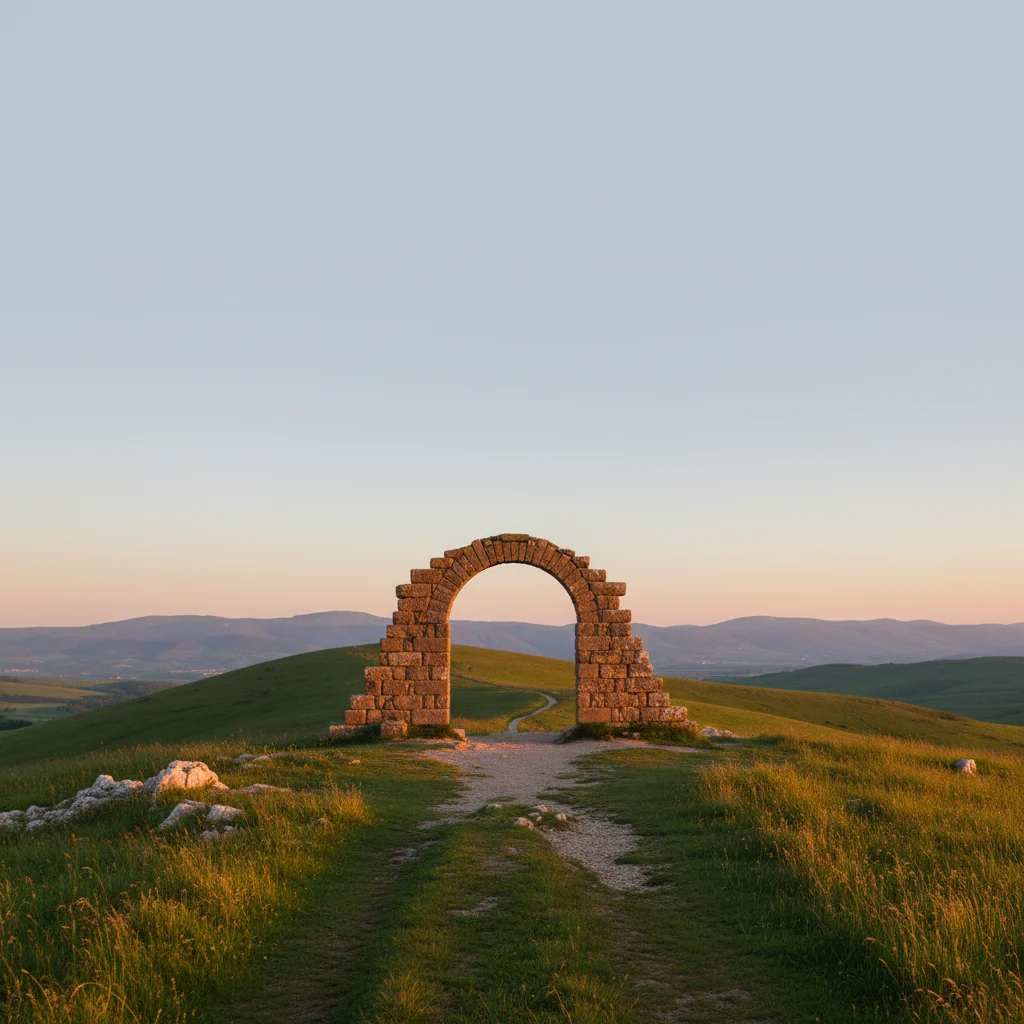
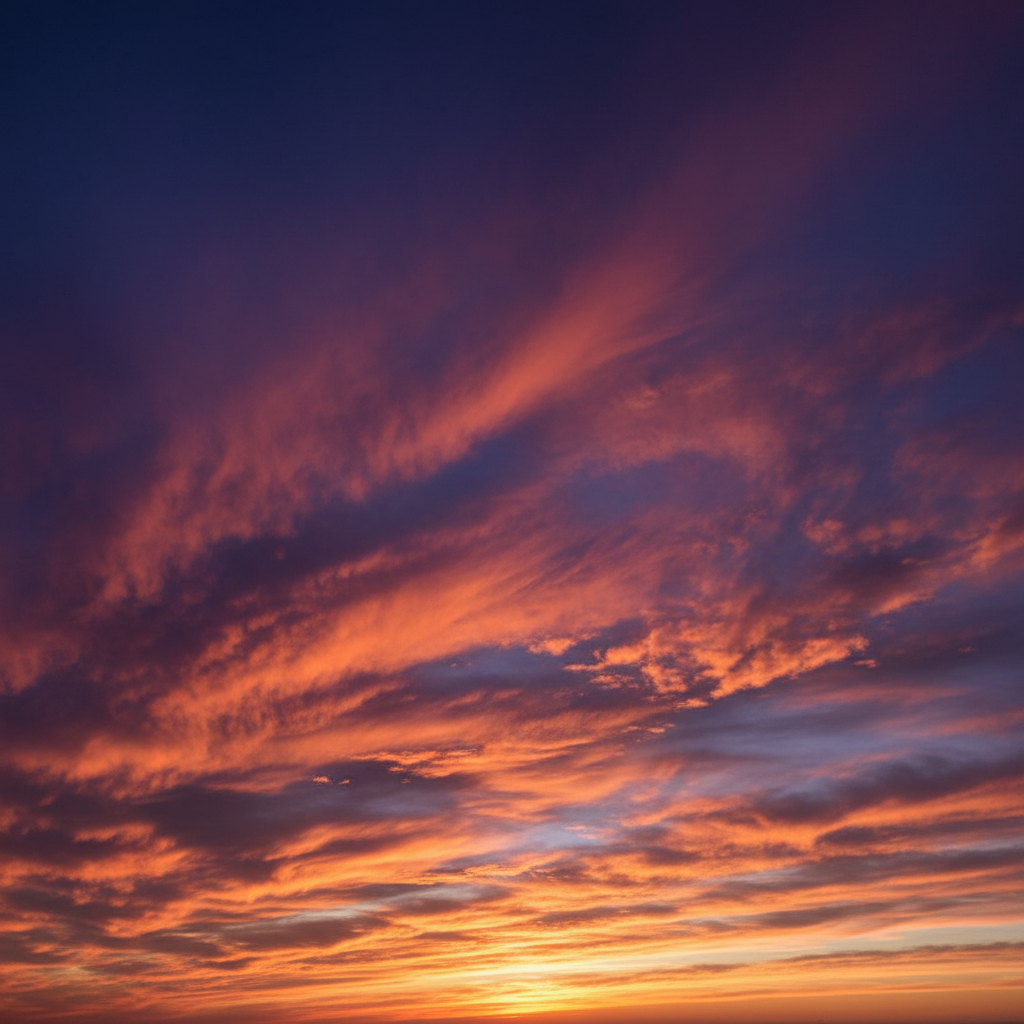
Add Sky to Photo
Transform dull skies into dramatic backdrops with AI-generated replacements in seconds.
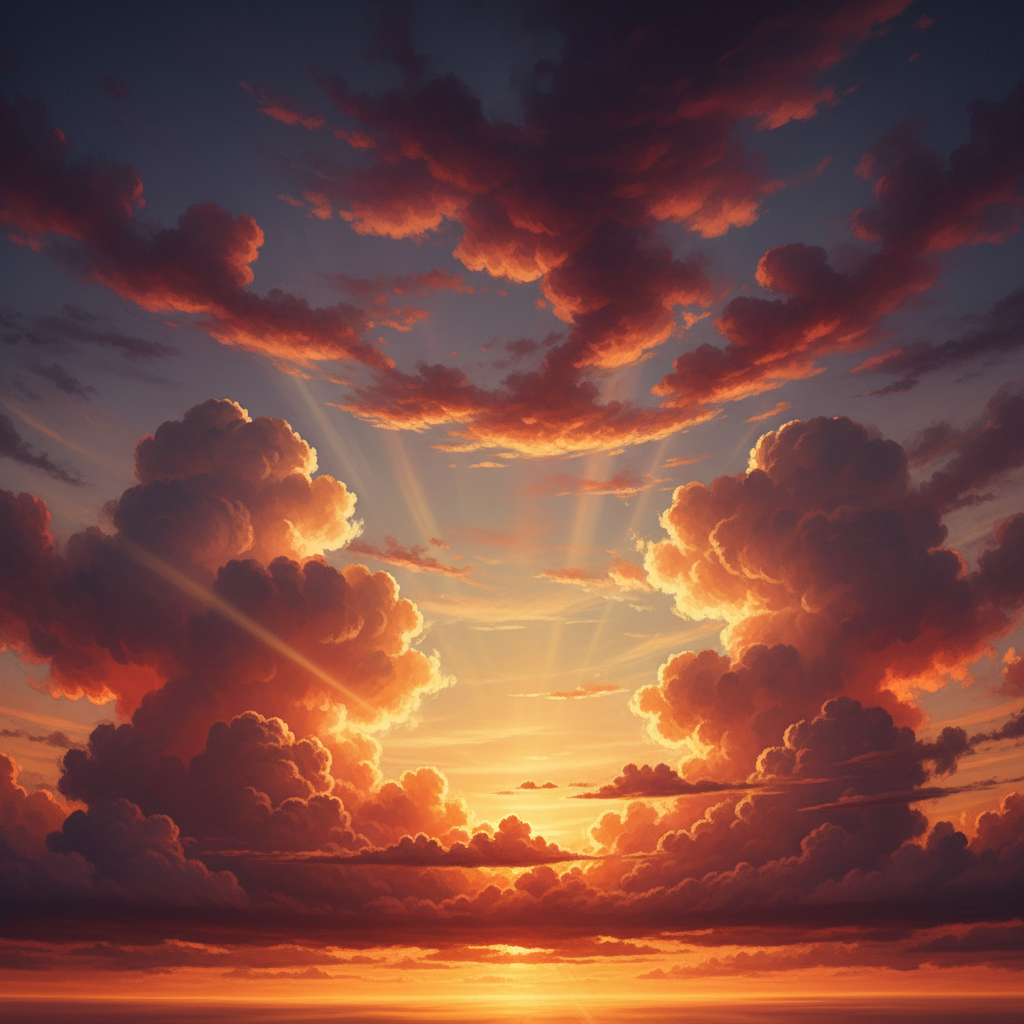
Type 'replace the sky with a dramatic sunset with orange and pink clouds' and EditThisPic's AI generates a stunning new sky in 15-30 seconds. Perfect for real estate photos, landscape photography, or any outdoor shot ruined by gray weather. The AI automatically detects the skyline and blends the new sky seamlessly. No selection required. Free to try, no account needed.
How it works
Upload your photo
Drop your outdoor photo into EditThisPic. Works with any image that has visible sky - landscapes, architecture, portraits, real estate. The AI detects horizon lines and building edges automatically. JPG, PNG, WebP up to 7MB.
Describe the sky you want
Type your sky description: 'add a clear blue sky with fluffy white clouds' or 'replace sky with a golden sunset reflecting warm light.' Include time of day, cloud types, and colors. The AI generates skies that match your description and adjusts lighting on the scene below.
Copy one of these to get started:
replace the sky with a clear bright blue sky with a few wispy white clouds, matching midday lighting on the house
add a dramatic sunset sky with vibrant orange, pink, and purple clouds, golden hour lighting reflecting on the scene
add a dramatic stormy sky with dark gray clouds and dramatic lighting, creating a moody atmosphere
add a soft pastel sunrise sky with gentle pink and lavender hues, early morning light on the landscape
3 more prompts
replace sky with a clear night sky filled with visible stars and a subtle Milky Way, keeping foreground lighting natural
add a vibrant tropical blue sky with dramatic white cumulus clouds towering in the distance, bright sunny day
add a soft autumn sky with muted blue tones and scattered clouds, warm afternoon light complementing fall colors
Generate and review
Check that the horizon blend looks natural, especially around trees, buildings, and other edges. Verify the lighting on the ground matches the new sky - a sunset sky should cast warm light on the scene.
Refine edges if needed
If you see halos around trees or rough edges where sky meets buildings, tap markers on those areas and regenerate. Tree edges are the most common area needing refinement.
"Shot a house on a cloudy day but the listing needed blue skies. One prompt later and the property photos looked like they were taken on the perfect day." @RealEstatePhoto_Jim
See it in action
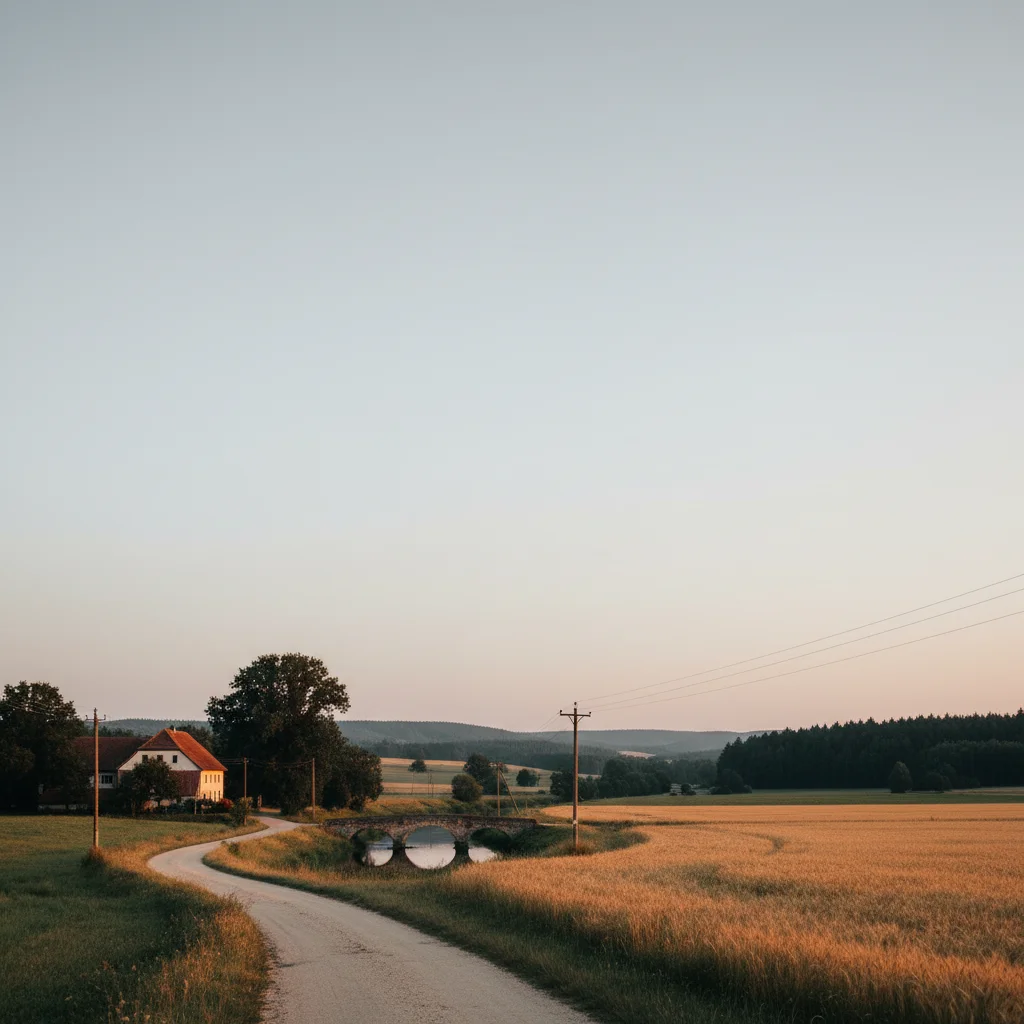
Real estate listing transformed
A house photographed on a dreary gray day now looks like it was shot on the perfect afternoon.
replace the sky with a clear bright blue sky with soft white clouds, matching midday sunlight on the house
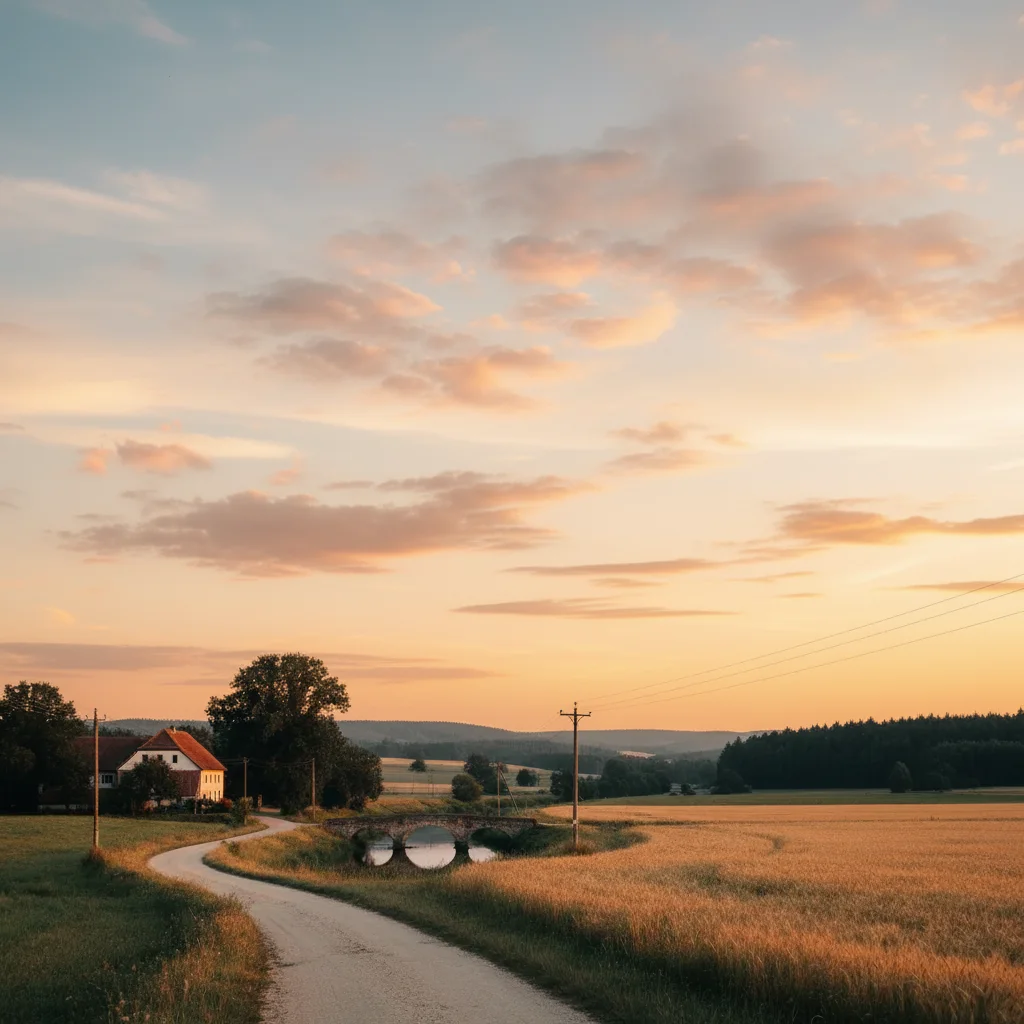
Landscape with sunset
A daytime landscape photo elevated with a dramatic sunset replacement.
add a dramatic sunset sky with vibrant orange and pink colors, golden hour lighting reflecting warmth onto the landscape
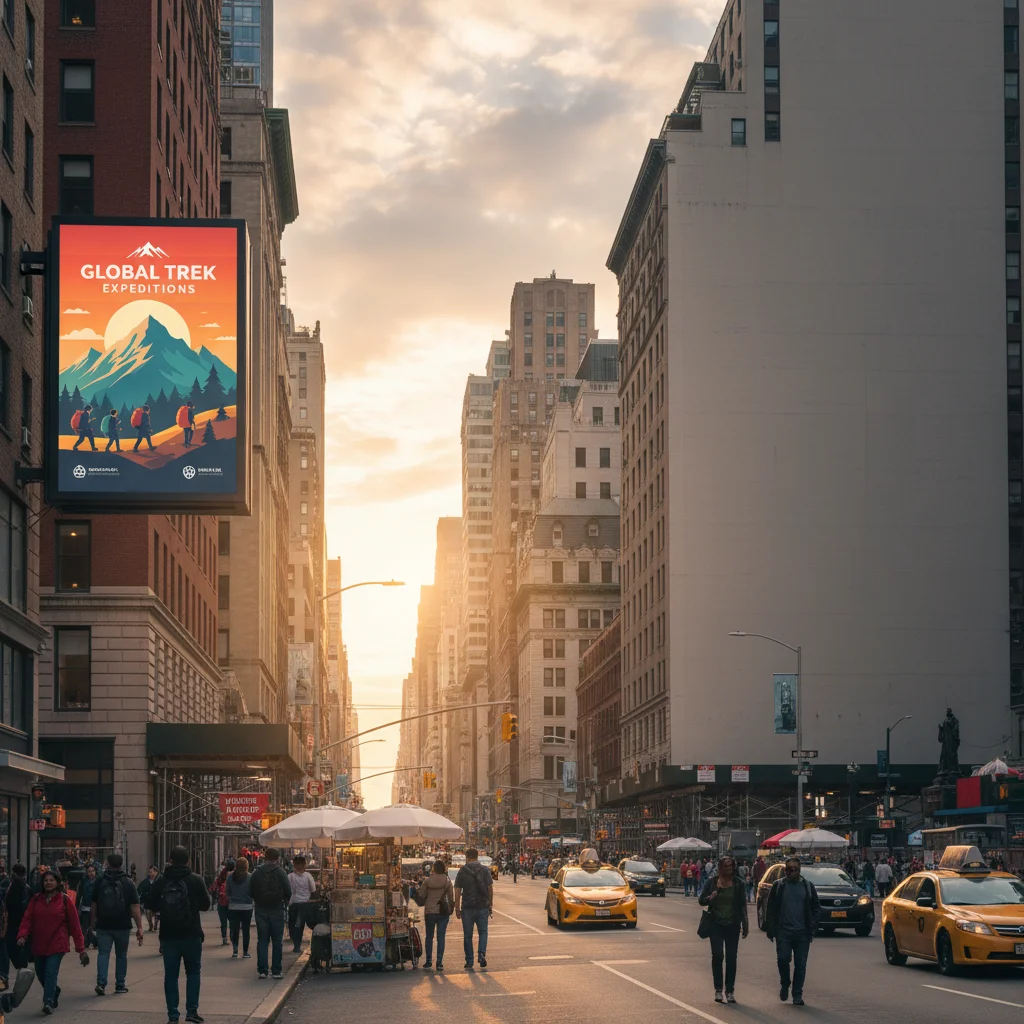
Architecture with dramatic clouds
A building photographed on a dull day transformed with dramatic storm clouds for visual impact.
add a dramatic sky with dark moody clouds and rays of light breaking through, creating an impressive backdrop for the architecture
If something looks off
Halos or white edges around trees
Why: The original sky color is bleeding through at the edges where fine tree branches meet the new sky.
blend the sky naturally through the tree branches without any white halos or edge artifacts
💡 Tap markers on the halo areas before regenerating for targeted edge cleanup
Lighting on ground doesn't match the new sky
Why: The AI replaced the sky but didn't adjust the foreground lighting to match the new time of day.
add [sky type] and adjust the lighting on the scene below to match the [sunset/sunrise/midday] mood
💡 Explicitly mention how the new sky should affect ground lighting in your prompt
Sky color looks too saturated or fake
Why: The AI generated an overly dramatic sky that doesn't look realistic.
add a natural realistic sky with [color description], avoid oversaturation
💡 Add 'natural' and 'realistic' to your prompt to prevent overly processed-looking skies
AI changed the wrong area or something I didn't want changed
Why: The AI could not determine exactly which area you meant from description alone. This happens with ambiguous requests.
Tap a marker on the specific area you want to change, then regenerate with the same prompt
💡 Markers tell the AI 'I mean THIS one specifically.' Use them when description alone is ambiguous.
Buildings or objects have sky bleeding through
Why: The AI detected the horizon incorrectly and replaced parts of buildings with sky.
replace only the sky area, keep the buildings and structures intact
💡 For complex skylines, tap markers on the buildings to tell the AI what to preserve
Quick answers
Do I need to mark the sky before replacing it?
No! Just describe the sky you want: 'add a sunset sky' or 'replace with blue sky and clouds.' The AI automatically detects where the sky is in your photo and replaces only that area. Use markers only if the AI has trouble with complex edges like trees or unusual horizon lines.
Will the lighting on my subject match the new sky?
For best results, include lighting instructions: 'with matching sunset light on the scene' or 'midday lighting on the ground.' The AI can adjust foreground lighting to match the new sky mood, but being explicit about this in your prompt ensures better results.
Can I use a specific sky photo I have?
EditThisPic generates skies from your description rather than accepting reference images. However, you can describe skies very specifically: 'dramatic orange sunset like Arizona desert sky' or 'soft pastel Hawaiian sunset.' The AI creates beautiful skies matching your detailed description.
Why do tree edges look rough after sky replacement?
Tree branches create very fine edges that are challenging to separate from the original sky. Use the refinement step with markers on problem tree areas. Try adding 'blend naturally through tree branches' to your prompt for better edge handling.
Does this work with photos that have no visible sky?
The photo needs some visible sky area to replace. If your photo is entirely indoors or has no sky visible, consider using the 'extend photo' tool to add sky above the current frame, or the 'add background' tool for complete scene changes.
Ready to transform your skies?
Free to try. No signup required.