How to Fix Pixelated Images
To fix a pixelated image, upload it to EditThisPic and describe what you want: 'fix the pixelation and smooth out the blocky squares' or 'sharpen this image and remove the pixelated blocks.' The AI reconstructs detail across the image, blending the visible squares back into natural edges and textures. Free, no signup required.
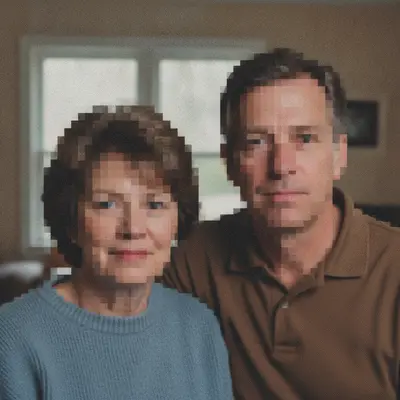
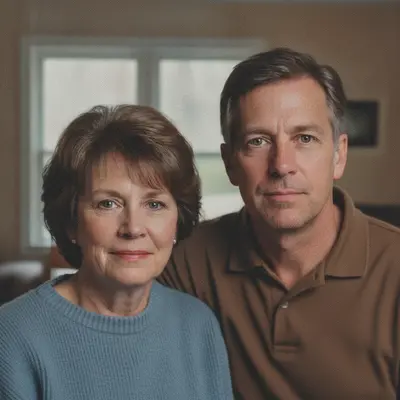
Smooth Out Pixelated Photos
Pixelation happens when an image is stretched beyond its actual resolution, heavily compressed, or captured at a low quality setting in the first place. The result is visible square blocks instead of smooth detail — most noticeable on faces, text, and curved edges. AI can now rebuild that missing detail so the blocks disappear and the image looks sharp again.
What Causes Pixelation
- Enlarging a small image — stretching a 200px photo to fill a 1200px frame
- Heavy compression — screenshots and re-saved JPEGs that lost detail to file size limits
- Low-res source — photos shot on old phones, webcams, or scanned at a low DPI
- Cropping and zooming — cropping tightly into a photo exposes the underlying pixel grid
- Repeated re-uploads — images passed through multiple apps or social platforms, each re-compressing them
How AI Pixelation Fixing Works
EditThisPic's AI doesn't just blur the blocks together — it analyzes the surrounding structure of the image and reconstructs plausible detail where the pixelation destroyed it. Edges get redrawn as continuous lines instead of stair-stepped squares, faces regain skin texture, and text becomes legible again where the original strokes can be inferred.
Fixing Pixelated Faces and Portraits
Faces are the most common pixelated-photo problem — an old profile picture, a screenshot from a video call, or a photo someone sent you at low resolution. Use a prompt like 'fix the pixelation on the face and smooth the skin detail' or 'de-pixelate this portrait.' The AI rebuilds facial structure while keeping the person recognizable, rather than generating a generic smoothed-over face.
Screenshots, Documents, and Text-Heavy Images
Pixelated screenshots and scanned documents are a different challenge — the AI needs to reconstruct straight lines and legible characters rather than organic textures. Prompts like 'sharpen this screenshot and fix the pixelated text' work well when the original text is still partially readable. If letters are fully unreadable, the AI can smooth the blocks but can't invent text that isn't there.
Tips for Best Pixelation Fix Results
Mild to moderate pixelation (blocks you can see but the underlying shape is still clear) produces the best results — the AI has real structure to work from. Severely pixelated images where a face is reduced to a handful of colored squares are harder; the AI will generate a plausible reconstruction, but it's an approximation, not a recovery of lost data. If the photo is also blurry on top of pixelated, mention both: 'fix the pixelation and sharpen the blur.'
Step-by-Step Guide
Upload Your Pixelated Image
Drop your image into EditThisPic. Works with pixelated portraits, stretched product photos, blocky screenshots, and low-res scans.
Describe the Fix
Be specific about what looks blocky: 'fix the pixelation on the face' or 'smooth out the blocky squares across the whole image.' Mention if there's also blur or low contrast to fix at the same time.
Check the Detail
Verify that edges, textures, and (if applicable) text look natural and continuous rather than blocky. If any area still looks rough, describe it again with more detail — for example, 'smooth the pixelation around the eyes.'
Frequently Asked Questions
Ready to Fix That Pixelated Photo?
Upload your image and describe the pixelation. AI rebuilds the detail. Free, no signup.
Drop your photo to start editing
"fix the pixelation and smooth out the blocky squares while keeping the image natural"
Free to try · no sign-up · never used for AI training
Release to upload