How to Slim Your Face in a Photo
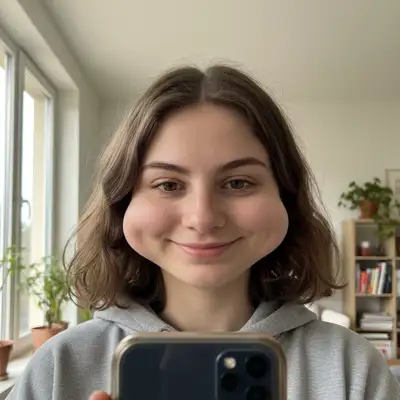
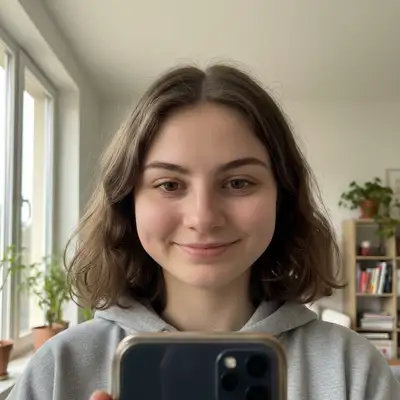
To slim your face in a photo, upload your image to EditThisPic and describe the edit: 'slim my face,' 'make my face look thinner,' or 'narrow the cheeks and define the jawline.' The AI subtly reshapes facial contours while keeping everything else natural. Free, no signup required.
Why Cameras Make Your Face Look Wider
Phone cameras distort facial proportions. Wide-angle front-facing lenses exaggerate anything close to the lens, making cheeks, nose, and forehead appear wider than they are in real life. A short focal length at arm's length can add 10-15% width to your face compared to what you see in the mirror. AI face slimming corrects this distortion so your photo matches what you actually look like.
How AI Face Slimming Works
The AI maps your facial structure — jawline, cheekbones, chin, and forehead — then subtly adjusts proportions to create a slimmer appearance. It reshapes the contour while preserving skin texture, shadows, and natural highlights. Unlike manual warping tools that distort the background or leave visible artifacts, AI understands what parts of the image are face and what's background, so only the face changes.
What You Can Slim and Reshape
- Jawline: define and narrow the jaw for a sharper profile
- Cheeks: reduce cheek fullness for a more sculpted look
- Overall face shape: make the entire face appear slimmer and more oval
- Chin: reduce or define the chin area
- Forehead: subtle narrowing if the wide-angle lens exaggerated it
Getting Natural-Looking Results
The biggest mistake is going too far. A subtle 10-15% reduction looks like a flattering photo angle. A 30% reduction looks obviously edited. Start with 'slim my face slightly' and increase if you want more. The goal is a photo that looks like you on your best day, not a different person. If anyone asks, it was just good lighting.
When Face Slimming Helps
Selfies taken at arm's length with wide-angle lenses are the most common fix. Professional headshots where lens distortion made your face wider than it looks in person. Group photos where you turned toward the camera and the angle wasn't flattering. Dating profile photos where first impressions matter. Video call screenshots where the laptop webcam sits below eye level and distorts your jaw.
Tips for Specific Situations
For selfies: 'slim the face and define the jawline slightly.' For professional headshots: 'reduce the lens distortion on the face to make it look more natural.' For side profiles: 'slim the cheek area and sharpen the jawline.' If you also want to address a double chin, combine both: 'slim my face and reduce the double chin.' Start subtle and ask for more if needed.
Step-by-Step Guide
Upload Your Photo
Drop your selfie, portrait, or group photo into EditThisPic. Front-facing and slightly angled shots both work well. JPG, PNG, or WebP up to 7MB.
Describe the Edit
Type what you want: 'slim my face,' 'make my face thinner,' 'narrow the cheeks and jawline,' or 'reduce the lens distortion on my face.' Start subtle.
Review the Result
Use the before/after slider to compare. Check that the jawline and cheeks look natural and proportional. The background should remain undistorted.
Refine If Needed
Want more? Ask for 'slim the face a bit more.' Too much? Say 'make it more subtle' or 'keep more of the original face shape.' You can adjust until it looks right.
Frequently Asked Questions
Slim Your Face in Seconds
Upload your photo and describe the look you want. Free, no signup needed.
Drop your photo to start editing
"Slim face — describe what you want in the prompt"
Release to upload