Enhance Resolution from Photo
Type 'enhance resolution' or 'upscale 4x' and watch your pixelated photos become sharp.
Just type 'enhance resolution to 4x' or 'upscale to higher resolution with sharp details.' The AI analyzes your image and intelligently adds detail in 20-45 seconds. No sliders, no settings to adjust. Works on small thumbnails, low-res screenshots, and social media crops. Free, no signup needed.

How it works
Upload your photo
Drop your low-resolution image into EditThisPic. JPG, PNG, and WebP all work. Even tiny thumbnails and heavily compressed images can be enhanced—the AI reconstructs detail that wasn't visible before.
Describe your upscaling needs
Type what you want: 'enhance resolution to 4x' or 'upscale with sharp details and natural texture.' Be specific if your image has faces or text—the AI handles each differently. No settings to configure, no sliders to adjust.
Copy one of these to get started:
enhance resolution to 4x with sharp details and natural texture
upscale to higher resolution preserving facial features with natural skin texture, no artificial smoothing
enhance resolution keeping text sharp and readable, clean edges on all lettering
upscale to print quality resolution with crisp details, suitable for large format printing
3 more prompts
enhance resolution while removing JPEG compression artifacts, restore clean smooth gradients
upscale product image to high resolution with sharp edges and accurate colors, professional quality
enhance resolution preserving fine architectural details and texture, sharp lines and edges throughout
Generate and review
Tap generate and examine the result at 100% zoom. Check edges, textures, and any text for artifacts. Compare side-by-side with the original to verify details were enhanced, not invented incorrectly.
Refine specific areas if needed
If certain areas look over-smoothed or have artifacts, tap markers on those spots and regenerate with more specific instructions. This is optional—most upscales work well without additional refinement.
"I had a tiny 200px profile pic from years ago. Typed 'upscale 4x with sharp details' and now it's printable quality." @DigitalMemoriesKate
See it in action
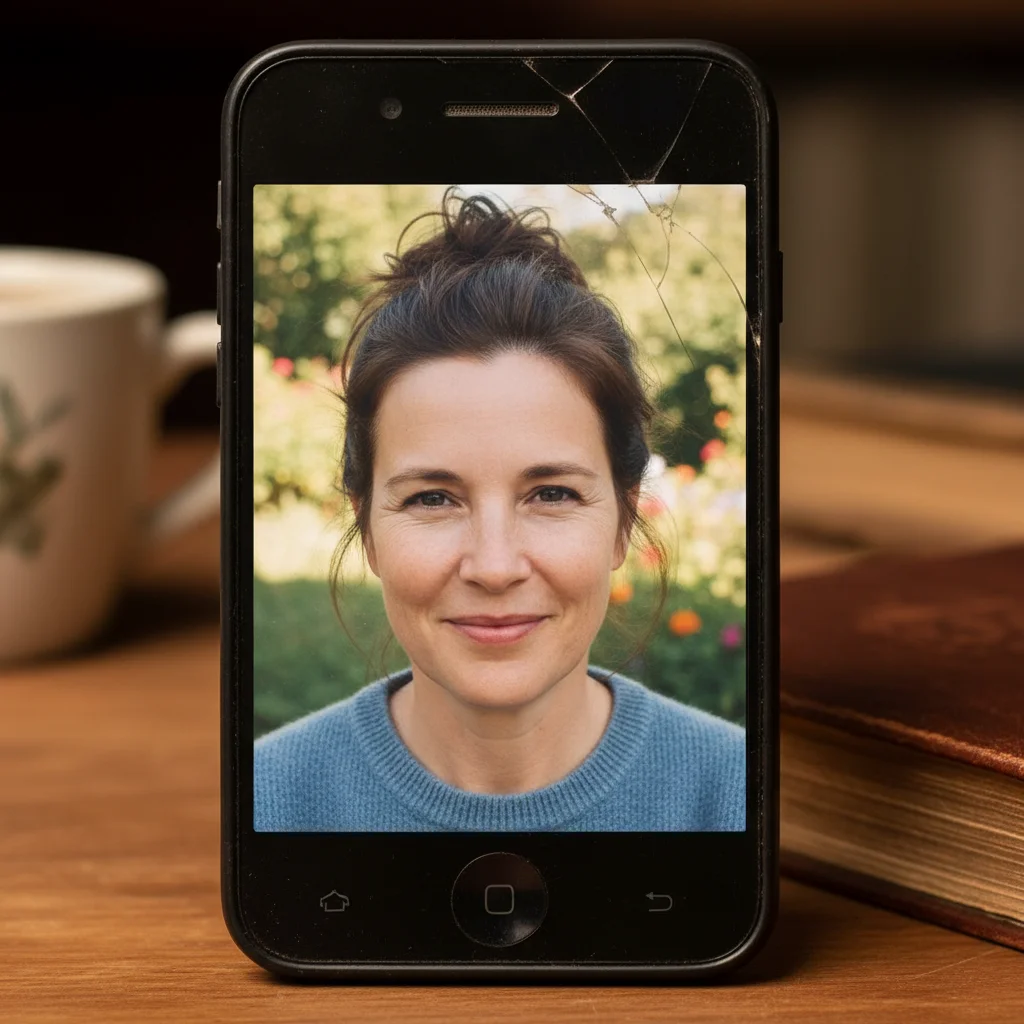
Tiny thumbnail restored
Old 150x150 profile picture from an early social media account. Upscaled to usable resolution while preserving facial identity.
enhance resolution to 4x preserving facial features with natural skin texture, sharp but not artificial
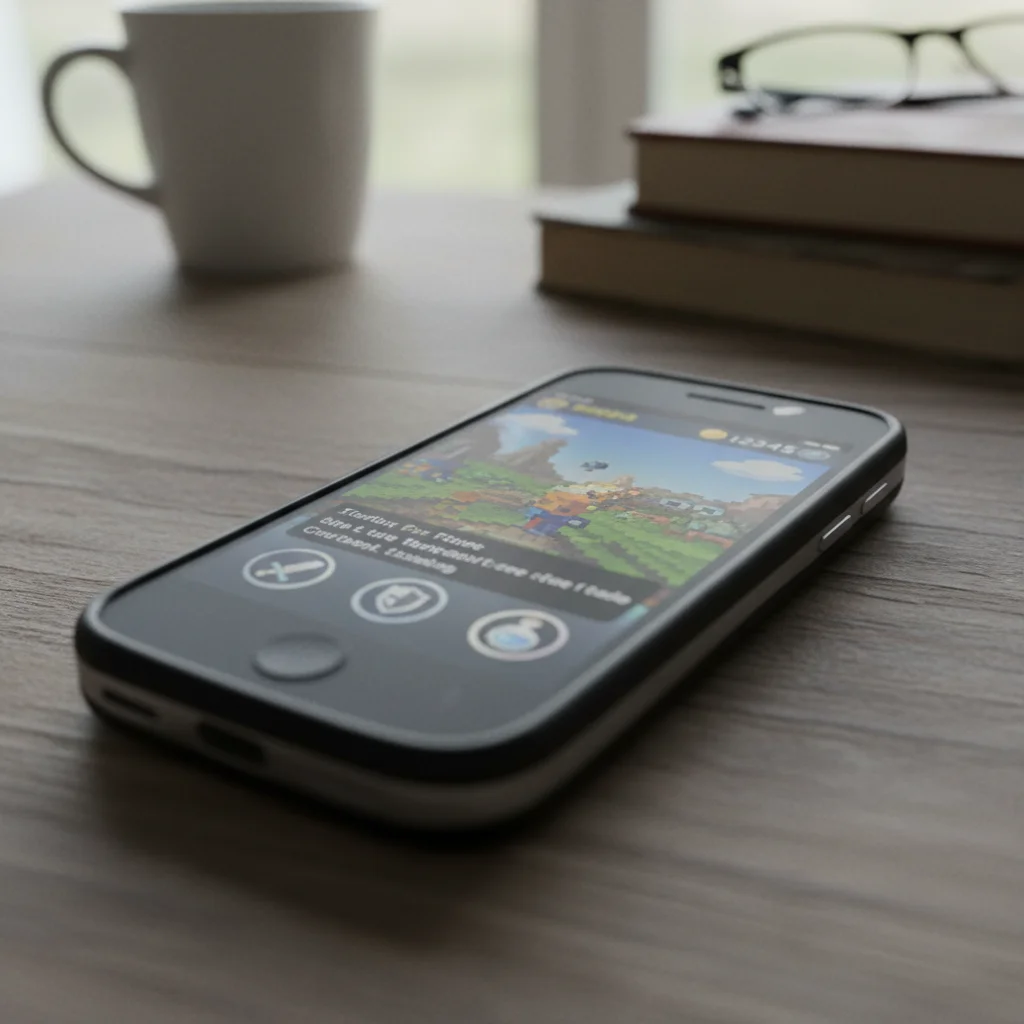

Screenshot text made readable
Low-resolution screenshot from an old phone. Text was blurry and hard to read. Enhanced to crisp, legible quality.
upscale to higher resolution keeping all text sharp and readable, clean crisp edges on lettering
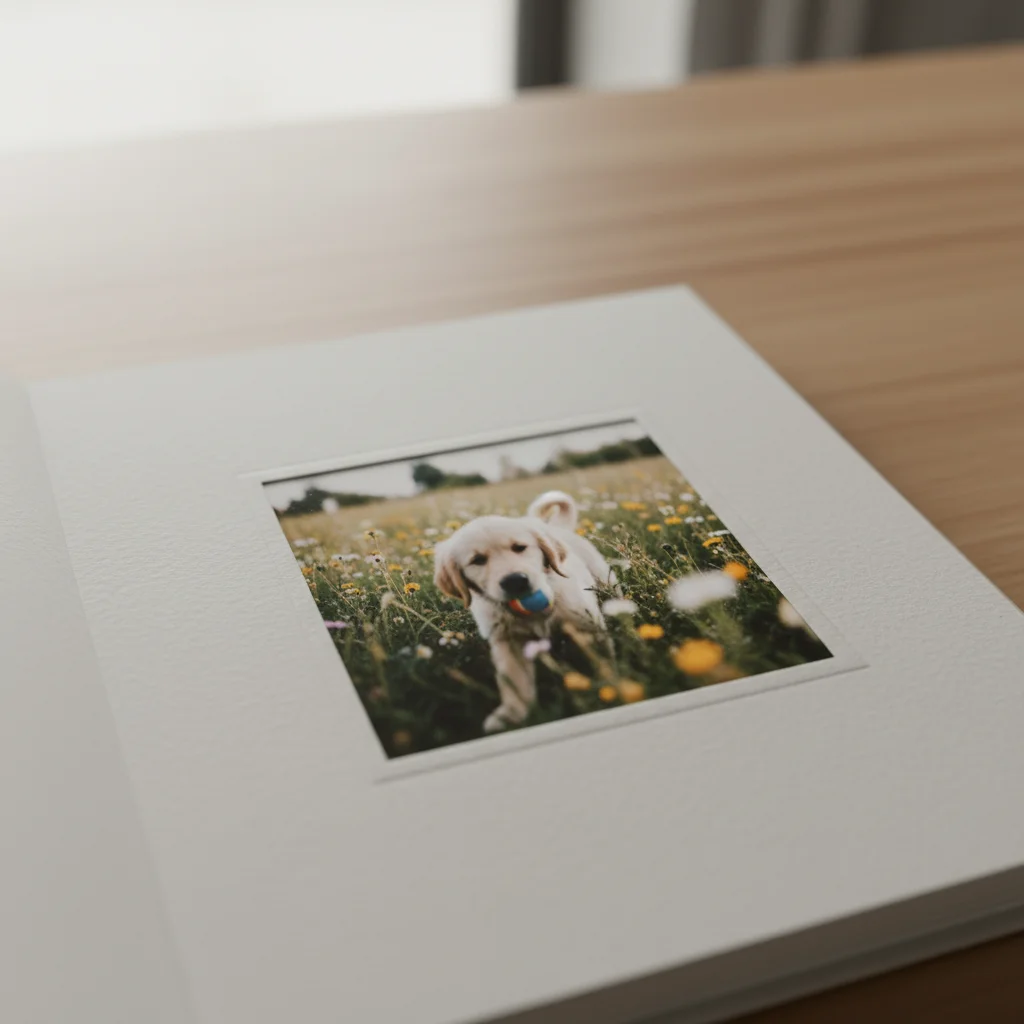
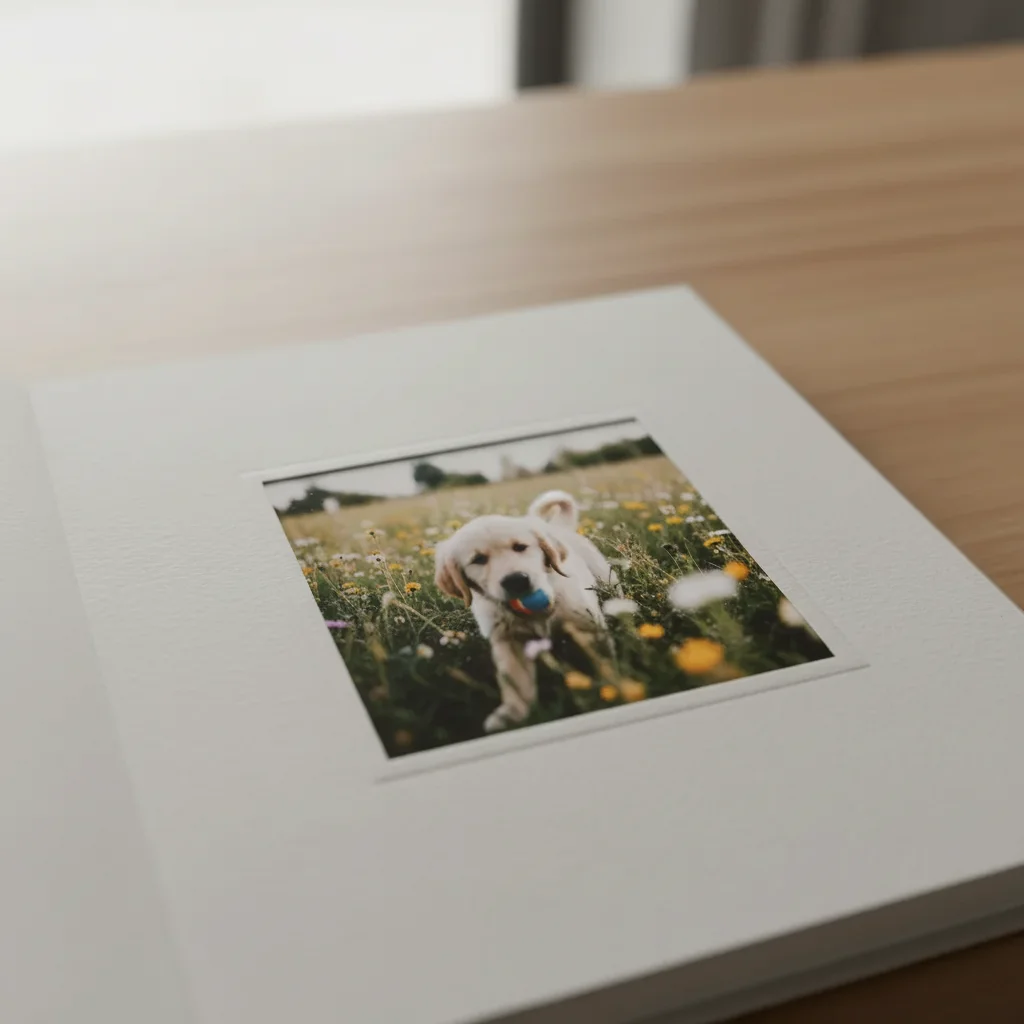
Instagram crop for print
Small Instagram square exported for a photo book. Original was too low-res for printing. Upscaled to print-ready quality.
enhance resolution to print quality with sharp details and natural colors, suitable for 8x8 inch print
If something looks off
AI changed the wrong area or added unwanted details
Why: The AI interpreted ambiguous areas incorrectly or hallucinated details that weren't in the original. This happens when the source is extremely low resolution.
Tap a marker on the specific area that looks wrong, then regenerate with 'enhance resolution preserving original details exactly, no invented features'
💡 Markers tell the AI 'pay special attention here.' Use them when AI-generated details don't match your original.
Faces look plastic or unnaturally smooth
Why: AI upscalers sometimes over-smooth skin to hide artifacts, resulting in an artificial appearance. This is common with face-focused images.
enhance resolution preserving natural skin texture and pores, realistic appearance not airbrushed or plastic
💡 Adding 'pores' and 'realistic' forces the AI to maintain natural skin characteristics.
Text is still blurry after upscaling
Why: The AI treated text as part of the general image rather than prioritizing legibility. Text requires different enhancement than photos.
enhance resolution with priority on text sharpness, make all lettering crisp and perfectly readable
💡 For documents or screenshots, try 'treat as document with text' to trigger text-specific processing.
Weird artifacts or halos appeared around edges
Why: Over-sharpening during upscaling creates halos at high-contrast edges. This is more visible around dark objects on light backgrounds.
enhance resolution with natural edge treatment, no sharpening halos or ringing artifacts
💡 If halos persist, tap markers on the affected edges and specify 'soft natural transitions.'
Colors look different after upscaling
Why: Some upscaling processes shift colors slightly, especially in shadows and highlights. This is more noticeable with specific color palettes.
upscale to higher resolution preserving exact original colors, no color shifts or saturation changes
💡 Mentioning 'exact original colors' keeps the AI from 'improving' your color palette.
Quick answers
Do I need to select anything before upscaling?
No! Just type what you want: 'enhance resolution to 4x' or 'upscale with sharp details.' The AI processes the entire image automatically. Markers are only needed if you want to refine specific areas after seeing the initial result—but most upscales work perfectly on the first try.
How much can I upscale a photo?
EditThisPic can typically upscale images 2x to 4x effectively. Beyond 4x, even AI starts inventing details that weren't in the original. For best results, type 'enhance resolution to 4x' for maximum enlargement or 'upscale to 2x with maximum sharpness' for smaller but extremely crisp results.
Will upscaling fix a blurry photo?
It depends on the type of blur. Resolution upscaling adds pixels and detail to small images but cannot fix motion blur or out-of-focus blur. For motion blur, try our 'fix motion blur' tool. For low-resolution pixelated images, upscaling works well—type 'enhance resolution removing pixelation and compression artifacts.'
Can I upscale old photos for printing?
Yes, this is one of the most common uses. Type 'enhance resolution to print quality for 8x10 print' or specify your target size. The AI will upscale and enhance detail appropriately. For photos with faces, add 'preserving natural facial features' to prevent the plastic look.
Why does my upscaled face look artificial?
AI upscalers sometimes over-smooth skin to hide artifacts. Fix this by being specific: 'enhance resolution preserving natural skin texture and pores, realistic not airbrushed.' If it still looks plastic, tap a marker on the face and regenerate with the same prompt for more focused attention on that area.
Ready to enhance your photo's resolution?
Free to try. No signup required.