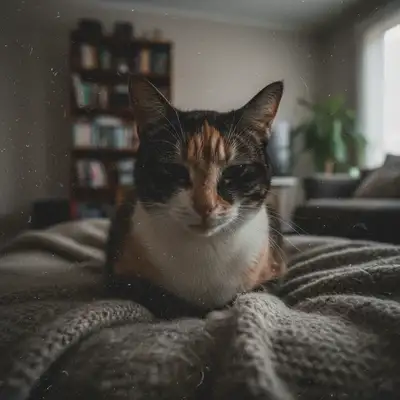
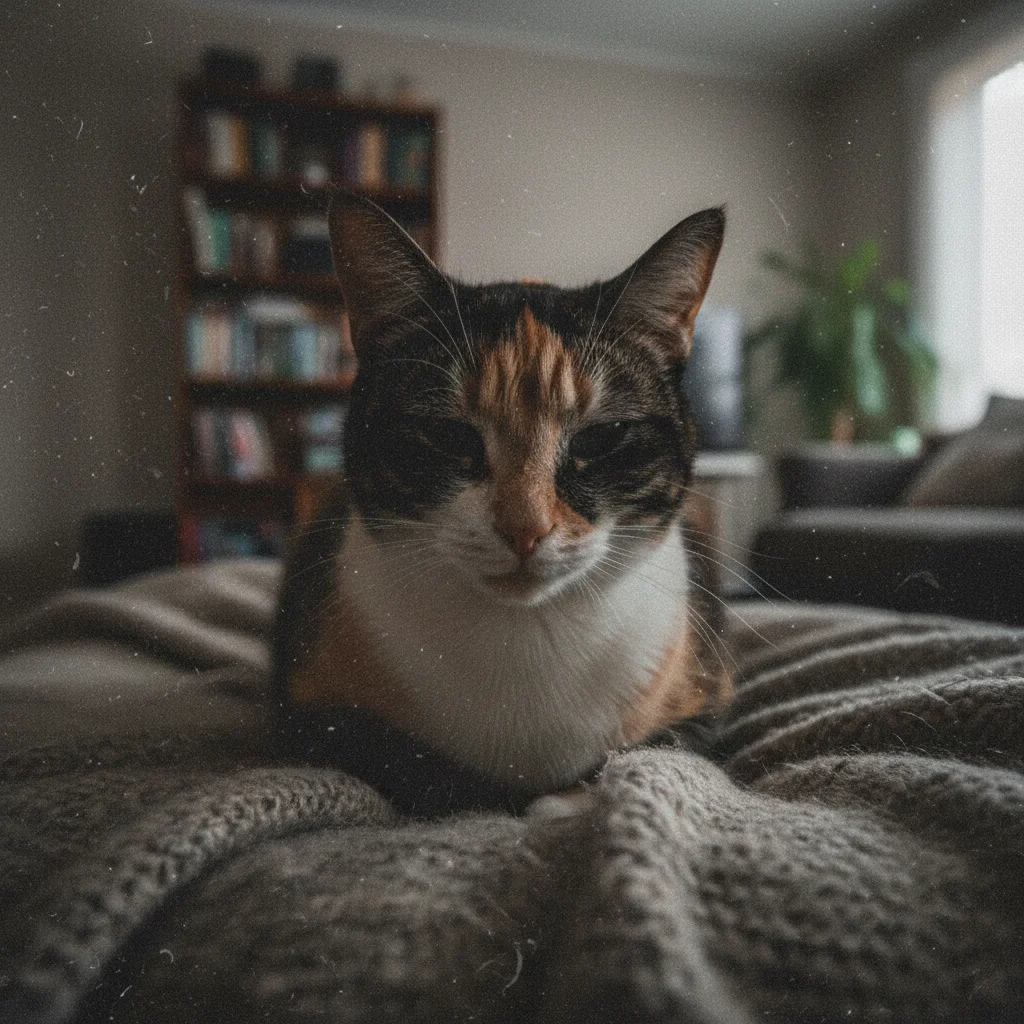
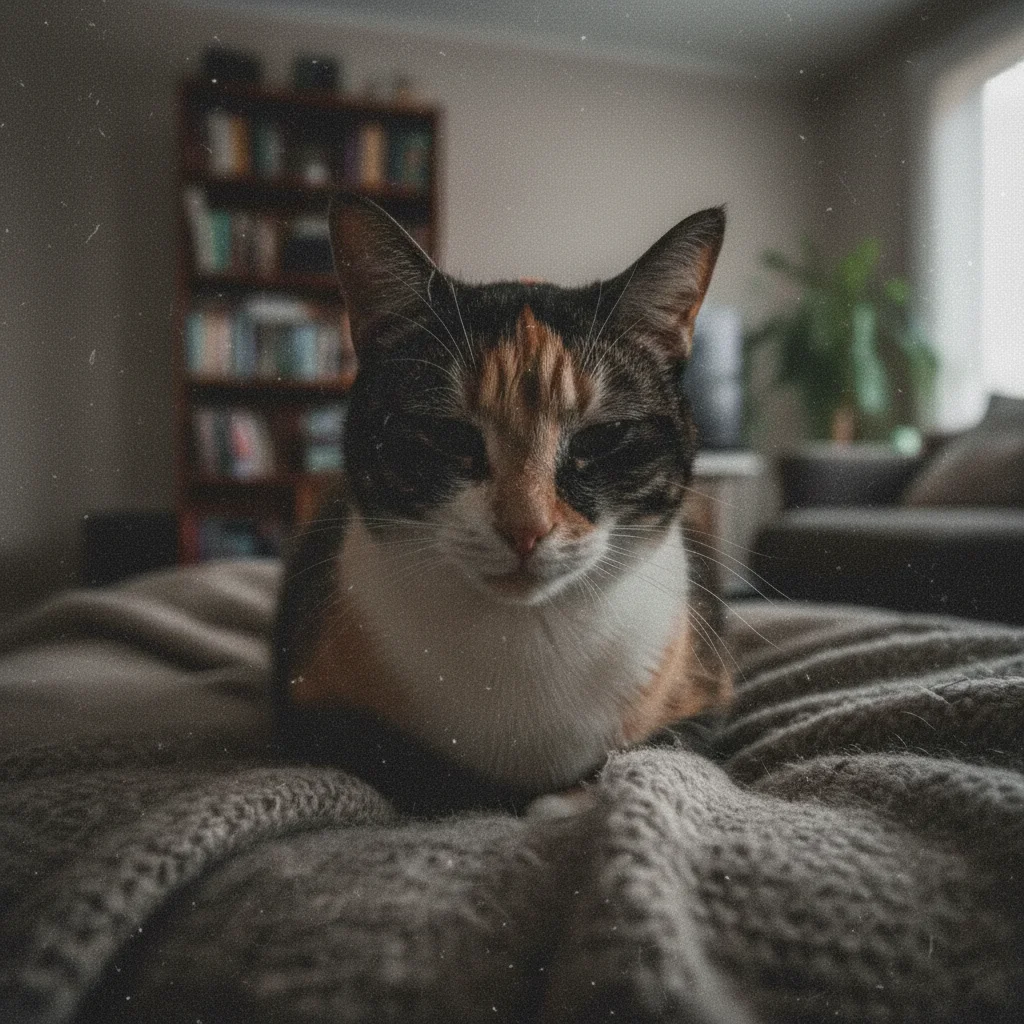
Remove Noise from Photo
Clean up grainy, noisy photos with a simple text description.
Type 'remove the noise and grain while preserving image details' and EditThisPic's AI cleans up grainy photos in 15-30 seconds. No manual adjustments or sliders needed. Just describe what you want. Works on high-ISO shots, low-light photos, and old digital images. The AI reduces noise while keeping sharpness. Free to try, no account needed.
How it works
Upload your photo
Drop your noisy image into EditThisPic. JPG, PNG, WebP up to 7MB. High-ISO photos, low-light shots, and compressed images with artifacts all work well.
Describe what you want
Type your instruction: 'remove the noise and grain while keeping details sharp' or 'reduce the digital noise for a cleaner look.' Specify if you want aggressive or gentle noise reduction. No marking needed - the AI processes the entire image.
Copy one of these to get started:
remove the noise and grain while preserving image details and sharpness
reduce the high-ISO noise from this low-light photo, keep the subjects sharp
remove noise while keeping natural skin texture, avoid making skin look plastic or waxy
remove the color noise and speckles, keep luminance details intact
3 more prompts
aggressively remove all grain and noise, smooth the image significantly
clean up the noise in this night photo while preserving star points and light sources
remove the sensor noise and compression artifacts from this old digital photo
Generate and review
Check the result at full zoom. Verify noise is reduced, skin textures look natural (not waxy), and important details like hair and fabric texture are preserved.
Refine with markers if needed
If certain areas need more or less noise reduction, tap markers on those spots and regenerate with adjusted instructions. This is optional for most photos.
"My concert photos were so grainy from high ISO. One prompt and they look professional now!" @concertphoto_lisa
See it in action
Concert photo cleanup
High-ISO shot from a dark venue. AI reduced the grain while keeping the performer sharp.
reduce the high-ISO noise from this low-light photo, keep the subjects sharp
Portrait denoise
Indoor portrait with noise from low light. AI cleaned it up while keeping natural skin texture.
remove noise while keeping natural skin texture, avoid making skin look plastic or waxy
Night city photo
Urban night shot with heavy grain. AI cleaned the noise while preserving city lights.
clean up the noise in this night photo while preserving star points and light sources
If something looks off
Image looks too smooth or plastic after noise removal
Why: The AI removed too much texture along with the noise, creating an artificial appearance.
gently reduce noise while preserving natural texture and fine details
💡 Words like 'gently' and 'preserve texture' tell the AI to be more conservative.
Skin looks waxy or unnatural in portraits
Why: Noise reduction smoothed skin texture too aggressively, removing natural pores and details.
remove only the noise grain, keep all natural skin pores and texture visible
💡 Portrait noise reduction should preserve skin texture even if some noise remains.
AI changed the wrong area or something I didn't want changed
Why: The AI couldn't determine exactly which area you meant from description alone. This happens with ambiguous requests.
Tap a marker on the specific area you want to change, then regenerate with the same prompt
💡 Markers tell the AI 'I mean THIS one specifically.' Use them when description alone is ambiguous.
Fine details like hair or fabric lost sharpness
Why: The noise reduction algorithm smoothed fine details that had similar patterns to noise.
remove noise but preserve fine hair detail and fabric texture
💡 Mention specific details you want to keep: 'hair strands,' 'fabric weave,' 'fur texture.'
Color noise (speckles) still visible
Why: Luminance noise was reduced but chromatic (color) noise remains as red/green/blue speckles.
remove both the color noise speckles and the luminance grain
💡 Mentioning 'color noise' specifically targets chromatic aberration patterns.
Quick answers
Do I need to mark the noise before describing?
No! Noise reduction is applied across the entire image automatically. Just describe what you want: 'remove the noise' or 'reduce the grain.' The AI processes all noisy areas. Only use markers if you want different treatment for specific areas.
Will noise reduction make my photo blurry?
Not if you specify to preserve details. Use prompts like 'remove noise while keeping sharpness.' The AI balances smoothing with detail preservation. Aggressive noise removal may soften very fine details slightly.
What causes noise in photos?
Noise comes from high ISO settings in low light, small camera sensors, image compression, and old digital cameras. The higher the ISO, the more visible grain. EditThisPic can reduce noise regardless of the source.
Can I reduce noise in just part of the image?
Yes! Tap markers on specific areas and describe what you want: 'reduce noise in the marked background area only.' This is useful when you want to keep some grain in certain areas for artistic effect.
Does this work on film grain too?
Yes, the AI can reduce film grain as well as digital noise. However, some photographers prefer the aesthetic of film grain. If you want to keep it, don't run noise reduction. If you want it reduced, use 'remove the film grain' in your prompt.
Ready to clean up that noise?
Free to try. No signup required.